Dashboard Editor Behaviors
The Dashboard Editor has built-in behaviors and functions that are useful when creating or editing a dashboard.
Dashboard Editor Context Menu
Use the Dashboard Editor context (right-click) menu to quickly access common Dashboard Editor operations.
Search for Widgets
- Widget Search control
 : Use to search for a widget by name (example:
Incident or
My), description, or type (example:
Gauge).
: Use to search for a widget by name (example:
Incident or
My), description, or type (example:
Gauge).
- View option
 : Use to
view/hide folders in the widget tree or show widgets from other folders
(Roles/Users/Teams/Customer Workgroups). If hiding folders in the Widgets tree,
all widgets can be displayed at the root node, regardless of how they are
organized/stored in the tree.
: Use to
view/hide folders in the widget tree or show widgets from other folders
(Roles/Users/Teams/Customer Workgroups). If hiding folders in the Widgets tree,
all widgets can be displayed at the root node, regardless of how they are
organized/stored in the tree.
Select a Widget
Select a widget or click-and-drag (rubber-band) over the widget. This deselects all other widgets.
A selected widget is identified by black boxes around the bounding box. The bounding box represents the widget's vertical and horizontal dimensions.
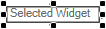 .
.
Select Multiple Widgets
- To select multiple widgets, you can either:
- Hold down the Ctrl key while you select each widget in turn.
- Click-and-drag (rubber-band) over the widgets you want to select. Any widget that is included (even partially) in the rubber-band box is selected.
- Press Ctrl+A to select all widgets.
- When multiple widgets are selected:
- The controlling widget is the last selected widget, and the widget against which all other selected widgets are sized and aligned.
- The controlling widget is identified by black boxes. All other
selected widgets are identified by white boxes.
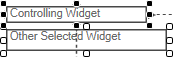
- To change the controlling widget, hold down the Shift key and select a different selected widget.
Edit Widgets
- To delete a widget, select it, and then select the Delete key.
- To edit the detailed properties of a selected widget, right-click and select Widget Properties.
- To undo/redo the previous operation, select the
Undo
 or
Redo
or
Redo
 button. Unlimited per session.
- To cut, copy, or paste in a dashboard or between dashboards, select
the
Cut
 ,
Copy
,
Copy
 , or
Paste
, or
Paste
 button.
Ctrl+X,
Ctrl+C, and
Ctrl+V also work. Multiple widgets can be copied and pasted at
one time. Select multiple widgets by rubber-banding or by holding down the
Shift key while selecting.
button.
Ctrl+X,
Ctrl+C, and
Ctrl+V also work. Multiple widgets can be copied and pasted at
one time. Select multiple widgets by rubber-banding or by holding down the
Shift key while selecting.
- To duplicate a widget, select Ctrl+Drag.
- To move a widget, drag the widget.
- To move a widget 1 pixel (nudge), select an Arrow key.
- To move a widget exactly 10 pixels, select the Shift+Arrow key.
- To precisely align a widget on a grid, toggle
Snap to Grid
 to ON. You can also set the grid snap width
(drop-down). Select
Shift+Drag
to ignore snapping.
to ON. You can also set the grid snap width
(drop-down). Select
Shift+Drag
to ignore snapping.
- To precisely align a widget to other items, toggle
Snap to Guide
 to ON. Select
Shift+Drag to ignore snapping.
to ON. Select
Shift+Drag to ignore snapping.
- To pan across a dashboard, select Spacebar+Mouse.
- To maintain aspect ratio when resizing, hold down the Shift while sizing.
- To wrap text in a text widget bounding box, select the
Text Wrap button
 .
.
Dashboard Theme Behaviors
When adding controls to a dashboard, controls inherit their properties (border color, background color, font, etc) in line with the following behaviors:
- New dashboard with no theme applied: New controls use existing system default values.
- New or edited dashboards with a universal theme applied: New controls use universal theme values.
- New or edited dashboards with a classic theme applied: New controls use classic property keys with values from the classic theme.
- Exception: When widgets are added to a dashboard, these retain the keys and values from the widget theme, not that of the host dashboard.