Searching for Contact Records
Searches can be based on indexed fields, primary and additional contacts, e-mail addresses, and user-defined fields. Use the following procedure to search for a contact record.
| 1. | Open a contact record. |
| 2. | In the contact record, do one of the following to open the Contact Search Center: |
○ Double-click on a field such as Company or Contact.
○ Right-click on a field and select Lookup <field name>.
○ Click Search 
○ Type search criteria in the search field at the top of the Navigation Pane and click Go.
The Contact Search Center opens with the selected field.
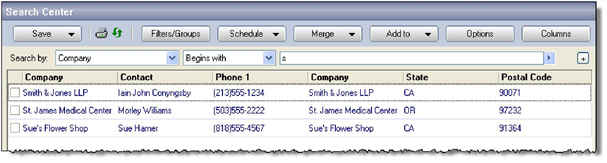
The default search tool uses Filter Expression Operators and Boolean Operators, and can be expanded to include many criteria. An optional SQL Query Editor (see Contact Search Center Query Editor) can be used simultaneously. For more information on filter expressions, see About Filters and Groups or contact your administrator.
| 3. | Select a Field from the Search by drop-down list. |
TIP: You can also type ALT+O to select Additional Contacts.
For additional information about the fields displayed in the Search-by list, see "Setting Options for the Lookup Tab" in the Administrator Guide or Online Help.
For additional information about the fields displayed in the Search-by list, see Setting Options for the Lookup Tab .
| 4. | Select an Operator Specifies the value a field must have in order to be included in a record selection criteria. Examples of operators include the following: equal to, greater than, lesser than or equal to. filter expression from the drop-down list (see Filter Expression Operators). Specifies the value a field must have in order to be included in a record selection criteria. Examples of operators include the following: equal to, greater than, lesser than or equal to. filter expression from the drop-down list (see Filter Expression Operators). |
| 5. | Type the search Value after the filter expression operator in the Value text box. |
NOTE: Brackets “[" or “]” are not valid characters to use in searches in the Contact Search Center.
| 6. | If necessary, change the displayed columns (see Browser Column Selection). |
TIP: Change the width of a column to optimize the display. Change the size of a column using typical Microsoft Windows mouse functions on the border of the column at the heading level. For more information see the Microsoft Windows documentation.
| 7. | To expand your boolean search, click Add  at the far right of the Search by menu. at the far right of the Search by menu. |
A new menu appears beneath the previous menu, preceded by an AND or OR option.
○ Select AND to create a search that returns records matching all of the criteria.
○ Select OR to create a search that returns records matching any of the criteria.
Records matching all criteria are returned:

Records matching any criteria are returned:

| 8. | Right-click in the browse columns to access other functions. The browser columns local menu appears. |
|
o Sync Contact |
Updates the Contact Record |
|
o Select Columns |
Launches the Browser Column Selection dialog box, allowing you to select the displayed fields (see Browser Column Selection). |
|
o Tag All |
Selects all Contact Records currently displayed in the window. |
|
o Release All |
Deselects all selected Contact Records in the window. |
|
o Set Record Scroll Order |
Changes the scroll order of contact records to match the order seen in the Contact Search Center |
|
o Output to |
Allows you to select an output target for the displayed search results. Select printer, Word, Excel, or clipboard. |
|
o Find |
Launches the Find dialog box, allowing you to type a value and search on it (see Contact Search Center). |
|
Activates Grouping functionality in the Contact Search Center (see Creating Contact Search Center Groups). |
|
|
o Summary |
Displays a numeric summary of the number of contacts in the current list at the bottom of the window. |
|
o Filter |
A pull-down menu appears in each column header, allowing you to select from all available field entries, or one of the following options: o Blanks: Displays only blank fields o Non Blanks: Displays only non-blank fields o Custom: Opens the Custom AutoFilter dialog to filter the column using a boolean equation. Choose one or two filter expressions, a boolean operator, and type values. |
Schedule an activity by working with the Center and the GoldMine Calendar. Select a contact to be scheduled and drag it to the open Calendar. When you release the mouse button, GoldMine displays the Schedule an Activity window. Use it to schedule an appointment or other activity for the selected contact.
| 9. | Save your search criteria as a Filter or search results as a Group (see Saving Search Results as a Group). |
Saving Search Criteria as a Filter
After creating a search in the Center, save it as a filter search.
| 1. | After creating a search, you can save the results as a group by user or to public. |
| 2. | Click the Save button and select Save as Group. |
| 3. | On the New Group dialog box, enter text or use F2 Lookup Special type of browse window that can be customized to contain frequently used or code-specific entries. Security options can control F2 lookups to ensure user input and allow standardization of data. List for the following fields: |
○ Filter Name
○ User
| 4. | Click OK. |
The results are saved and the Filters list and available by clicking the Filters/Groups button. The filter name appears below the specified user's filters in the list.
Syncing Contacts in the Contact Search Center
When working with Center search results and Records, apply the Sync Contact option.
| 1. | In the Center, display search results in the browse columns. |
| 2. | Right-click in the browser columns and select Sync Contact. The record you select in the browse columns automatically becomes the displayed Record. |
| 3. | Turn off Sync Contact using the same method. |
Creating Contact Search Center Groups
Create custom Groups in the Contact Search Center using the drag-and-drop Group function. The settings can be saved for future use and edited in the Group tab of Filters and Groups.
To Create a New Group
| 1. | Right-click in the column area and select Group from the drop-down menu. A grouping area appears above the column headers. |
| 2. | Drag column headers into the grouping area. Once in place, the headers can be moved around to determine sort order. |
| 3. | Expand contacts in the resulting grouped list and use the checkboxes to tag individual contact records. |
| 4. | To change or remove group settings from the list, drag the column headers back to the main table. Placement in the column order is indicated by green arrows in the column header area. |
| 5. | To save the current Group settings, click Save in the Contact Search Center toolbar, and select either Only Tagged Records (You can only save this as a Group), or All Listed Records (You may save this as a Filter or a Group). |
| 6. | To remove grouping from the contact list, right-click in the column area and re-select Group. |
