Matching Panel Configuration
While creating an incident from self service the setup suggests some related documents and articles, such as help guides, FAQs, etc. These document are fetched using matching panel configuration.
In each business object there are Matching Panel settings in the associated Layouts. Using the matching panel settings you can:
•Configure different sections such as FAQs, Knowledge Base, Help Guides and more to segregate and list the variety of the documents.
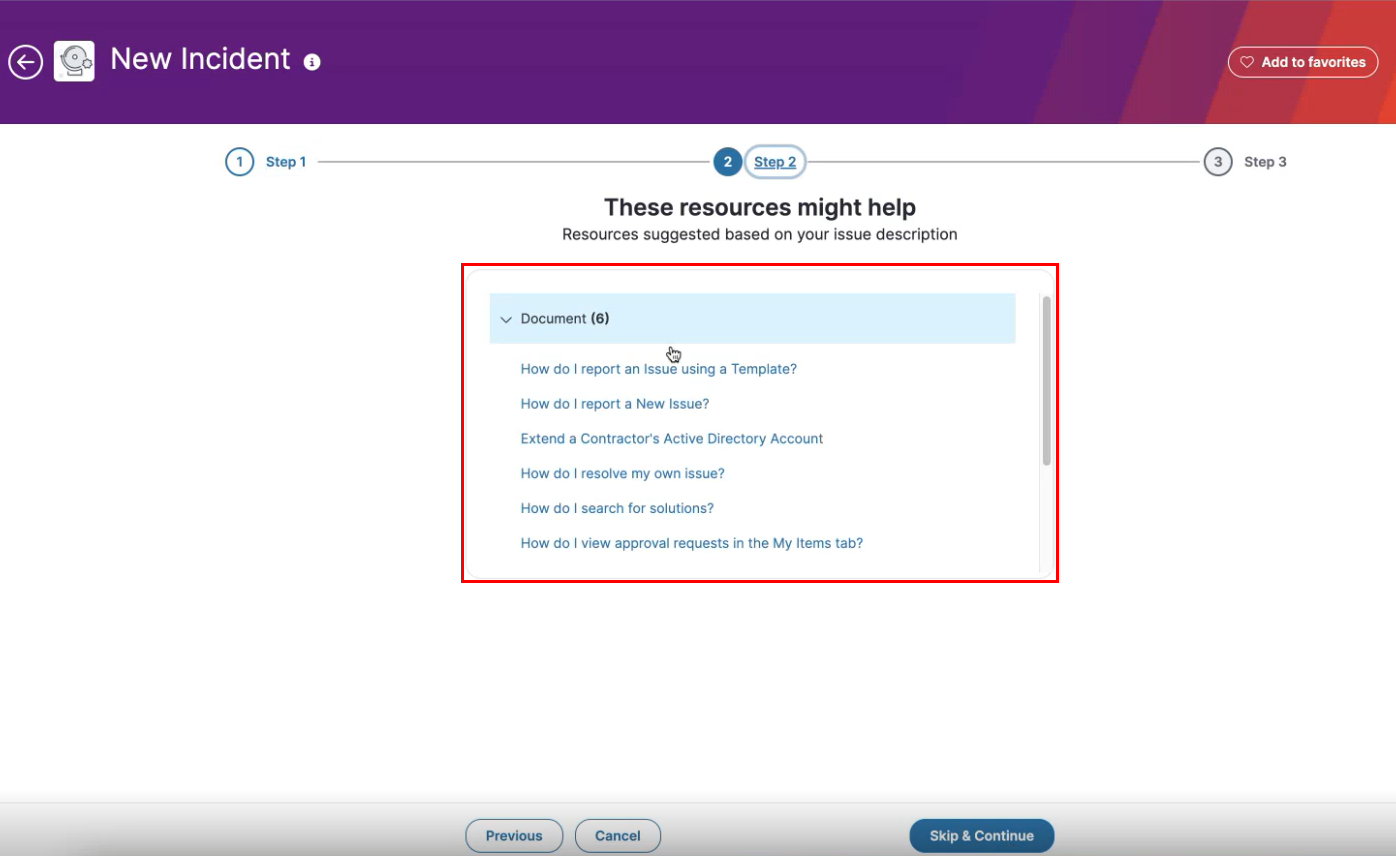
•Create different call-to-actions that creates the incident with the information that maps to the different fields of the incident.
To disable the case deflection steps, the administrator needs to disable the matching panel for a given layout.
To create and edit the Matching Panel settings:
1.Log in to Neurons for ITSM as an Administrator.
2.Open the Configuration console > Build > Business Objects > Incident.
3.Click Layouts tab, select a layout, and open the formEdit view.
4.Click Edit Matching Settings next to Enable Matching panel.
5.Select Edit Preview of an Object Name. You can also add another object using the  .
.
6.Enter the Preview Item format details such as Title Field, Preview Text Field, select a Form for Hover Panel, and click Add New Button.
7.Enter Button Label, check or enable Link matched Problem with main Incident# select the Incident#. from the drop down, and Save the configuration.
While creating an incident from Service Catalog as a Self Service user you select the template, the incident fetches all the information from the template and update the request with the same information.
To create an incident and select the template from Self Service:
1.Log in to Neurons for ITSM as Self Service.
2.Switch to Service Catalog and select a service request card.
3.Enter title and description, and click Continue.
4.Select the related resource based on the Object Name list and click the button created from the Matching Panel settings.
5.Select Urgency and click Submit.