Summarize Incident
Role: Administrator.
Platform: SaaS only.
Minimum Version: Ivanti Neurons for ITSM 2024.2.
Feature Eligibility: Ivanti's AITSM capabilities are available to customers who have subscribed to Premium or Enterprise Premium license. To know your eligibility, reach out to your Ivanti Account Manager.
Package Installation: Existing customers - import the latest package.
The Summarize Incident capability delivers AI-powered efficiency through advanced summarize AI technology, enabling incident ticket summarize functionality for faster decision-making. With a single click, the system generates an AI summary by analyzing key fields such as Summary, Description, Urgency, Category, and Journal, creating a clear and concise IT service desk incident summary.
This intelligent service incident summary feature helps Service Desk Analysts save time by eliminating the need to manually review multiple fields. Instead, they can quickly understand the context and focus on resolving the issue faster. By reducing effort and improving accuracy, this capability streamlines workflows and enhances overall service desk productivity.
Configuring the Summarize Incident button
The Summarize Incident button is not available by default for existing customers; the Administrator must specifically add it to the Incident layout. However, for new users, the Summarize Incident button is available out-of-the-box by default.
Adding the Summarize Incident button to the Incident Layout
1.Log in to Neurons for ITSM as an Administrator.
2.Open the Configuration console > Build > Business Objects > Incident > Layouts tab.
3.Select the Incident Business Object layout used for the role you want the AI Summary button implemented.
4.Click formView to edit the form.
5.Click Edit under the Toolbar field. The Toolbar Editor page is displayed.
6.Drag the Summarize Incident into the toolbar.
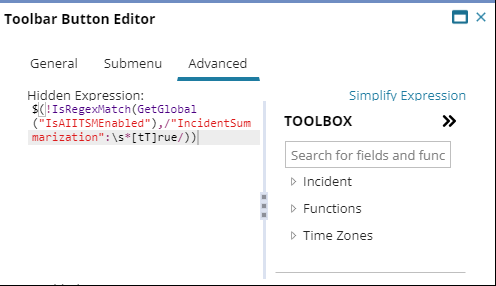
The Toolbar Button Editor window is displayed.
7.Click Advanced and enter the following expression:
$(!IsRegexMatch(GetGlobal("IsAIITSMEnabled"),/"IncidentSummarization":\s*[tT]rue/))
8.Save the changes.
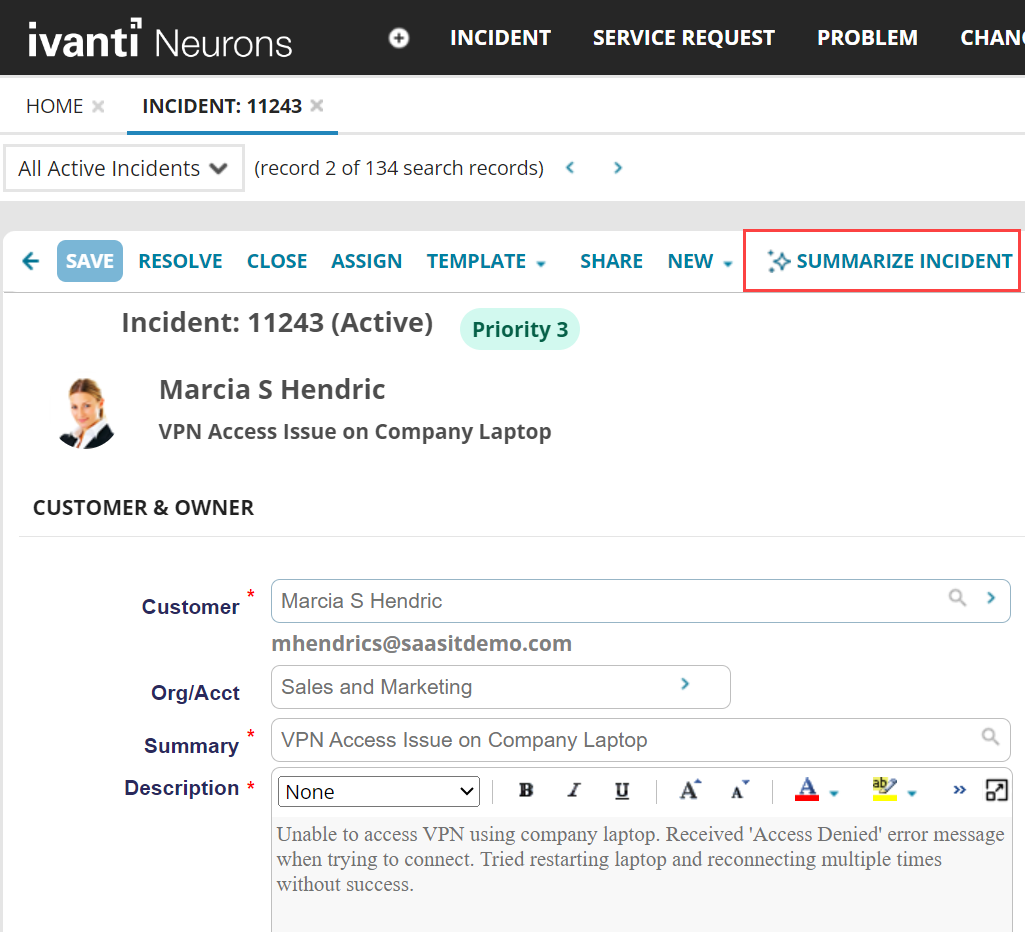
9.Open the Incident page, the Summarize Incident button should be available.
AI Summary button in Incident Page
Using Summarize Incident
1.Log in to Neurons for ITSM as a Service Desk Analyst or any role having access to the Incident workspace.
2.Open an Active Incident.
3.Click the Summarize Incident button.
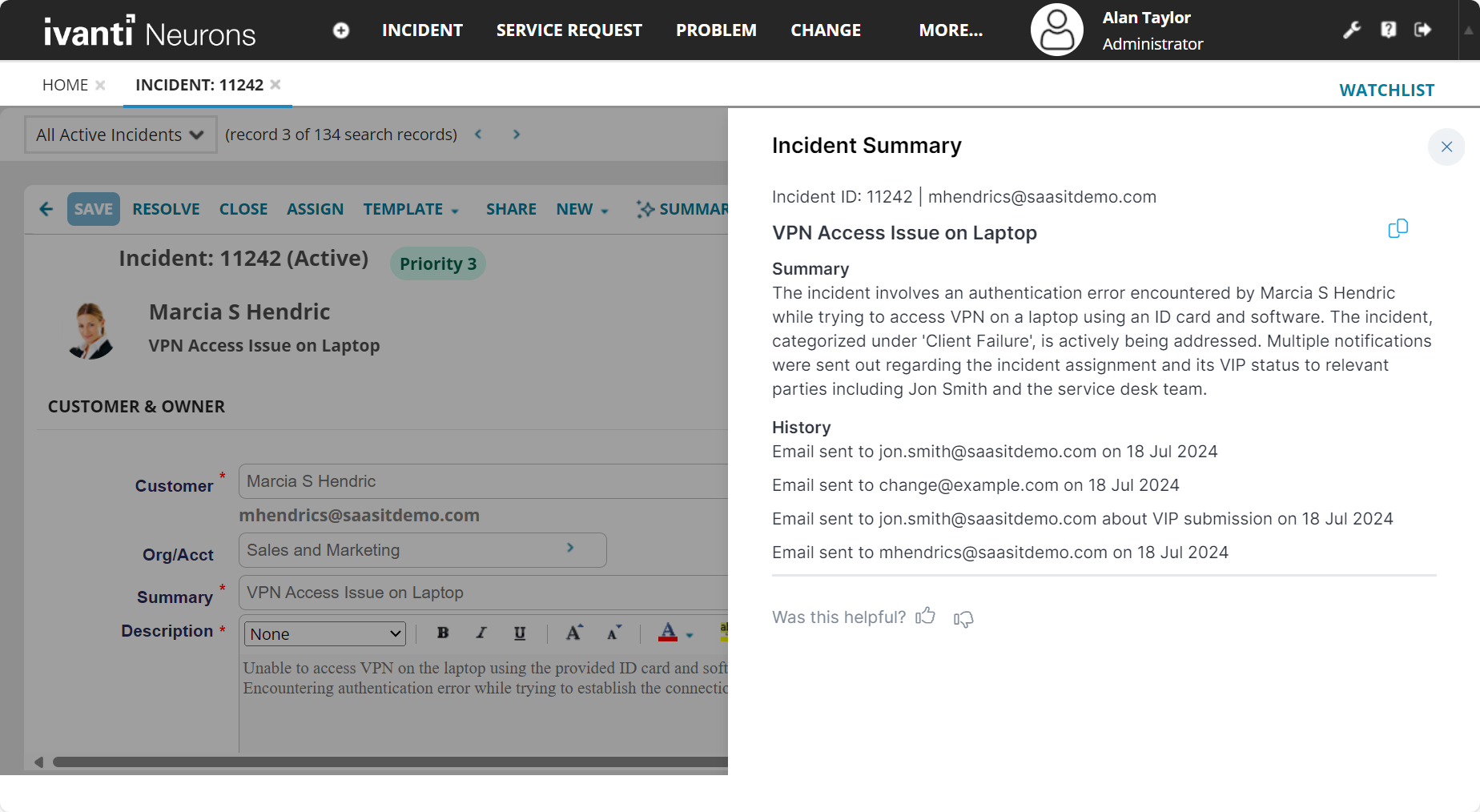
The AI generated summary is displayed on the side panel. The Summary section explains the issue and the History section details all the interactions to date.
• The application takes up to ten seconds to generate the summary.
• Ensure you provide sufficient details in the Description and Summary fields to be able to generate the incident summary.
4.Click the Copy icon  to copy the content to the clipboard in case you wish to use copy and paste the content into another application or document.
5.Click thumbs up or thumbs down at the end of the page and enter your comments. Sharing your feedback helps us improve the capability.
AI Generated Summary