About Workspaces
A workspace is a module in Neurons for ITSM. Each workspace has different capabilities and is used for performing different functions.
Your workspace is set up with your role in mind, each role has a defined workspace. Workspaces display forms and dashboards for the modules and are specific to the different user roles.
If a module is the key process for your role, that module appears when you log in to the application. If you have access to multiple roles, you have the option to select the role in which to work when you log in.
You might see a different view of the same module if you log in with different roles because your permissions to perform certain tasks are role-based. For example, if you are a Service Desk Analyst, although you have access to the change module, you won't see or have access to all the functionality that is available to the Change Manager.
Only users with Administrator role can add a workspace to a role.
 Accessing Workspaces (classic ITSM)
1.Log in to Neurons for ITSM.
2.Click on the workspace name in the top header bar, for example, Incident.

The workspace tab appears in the top tab bar and the workspace opens in the main pane.
3.Click More to view additional workspaces. If the workspace you want does not appear on the list, enter the name of the workspace in the Search Objects box and click the blue arrow or press ENTER key.
Click Additional Workspaces to see workspaces that are also available to you but not visible in your Workspaces list.
If you do not see or cannot open a workspace, you probably do not have permission to access that workspace. The administrator controls workspace permissions. Refer to Working with Roles for information about setting permissions.
Accessing Workspaces (ITSM via Neurons Platform)
As part of a unified product experience via Neurons Platform, there is an updated navigation experience. This is switched off by default but can be enabled by your Administrator.
This feature is Early Access only and may not be available in your environment. For more information, please contact your Customer Success Manager.
Navigation (left hand side)
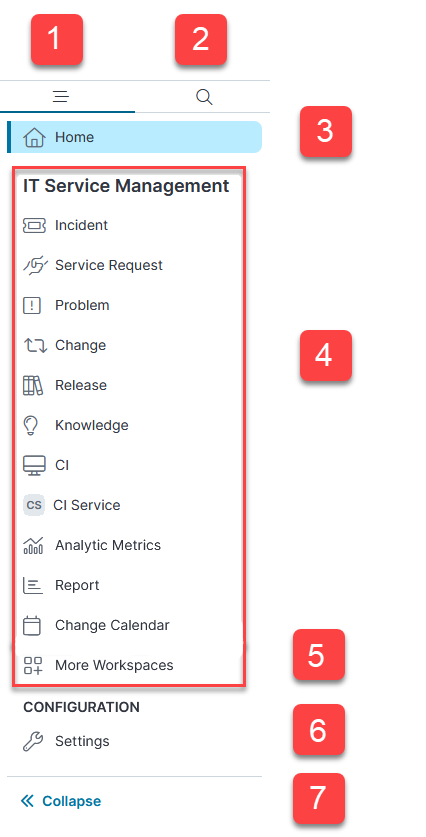
- Navigation tab.
- Search: Use Search to search for all the workspaces available for your role.
- Home: Your home page with dashboard and content as determined by the Administrator.
- Product-dependent section: Section of features that differs depending on which product you are using: Ivanti Unified Endpoint Management (UEM), Ivanti Modern Device Management (MDM), or Ivanti IT Service Management (ITSM).
- More Workspaces: A list of workspaces available for your role.
- Settings: No change from classic ITSM navigation.
- Collapse: Select to reduce the navigation to icons only.
Top header bar

From left to right:
•New navigation: Select this option to switch between new and classic navigation for ITSM. When you log out, your choice of navigation is retained for when you next log in again.
•Full screen: Select to go full screen mode; click Esc to exit full screen.
•Social Board: Select to open the Social Board. Refer to Working with Social Board.
•Chat disconnected: Chat icons are only visible if Chat is enabled for your role. There are different icons for when Chat is connected and for when unread messages are waiting. Refer to Configuring the Chat Feature.
•Help menu: Menu for accessing this guide for administrators and users and a separate guide for Self Service users.
•Neurons App Switcher: Switch to other products available within your organization such as Ivanti Unified Endpoint Management (UEM) or Ivanti Modern Device Management (MDM).
•User profile menu: Includes the ability to change role, change locale, change password, change picture, and log out.