Alerts
The Alerts module is not available OOTB. This workspace appears only if your administrator has configured it for your role.
The Alerts workspace allows you to view important notices, including:
•System or application errors (such as performance issues or application shutdowns)
•Warnings
•Informational messages.
Alerts help you proactively identify and address issues before they affect users.
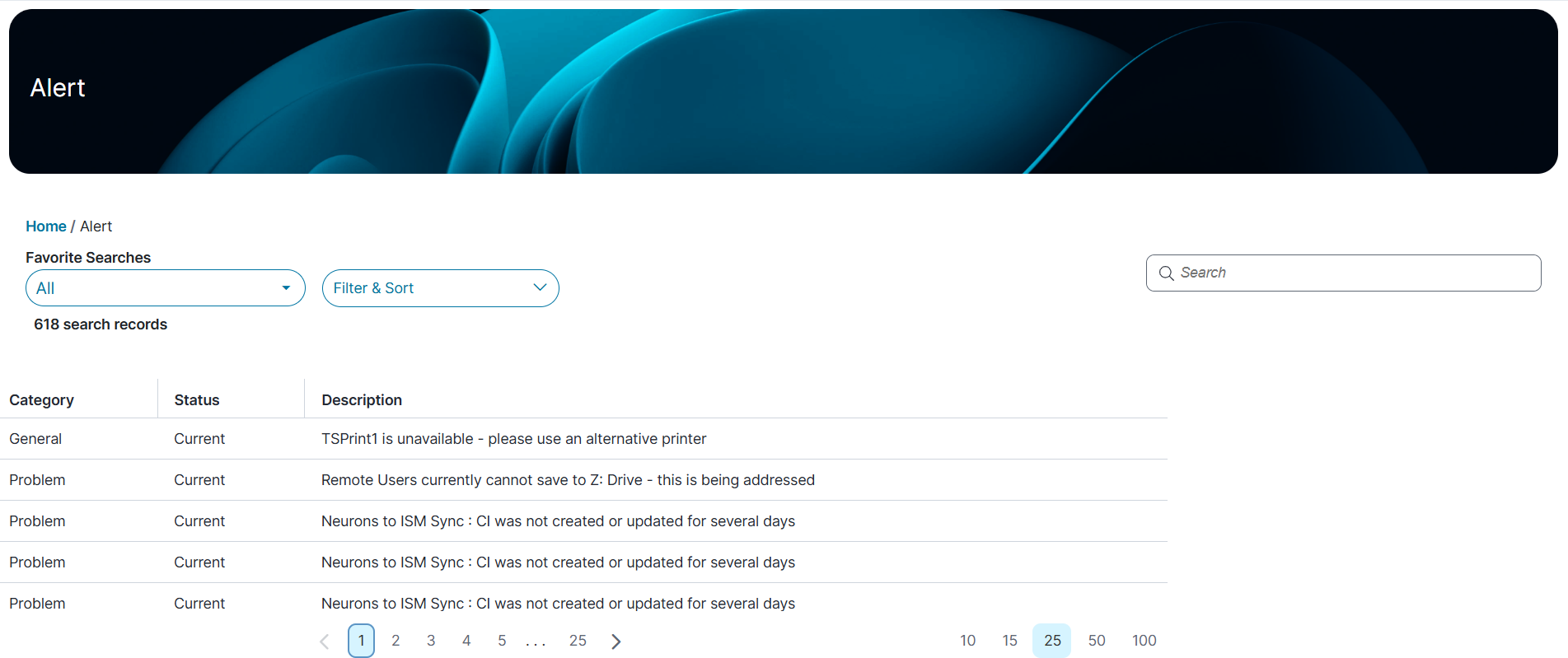
 Accessing Alert workspace
1.Log in to Neurons for ITSM.
2.From the left menu, select Alerts.
The list of alerts display showing key details such as the category, status, description.
3.Click a number below to display the corresponding set of alerts on the page.
View and Managing AlertsView Alert Details
1.Click the alert you want to view.
The following details are displayed:
•Category
•Status
•Detailed Description
•Severity
•Created By
•Last Modified By
•Created Date
•Last Modified Date
Sort Alerts
1.Click Filter & Sort dropdown list.
2.Choose one of the following sort orders:
•Ascending
•Descending
3.Choose a field to sort by:
•Category
•Status
•Description
4.Click Apply, to sort the list.
5.To remove sorting, click Reset All.
Search Alerts
1.In the Search box, enter a keyword.
2.Click Enter.
The list updates and matching alerts are displayed.
Customize alert view in Self Service mobile application
1.In the Alerts workspaces, click All from dropdown list.
2.Click the Tile View  icon to display alerts as tiles (or bricks).
The tiles optimize space and readability of data.
3.Click the List View  to view the records in list records view.
The list records view shows records as rows.