Knowledge
The Knowledge module is not available OOTB. This workspace appears only if your administrator has configured it for your role.
The Knowledge workspace allows you to access all articles available in the Knowledge Center to find solutions or workarounds for your issues. It displays the most helpful and latest articles to assist you in troubleshooting your queries.
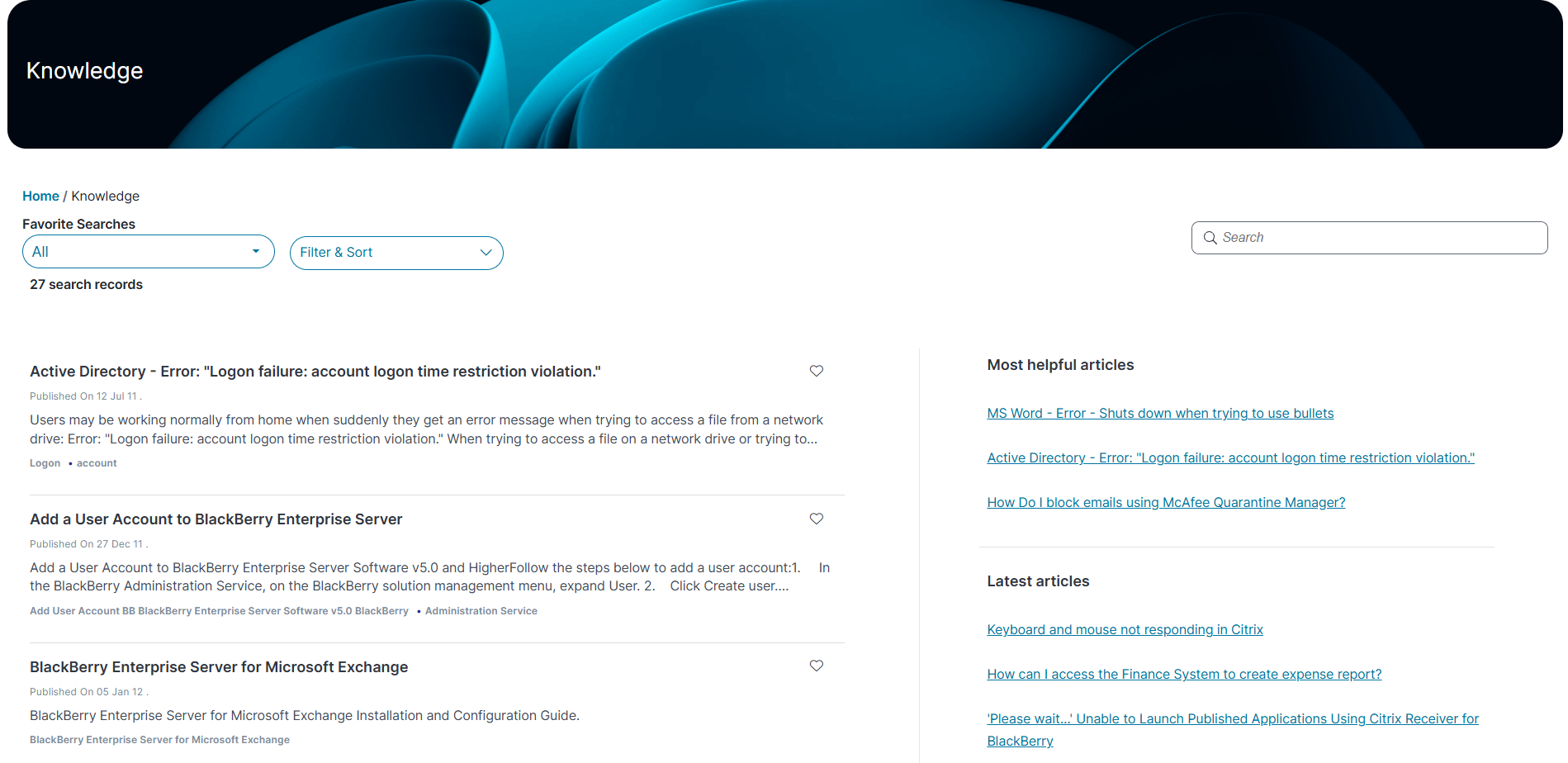
 Viewing Knowledge articles
1.Log in to Neurons for ITSM.
2.From the left menu, select Knowledge.
The list of Knowledge articles are displayed.
3.Click an article to view the content.
To search for a specific knowledge article, enter a keyword in the Search field (upper-right corner of the page) and press the Enter. The matching results are shown.
Search for a Knowledge articles
1.In the Knowledge workspace, enter a keyword in the Search field.
2.Press Enter.
The list of Knowledge articles are displayed.
Filter and Sort articles
In the Knowledge workspace, you can use Filter & Sort to narrow or organize the article list.
To filter articles
1.Click Filter & Sort dropdown list, and expand Filter By
2.Choose from the following filter options:
•Author - Mine
• Assignment - Unassigned, My Team, Mine
•Status - Pending, Published, Pending Approval, In Review, Archived, etc.
•Published Date - Today, This Week, This Month, This Year
•Effective Date - Today, This Week, This Month, This Year
•More Option - Linked to an - Incident, or Problem, or CI
•Category - Accessibility, Backup, Desktop - Hardware, Software, Phone, etc.
•User Rating - Based on number of stars
•Created On - From the last 7 days up to 1 year
•Knowledge type - Document, Error Message, FAQ, Patch, Q&A, Reference
To sort articles
1.Expand Sort By
2.Choose a sort order: Ascending or Descending
3.Select a sort field:
•Title
•Description
•Published Date
•Keywords
4.Click Apply to update the articles.
Use Favorites to Save and View Knowledge Articles
This feature is available only if your administrator has enabled it for your role.
You can mark important knowledge articles as favorites to easily access them later from a filtered view.
Mark an Article as Favorite
In the Knowledge workspace, click the Favorite  icon next to the article you want to save.
•The icon changes to  show the article is now a favorite.
•A confirmation message appears, and the article moves to the top of the list with your other favorites.
View your Favorite Article
In the Knowledge workspace, under Favorite Searches select My Favorite Knowledges from dropdown list.
•Your saved articles appear based on how your administrator has configured favorite views, such as Urgent Articles, HR Policies, or All Published Knowledge Articles .
Provide feedback for an article
1.In the Knowledge workspace, select the article you want to rate.
The selected Knowledge article is displayed.
2. Click Yes or No under Was this article helpful?
3. Under Rate this article, select a star rating:
•1 star = Not useful
•5 stars = Exactly what I was looking for
4.(Optional) Enter detailed feedback in the Feedback section.
5.Click Submit Feedback.
6.To update your feedback later, click the icon, make your changes and then click Update feedback.