Logging in to the Self Service Management Portal
To log in, you must be assigned the Self Service user role. Ask your administrator for the login URL.
1.To login:
| a. | On a mobile device |
Enter the login URL provided by your administrator in the Tenant URL field. or tap Scan Tenant QR, and allow camera access when prompted.
| b. | On a desktop application |
Open the browser and enter URL provided by your administrator.
The login page is displayed.
2.Enter your username, and password and then tap or click Login.
3.Select the Self Service role and tap or click Submit.
The Self Service UI is displayed.
Changing your Profile Settings
You can update your password, language, and profile picture through the Profile Settings menu.
 Change your password
Passwords are case sensitive.
1.Log in to the Self Service Management portal.
2.Click  icon and from the dropdown list, click Profile Settings.
The My Settings page is displayed.
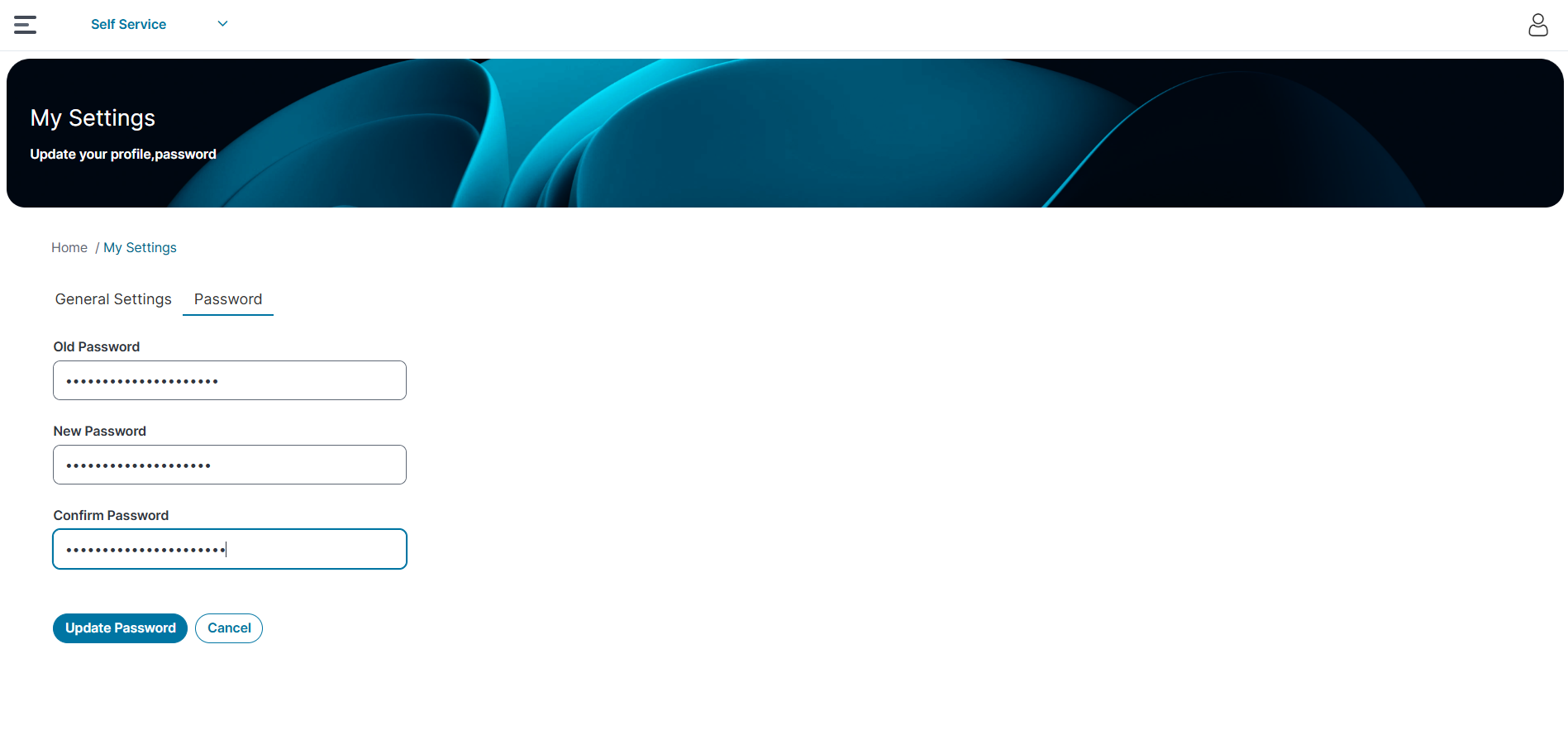
3.On the My Settings page, select Password.
4.Enter your Old Password, New Password, and Confirm Password.
5.Click Update Password.
6.Log out, and log in again using your new password.
Reset your password
This feature is only available for users authenticated through internal authorization. It does not work for external login providers.
1.On the login page, click Forgot password?.
2.Enter your username or email address and then click Submit.
A one-time reset link is sent to your registered email address.
3.Open your email and click the reset link. This link expires in 20 minutes or as configured by your administrator.
4.Click the reset link.
The Reset Password page is displayed.
5.Enter your User ID, New Password and Confirm Password.
6.Click Submit.
If you are unsure of your User ID, contact your organization's administrator.
Change your language preference
The default language is English (United States). If your administrator provides permission, you can change the interface language. The selected language remains same until you change it.
1. Click icon and from the dropdown list, click Profile Settings.
The My Settings page is displayed.
2.Select General Setting.
3.Select the language, and then click Save Changes.
The application refreshes with the selected language.
Update your profile picture
1.Click icon and from the dropdown list, click Profile Settings.
The My Settings page is displayed.
2.Select General Setting.
3.Click profile picture  icon.
icon.
The Edit Profile dialog box is displayed.
4.In the Edit Profile dialog box, click Select File select an image file and click Save.
The profile picture appears next to your username.
Change your role
1.Click icon and from the dropdown list, click Profile Settings.
The My Settings page is displayed.
2.Select General Setting.
3.Click Change Role. From the dropdown list, select the role.
The Home page updates based on the selected role.