Q&A agent
Minimum Version: Ivanti Neurons for ITSM 2026.1
The Q&A agent lets users ask questions about incidents—like checking status, viewing recent incidents, or getting details—and receive instant answers without manual navigation.
To enable and configure the Q&A agent, do the following:
1.Log in to Neurons for ITSM as an Administrator.
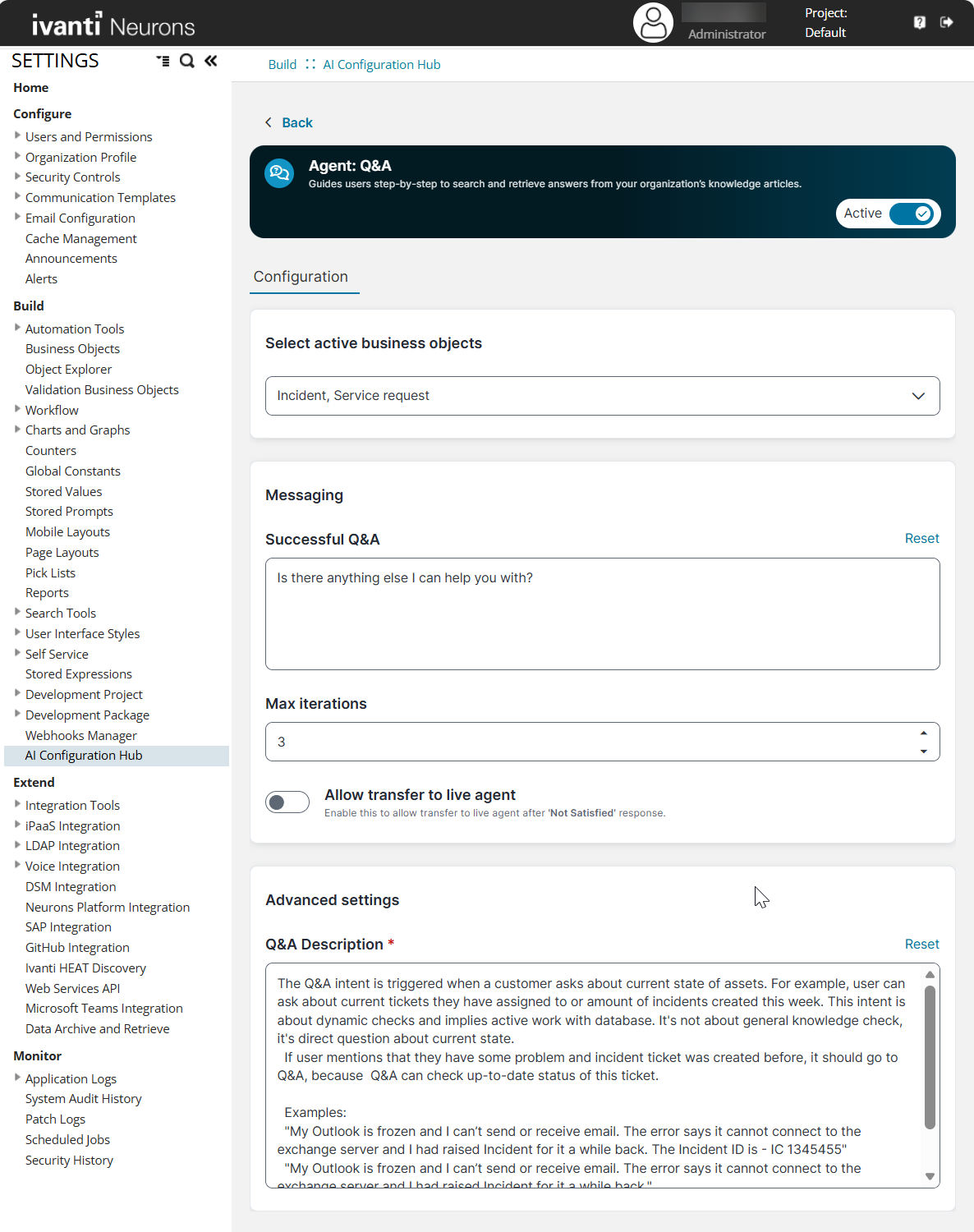
2.Open the Configuration console and select AI Configuration Hub > Agentic AI > Agent Settings.
3.Enable the Q&A agent using the toggle button.
4.Click Configure to further set up the agent.
5.From the Select active business objects dropdown, select the types of business objects that the Q&A agent can respond to. You can select Incident, Service, or both for the Q&A agent.
6.Under Messaging > Max iterations, set the number of attempts or exchanges that the Q&A agent will undertake during a session to resolve a user's query.
7.Enable the Allow transfer to live agent toggle to transfer the interaction to your Service Desk Human Agent in case the Agentic AI bot cannot solve the user's request.
Along with this toggle, you must also enable the Allow transfer to live agent toggle in Global Settings > Escalation Handling.
8.Under Advanced settings > Q&A Description, define the scope of the Q&A agent by detailing the types of Q&A the agent can handle. You can also provide some example queries related to Q&A to help the agent better understand the context. When users ask queries other than those defined here, the agent considers them out of context and replies to users accordingly.
Modifying the intent description might result in unpredictable agent behavior. We recommend that only users with experience in LLM prompt engineering make these changes.
Image of Q&A agent settings page
Fields marked with an asterisk (*) are mandatory.
Limitations
•The Q&A agent can only inquire about the status of existing incidents and service requests. It cannot modify, update, or create a service request offering. As a result, queries such as I want to modify Service Request 14572 and I want to order a Dell printer instead of an HP printer are not supported, and the agent responds to such queries with an error message.
•Certain keywords, such as active and logged, result in null Q&A responses. For example, Show my active service requests or Show my logged incidents and requests returns no results, whereas using alternative terms like open or submitted returns the expected list of incidents or service requests.
•During a Live Agent Transfer session, the End Conversation button is displayed only after the Live Analyst sends a response. Users can end the session only after the Live Agent has sent a response and the chat bot is waiting for input from the user. If the Live Agent does not respond, the session times out automatically, but the user cannot terminate the session.
•During Live Agent Transfer, a conversation summary should be sent to the Live Agent at the beginning of the session. This functionality is currently not working.
•At the end of a Live Agent Transfer session, users are not informed about what to do next. However, when the session ends, the Agentic AI is reset and users should initiate a new prompt, even if no live agent was available.
•The Agentic AI handles only IT‑related issues. Other Line of Business (LoB) queries, such as HR, Facilities, and other non‑IT requests are not supported.
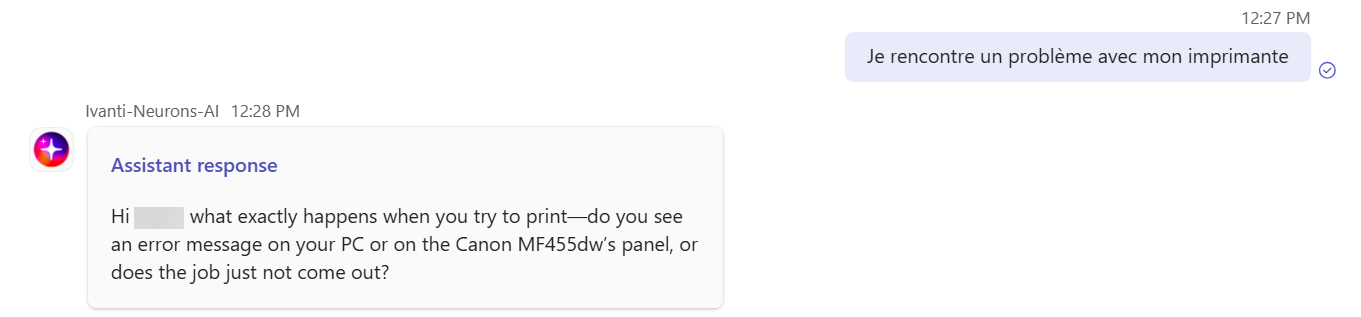
•The Agentic AI does not fully support language translation. While it understands prompts in multiple languages, it currently responds using a combination of the user’s locale and English. The following image shows an example in which the user provides input in French, but the agent responds in English: