Sample use case
When you post a query in the interface, Agentic AI assigns it to the relevant agent, analyzes your question, and initiates a conversation by asking follow-up questions based on your query.
For example, consider a typical use case as follows:
1.Open the Agentic AI bot in Microsoft Teams, and the user will receive a welcome message.
After the user submits a query, the AI bot interprets the intent as an Incident and assigns it to the Incident agent for further investigation.
After analyzing the query, the agent asks follow‑up questions to perform device mining.
Image of device mining interaction
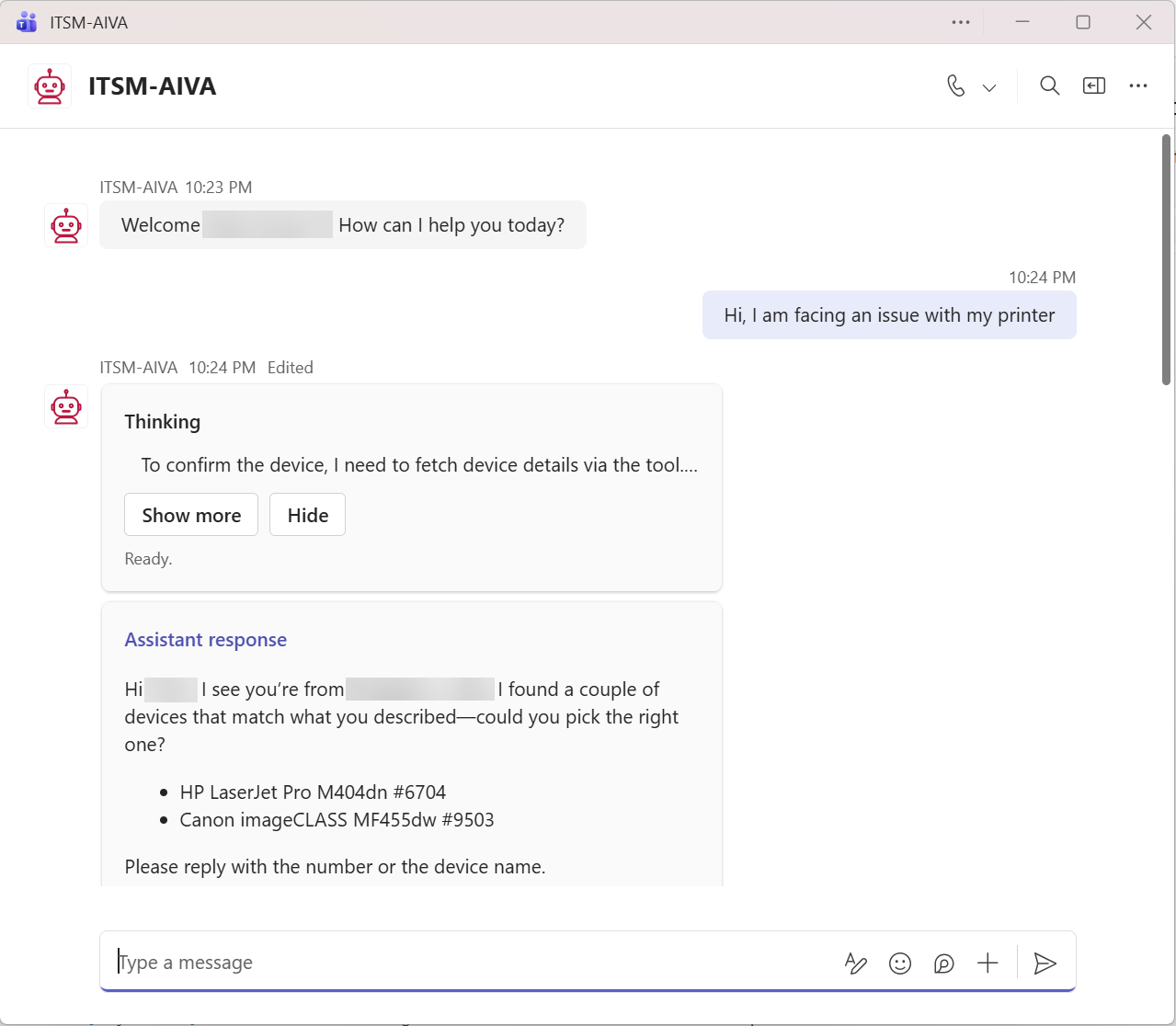
2.Select the appropriate device from the given list.
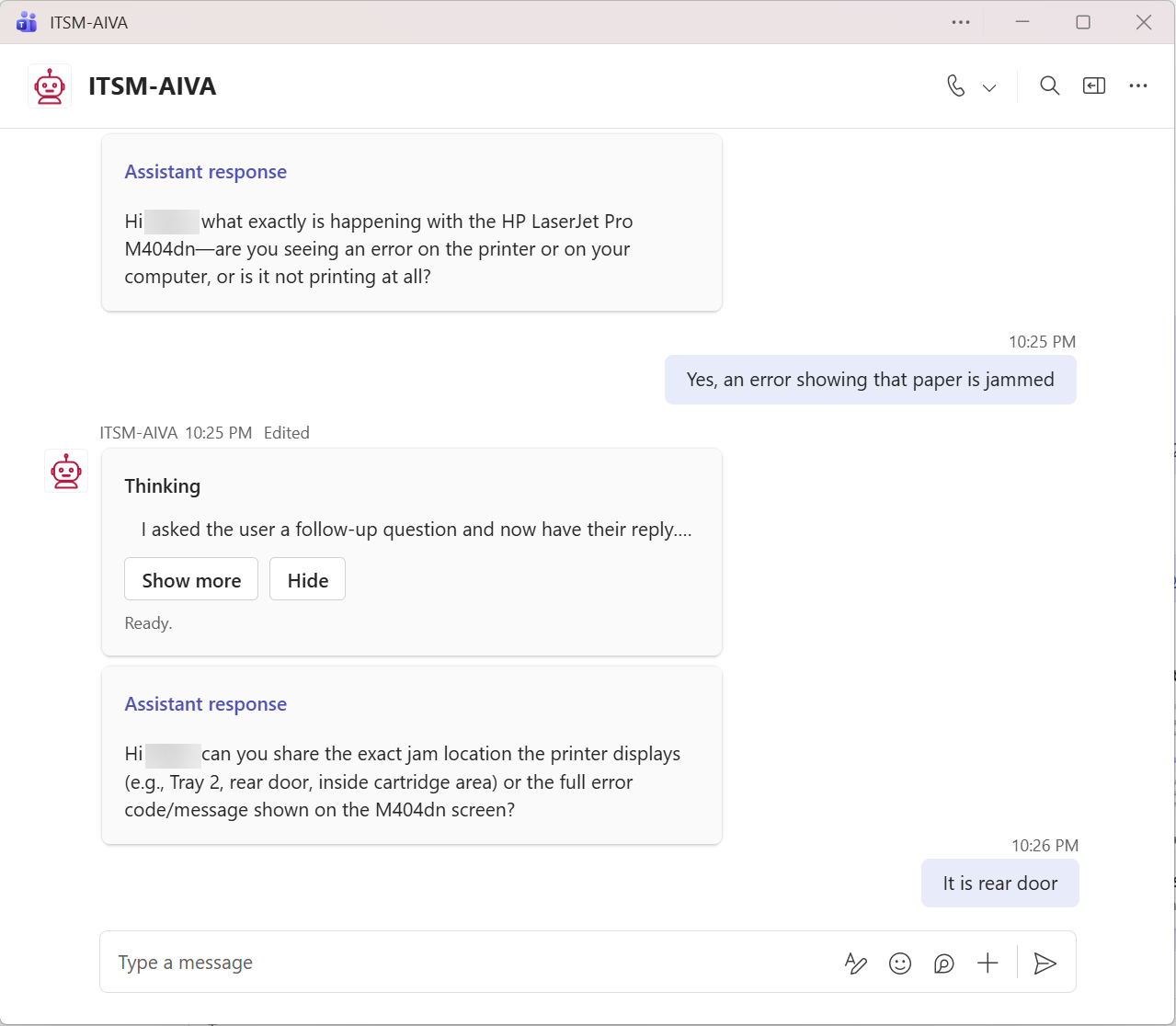
The agent then asks additional questions related to the issue the user is experiencing with the device.
Image of agent interaction with a user to clarify the device issue
The agent provides a knowledge article with troubleshooting steps to resolve the issue.
Image of sharing the knowledge articles with a user
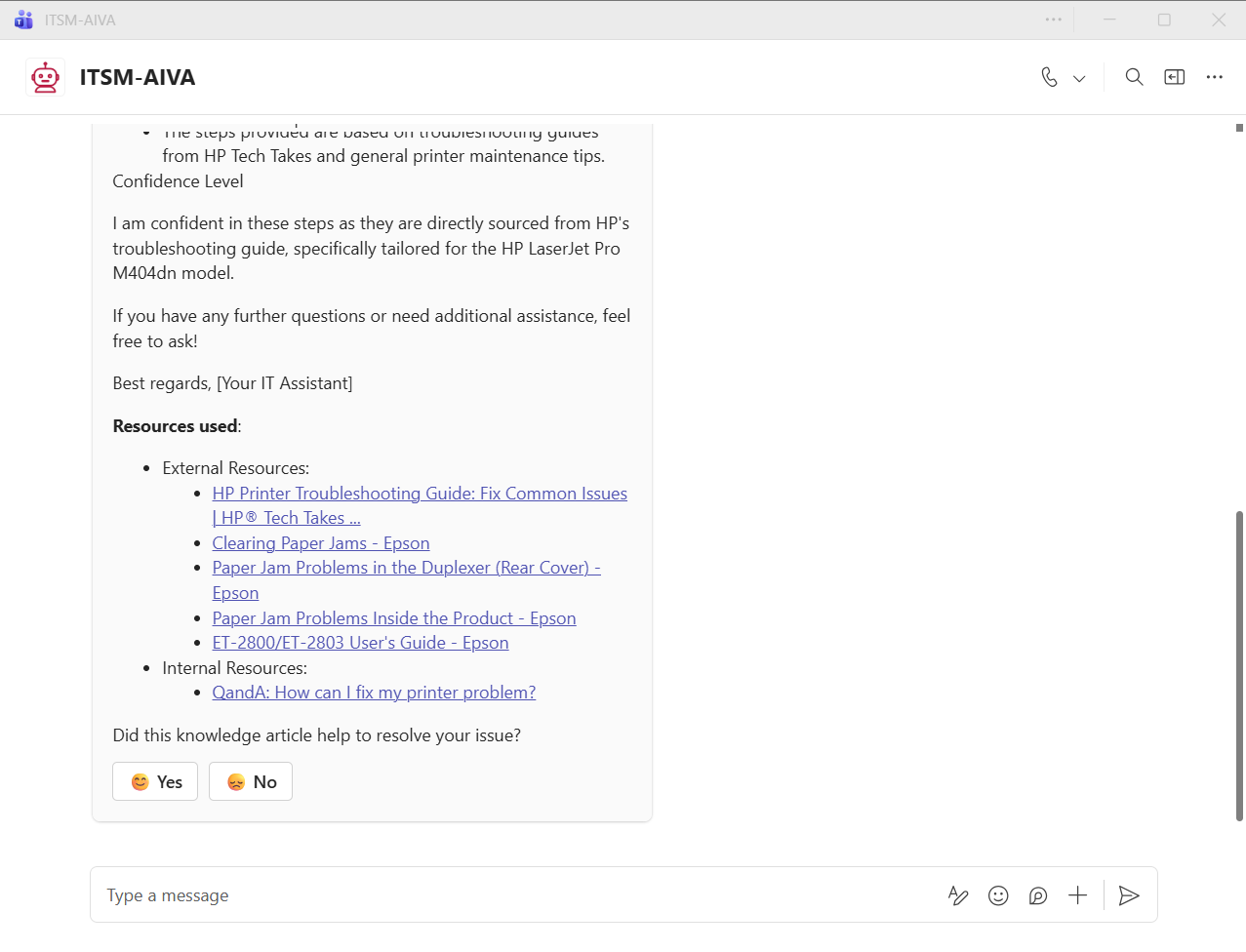
3.Click Yes if the issue is resolved using the troubleshooting steps or click No if the issue is not resolved.
If No is selected, the agent asks whether the user would like to create an incident or chat with a Live agent.
Image of the agent offering support when knowledge articles do not resolve the issue
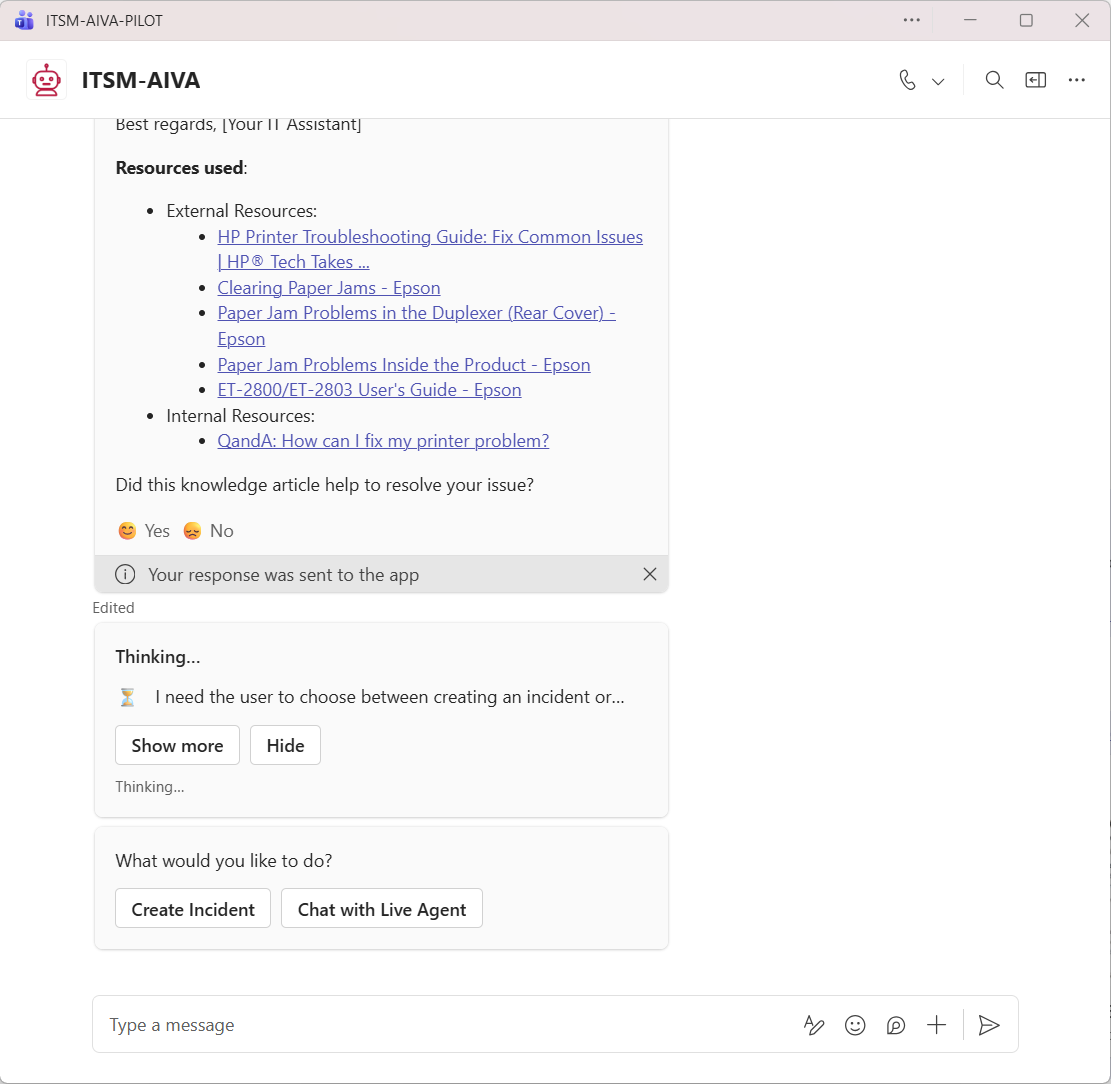
Click Chat with Live Agent to transfer the interaction to your Service Desk Human Agent in case the Agentic AI bot cannot solve the user's request.
4.When the user clicks Create Incident, the agent proceeds to create a new incident record and presents the incident draft.
Image of creating an incident record
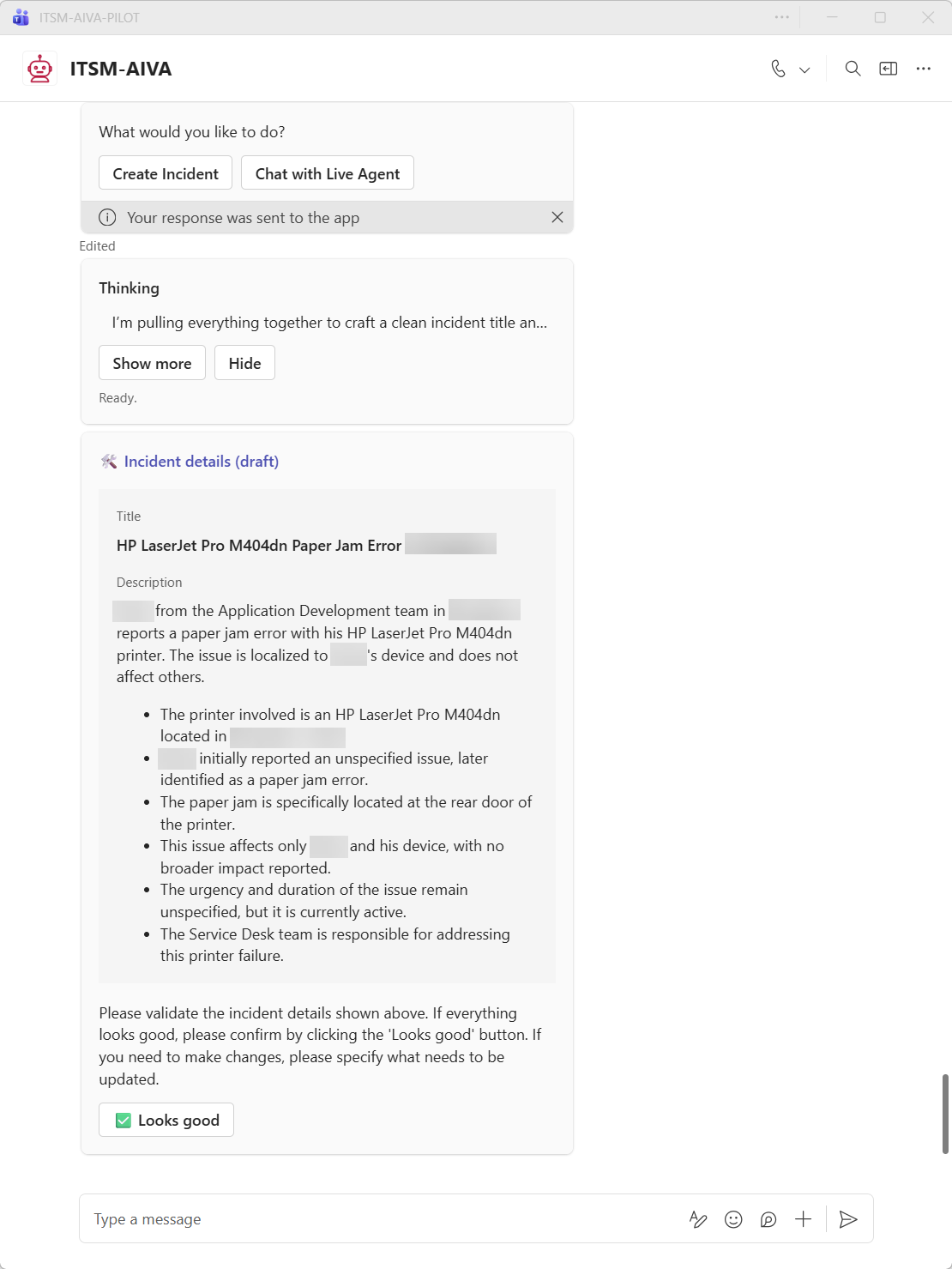
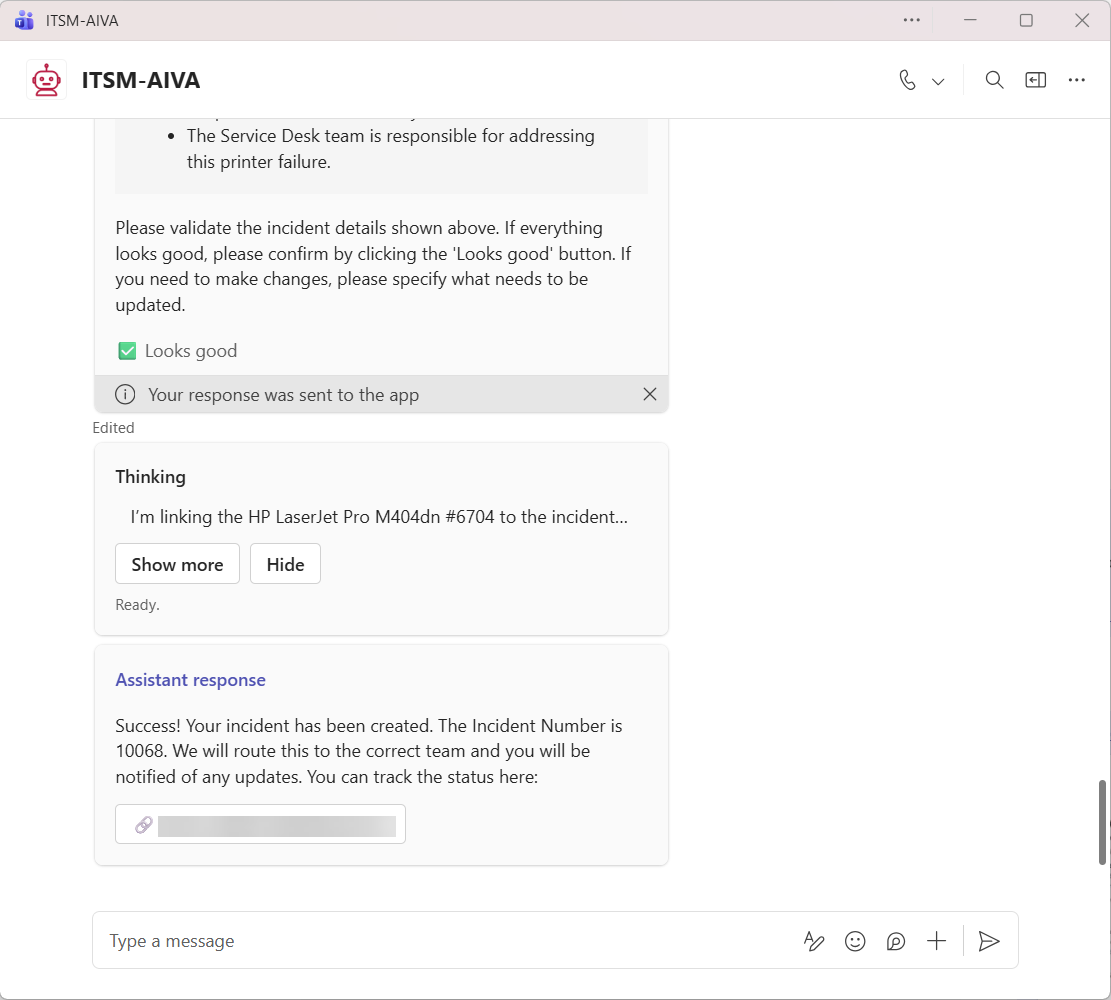
5.Click Looks good, and the agent creates an incident and shares a tracking link with the user.
Image of user accepting the Incident draft and the agent shares the Incident record link