Integrating Microsoft Teams with Ivanti Neurons for ITSM
Role: Administrator.
Minimum Version: Neurons for ITSM 2021.1
Neurons for ITSM seamlessly integrates with Microsoft Teams Bot to create a custom Teams app. This enables Self Service users to chat with Service Desk Analysts, create incidents, submit customized service requests, and check the status of their tickets from the Teams app. This enhanced integration improves user experience by streamlining ITSM interactions directly within Microsoft Teams.
For environments upgraded to version 2026.2, Ivanti recommends administrators to remove the existing bot configuration and create a new bot using the updated UI. Create the new bot by following the steps described in the sections below.
Integration Process
 Prerequisites
-
Enable the Global Constant from the Configuration console > Global Constants > MSTeamsIntegrationEnabled > set it to True. By default, this option is set to False.
-
Enable the Neurons for ITSM Chat feature. Refer to Configuring the Chat Feature.
-
Ensure Microsoft Teams application is installed on your computer with Admin credentials.
-
For on‑premises deployments, ensure that Secure Sockets Layer (SSL) is enabled. SSL is mandatory for the integration to function correctly and does not apply to cloud environments.
It is recommended to set up the chat application first, followed by the Teams Bot application.
Creating the Teams app from Microsoft Teams App Studio
1.Log in to your Microsoft Teams account.
2.Open the Microsoft Teams Developer Portal. Clients must have an account for the Teams Bot to function.
In the Microsoft Teams Developer Portal, the new user interface opens by default when customers access it, without requiring any additional configuration.
3.Go to Home, click Create a new app.
4.In the Create a new app window, provide a name for the app and select Latest Stable as manifest version and click Create.
5.In the Configuration page, click Basic Information.
6.Enter the following details:
|
Fields |
Description |
|
|---|---|---|
| Details | ||
|
App Details
|
Short Name and Long Name |
Contextual names of the app. |
| App ID |
This is auto-generated by Microsoft App Studio. |
|
|
Version |
Version number . |
|
|
Short Description and Long Description |
Contextual descriptions of your app. |
|
|
Developer/Company Name |
Your company name. |
|
|
Website |
Your company website URL. |
|
|
Privacy statement |
URL to the privacy statement of your organization. |
|
|
Terms of use |
URL to the terms of use or policy page of your organization. |
|
Ensure that you fill in the App fields (Short Name and Long Name) and the Description fields (Short Description and Long Description). If any of these fields are not filled in, the app upload may fail.
7.Optionally, click Branding to add a branding logo or other elements of your organization.
8.Click Save.
Create, Configure, Generate Client Secret Key and Link a Bot to Microsoft Teams App
1. Open the Microsoft Teams Developer Portal and log in.
2.Once you have logged in, you can now create your Bot.
•Go to Apps. Click on the app you created.
•In the right pane, under Configure, click App Features, and then click Bot.
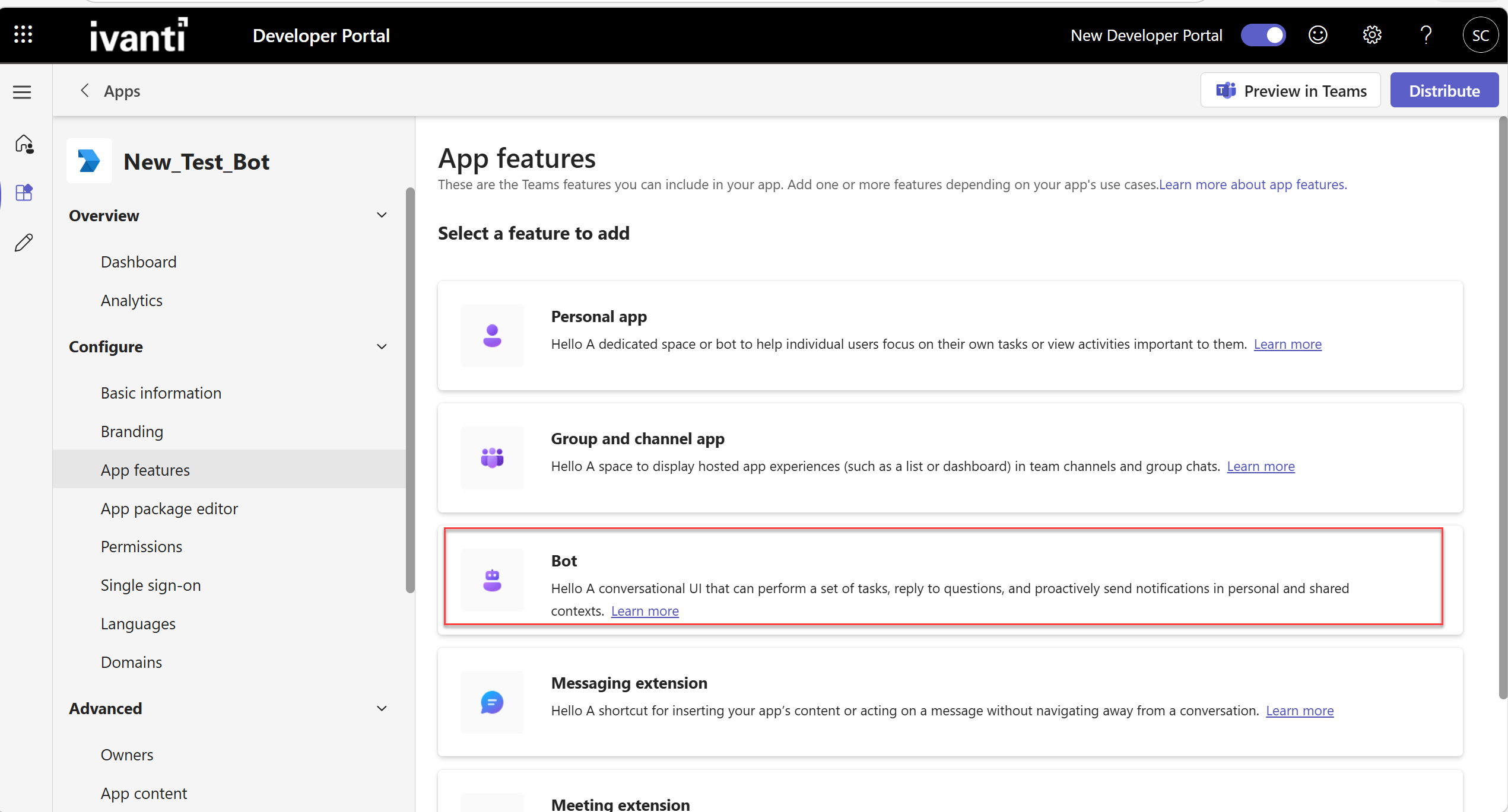
•Select an existing Bot from the drop down or click Create a new bot.
•In the Bot Management, a list of existing bots is displayed. To create a new Bot, click Add and enter a name for the Bot, then click Create Bot.
3.After creating your Bot, configure it and generate the Client Secret Key by following the below steps:
-
To configure the Bot
| a. | Once the new bot is created, click on it. This will take you to the Configure page and the Configure section is displayed. |
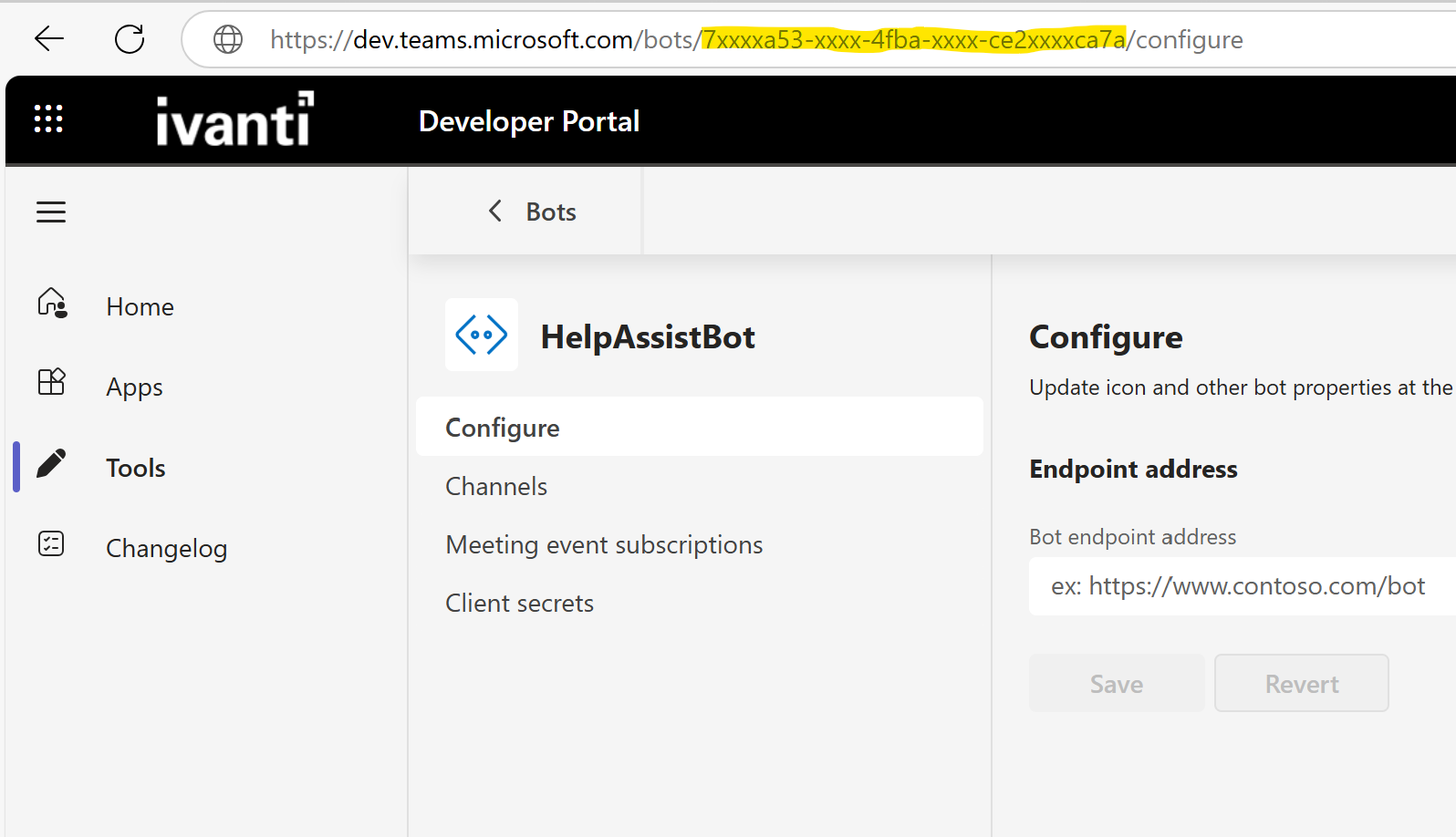
•You will also need the Bot ID to complete the integration between Microsoft Teams and Neurons for ITSM. The Bot ID is displayed in the URL.
•Copy and save the Bot ID from the URL, which is the value between /bots/ and /configure.
example: https://dev.teams.microsoft.com/bots/your-bot-id/configure
Below is a sample screenshot with the Bot ID in the URL.
Image of the masked Bot ID from the URL
| b. | In the Configure panel, add the Bot endpoint address and save. |
The Bot endpoint address should be in the following format:
https://{customer tenant ID}/IvantiBotService/api/messages?
To maintain secure communication, restrict public access to the Bot endpoint address. Revealing the endpoint will result in unauthorized access or misuse of the Bot service. Only the ITSM tenant address should be publicly accessible.
-
Generate the Client Secret Key for the Bot
-
Click the Client secrets option on the side panel and select Add a client secret Key for your Bot.
A dialog box with the auto-generated client secret key for your Bot is displayed.
-
Copy and save the Secret key to use it when configuring the integration between Neurons for ITSM and Microsoft Team app.
-
-
Now that you have created the Bot, go through the following steps to link the Bot to the Microsoft Teams App
-
In the Microsoft Teams Developer Portal, go to the App, select your Appfrom the list.
-
Click on App Features and click Bot.
-
Choose a Bot from the Select an Existing Bot drop-down or manually enter the Bot ID, you want to configure.
-
In the What can your bot do? section, select Upload and Download files.
-
Under Scope, select Personal checkbox, and click Save.
-
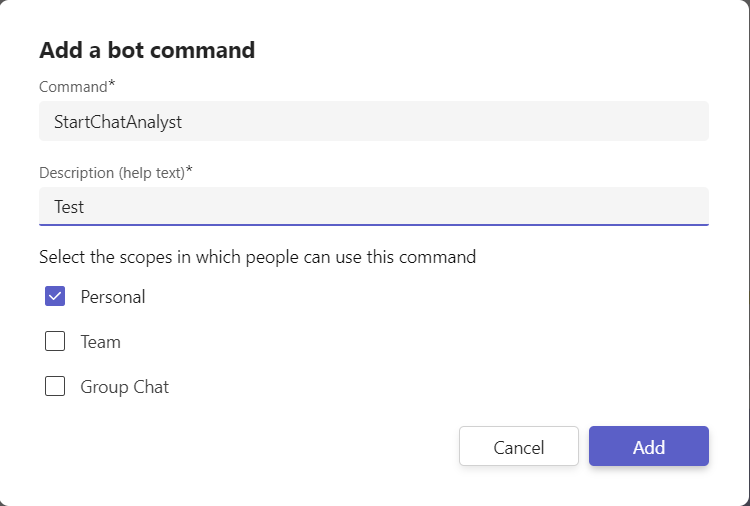
Optionally, In the Commands section, click Add a Command to add commands to the MS Teams Bot App and click Confirm.
-
After adding all the commands, click Save to save all the settings.
Commands are added to the Bot to define its functionality and allow users to interact with it in specific ways. By setting up Commands, you enable the Bot to perform tasks, respond to user input, and provide useful actions like retrieving information, sending messages, or performing other automated functions. This helps users engage with the Bot more effectively in Microsoft Teams.
Typing a command interrupts the current flow and starts the specified flow. For example, if a chat analysis runs and you type create incident, the system stops the chat analysis and starts the Create Incident flow.
You can create more than one command.
Neurons for ITSM supports the following commands:
•StartChatAnalyst
•StopChatAnalyst
•CreateIncident
•MyItemStatus
•BotHelp
•CreateServiceRequest
Adding a Bot Command
Update Domains fields in an Existing Teams App
When you upgrade to 2025.4 version, a new Teams feature displays KB and FAQ suggestions in pop-up windows. To support this feature, you must update the Domains field in your existing Teams. To update the app:
1.In the Microsoft Teams Developer Portal, open the existing bot app.
2.Increment the app version (for example, from 1.0.0 to 1.0.1).
3.Add the tenant ID to the Domains section as a valid domain.
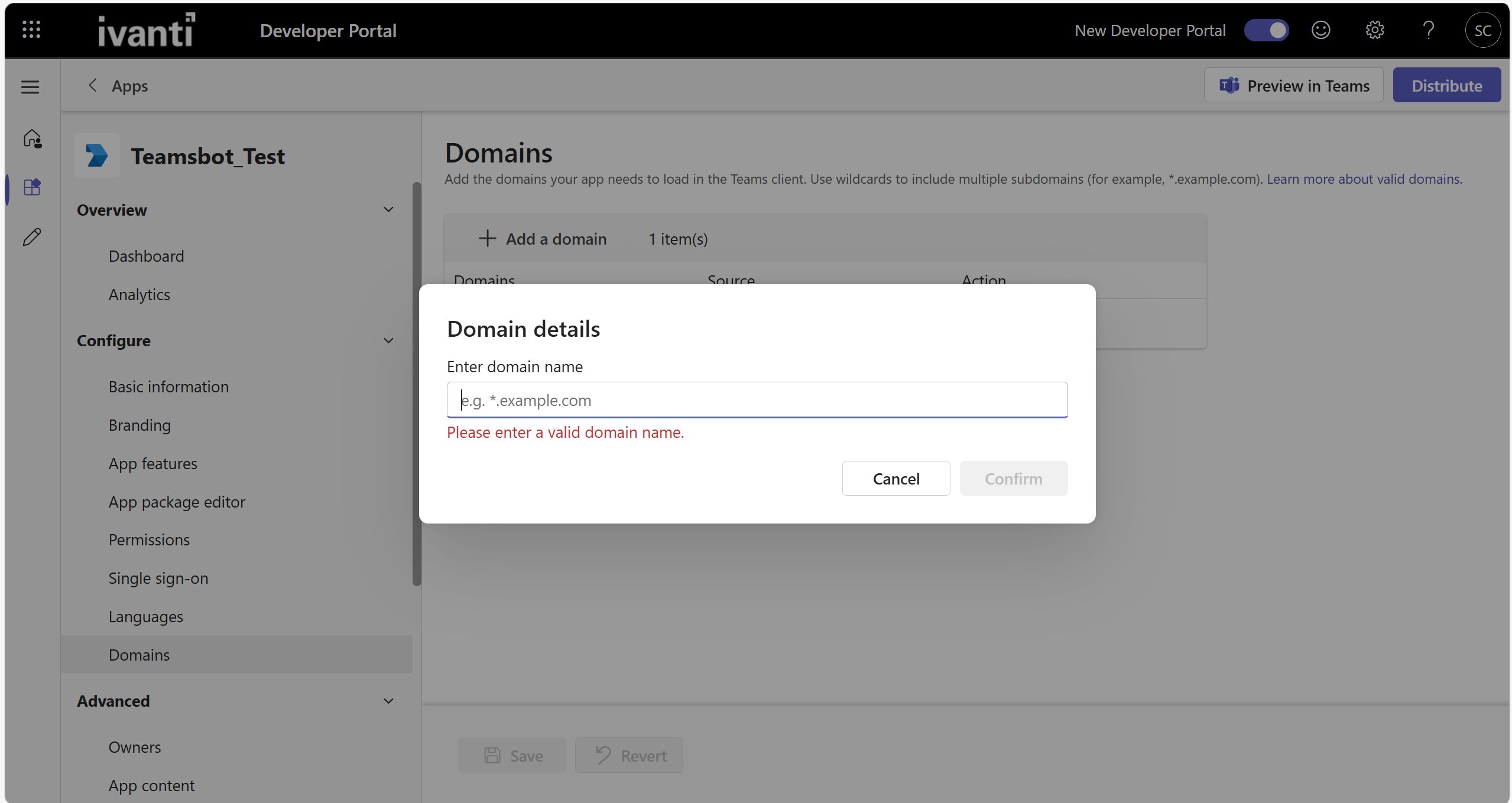
'Stg-url.ivanticloud.com' represents the expected format of the URL. It does not correspond to a real customer environment.
Now that you have successfully performed all the previous steps and created the MS Teams Bot App.
Download the package for the Microsoft Teams Bot App
1.Go to the Publish section and choose App Package.
2.Click Publish on the top right corner of the page.
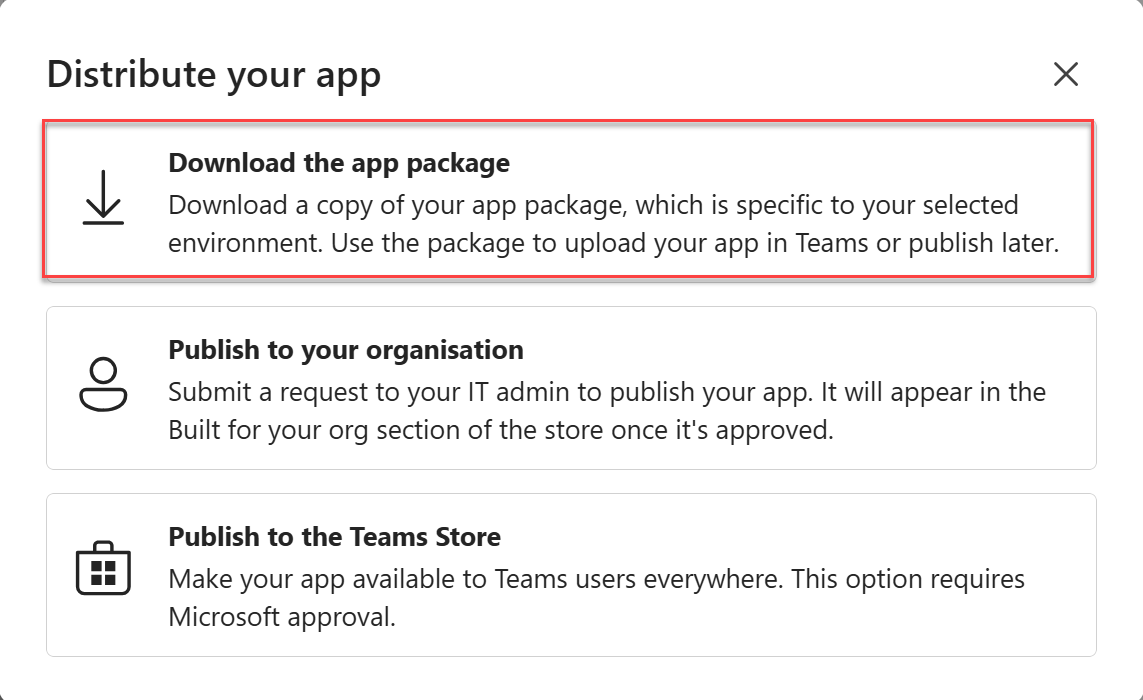
In the new UI of the Microsoft Teams Developer Portal, the Distribute button appears in the top-right corner instead of Publish.
3.Select the Download the App Package from the pop-up to download the app package for the MS Teams Bot App.
If this app is intended for organization‑wide use, share it with your IT administrator and publish it to your organization. For testing or demo purposes, download the app package and deploy it individually in your Teams instance.
4.Upload the new package using one of the following methods:
•Through the Teams Admin Center.
•Directly in Microsoft Teams, depending on your deployment method.
5.Verify that the updated version is installed and available to users.
Image of the Download the App Package Pop-up
Uploading the App in Microsoft Teams
You can upload the Teams app and make it available for employees in your organization to use. Only when the app is uploaded and available, users can add it to their Microsoft Teams client app and use it as a communication channel to chat with Service Desk Analysts, create incidents, and view incidents' statuses.
1.Log in to your Microsoft Teams account.
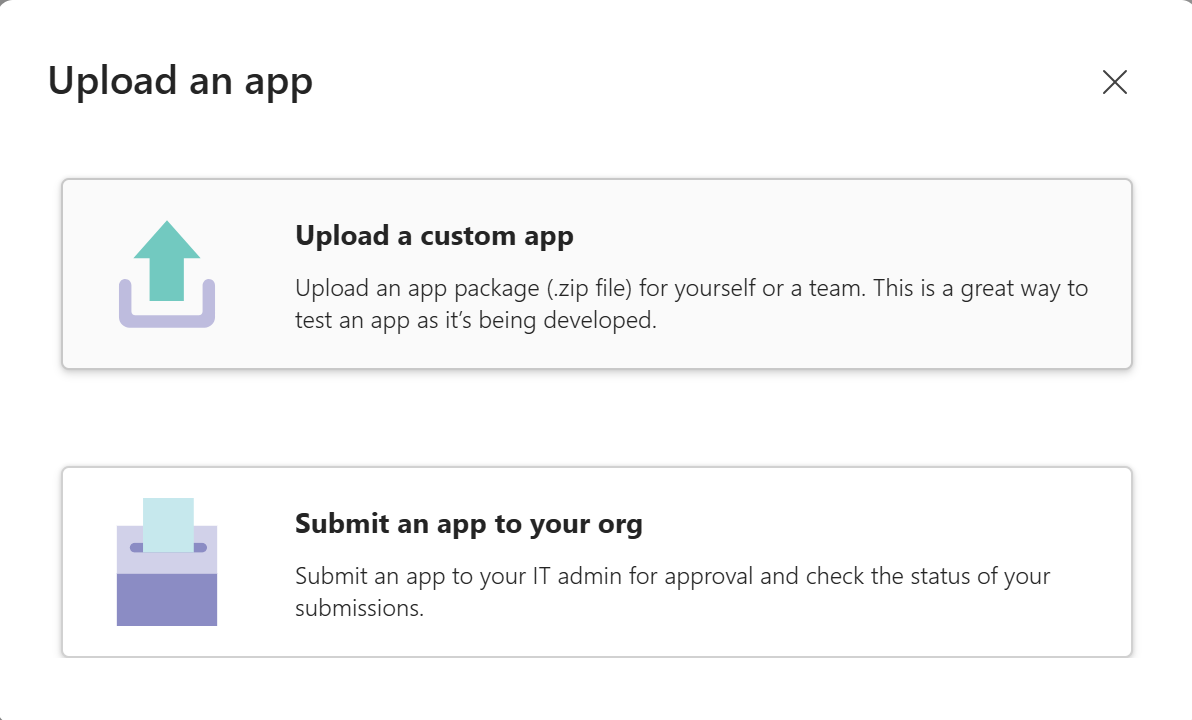
2.Go to Apps > Manage your apps > Upload an app.
3.Choose an option:
•Upload a custom app – if the app is for individual or team use.
•Submit an app to your org – if the app is for organization-wide use.
The app you built is now available for employees in your organization/team to use.
Configuring the integration between Microsoft Teams and Neurons for ITSM
The Microsoft Teams integration is complete after configuring the integration in Neurons for ITSM.
-
Log in to Neurons for ITSM.
-
From the Configuration console, click Extend > Microsoft Teams Integration.
-
Enter the following information:
|
Field |
Description |
|---|---|
| Bot ID | Enter the Bot ID that you copied and saved while creating the Teams app bot. Refer to Steps in Creating the Teams app from Microsoft Teams App Studio section. |
| Bot Secret Key | Enter the Microsoft Bot Secret Key. This is the Teams app password that was generated and saved while creating your Teams App in Microsoft App Studio. Refer to Steps in Creating the Teams app from Microsoft Teams App Studio section. |
| Allow User only with Employee Email ID | After the first-level of authentication by Bot ID and Bot Secret Key, this option allows setting a second-level authentication. Selecting this option, you will be restricting access to the Teams app you created to users with registered employee email ID in Neurons for ITSM. |
| Allow User Only With Org Email Domain Names |
After the first-level of authentication by Bot ID and Bot Secret Key, this option allows setting a second-level authentication. Selecting this option, you will be restricting access to the Teams app you created to users with email address in the specified domains. You can add the domain names you want to allow in the Microsoft Teams Org Email Domain Name tab. For example, if you allow ivanti.com and ivanti.in domain names, then users having email addresses such as |
|
Validate Teams User Email ID with existing Employee Account |
Selecting this option, the Customer name for Incidents created through Teams app and the chat display name when chatting from Teams app will have the Neurons for ITSM registered user name. If the user is not registered in Neurons for ITSM, then the name specified in the Default Account for managing non-registered users field is used. |
|
Default Account for managing non-registered users |
Specify the default user name. This will be used as the Customer name for Incidents created through Teams and for the chat display name in the following scenarios: •When the Validate Teams User Email ID with existing Employee Account option is selected but the user is not registered in Neurons for ITSM. • When the Validate Teams User Email ID with existing Employee Account option is not selected and/or the user is not registered in Neurons for ITSM. |
|
Number of tickets to Display |
When the user selects the Check the Status of my Ticket option in a chat, the number of tickets that should be displayed is set in this field. The default is set to 10 which the maximum limit, user can set a number between 1 to 10. An error message is displayed when the number is set to anything above 10. The tickets created by ITSM users through any channel such as Microsoft Team, bot, email, or the ITSM application will be displayed. |
|
Custom Messages |
Use the fields in this tab to add custom messages and responses your Teams app should display. |
|
Microsoft Teams Org Email Domain Name |
This tab is available only when you select the Allow User Only With Org Email Domain Names option for second-level authentication. You can add the domain names allowed to access the Teams app. |
-
Click Save.
Configure Email Address for Microsoft Teams Bot Access
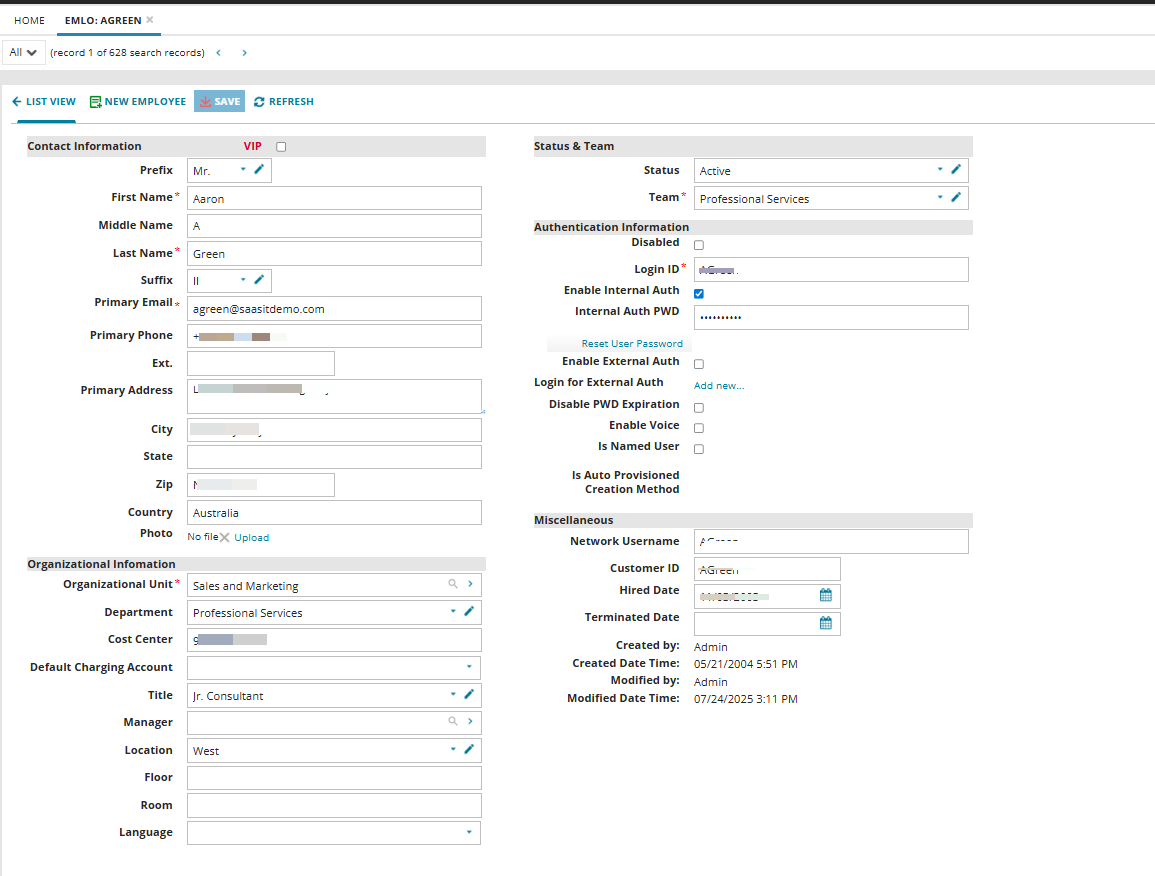
To use the Microsoft Teams Bot with your ITSM account, ensure that your email address is correctly configured in the ITSM portal. These steps applicable only to ISM users.
1.Log in to the ITSM portal, navigate to the employee workspace.
2.Create a new user record and enter the user name and email address in the appropriate fields.
3.Save the changes.
By default, changes takes up to 30 minutes. To avoid this and to reflect changes in the Microsoft Teams Bot, clear the cache.
Perform the following:
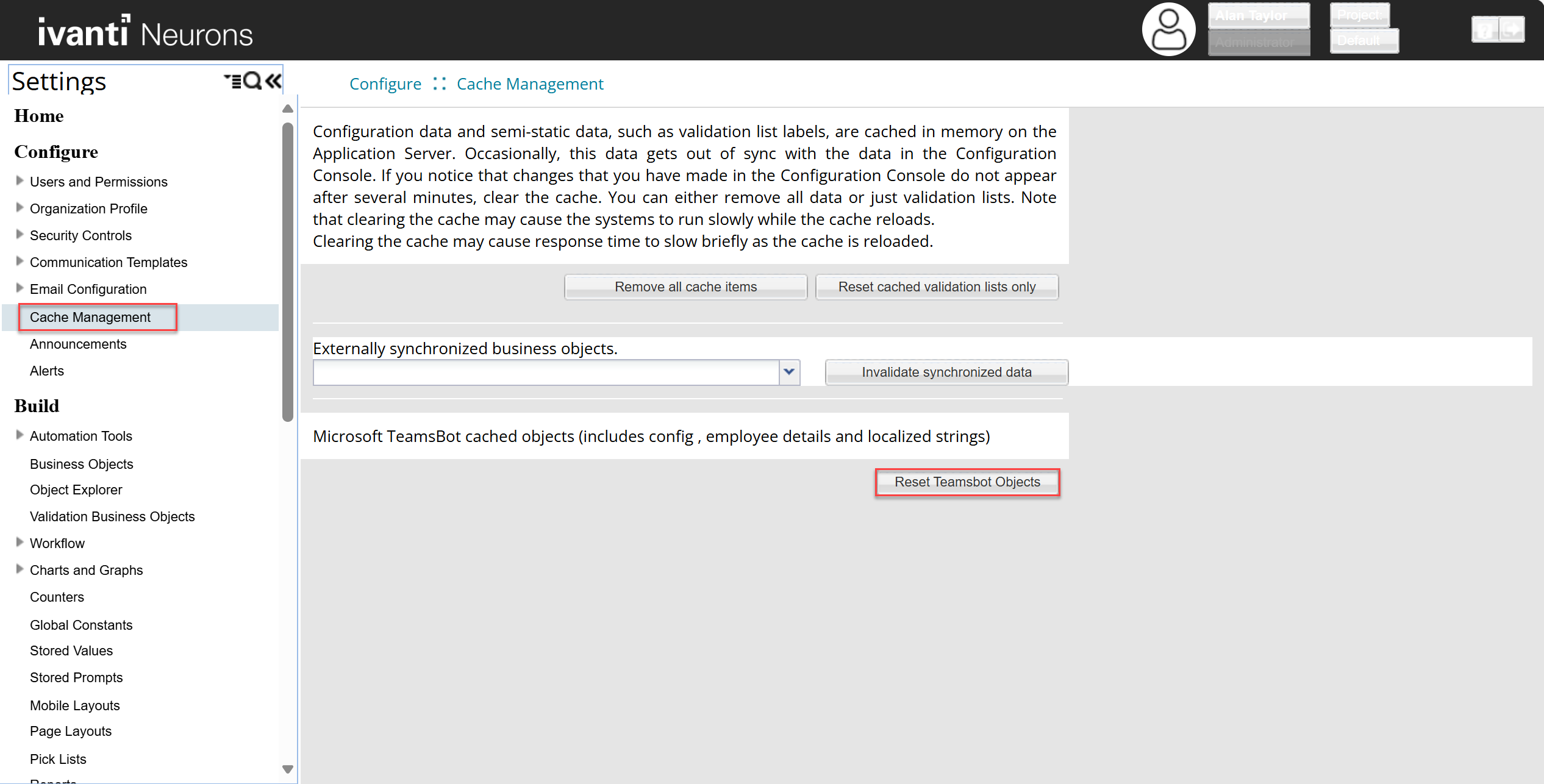
1.Go to Settings > Cache Management.
2.Click on Reset Teamsbot Objects.
This configuration step is not required for non-ISM users.
Configuring Bot with email address
Configuring Custom Questionnaire in Teams Bot for Incident Creation
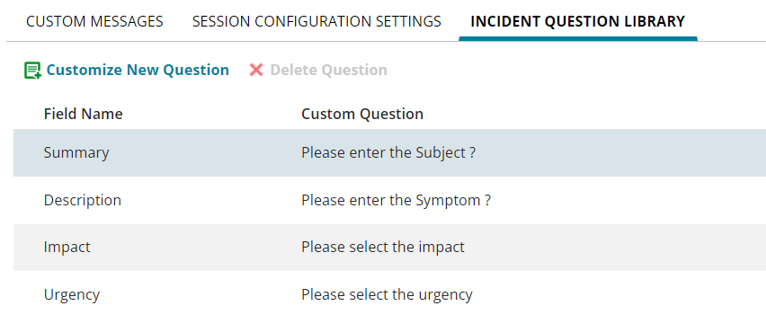
You can configure custom questions in the Teams Bot before initiating an incident creation. The supported fields for customization include Summary, Description, Impact, and Urgency. Additionally, you can configure any text-based incident field based on your specific requirements. This flexibility allows you to customize the Teams Bot interaction to gather relevant information for a more detailed incident creation process.
•You cannot configure fields with duplicate display names.
•In some cases, the Teams Bot may not respond as expected due to a missing central-config-api-key entry in the Teams Bot appsettings.json file. This setting is part of the internal configuration and is not included in the standard documentation. If you've followed all setup steps and are still experiencing issues, please reach out to the Ivanti Support Team for assistance. Configuration changes should only be made under the guidance of Support to ensure system integrity.
To configure the custom questionnaire:
1.Open Configuration console, and click Microsoft Teams Integration under Extend.
2.Enter the ISM API key.
You must create a new specific key designated for teams and roles set to admin. If a new key cannot be created, use the existing key where the role is already set to admin. The ISM API key can be created or copied from Configure > Security Controls > API Keys.
3.Go to Incident Question Library tab.
4.Add a new question or edit the existing question.
Image of the Incident Question Library Tab
5.Click Save.
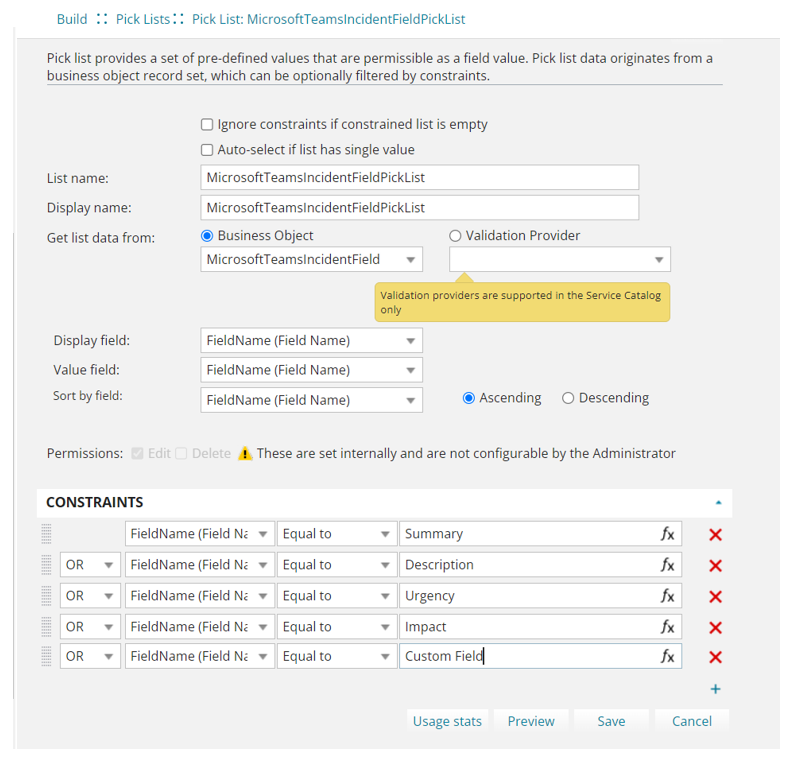
Adding Custom fields in the Incident Question Library
1.Open the Configuration console.
2.Navigate to Build > Pick Lists.
3.Select MicrosoftTeamsIncidentFieldPickList from the Get list data drop-down list.
4.Under Constraints, add a new Constraint for the custom field.
5.Click Save.
Adding Custom Fields to the Incident Question Library
Applying Object Permission Filters to KB and FAQ Collections
You can control which Knowledge Base (KB) collections are available in Microsoft Teams. Use object permissions to apply filters that restrict or allow specific KB content for self-service users. For example, you can hide articles about company policies and procedures while keeping other collections available.
Go through the following steps to Add Filters:
1.Log in to Neurons for ITSM as an Administrator.
2.In the Configuration console, expand the Configure section, expand Users and Permissions > Roles and Permission, and select Self Service user Role.
3.Open Object Permissions.
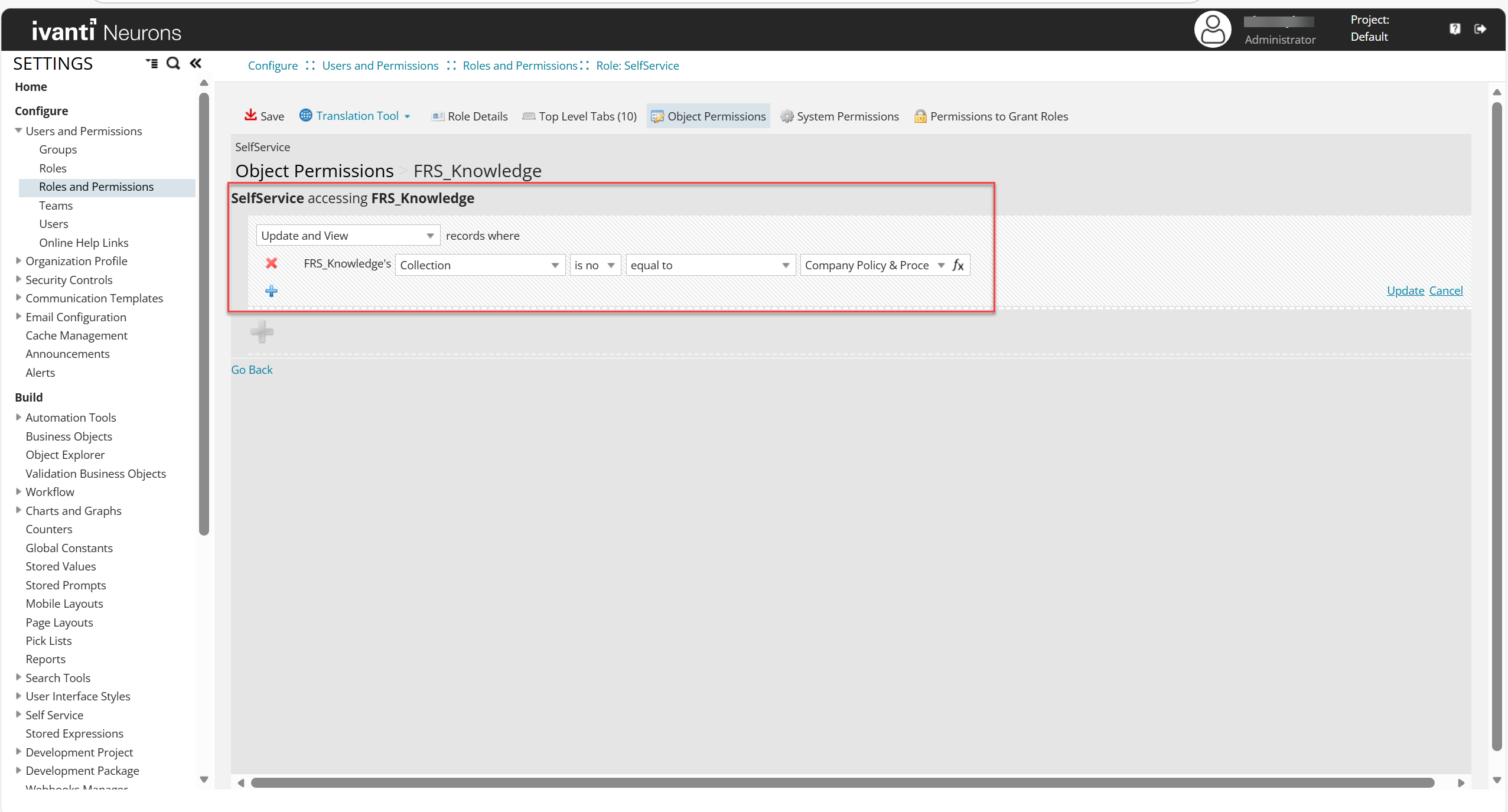
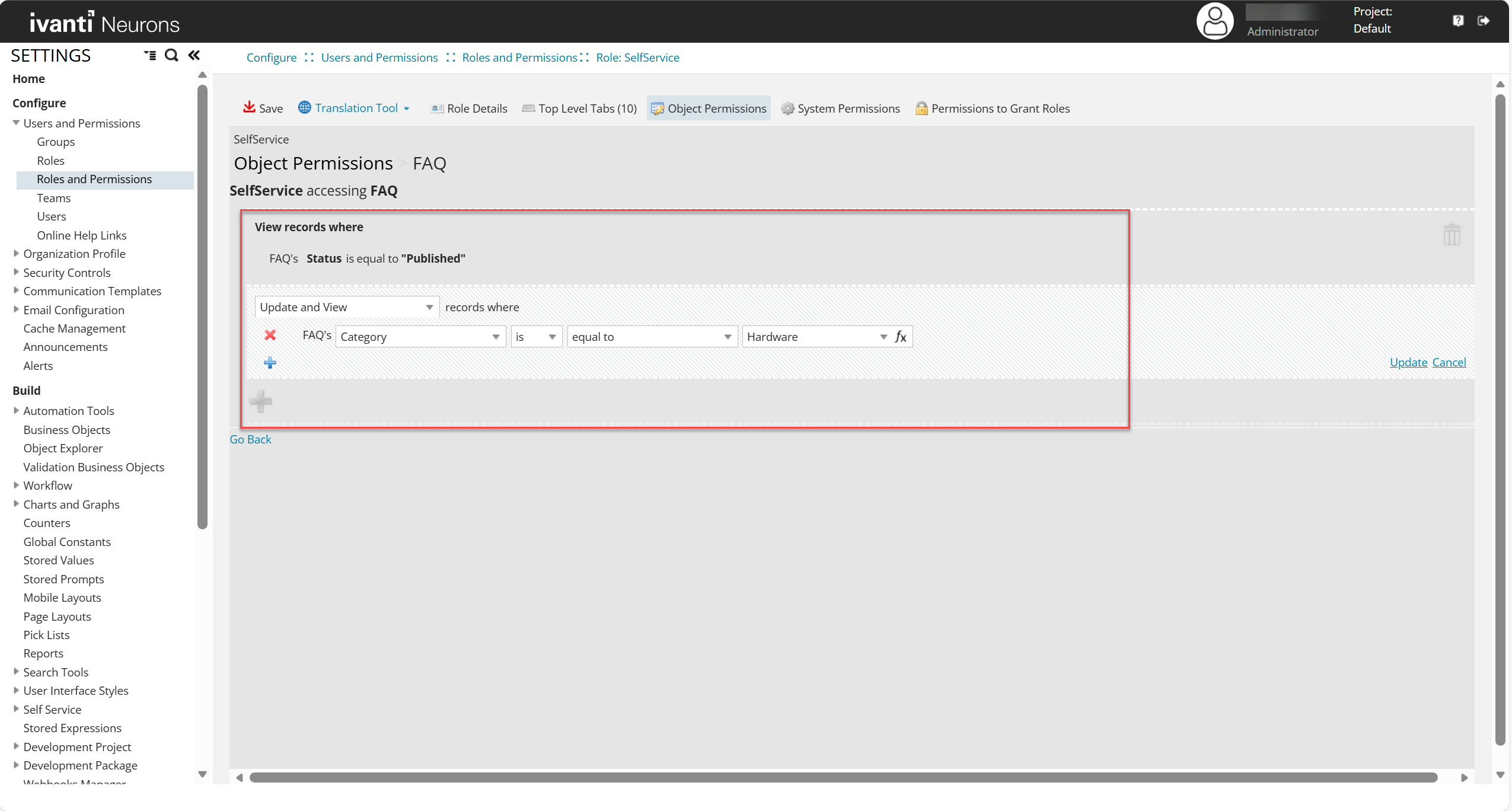
4.In the Find box, search for the business object name FRS_Knowledge. To apply object filters for FAQs, search for business object name FAQ.
5.Locate the object and select Edit.
6.Click the  button to add a new case.
7.Apply the required filters.
The screenshot shows the Collection Filter applied for FRS_Knowledge
The screenshot shows the Collection Filter applied for FAQ
8.Click Update and then Save.
The filters you configure define which Knowledge Base articles and FAQs self-service users can access in the Microsoft Teams bot. This helps administrators tailor KB collections to meet organizational policies and compliance requirements.
Flow Without the Filters - shows Possibles matches of the KB Articles along with FAQs based on the input
.png)
Flow with Filters - Only the FAQs are shown for the same previous Input and All KB articles are filtered out
.png)
Enabling feedback flow for Microsoft Teams
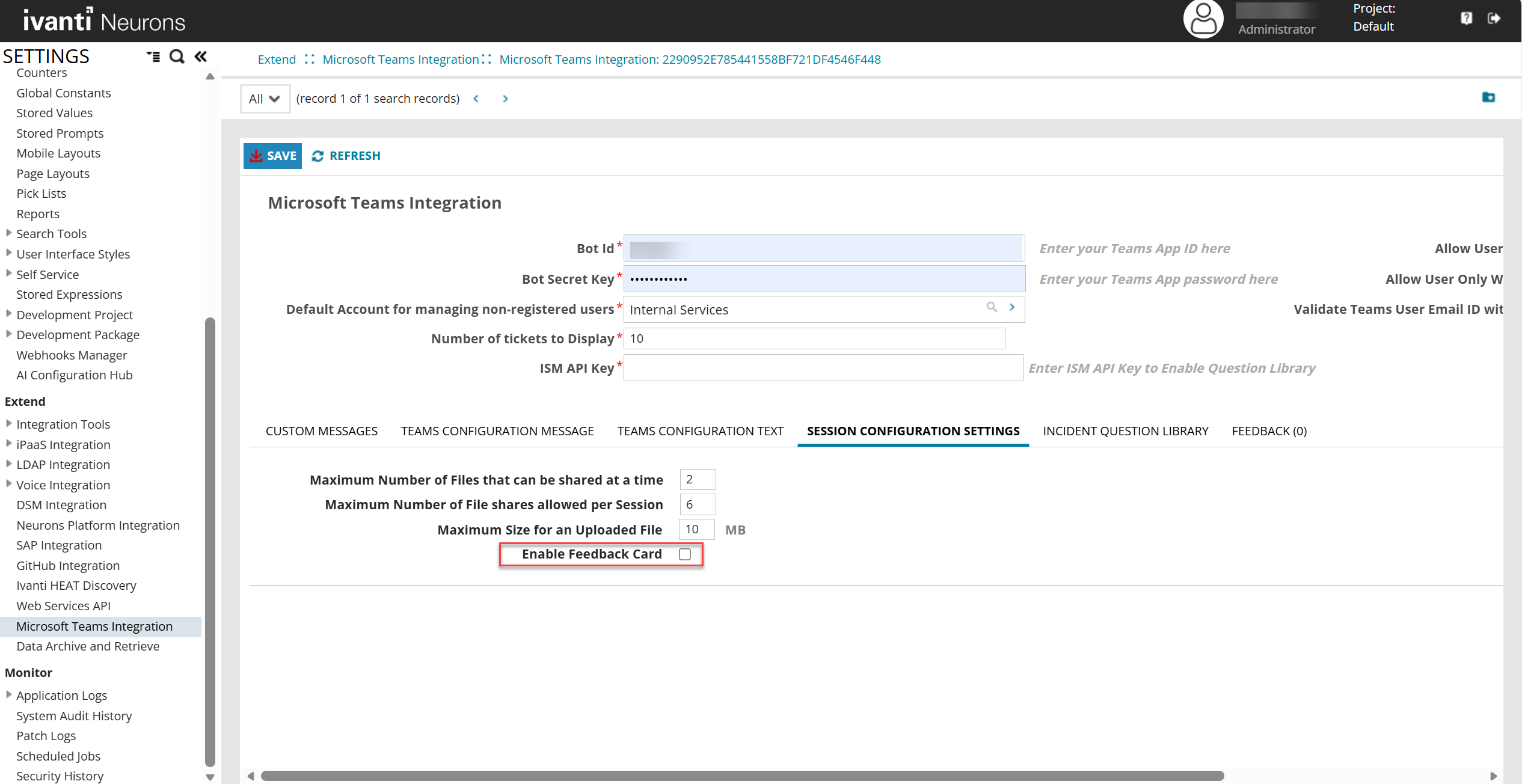
You can manage the feedback flow in Microsoft Teams. By default, the feedback card is turned off. You can enable or disable it in the Admin UI.
Go through the following steps to configure this setting.
1.Log in to Neurons for ITSM as an Administrator.
2.In the Configuration console, Build > click on Microsoft Teams Integration.
3.Open Session Configuration Settings.
4.Locate Enable Feedback Card. By default, this option is disabled.
5.To enable feedback flow, check the box and clear the cache.
Enable Feedback Card
Enabling Service Request for Microsoft Teams
Request offerings published in ITSM are configurable in the MS Teams bot. Navigate to the Request Offering workspace and check the Enable for Teams Bot option. No additional configuration is required, providing a seamless experience.
1.Log in to Neurons for ITSM as an Administrator.
2.Select More> Request Offering. Select an offering from the list.
3.In the Define Request Offeringtab, select the Enable for Teams Bot checkbox to enable this in the Teams bot.
4.Only request offerings with the bell icon have the Enable for Teams Bot checkbox available.
5.Click Save.
Limitations and Tips for Using the Service Request Feature in MS Teams Bot
To get the best out of the service request feature in the MS Teams bot, here are some key points to keep in mind:
-
Form Design Limitations:
Advanced features like aligning rows or adding custom masking to text or numeric fields, are not supported by the bot.
-
Pick List Restrictions:
Certain fields in pick lists, such as pricing or descriptions, are not supported in the bot. Also, Select all and MultiSelect options are unavailable in the bot.
-
Expression Limits:
Complex formulas or expressions that directly reference other fields or objects are not supported in the bot. Functions, like “!” are not supported by the bot.
-
File Uploads:
You can upload one file per upload field in a Service Request template. Supported formats are .png, .jpg, .pdf, .jpeg, or .doc.
-
Dropdowns:
Default values in drop-downs are not supported by the bot. All options are listed any preselection.
-
Validation Rules:
Complicated rules, especially those that rely on matching field names and values, aren’t supported by the bot.
Ivanti recommends usage of supported features. Ensure to test the Service Request templates before deployment.