About Ivanti service management portfolio UI V3
Overview
The Ivanti service management portfolio UI V3 module is the modernized version of the Classic UI V1 module. It provides an enhanced user experience with improved navigation, streamlined search, and configurable layouts. You can perform all the same tasks as in Classic UI V1, but with a more intuitive interface that reduces clicks and improves efficiency.
Ivanti service management portfolio UI V3 is a role‑based workspace that delivers a streamlined experience across all devices. It includes a modern data grid layout, collapsible navigation pane, dark mode toggle, enhanced filter management, and AI Search for natural language queries. Users can continue performing day‑to‑day operations such as working with incidents, problems, changes, and other records while benefiting from a faster, more efficient interface. Features such as Saved Filters Management, Filter by options, Watchlist pinning, and Row selection with checkboxes make it easy to personalize and manage records.
You can use the Modern Page Designer (an administrator feature) to create and assign role-based layouts for any business object. In this topic, the Incident business object is used as an example to explain the features and configuration options available in Ivanti Service Management Portfolio UI V3. Administrators configure layouts, add views such as Data Grid, Kanban, or Gallery views and publish them, making them available to you through Ivanti Service Management Portfolio UI V3.
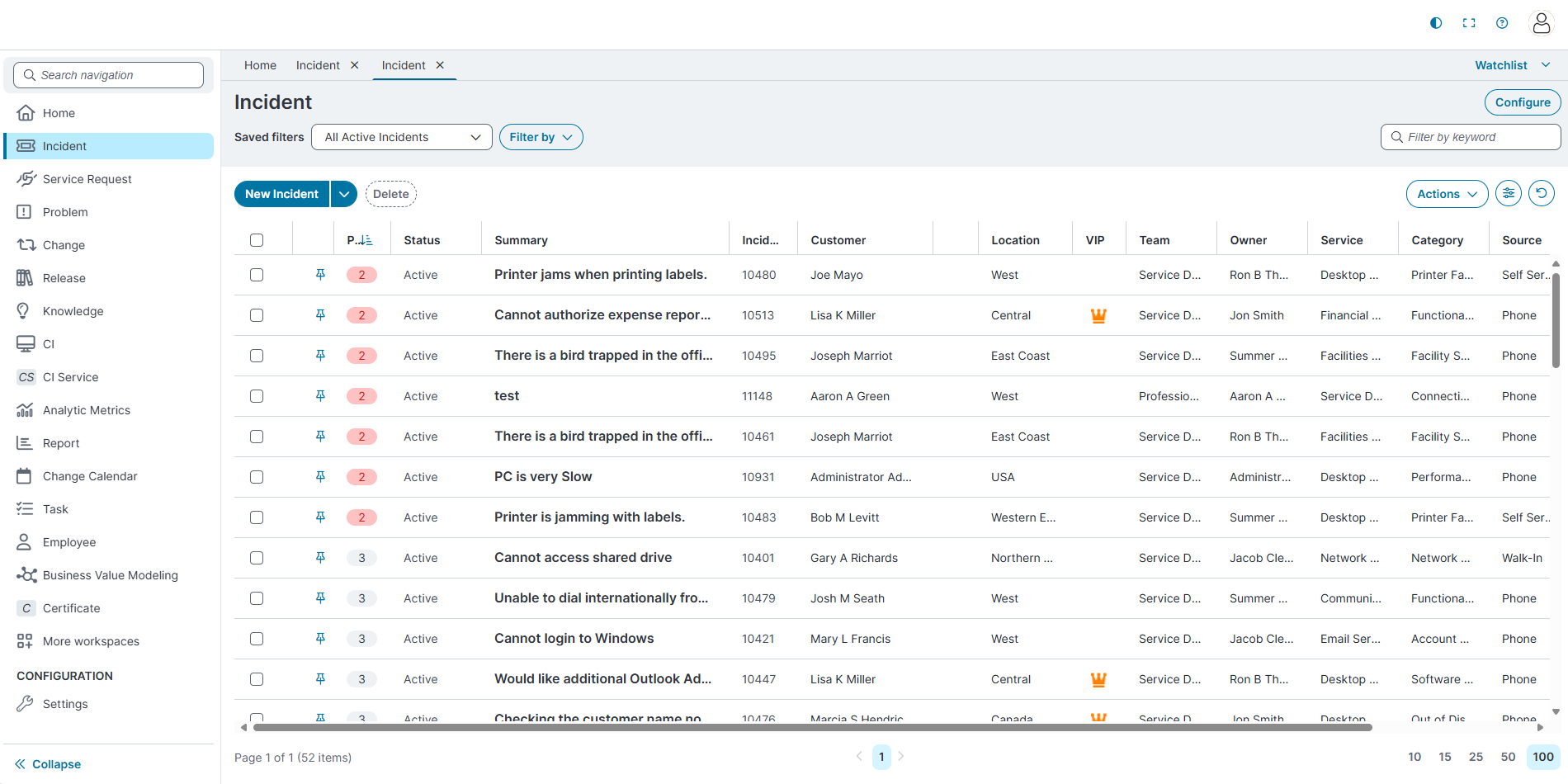
User Capabilities
With the Ivanti service management portfolio UI V3 , users can:
-
Navigate workspaces using the collapsible left navigation pane.
-
View and manage records using Data Grid, Kanban, or Gallery View, and switch between these views directly from the workspace
-
Use Saved filters and the Filter by panel to refine results, apply Advanced filters, and quickly return to frequently used record sets.
-
Select one or more rows using checkboxes to activate context-sensitive toolbar actions such as Delete.
-
Group records and adjust columns using the Group by and Column chooser.
-
Pin important records using the Pin icon to add them to the Watchlist, and access pinned items from the Watchlist area in the workspace.
-
Use pagination controls to navigate large result sets and control how many records appear per page.
-
Switch between light and dark themes using the theme toggle in the top-right corner.
-
Use AI Search to retrieve records with natural language queries.
Key Features
-
Multiple view types: Work with records in a tabular Data Grid view, a visual Kanban board, or a responsive Gallery View. Views share the same underlying layout and data but present information differently to support various workflows and devices.
-
Watchlist pinning: You can pin records directly from the grid, Kanban, or Gallery View to build a personalized Watchlist of tracked items.
-
Row selection with checkboxes: Each row includes a checkbox, allowing you to select one or more records and trigger bulk actions from the toolbar.
-
Saved filters and Filter by: Saved filters and the Filter by panel work together to support quick filtering and advanced scenarios. You can mark filters as favorites, open the Saved Filters page to manage them, and apply filter criteria and sorting without leaving the workspace.
-
Expression-based configuration: Administrators can configure conditional styles and visibility using expressions. For example, they can highlight high-priority records, hide columns based on business rules, or drive advanced filter logic using the Expression editor.
-
Configurable filter searches: Administrators configure filter categories and controls (including text box filters such as “Summary contains”) in Filter Searches. These definitions determine which options appear in the Filter by menu and Advanced filter dialog in UI V3.
-
Improved navigation: Access recently visited, assigned, and additional workspaces from the left navigation pane.
-
Dark mode: Switch between light and dark themes using the theme toggle in the Top-right corner.
-
AI Search: Use AI Search to retrieve records with natural language queries.
-
Clone: Clone layouts and views to reuse complex configurations.
-
Migrate Classic layouts: Migrate Classic layouts to Modern Page Designer while preserving configuration.
Administrator Capabilities
Administrators use the Modern Page Designer and related configuration areas to control how Ivanti Service Management Portfolio UI V3 behaves. They can:
Create and manage layouts: Create layouts per business object, configure simple search, type-ahead search, and saved search integration, and assign layouts to roles.
Configure views (Data Grid, Kanban, Gallery): Add and manage Data Grid, Kanban, and Gallery views for a layout. In Manage views, select which view is used for Data Grid, Kanban, and Gallery, and set the Initial view.
An Initial view must be selected in Manage views. If no Initial view is set, the workspace data does not appear in Ivanti Service Management Portfolio UI V3 home page.
Configure grid columns and styles: Define which fields appear in the grid, configure column titles and widths, and use hidden expressions and styles to control visibility and formatting. Styles can use predefined highlighter styles or custom expressions, and renderers control alignment, numeric formatting, hyperlinks, and images.
Configure toolbars: Use the Toolbar editor to choose which tools appear in the workspace toolbar, organize them into left and right sections, and configure each tool’s action, button type, label, tooltip, and shortcuts.
Clone layouts and views: Use Clone option to duplicate existing layouts and views. Cloning copies configurations such as columns, styles, toolbar definitions, and view properties, helping reuse complex setups for different roles or scenarios.
Control edit permissions (soft lock): Use System Mode and layout/view permissions to control who can update or delete layouts and views. When permissions restrict updates, only specific properties (such as Field title) remain editable; other settings are locked.
Assign layouts and enable UI V3: Assign layouts to roles so users see them in the appropriate workspace. Use UI exceptions in the Style Editor to ensure selected roles open the workspace in UI V3.
Manage saved filters centrally: Manage saved filters from the Modern Page Designer with the same capabilities available in the workspace. Administrators can create, edit, clone, hide, and publish saved filters to roles and teams, and use the Expression editor for advanced filter criteria. Hidden filters take precedence over other visibility settings, including defaults.
Configure filter searches: Configure filter categories, labels, controls, and expressions in Filter Searches so that filter options (including text box filters) appear in the Filter by panel and Advanced filter dialog for each business object.
Migrate Classic layouts: Migrate Classic layouts to Modern Page Designer while preserving configuration.
When administrators select Configure from within Ivanti Service Management Portfolio UI V3, the application routes back to the Modern Page Designer for the current layout and view, allowing them to update the configuration and republish it.