Example: Using Neurons Bot to Trigger Actions in Ivanti Neurons for ITSM
Role: Administrator
Minimum Version: Ivanti Neurons for ITSM 2025.4
Prerequisites:
•To use the Quick Actions, set the global constant EnableActionService to True.
•App Registration is created in Ivanti Neurons to generate the Auth URL, Client ID, and Client Secret.
•A Client Registration is added in ITSM using these credentials.
This example shows how Ivanti Neurons Bot can collect information from users and automatically create or update records in Neurons for ITSM.
When you start a conversation with the Neurons Bot, you simply describe the issue you are experiencing. The bot then guides you with a few quick follow‑up questions to collect the information it needs. After it has everything, the bot securely sends your details to Ivanti Neurons for ITSM, where a pre‑configured Quick Action automatically creates or updates the appropriate record. Once ITSM processes your request, it returns important information, such as the newly created Incident Number back to the bot, which immediately shares the confirmation with you. This provides a smooth, effortless, and hands‑free experience from start to finish.
 Step 1: Configuring Neurons Bot with ITSM
1.Log in to Neurons for ITSM as an Administrator.
2.Open the Configuration console > Extend > Neurons Platform Integration .
3.Click Setup Neurons Platform Connection and enter the following details:
•Name of the connection
•Neurons Platform Tenant URL
•Neurons Platform Auth URL
•Client ID
•Client Secret
For these details you need to create or use the details of an existing App Registrations in the Neurons Platform tenant.
4.Enable the Neurons Bot option in the Neuron Platform Integration.
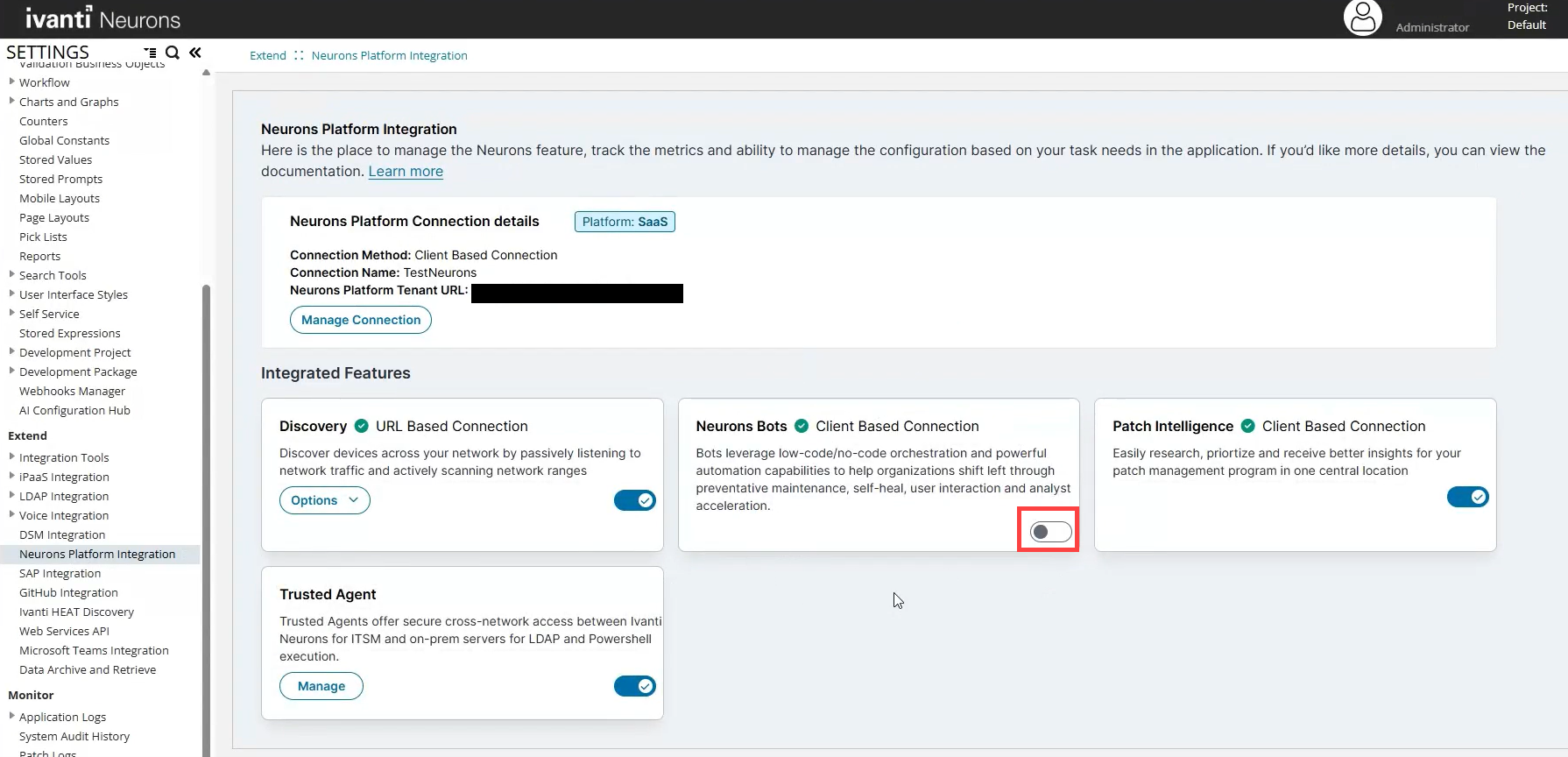
For more information on Neurons Bot Configuration in ITSM refer to Neurons Bots Integration for ITSM.
Step 2- Create Neurons Bot quick action
1.Log in to Neurons for ITSM as an Administrator.
2.Select an incident from the Incident console.
3.Go to More menu > Edit Actions > Graphical Action Designer.
4.Drag and drop the Neurons Bot action block to the canvas and connect it to the Start Block.
5.Select the required bot in the Bot section from the side panel.
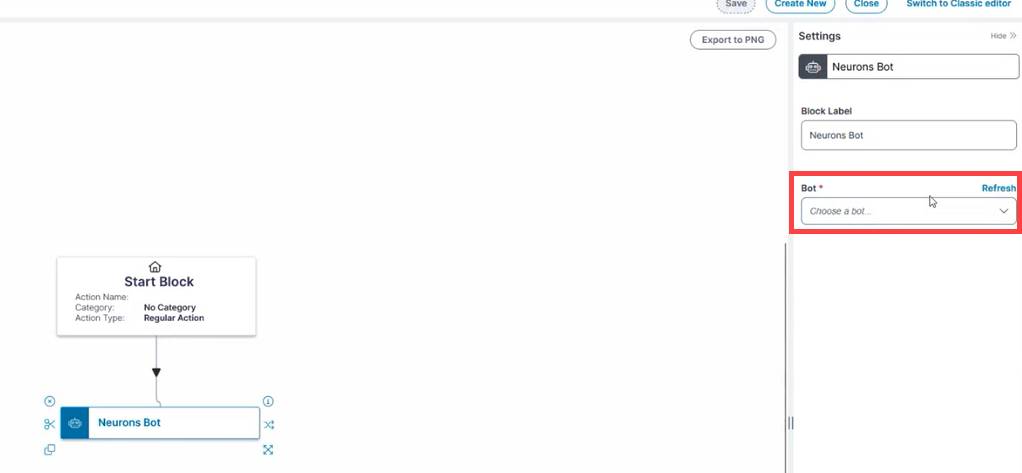
6.Enter a Name for the action and click Save.
Step 3 - Connect CI record to an Incident record and execute the Bot
In order to run a Bot it has to connect with a CI record using an Agent ID.
1.Log in to Neurons for ITSM as an Administrator.
2.Select an incident from the Incident console.
3.Select CI option from the plus menu in the child panel.
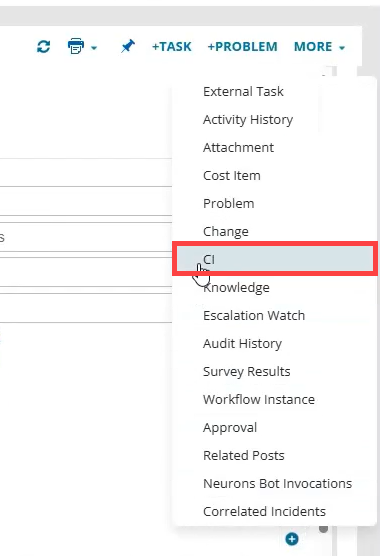
4.Select a CI record from the Link option in the CI tab, it automatically attaches the Agent ID of that CI record. If it fails to add the Agent ID, you can enter the Agent ID from the Devices console in the Neurons Platform.
5.Refresh the browser tab and run the Neuron Bot quick action.
After the successful run of the Neuron Bot quick action ensure that it has the Neurons Bot Invocations tab lists the Bot. Bot changes status after 5 minutes so changes reflect later. You can also check the Bot status in the Neurons Bots console from the Neurons Platform tenant.
You can also check Ivanti Neurons Bot Results workspace in the Service Desk. This list all the bot invocations for the particular tenant.