Home
Most features in the Main screen are available through the ribbon in the upper part of the screen.

Connection
Connect connects Package Studio to a specified MDT share or Configuration Management Site Server.
Drives
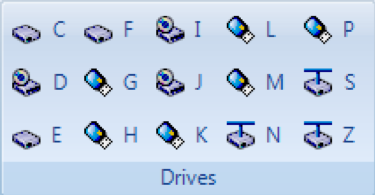
The Drives ribbon group lists all available drive letters of your file system. The icons reflect whether the drive is a local drive, a USB stick, removable drive, network drive, or CD-ROM/DVD-drive.
Configuration
The Configuration ribbon group lets you configure Package Studio.
Options
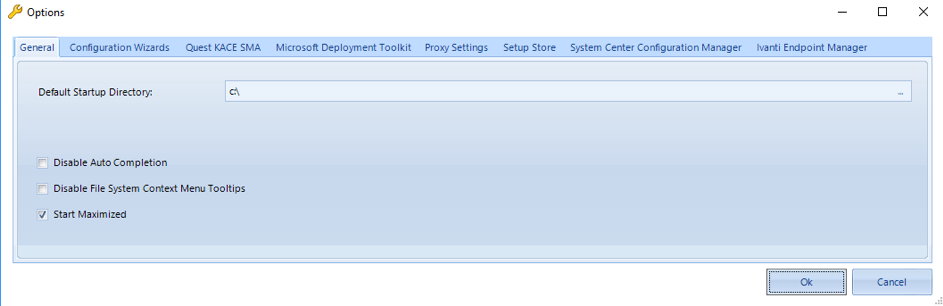
Use this option to configure the default startup directory and the filter row layout of the grids in the main screen.
Licensing
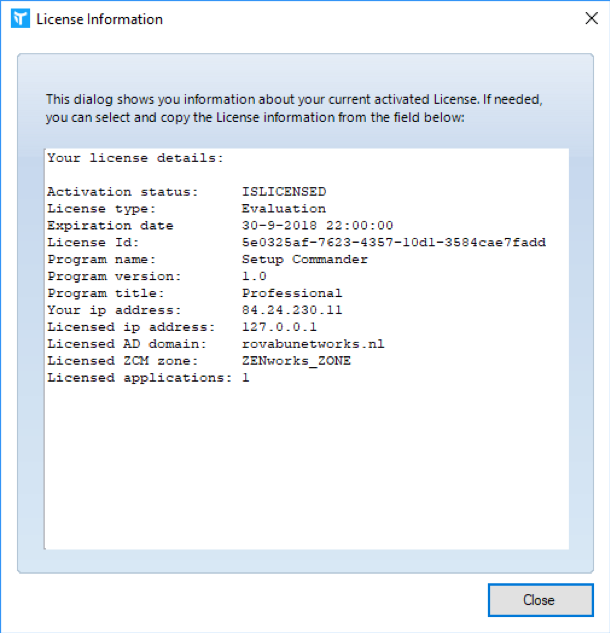
You review your license details using Licensing.
Logfiles
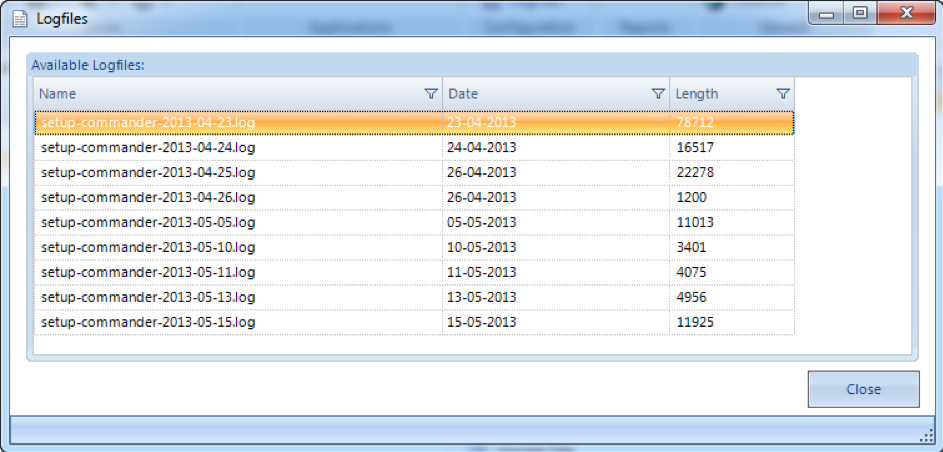
When support requests log files for analysis, you can find the Package Studio log files in the following locations:
Reports
The Reports ribbon group covers exporting the selected directory or the contents of the selected Applications folder in MDT or Application Folder in Configuration Management to Excel, PDF, XPS, or TXT format, or to print it to a selected printer.
Export
Exports a selected directory or a selected Application folder to Excel, Adobe PDF, Microsoft XPS, or text format.
Prints a selected directory or a selected Application folder to a selected printer.
General
The General ribbon group lets you check the About settings for updates or to visit the Setup Commander Web site.
About
The About section includes general remarks about Package Studio, release notes, and a link to the support forums.
Check for updates
On startup, Package Studio automatically checks whether a new build is available. You can also do this manually by clicking Check for updates.
Web site
Links to the Liquit Setup Commander Web site: http://www.setupcommander.com.