Ivanti Neurons for ITSM Configuration Management Database (CMDB) Connector Guide
Summary: How to set up and use the ITSM Configuration Management Database (CMDB) connector in RBVM.
Overview
The ITSM Configuration Management Database (CMDB) connector creates an integration with the ITSM CMDB module for syncing information with the RBVM platform. When the connector is configured, RBVM users can see and filter CMDB information within the platform. The ITSM user used in the connector configuration process needs read access to the CMDB CI tables that assets are stored in and write access (if configured) to the CI table created in ITSM for creating new assets.
This connector offers the flexibility to define up to 10 custom fields pulled from ITSM on top of the default fields (from the base CI table in ITSM). It allows for optional asset creation in ITSM. Additionally, it supports business criticality mapping in multiple ways to help get your asset’s business criticality synced into the platform.
CMDB support applies only to integrations and scanners that provide specific field data that exactly matches the fields and data provided by CMDB. Integrations/scanners that do not supply the required matching attributes and data may not be fully supported and may not produce the expected matching results.
Connector Configuration
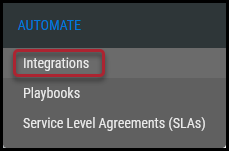
Navigate to the Automate > Integrations page.
Using the search bar in the upper-right corner of the Integrations page, type CMDB to find the connector.
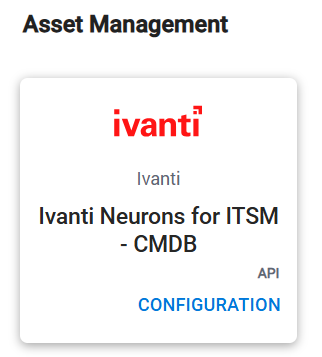
Locate the Ivanti Neurons for ITSM CMDB card on the page and click Configuration.
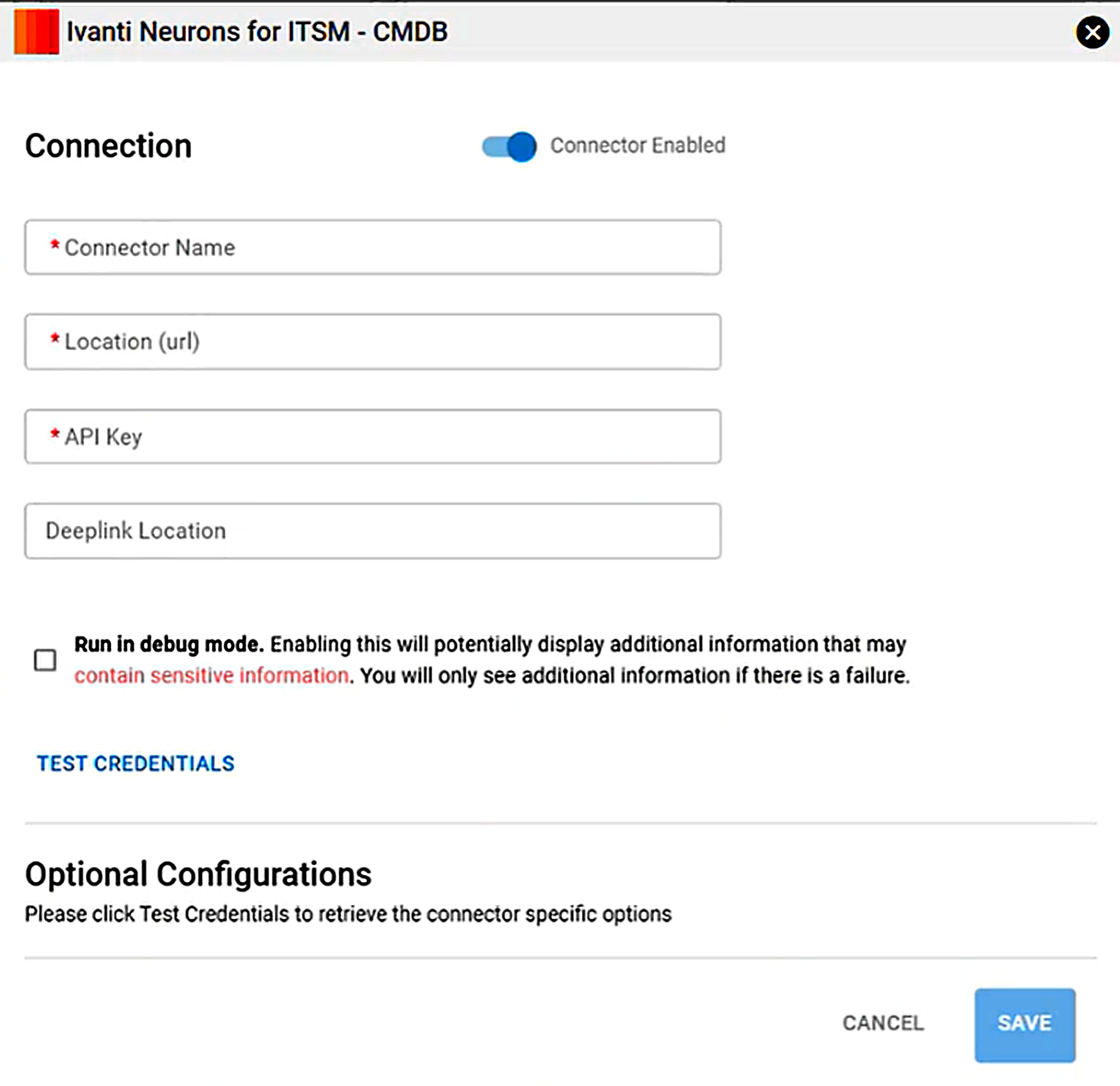
In the new window under Connection, complete the required fields, as described below.
-
Connector Name: The connector’s name.
-
Location (URL): URL of the Ivanti ITSM instance.
-
API Key: The user’s username that has access to the Ivanti ITSM instance.
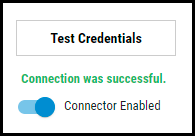
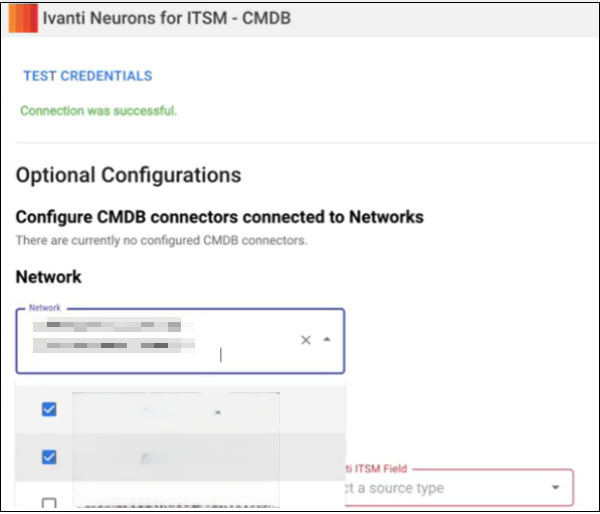
Click the Test Credentials button to ensure the credentials are correct and have the necessary access to make ITSM CMDB API calls.
Under the Connector Specific Option section, configure the following items for the connector.
Configure CMDB connectors connected to Networks: This section displays any currently configured CMDB connectors connected to networks in RBVM.
Network: This section configures what RBVM networks the connector will be limited to when syncing asset information from the ITSM CMDB module. You can select multi-networks from the drop down list.
Default Fields: All these fields are base CI fields in ITSM and will be pulled for all assets in the RBVM platform that reside in configured networks if populated in ITSM.
-
Default Field - Default fields in RBVM CMDB. In addition to the existing list, you can add more default fields.
-
Ivanti ITSM Field - Lists the ITSM fields from the CI business object that are available for mapping to default field values. These values are retrieved from the CI.
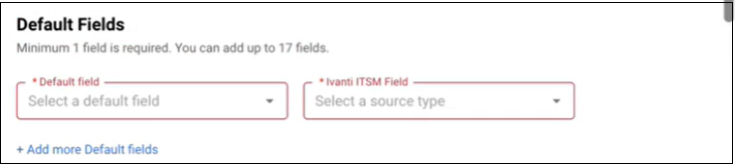
Users must ensure that the correct Ivanti ITSM field values are mapped to the corresponding default field values.
Business Criticality Mapping:
Enables you to map business criticality values fetched from ITSM to the corresponding Ivanti Neurons criticality values. ITSM and Ivanti Neurons maintain their own sets of business criticality values. When assets are fetched from ITSM, the configured mappings are used to update the assets with the corresponding Ivanti Neurons criticality values.
Configure the mappings according to your organization's business criticality requirements.
Select one of the following options:
-
Assign criticality: Allows you to map each Source Criticality value to a corresponding Ivanti Neurons Criticality value. When Assign criticality is selected, the Source Criticality column displays the criticality values from the source. For each source value, select the corresponding value from the Ivanti Neurons Criticality drop-down list.
The displayed Source Criticality values include:
-
Not Critical
-
Mission Critical
-
Critical
-
Standard
-
-
Import criticality: Select this option to use the criticality information provided by the source.
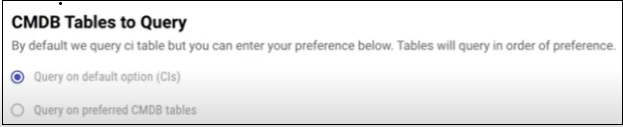
CMDB Tables to Query:
Use CMDB Tables to Query to specify which Configuration Item (CI) subtypes the connector retrieves from the CMDB. The Query on default option (CIs) option is selected by default. From the Select CI Sub-type(s) drop-down list, select one or more CI subtypes to include in the query. If no CI subtype is selected, the connector retrieves information for all CIs. Selecting specific CI subtypes limits the retrieved information to the selected subtypes.
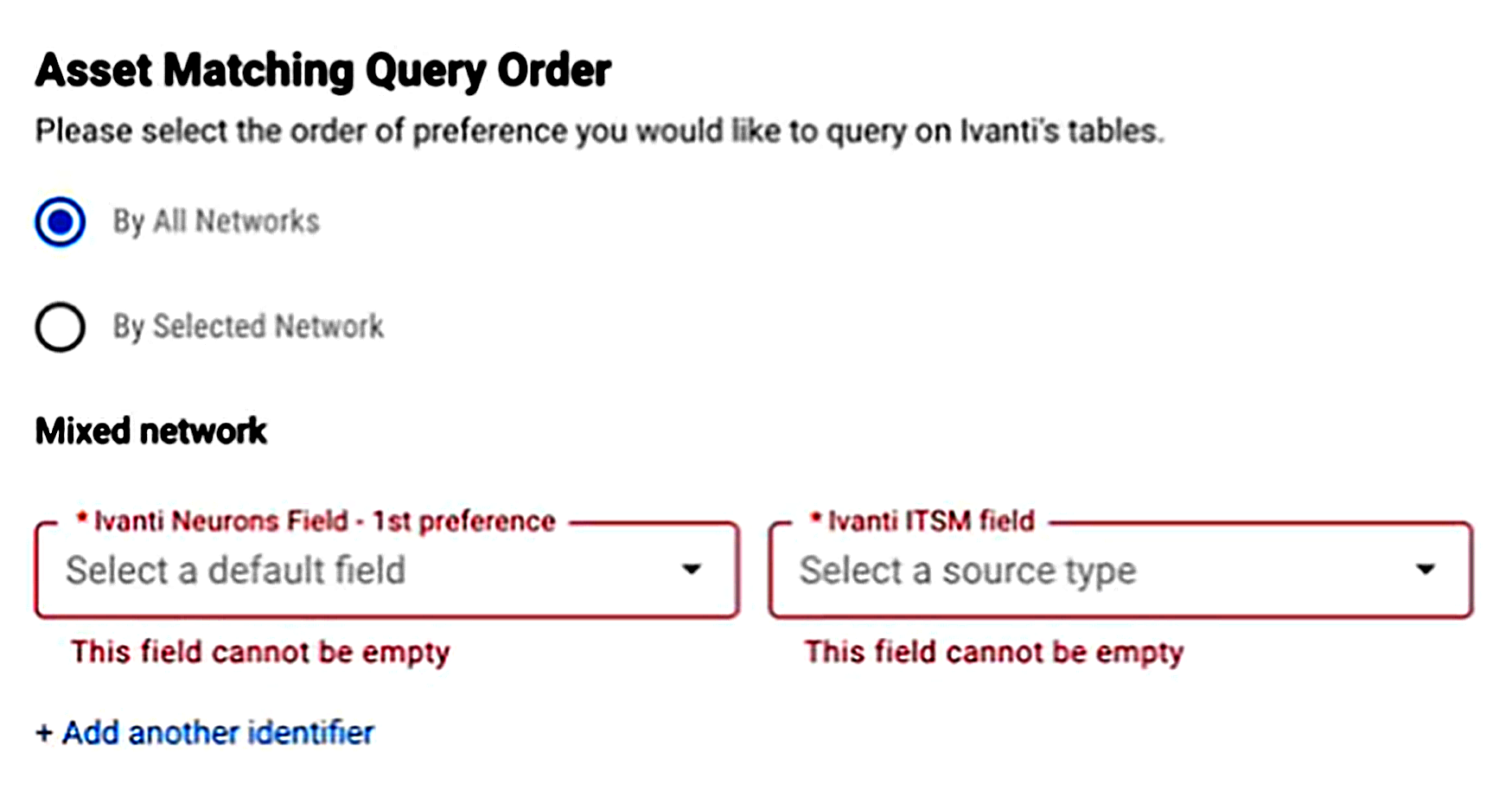
Asset Matching Query Order: When using this connector, users have the option to set CMDB mapping by using mixed network (By All Networks - which is default). Users can select either the network type configuration or one or more individual network types with custom mappings for each of them.
By All Networks
Users can select multiple options and configure separate configuration sets for each network type.
Asset Compliance:
Use Asset Compliance to map compliance-related fields from the ITSM CMDB to the corresponding asset compliance fields in RBVM.
The following asset compliance fields are predefined:
-
FERPA
-
HIPAA
-
PCI
For each compliance field, the Ivanti ITSM Field drop-down list displays the available fields from ITSM. Select the ITSM field that corresponds to the applicable compliance field. For example, for HIPAA, select the ITSM field that your organization uses to store HIPAA-related compliance information.
Configure Asset Compliance
-
Locate the Asset Compliance section.
-
For FERPA, select the corresponding field from the Ivanti ITSM Field drop-down list.
-
Repeat the mapping for HIPAA and PCI, as applicable.
-
Field names can vary depending on the configuration of your ITSM environment. Ensure that you select the appropriate ITSM field for each FERPA, HIPAA, and PCI mapping. Incorrect field mappings may result in inaccurate asset compliance information.
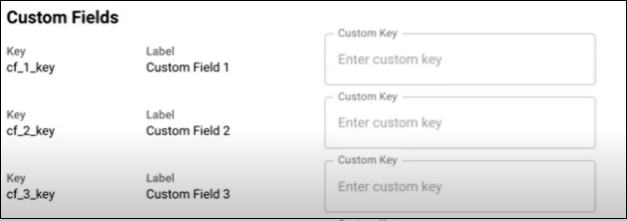
Custom Fields: These fields can be mapped to any valid fields on your CIs in ITSM. If these fields are not there for any given CI, then they will not be populated in the platform.
Click the Save to save the connector’s configuration and create the connector. Once saved, the connector is now visible on the Integrations page under Currently Configured Integrations.
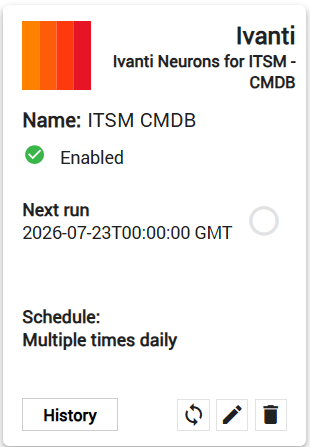
Clicking the History button displays the connector details for each pull. The Sync button allows users to perform on-demand sync. The Edit button allows the user to edit the connector configuration. The Delete button allows the user to delete the connector.
RBVM CMDB Usage
There are many ways that the RBVM platform allows you to view, edit, lock, filter, and use CMDB information synced with your RBVM assets.
General Sync Information
Once the connector is synced, if an asset previously found a matching record in ITSM CMDB, then it will keep syncing with the same record in all future sync operations even though there could be multiple matching records found in ITSM CMDB.
Custom Field Display Value Configuration
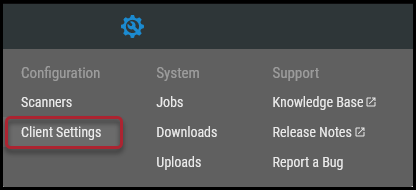
While logged into the RBVM platform, navigate to the Settings ( ) > Client Settings page from the top-right corner of the screen.
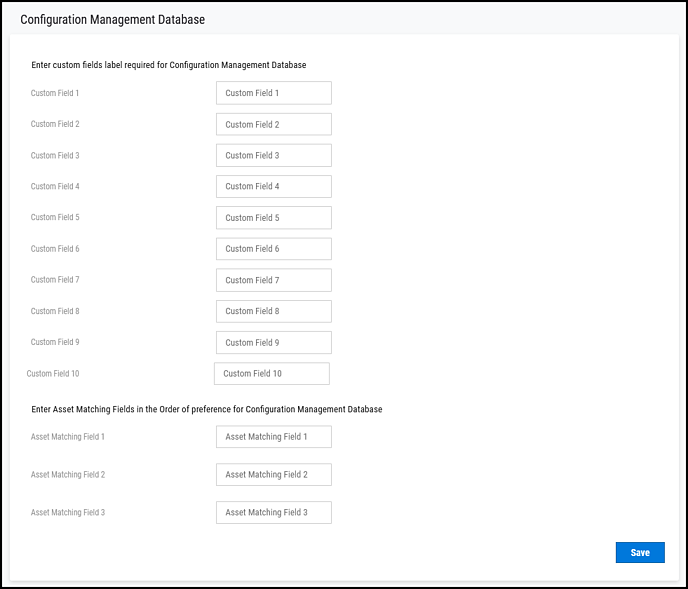
Custom field labels can be configured in the Configuration Management Database section. This setting only affects the connector configuration screen and the host detail slide-out display value.
NOTE: When filtering for these fields, the filter category will always be “Custom Field X” and not the configured display value for the detail pane.
RBVM Fields/Status Types
Status Types
Status types are found in the Host Detail pane when looking at an asset in RBVM. They can be filtered using the filter category CMDB Sync Status on the Hosts page. Below is more information about the possible status values that a RBVM asset can have and the filter values that correspond to them.
SYNCED (Filter Value: Synced): Only one unique record found in ITSM CMDB matching the search criteria and synced.
NOT_FOUND (Filter Value: No Record Found): No record found in ITSM CMDB.
MULTIPLE_FOUND (Filter Value: Multiple Found): Multiple records were found that match the search criteria in ITSM CMDB.
RECORD_NO_LONGER_FOUND (Filter Value: Record No Longer Found): The ITSM CMDB record was found in a previous sync but not found in the latest one (e.g., the CI was deleted).
NOT_APPLICABLE (Filter Value: Not Applicable): The host is not part of any CMDB connector.
Fields
The following tables show the RBVM CMDB fields (default/configurable/custom) supported by this connector and the user interface/API.
Field Auxiliary Information
-
Data Refresh: The RBVM CMDB field’s last updated time.
-
Locked By: RBVM CMDB field is updated by. It can be either locked to a connector or the API/UI. Each field can be individually locked on a per asset basis.
Default Fields
There are default fields that the connector always attempts to pull if they are populated in ITSM.
|
RBVM Field |
RBVM Filter Category |
ITSM CMDB CI Field |
Field Description |
|---|---|---|---|
|
Operating System |
CMDB Operating System |
os |
Asset operating system. |
|
Manufactured By |
CMDB Manufactured By |
manufacturer |
Asset manufacturer. |
|
Model |
CMDB Model |
model_id |
Asset model. |
|
Location |
CMDB Location |
location |
Asset location. |
|
Managed By |
CMDB Managed By |
managed_by |
Who manages the asset. |
|
Owned By |
CMDB Owned By |
owned_by |
Who owns the asset. |
|
Supported By |
CMDB Supported By |
supported_by |
Who supports the asset. |
|
Support Group |
CMDB Support Group |
support_group |
The group that supports the asset. |
|
Last Scanned |
CMDB Last Scanned |
sys_updated_on |
Asset’s last scanned time (scan meaning CMDB Agent or collection server). |
|
Asset tags |
CMDB Asset tags |
asset_tag |
Asset’s associated asset tags. |
|
Mac Address |
CMDB Mac Address |
mac_address |
Asset MAC address. |
|
Unique Id |
CMDB Unique Id |
sys_id |
Asset’s Unique ID (ITSM sys_id) of the matching record (CI). |
Custom Fields
If these fields are configured in RBVM and populated in ITSM, the connector always attempts to pull these configurable fields.
|
RBVM Field |
RBVM Filter Category |
ITSM CMDB CI Field |
Field Description |
|---|---|---|---|
|
Business Criticality |
Criticality |
Mapping to CI-associated criticality configurable field |
This can be mapped to source criticality, which comes from the business_criticality (Business Criticality) field in the cmdb_ci_service (Business Service) table. These cmdb_ci_service (Business Service) objects are associated with cmdb_ci (Configuration Items) and its child tables. If multiple cmdb_ci_service (Business Service) records are associated with a single CMDB CI, then we will take the highest of the information from ITSM. OR The asset’s Business Criticality in RBVM. This is an integer from 1 (least critical) to 5 (most critical). |
|
Asset Compliance: FERPA |
CMDB FERPA Compliance Asset |
Configurable Field |
A field to represent whether this asset is FERPA compliant. |
|
Asset Compliance: HIPAA |
CMDB HIPAA Compliance Asset |
Configurable Field |
A field to represent whether this asset is HIPAA compliant. |
|
Asset Compliance: PCI |
CMDB PCI Compliance Asset |
Configurable Field |
A field to represent whether this asset is PCI compliant. |
|
Custom Field 1 |
CMDB Custom Field 1 |
Configurable Field |
These fields can be mapped to anything you want and configured within RBVM to have a unique display name. NOTE: When filtering for these fields, the filter category will always be “Custom Field X” and not the configured display value for the detail pane. |
|
Custom Field 2 |
CMDB Custom Field 2 |
Configurable Field |
See Custom Field 1. |
|
Custom Field 3 |
CMDB Custom Field 3 |
Configurable Field |
See Custom Field 1. |
|
Custom Field 4 |
CMDB Custom Field 4 |
Configurable Field |
See Custom Field 1. |
|
Custom Field 5 |
CMDB Custom Field 5 |
Configurable Field |
See Custom Field 1. |
|
Custom Field 6 |
CMDB Custom Field 6 |
Configurable Field |
See Custom Field 1. |
|
Custom Field 7 |
CMDB Custom Field 7 |
Configurable Field |
See Custom Field 1. |
|
Custom Field 8 |
CMDB Custom Field 8 |
Configurable Field |
See Custom Field 1. |
|
Custom Field 9 |
CMDB Custom Field 9 |
Configurable Field |
See Custom Field 1. |
|
Custom Field 10 |
CMDB Custom Field 10 |
Configurable Field |
See Custom Field 1. |