On-prem Agent
With Neurons iPaaS On-prem Agent, you can securely connect to authorized on-premise applications and databases that are hosted within private IT environment behind firewalls to ITSM cloud without compromising the security of on-premise systems.
The On-prem Agent feature is licensed separately, to avail the license and/or know more, reach out to Ivanti Support.
Setting up On-prem - workflow
Create a group > Add an Agent (Select OS > Download and install agent > Activate the agent > Test the agent) > Add Connections.
On-prem Groups
With On-prem Groups, you can logically group multiple agents into a common connection pool. For instance, if you have a development environment with multiple applications and databases such as SQL, Jira, and Salesforce, you can pool them in a group to achieve High Availability. For more information on the advantages of On-prem groups and High Availability, see Workato On-prem Group.
Create a Group
1.Log in to Neurons for ITSM as an Administrator.
2.Open the Configuration console, select Tools > On-prem Groups > New Group.
3.Enter a Group Name, select Set up connections as Directly in Workato.
It is recommended to select Directly in Workato rather than Manually in each agent.
A group is created. Next step is to add an agent in each of the server. If you have three servers in the group, you must add agents to all three servers.
Add Agent
1.Click Add On-prem Agent.
2.Provide necessary details in the Choose OS section.
3.Download the installer.
4.When download is complete, open the .exe file and install the agent.
5.While it is getting installed, click Next in the Add Agent page and copy the Activation code.
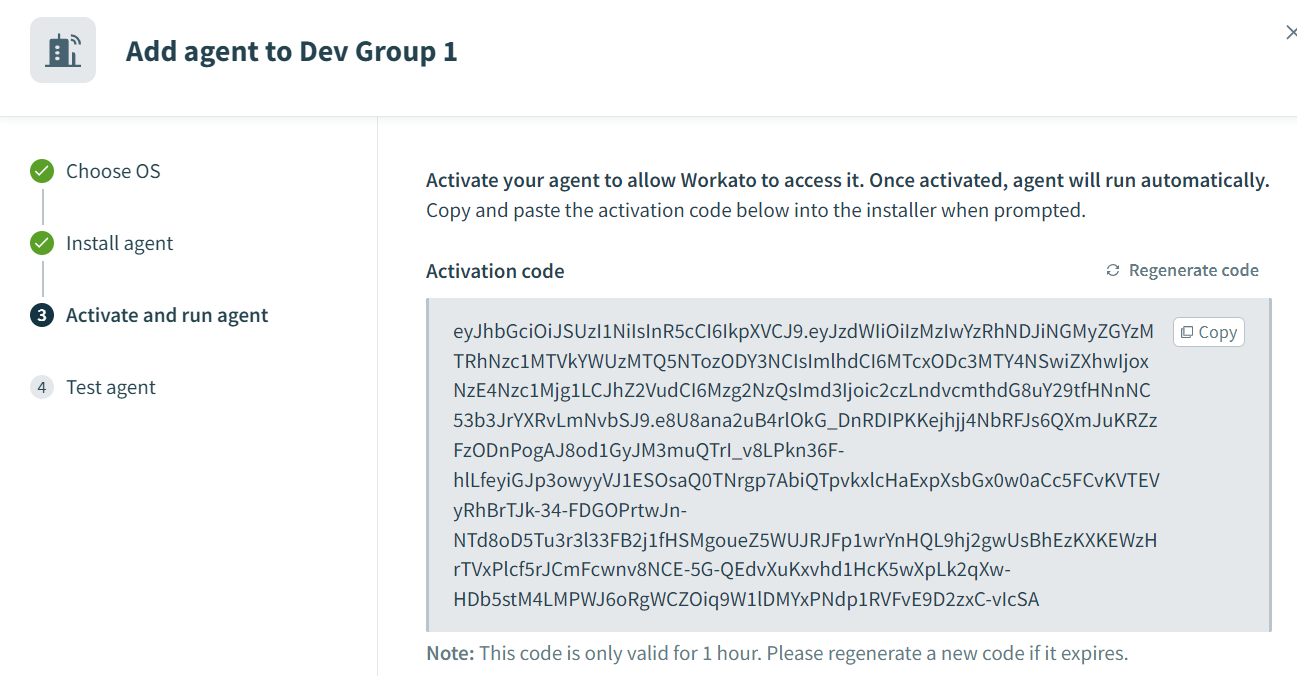
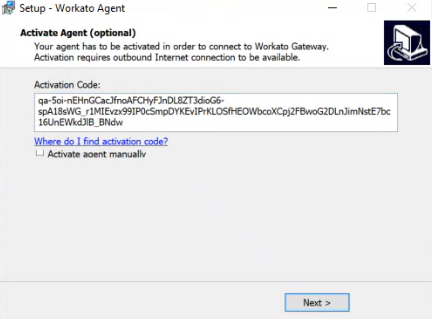
6.Enter the Activation code when prompted after the installation is complete.
7.Final step is to test the agent.
A success message is displayed when the agent is successfully tested.
8.Repeat the process to add agents to all the servers.
Add Connections
Once the group is created and agent is setup, next step is to add connections to the agents. For more information, see Connection.
To add a connection, go to Projects and add. Do not add from within On-prem Group.