Software update enrollment policy
The Software Update Enforcement policy lets the administrators perform the following tasks:
- Administrators can set up a deadline to force upgrade the device.
- Administrators can also set a URL with a message to display on the Settings of the device to notify the upcoming software update.
Before you begin
-
iOS 17 and later versions, iPadOS 17 and later versions, or macOS 14 and later versions
-
Always create a dedicated policy for iOS and macOS devices.
-
DDM configuration takes precedence over MDM protocol configurations.
Procedure
-
In the EPMM admin portal, navigate to Policies and Configs > Policies.
-
Select Add New.
-
Navigate to Apple > iOS/macOS > Software Update Enforcement. The New Software Update Enforcement window pane appears.
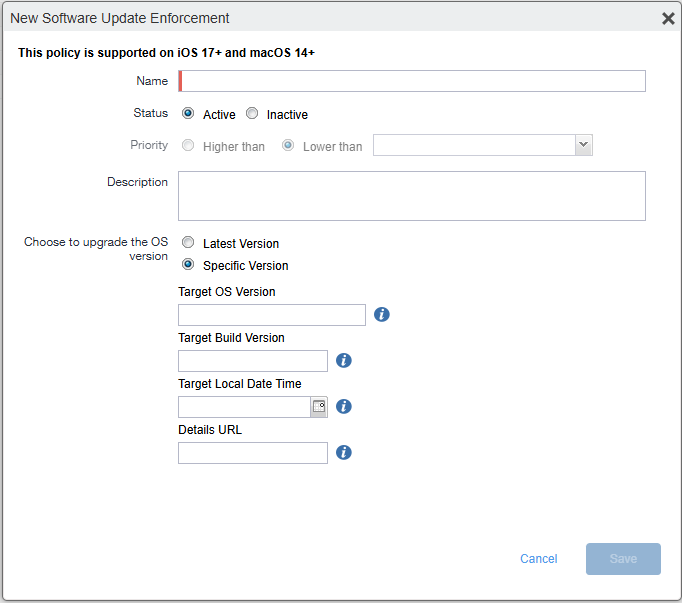
- Enter the Name for the software enforcement.
- Select the Status as Active or Inactive
- Select the Priority of upgrade appropriately.
- Enter a Description.
-
In the Choose to upgrade the OS version field, select one of the following options:
-
Latest Version: Ivanti EPMM can recognize the latest available OS version on the device during runtime based on the model of the devices.
-
Specific Version: You need to enter the build number and the target OS version to enforce a new software update on the devices.
-
-
Enter the following details, if you select the Latest Version option:
-
Enter the number of days in the Enforce update after number of days when a update is published field.
-
Select the time from the Local time of device when device should get update drop-down list in 24-hour format.
-
Enter the Details URL link.
Ivanti EPMM will automatically enforce the Latest Version of the OS on the devices based on the number of days specified in the Enforce update after number of days when a update is published field, which is dependent on the OS release date.
-
-
Enter the following details, if you select the Specific Version option:
-
Enter the Target OS Version to upgrade.
-
Enter the Target Build Version.
-
Select the time from the Target Local Date Time drop-down list in 24-hour format.
-
Enter the Details URL link.
-
-
Click Save.
-
Select the policy created in to Policies and Configs > Policies.
-
Click Actions > Apply to Label.
-
Apply an appropriate label (iOS/macOS) to this policy.
-
Click Apply > Ok.
-
Click Devices & Users > Devices.
-
Select the device > Polices tab.
The policy is in the pending state.
The configuration and details for software update is now visible on the device MDM profile.