Configuring the Reporting Database Exporter allows the MobileIron Reporting Database to extract the relevant MobileIron Core data.
To configure MobileIron Core to work with the MobileIron Reporting Database system:
|
1.
|
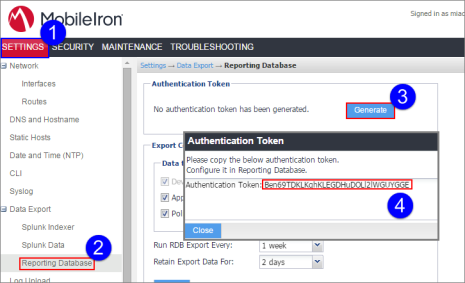
In the MobileIron Core System Manager, go to Settings > Data Export > Reporting Database. |
You will use the authentication token when you configure the Reporting Database.
|
4.
|
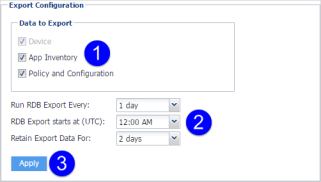
Under Data to Export, select or clear data categories to specify the data to export or omit. |
The Device option is required and cannot be cleared.
Note: You can run the RDB Export on demand without waiting for the next run. Running the RDB export on demand
|
6.
|
If you selected 1 Week from the Run RDB Export Every drop-down, then select a day to run the RDB export from the Run RDB Export On drop-down. |
|
7.
|
Select a time to start the RDB export from the RDB Export starts at (UTC) drop-down. |
|
8.
|
Select a retention time from the Retain Export Data For drop-down. |
|
10.
|
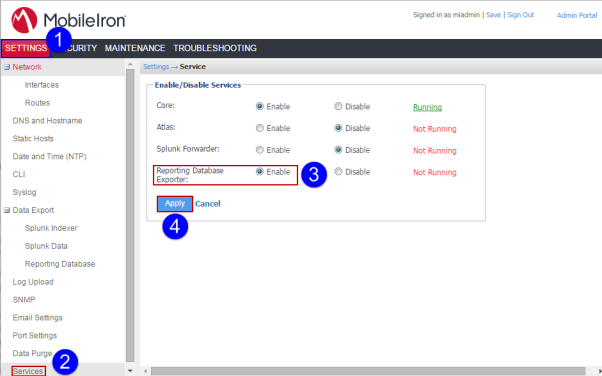
Go to Settings > Services. |
|
11.
|
Select Enable for the Reporting Database Exporter. |