ICS Postman Collection
The document provides detailed instructions on configuring and using the Postman REST API with Ivanti software, covering installation, environment setup, authentication, and making API calls.
•Installing Postman app: Users should download and install the Postman app for their operating system from the Postman website, then create an account and log in.
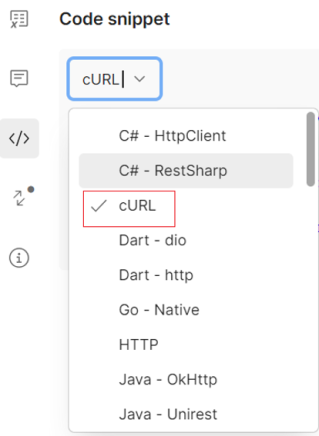
•Importing environment and collections: After installation, users import the latest Environment variable set and API collection files into Postman via the Import option, which creates folders in Collections and Environments tabs. Code snippets for various languages can be accessed through the Codeicon.
•Authentication and API calls: To authenticate, users manually create a sign-in request in Postman by updating variables like username and password, sending the request to receive a one-time api_key, then saving it in the environment file. Authenticated API calls, such as retrieving active sessions, can be made by sending requests to specified endpoints, with successful responses returning status code 200.
Configuring the Postman REST API
Ivanti supports the online app version and the standalone Windows, macOS, and Linux versions of the Postman REST API.
Installing the Standalone Postman App
To install the Postman app:
1.Go to the Postman website and download the app for your OS.
2.Install the app. After installation, the login window appears.
3.In the login window, create an account and log in.
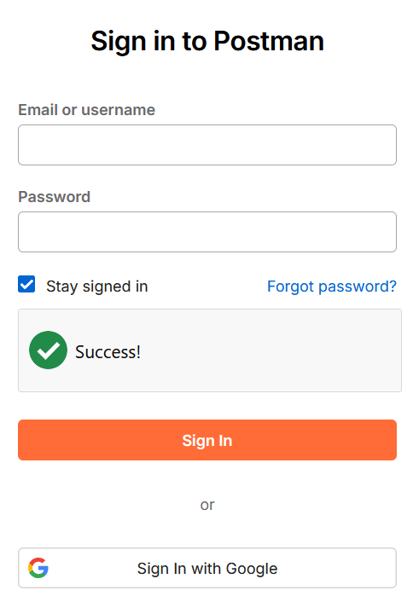
Adding the Environment and Collection
To Import the Environment variable set and API collection:
1.Sign in to the Ivanti Software Downloads portal.
2.Navigate to Downloads > Network Security > Ivanti Connect Secure > Latest Version of ICS.
3.Locate the package named ics-postman-collections-*.zip.
4.Download the ZIP file with latest version of Environment variable set and API collection files.
5.From the main window of the Postman application, click Import.
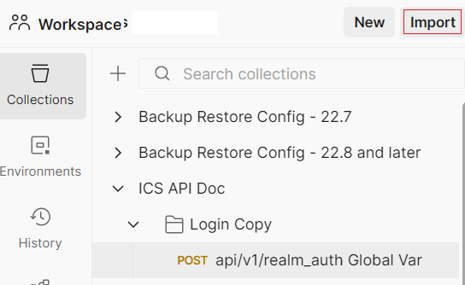
6.In the import window that appears, select the files or drag the files to the selection area.(.postman_collection and postman_environment.json)
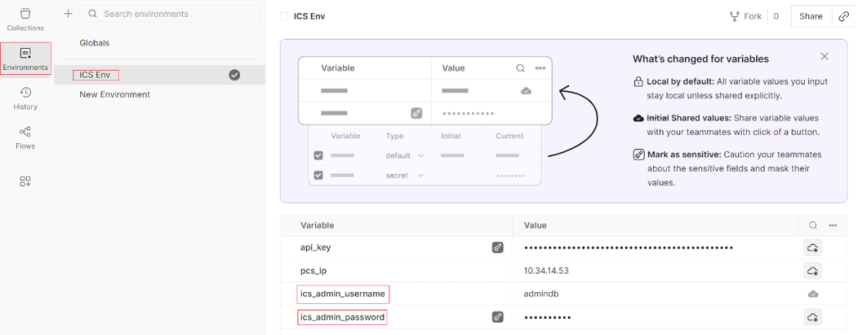
After the files are imported, a new folder with the name used within the Postman collection file and Environment file (e.g., ICS API Doc and ICS env) are displayed within Collections and Environments tabs respectively.
7.Click the Environment tab on the left-side navigation, and then click imported environment file. You must change the variables (username and password) to authenticate and use the ICS server.
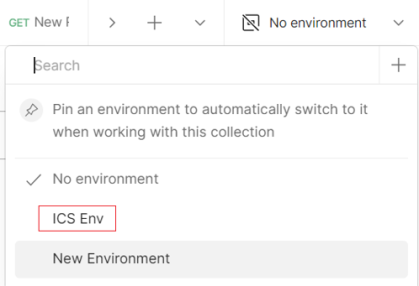
8.To get the variable auto populated select the Environment on the right-side top corner.
9.To access specific coding language scripts, click the Code icon in the toolbar. Select the desired language from the drop-down menu.
Authenticating a Session in Postman
Before you make an API call in Postman, you must authenticate a session. Currently, the API to sign in must be created manually.
To create a sign-in request:
1.Open the workspace that has imported collection and environment files, on left-side navigation, click Collections.
2.Click the ICS API Doc collection, and then click Login copy folder.
3.Click on the api/v1/realm_auth Global Var.
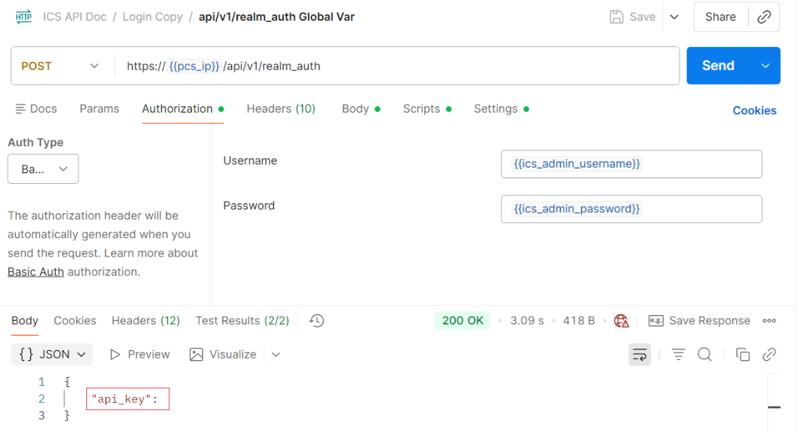
4.Click Send to get one-time api_key and copy the same.
If your API key sent properly, a successful response returns status code 200, along with your authorization token.
5.Click the Environment tab on the left-side navigation, and then click imported environment file.
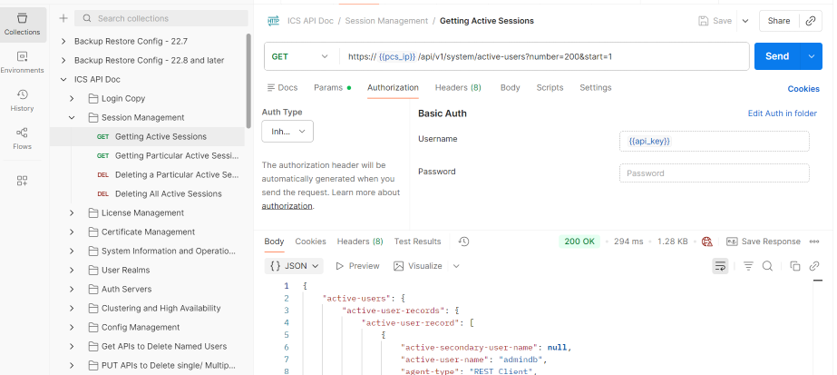
6.Replace the one-time api_key variable that you copied from the api/v1/realm_auth Global Var. and save the environment file.
Making an API Call in Postman
Try making an API call using Postman. In the following example, get the active sessions for a specific ICS by sending a GET request to the endpoint.
1.Ensure that you can authenticate and log in successfully using the POST request to https://{{pcs_ip}}/api/v1/realm_auth.
2.Click the ICS API Doc > Session Management > Getting Active Sessions.
3.All the parameters are added and authenticated in environment files.
4.Click Send and you can get all the active sessions.
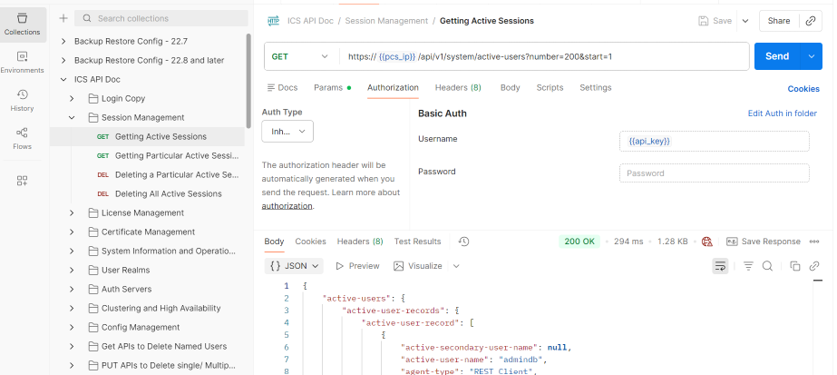
A successful response returns status code 200.