Using the Authentication Report
This topic describes the authentication report.
About the Authentication Report
The authentication report displays the authentication result for each user based on the device activity in the selected time range.
Displaying the Authentication Report
To display the authentication report, select System > Reports > Authentication.
Figure shows the authentication report for Ivanti Connect Secure.
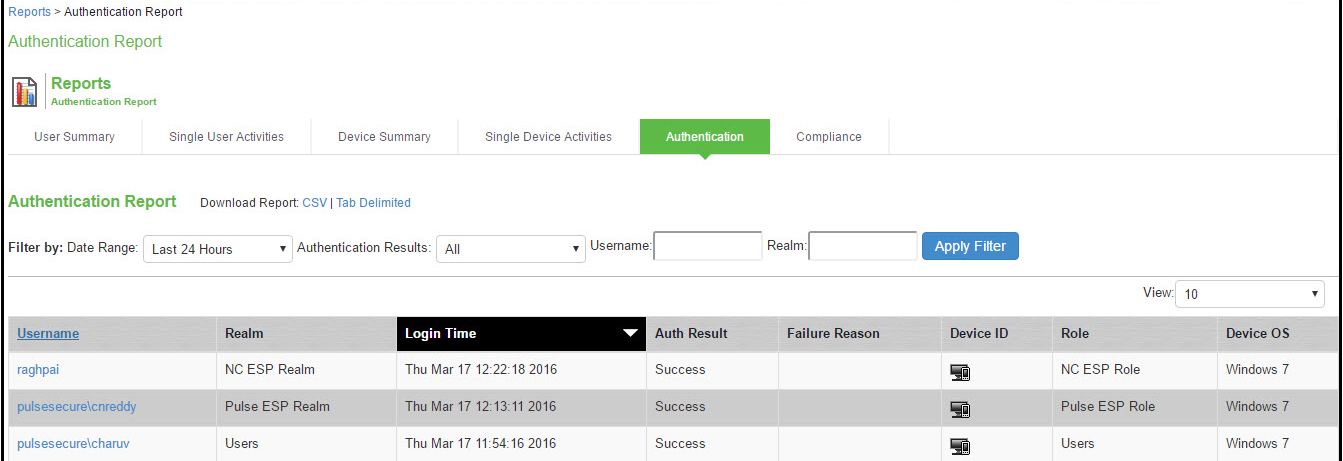
Table describes the columns on the authentication report.
|
Column |
Description |
|
Username |
Specifies the name of the user. |
|
Realm |
Specifies the realm. |
|
Login Time |
Specifies the time the user logged in. |
|
Auth Mechanism |
Specifies the authentication mechanism: 802.1x, Layer 3, MAC address. It applies only to Ivanti Policy Secure. |
|
Auth Result |
Specifies the authentication result. |
|
Failure Reason |
Specifies the host checker failure reason. |
|
Device ID |
Specifies a unique identifier used to identify an end point. Click the device ID icon to view a single device report. |
|
Role |
Specifies the user role. |
|
Device OS |
Specifies the operating system of the device. |
Applying Data Filters
To apply a data filter:
1.Select System > Reports > Authentication.
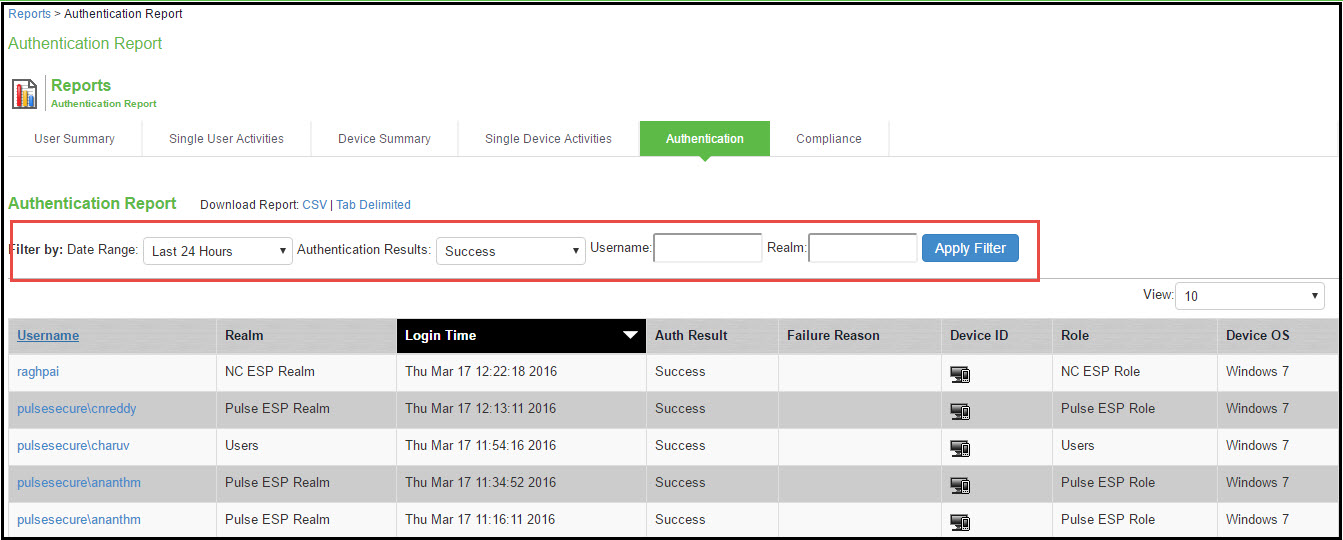
2.Select one of the following periods from the Filter by: Date Range list box:
•Last 24 Hours - (Default) Refers to the last 24 hours from the current hour.
•Last 7 Days - Refers to current day and the previous last 6 days.
•Last 30 Days - Refers to current day and the previous last 29 days.
3.Enter search criteria in one or more of the following columns:
•Authentication Results
•Username
•Realm
4.Click Apply Filter.
Figure shows the authentication report for Ivanti Connect Secure.
Sorting Records
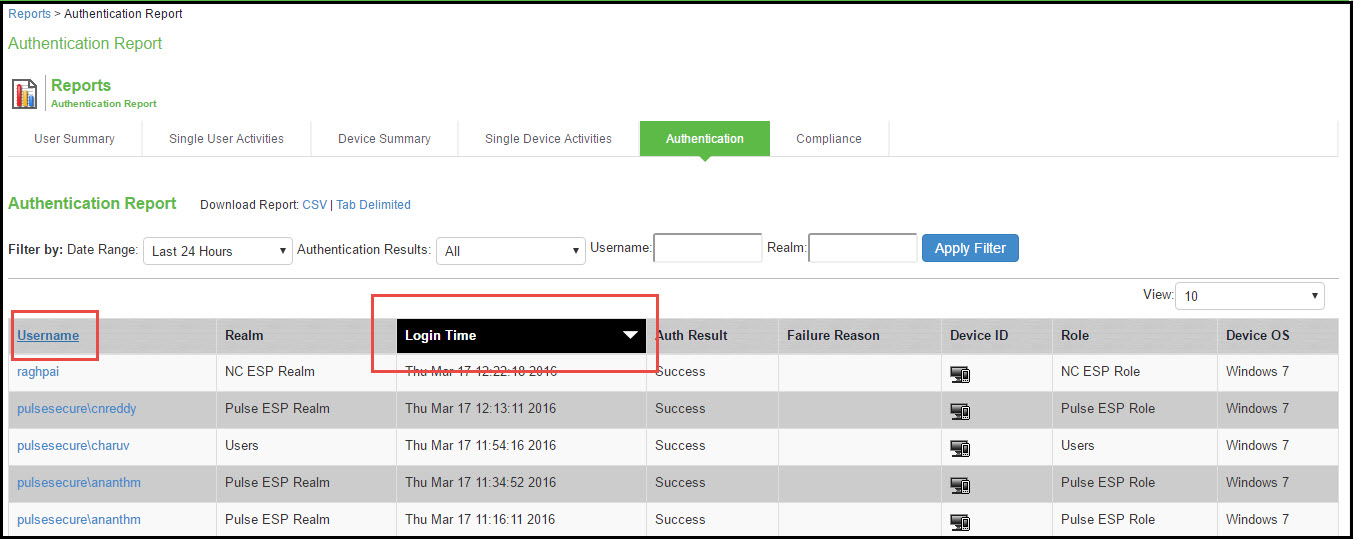
The data source determines the default sort order of the data rows in the report. Typically, data appears randomly, so sorting is an important task in creating a useful report. You can sort single data column.
To sort the authentication report:
1.Select System > Reports > Authentication.
2.Select Login Time column and click either the ascending or descending order icon.
Figure shows the authentication report sorted by last login time for Ivanti Connect Secure.
Exporting Authentication Report
To export an authentication report:
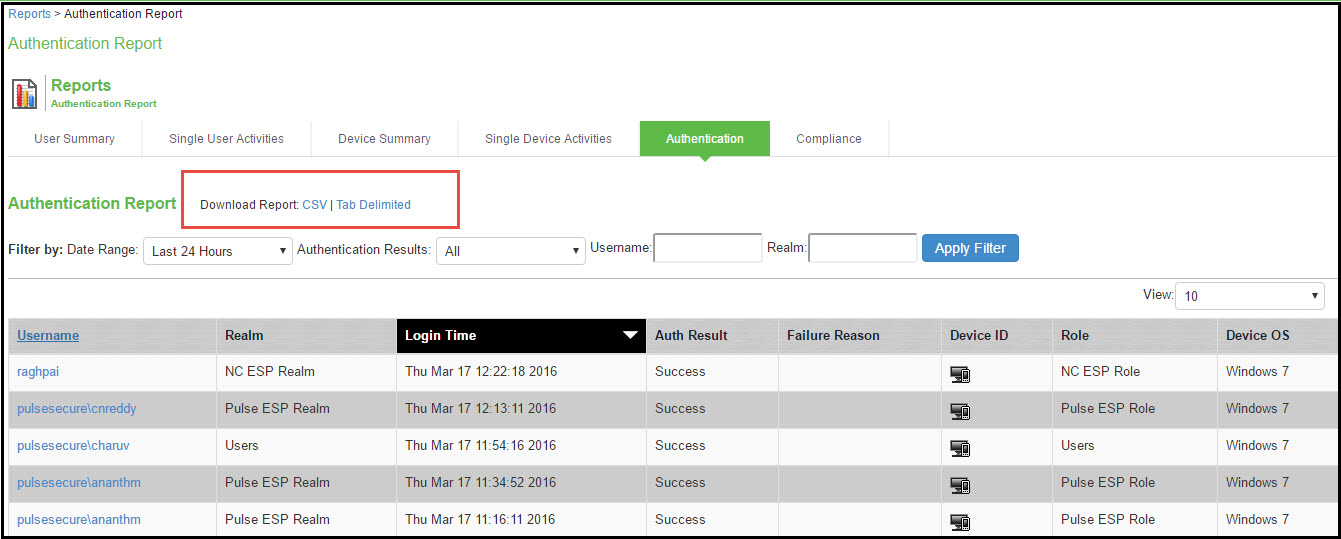
1.Select System > Reports > Authentication.
2.Select a Download Report option.
•CSV - Exports the report in CSV format.
•Tab Delimited - Exports the report in tab-delimited format.
Figure the authentication report displayed for Ivanti Connect Secure.