Using the Single Device Report
This topic describes the single device report.
About the Single Device Activities Report
The single device activities report displays the device activity information such as username, realm, login time, logout time, device detail, MAC address, authentication mechanism, authentication result, compliance, IP address, role and so on for each device.
Displaying the Single Device Activities Report
To display the single device activities report, select System > Reports > Single Device Activities.
Figure shows the single device activities report for Ivanti Connect Secure.
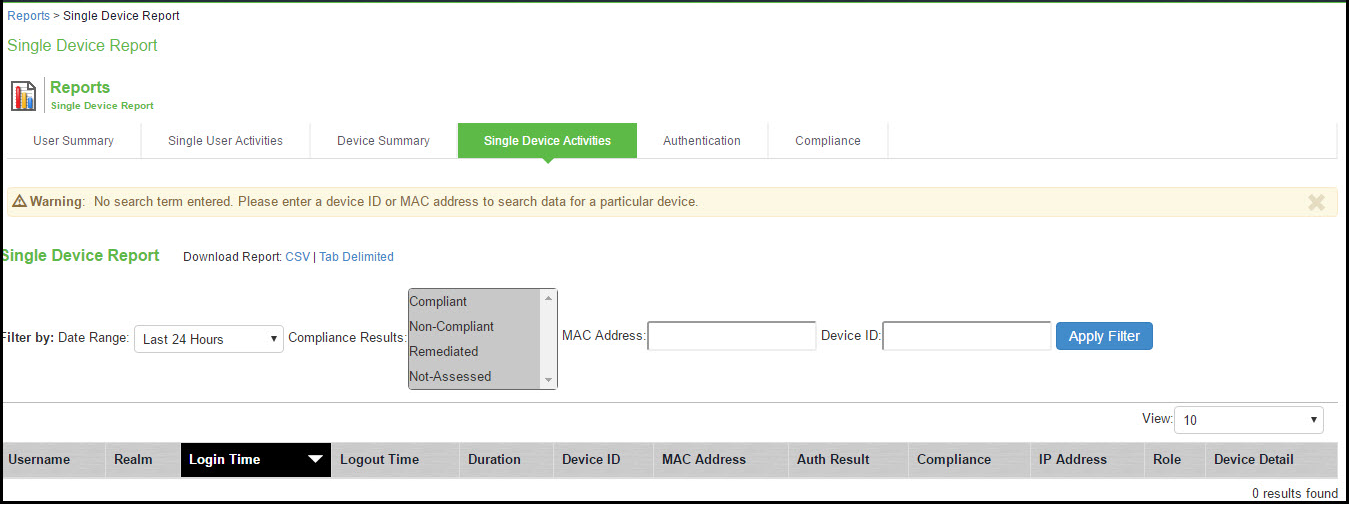
Table describes the columns on the single device report.
|
Column |
Description |
|
Username |
Specifies the name of the user. |
|
Realm |
Specifies the realm. |
|
Login Time |
Specifies the time the user logged in. |
|
Logout Time |
Specifies the time the user logged out. |
|
Duration |
Specifies the total duration of the user session. |
|
Device ID |
Specifies a unique identifier used to identify an end point. Click the device ID icon to view a single device report. |
|
MAC Address |
Specifies the MAC address of the device. |
|
Auth Mechanism |
Specifies the authentication mechanism: 802.1x, Layer 3, MAC address. It applies to Ivanti Policy Secure only. |
|
Auth Result |
Specifies the authentication result. |
|
Compliance |
Specifies the Host Checker posture assessment results: Compliant, Not Compliant, Not Assessed, or Remediated. |
|
IP Address |
Specifies the IP that the user logged in with. |
|
Role |
Specifies the role of the user. |
|
Device Detail |
Displays the URL that is used for connecting to the MDM server. |
Applying Data Filters
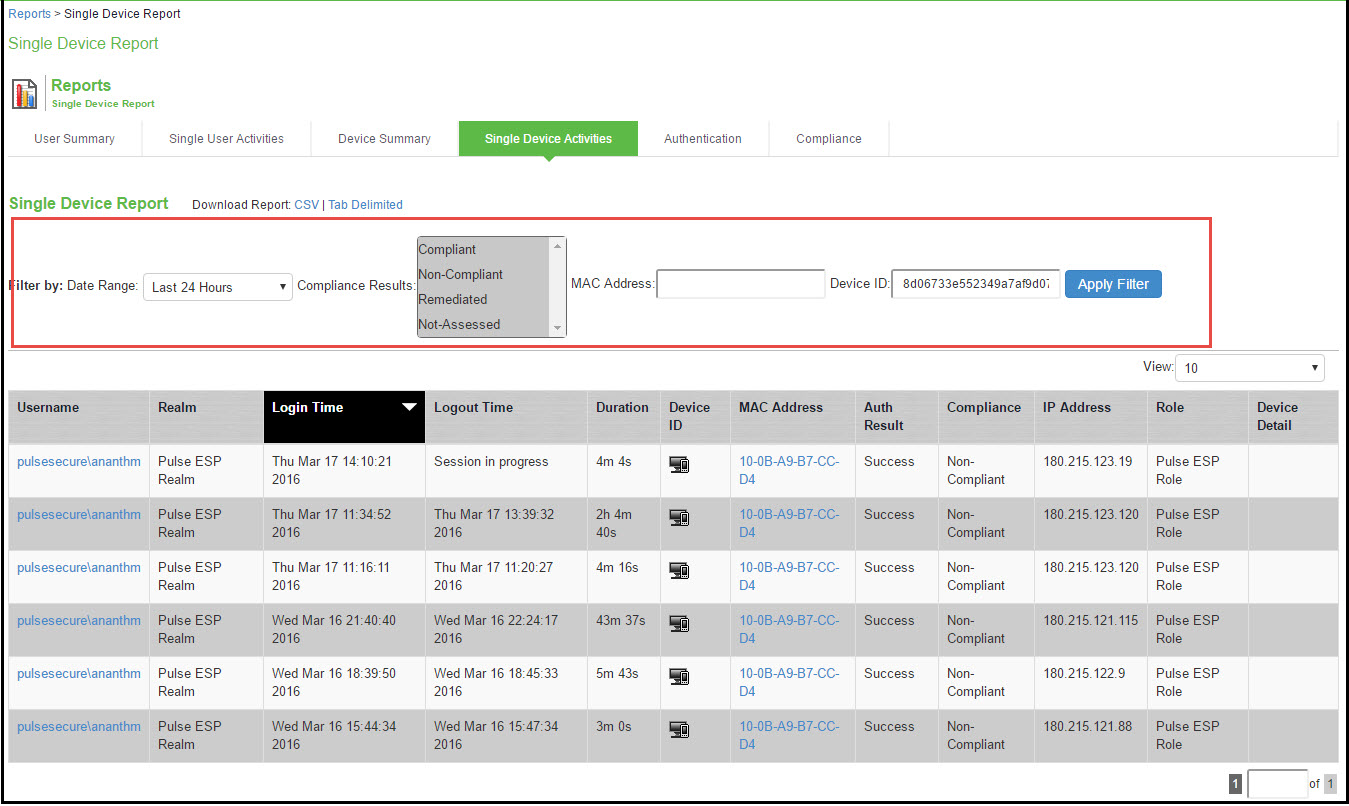
To apply a data filter:
1.Select System > Reports > Single Device Activities.
2.Select one of the following periods from the Filter by: Date Range list box:
•Last 24 Hours - (Default) Refers to the last 24 hours from the current hour.
•Last 7 Days - Refers to current day and the previous last 6 days.
•Last 30 Days - Refers to current day and the previous last 29 days.
3.Enter search criteria in one or more of the following columns:
•Compliance Results
•MAC Address
•Device ID
•Authentication Mechanism. It applies only to Ivanti Policy Secure.
4.Click Apply Filter.
Figure shows the single device activities report for Ivanti Connect Secure.
Sorting Records
The data source determines the default sort order of the data rows in the report. Typically, data appears randomly, so sorting is an important task in creating a useful report. You can sort single data column.
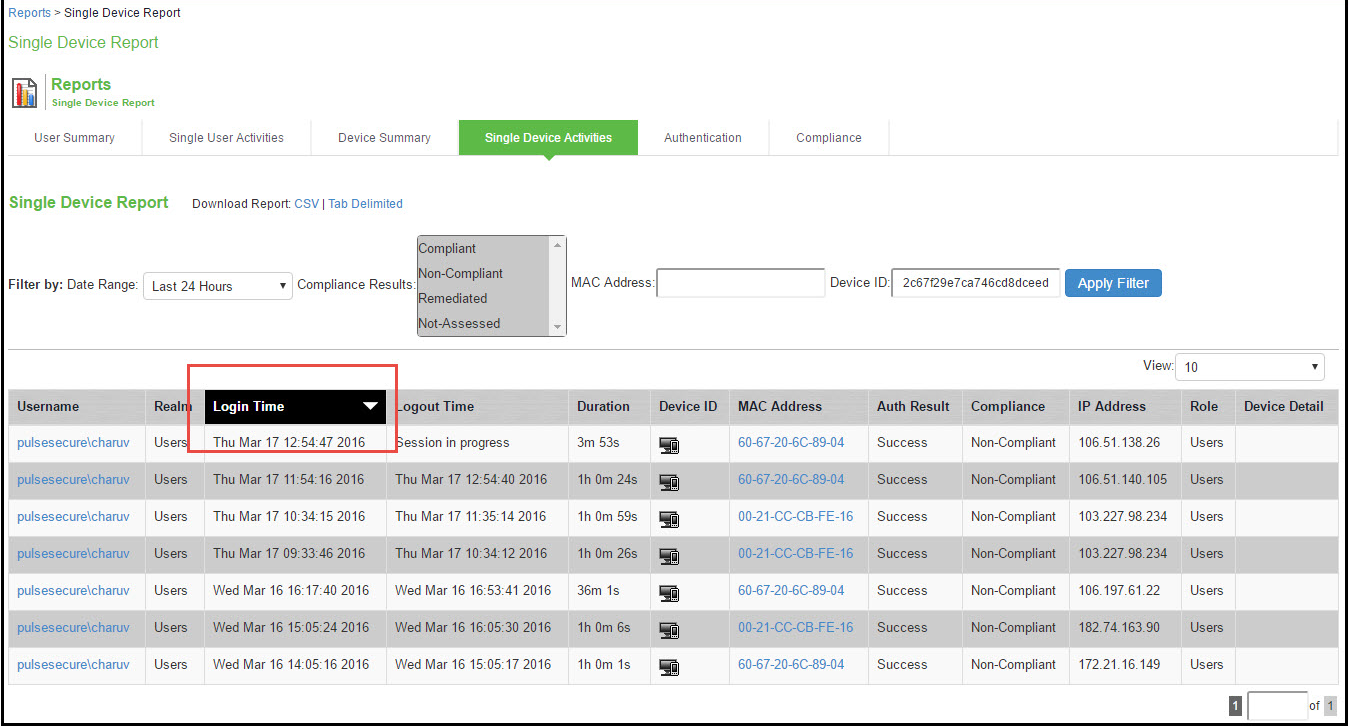
To sort the single device activities report:
1.Select System > Reports > Single Device Activities.
2.Select Login Time column and click either the ascending or descending order icon.
You can sort the column in either ascending order or descending order.
Figure shows the single device activities report sorted by last login time Ivanti Connect Secure.
Exporting Single Device Activities Report
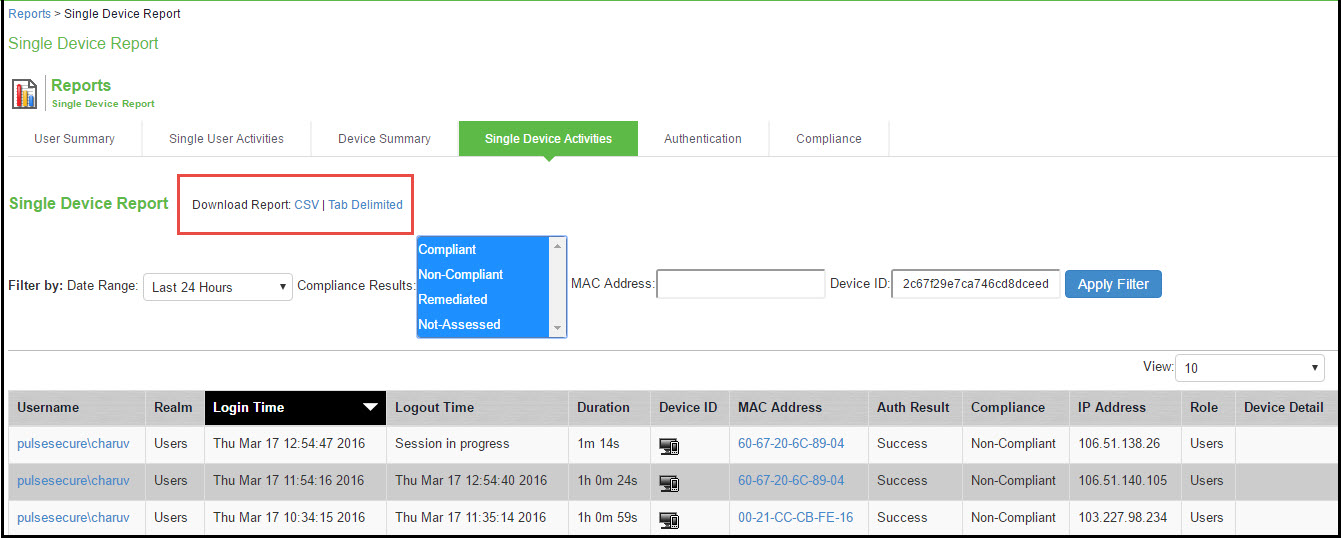
To export single device activities report:
1.Select System > Reports > Single Device Activities.
2.Select a Download Report option.
•CSV - Exports the report in CSV format.
•Tab Delimited - Exports the report in tab-delimited format.
Figure shows the single device activities report for Ivanti Connect Secure.