Configuring Guest Access Settings on Ivanti Policy Secure
-
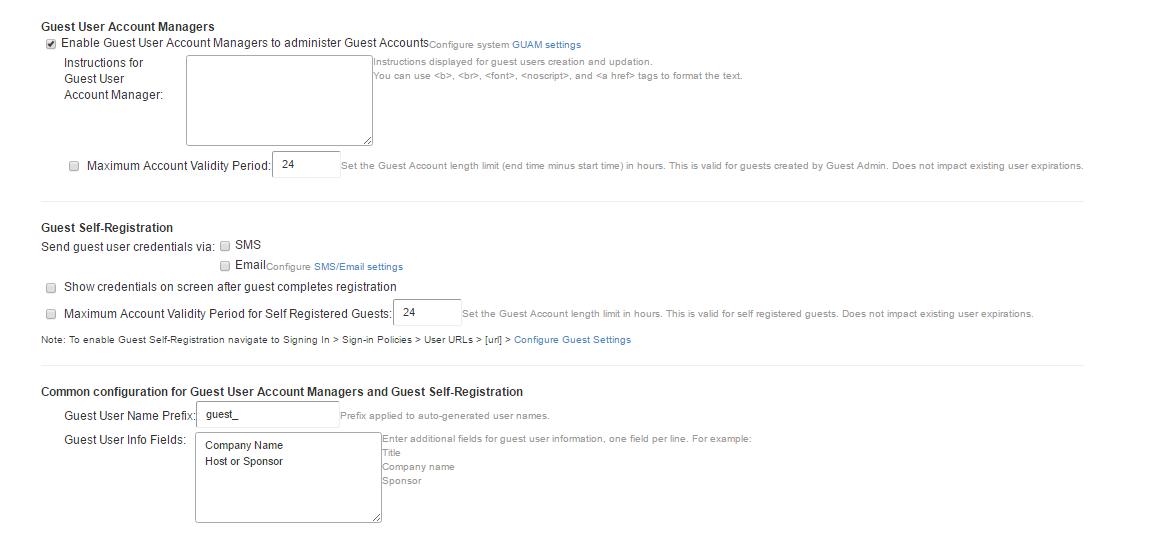
On Ivanti Policy Secure main page select Authentication > Auth. Servers > System Local > Settings.
-
Under Guest Access Configurations, Select the check box Enable Guest User Account Managers to administer Guest Accounts.
-
Under the Guest Self-Registration select Send guest user credentials via SMS/E-mail.
-
Click the SMS/E-mail settings link and make necessary changes.
-
Show credentials on screen after guest completes registration.
-
Maximum Account Validity Period for Self-Registered Guest – 24 hours is the default time period. You can change this as per the requirement.
-
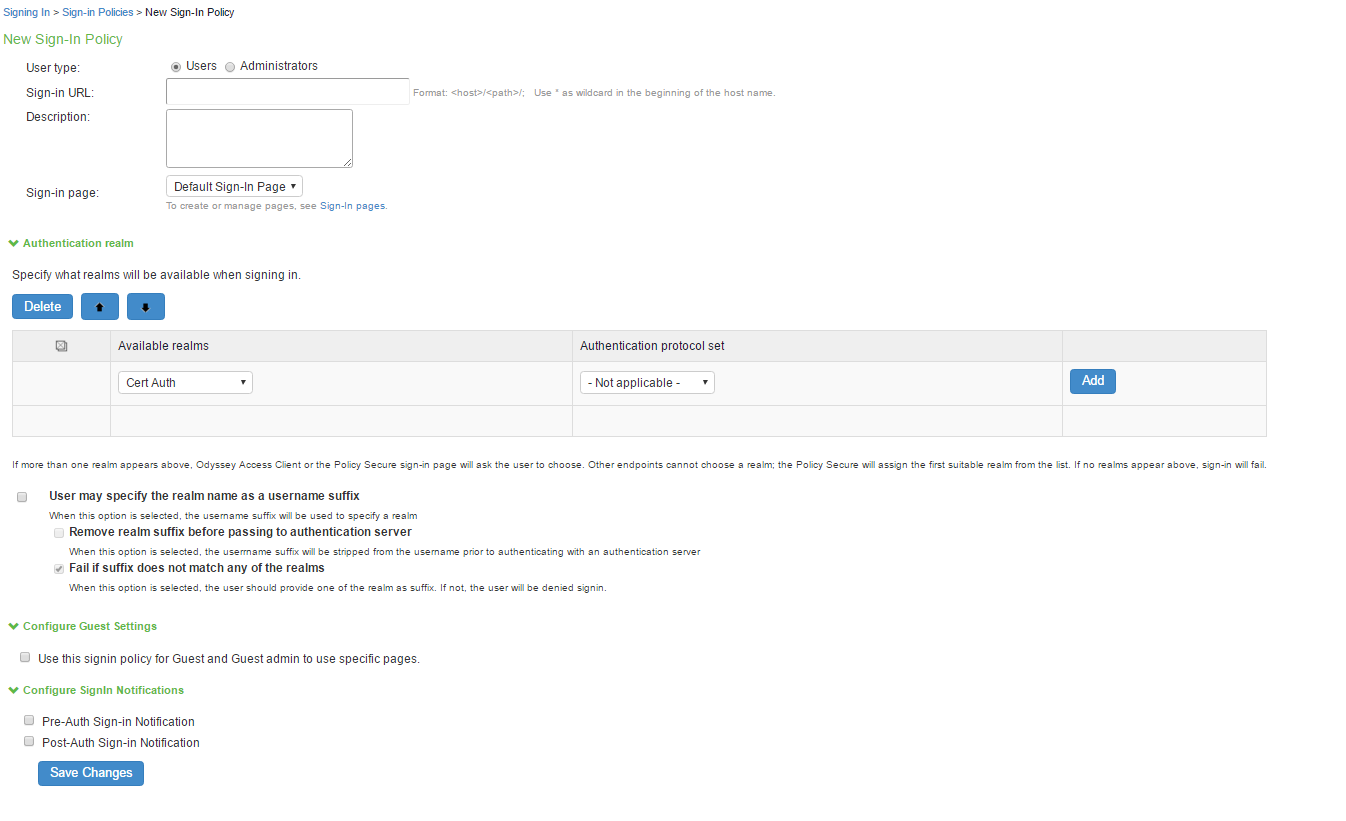
On Ivanti Policy Secure main page select Authentication >Signing In >Sign-In Policies.
-
Select the sign-in policy that is created earlier. Under Configure Guest settings select the check boxes:
-
Use this sign-in policy for Guest and Guest admin to use specific pages.
-
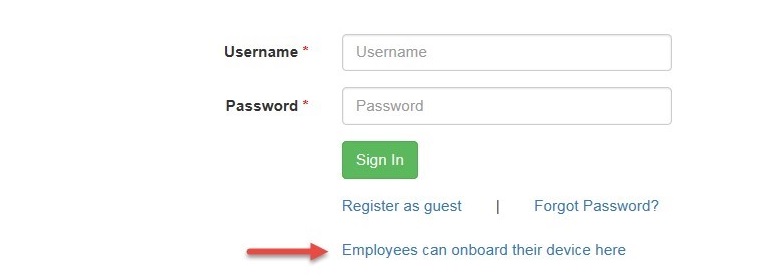
Show Guest Self Registration link on the guest login page, The Register as Guest link appears on the guest login page.
-
Enabling Onboarding Feature
Enterprise onboarding feature provides automated onboarding of BYOD clients on premises (WLAN & LAN).
Ivanti Policy Secure enables personal devices to be automatically configured for corporate access.
-
To enable this option in the Ivanti Policy Secure main page select Authentication > Signing In > Sign-in Policies.
The Sign-in Polices tab displays the available sign-in policies.
-
Under the User URLs section select the default sign-in policy.
The Sign-in Policy configuration screen appears.
-
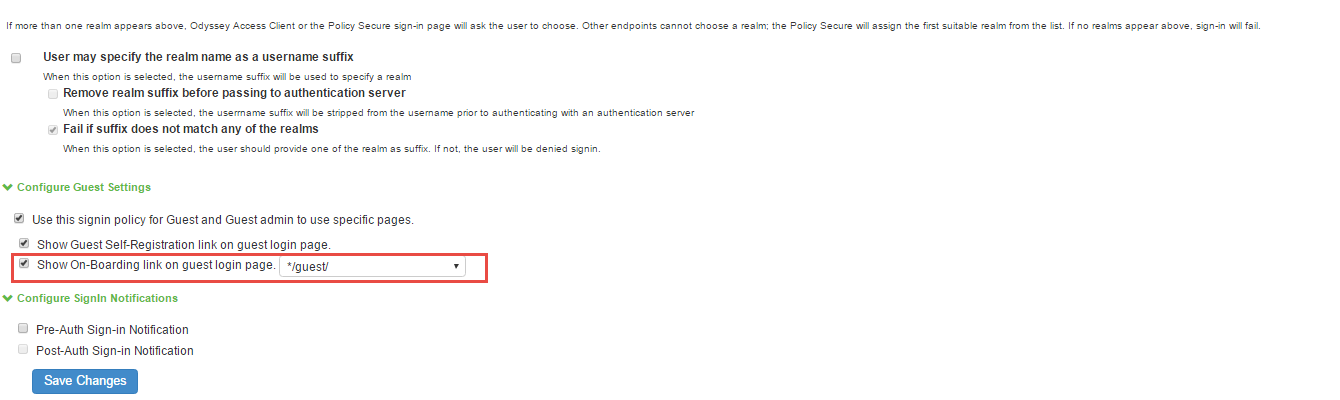
Select the Show On-Boarding link on guest login page check box. A drop-down list appears next to it.
-
Select a required URL.
-
Click Save Changes to save the settings.
When this settings is done the Employees can onboard their device here appearing in an enterprise guest environment as shown in the figure.