Installation
This chapter provides instructions and tips for installing the chassis into a rack.
Preparing for Setup
Please read this section in its entirety before beginning the installation procedure.
Choosing a Setup Location
Decide on a suitable location for the rack. It should be a clean, dust-free area that is well ventilated. Avoid areas where heat, electrical noise and electromagnetic fields are generated. Place it near a grounded power outlet.
•Leave at least 25 inches clearance in front of the rack to open the front door completely.
•Leave approximately 30 inches of clearance in the back of the rack to allow for sufficient airflow and ease in servicing.
•Install in a restricted access location, such as a dedicated equipment room or service closet.
Ambient Operating Temperature
If installed in a closed or multi-unit rack assembly, the ambient operating temperature of the rack environment may be greater than the ambient temperature of the room. Install the equipment in an environment compatible with the manufacturer’s maximum rated ambient temperature (TMRA).
Adequate Airflow
Equipment should be mounted into a rack so that the amount of airflow required for safe operation is not compromised.
Circuit Overloading
Avoid overloading the power supply circuitry or any overcurrent protection equipment. Use equipment nameplate ratings to calculate your requirements.
Reliable Ground
A reliable ground must be maintained at all times. To ensure this, ground the rack, itself. Pay attention to power supply connections other than the direct connections to the branch circuit, such as power strips.
Physical Rack Precautions
•Ensure that the leveling jacks on the bottom of the rack are fully extended to the floor with the full weight of the rack resting on them.
•In single rack installation, stabilizers should be attached to the rack.
•In multiple rack installations, the racks should be coupled together.
•When mounting this unit in a partially filled rack, load the rack from the bottom to the top with the heaviest component at the bottom of the rack. If this is the only unit in the rack, mount it at the bottom.
•Always make sure the rack is stable before extending a component from the rack. Extend only one com- ponent at a time. Extending two or more simultaneously may cause the rack to become unstable.
Warning: Follow these guidelines to prevent injury. Take all precautions to ensure the system remains stable
General Server Precautions
•Review the electrical and general safety precautions that came with the components you are adding to your chassis.
•Determine the placement of each component in the rack.
•Install the heaviest server components on the bottom of the rack first, and then work up.
•Use a regulating, uninterruptible power supply (UPS) to protect the server from power surges, voltage spikes and to keep your system operating in case of a power failure.
•Allow the hard drives and power supply modules to cool before touching them.
•Always keep the rack front door, all panels and all components on the servers closed when not servicing, to maintain proper cooling.
Warning: If you unscrew and open the chassis cover, it will void your product warranty.
Rack Mounting Instructions
The chassis can be mounted in a rack for secure storage and use. To set up your rack, follow the step-by-step instructions included in this manual.
Rail packaging includes:
•One pair of inner slides to be installed on the chassis.
•One pair of outer slides to be installed in the rack.
•Two pairs of short brackets to be used on the front side of the outer slides.
One pair of short brackets include screw threads, and the other pair do not. Use the only pair that will fit into your rack.
•One pair of long brackets to be used on the rear side of the outer slides.
Installing Inner Slides
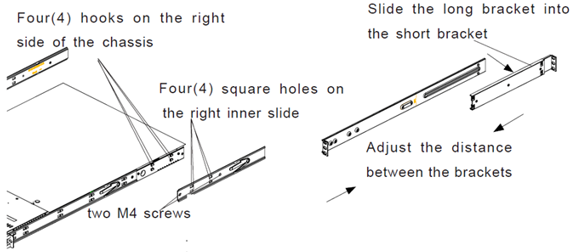
1.Locate the right inner slide, (-the slide that will be used on the right side of chassis when facing the front panel of the chassis).
2.Align the four(4) square holes on the right inner slide against the hooks on the right side of the chassis as shown in the illustration below.
3.Securely attach the slide to the chassis with two M4 flat head screws and repeat the steps 1-3 to install the left inner slide to the left side of the chassis.
Installing Outer Slides
1.Measure the distance from the front rail of the rack to the rear rail of the rack.
2.Attach a short bracket to the rear side of the right outer slide, and a long bracket to the front side of the right outer slide as shown above on the right.
3.Adjust the short and long brackets to the proper distance so that the chassis can snugly fit into the rack.
4.Secure the slides to the cabinet with screws. Repeat steps 1-4 for the left outer slide.
Installing the Slide Assemblies to the Rack
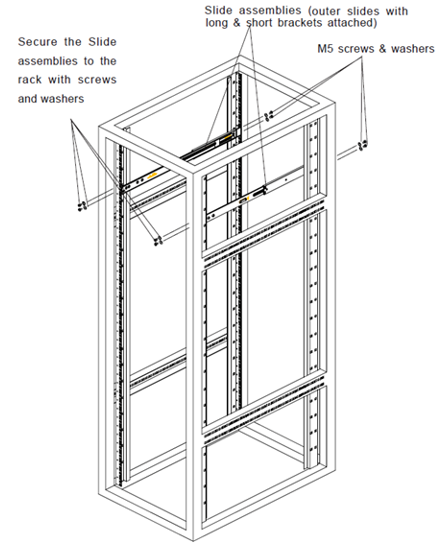
1.After you have installed the short and long brackets to the outer slides, you are ready to install the whole slide assemblies (outer slides with short and long brackets attached) to the rack. (See the previous page.)
2.Use M5 screws and washers to secure the slide assemblies into the rack as shown in the illustration below.
Installing the Chassis into the Rack
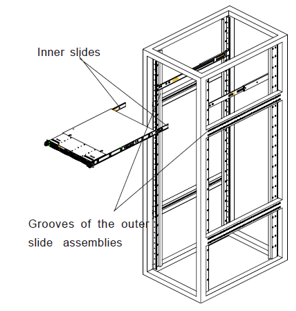
1.Push the inner slides, which are attached to the chassis, into the grooves of the outer slide assemblies that are installed in the rack as shown in the illustration below:
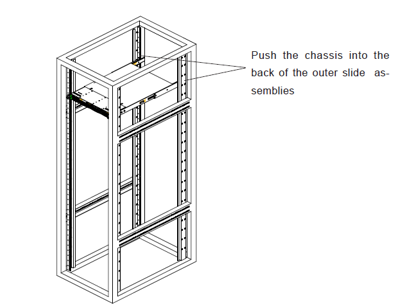
2.Push the chassis all the way to the back of the outer slide assemblies as shown in the illustration below. (The plastic bezel is not included in the package.)
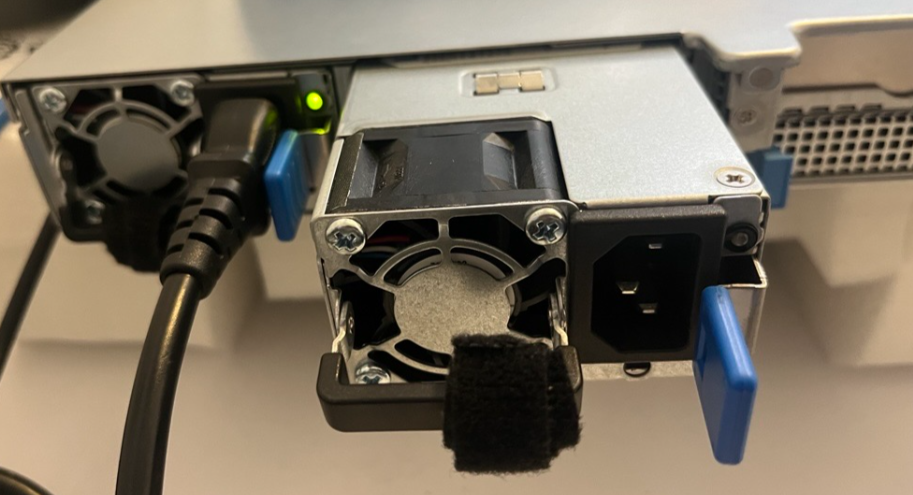
Replacing the Power Supply
To avoid risk of electric shock, disconnect AC power from the power supply before removing the power supply from the system.
To replace the power supply:
1.Flip and then grasp the power supply handle.
2.Press the retaining clip on the top side of the power supply in the direction indicated.
3.Pull out the power supply using the handle.
4.Insert the replacement power supply firmly into the chassis. Connect the AC power cord to the replacement power supply.
Replacing the Hard Drive
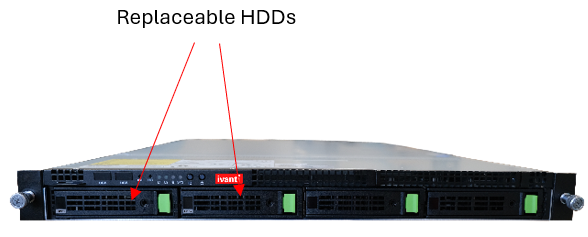
The ISA8500 chassis has two replaceable hard disk drives located in slot #1 and slot #2.
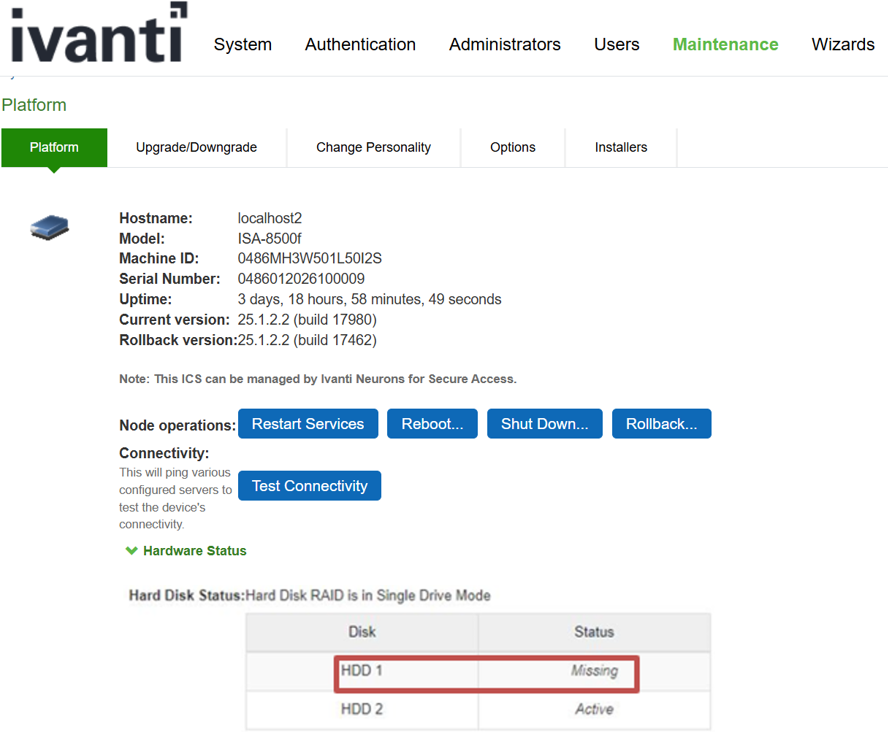
You can check the HDD and RAID status from the Maintenance page of ICS Gateway Admin UI. If the status of HDD1 or HDD2 displays “Missing” or “Faulty”, then that specific HDD needs to be replaced. If any one of the two HDDs has gone bad, then the RAID will run in single drive.
When you are replacing the hard drive during Maintenance period, and shutting down the server does not affect your network, follow the cold swap procedure. Otherwise, follow the hot swap procedure.
Replacing Faulty Hard drive (Hot Swap)
To replace a hard drive (hotswap):
1.Connect to the console port as outlined in console and initial configuration section.
2.Select option 4. System Operations from the CLI menu.
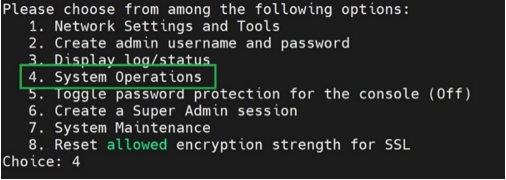
3.Then select option 20. Manage RAID that provides RAID management menu options.
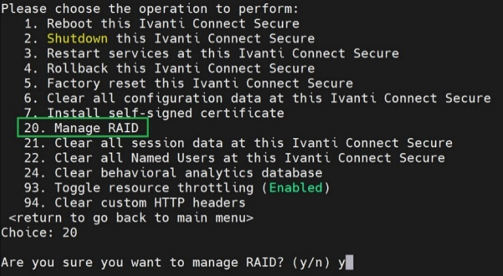
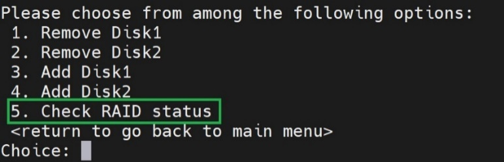
4.Select option 5. Check RAID status.
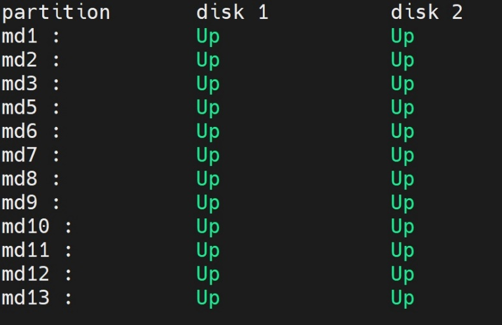
5.When both the disks are active and working, the status shows Up.
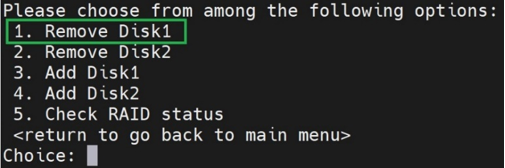
6.Return to the RAID management menu, and select the faulty disk that you want to remove, for example, option 1. Remove Disk1.
7.Select option 5. Check RAID status. The status of disk1 shows Down.
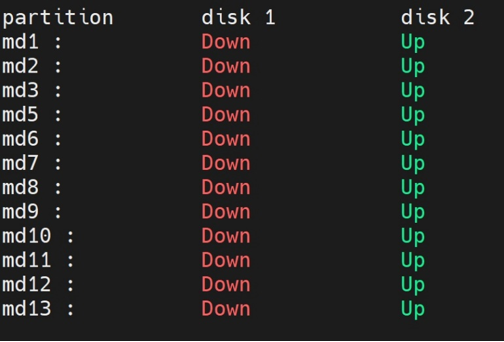
Now you can physically replace faulty disk1 with new working disk.
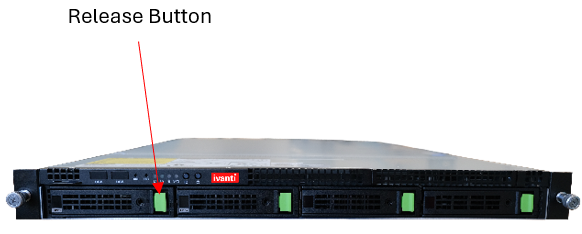
8.Identify the slot where faulty disk1 is located. Push the Release button to release the ejector lever.
9.Pull the Release lever of faulty disk1 as shown below.
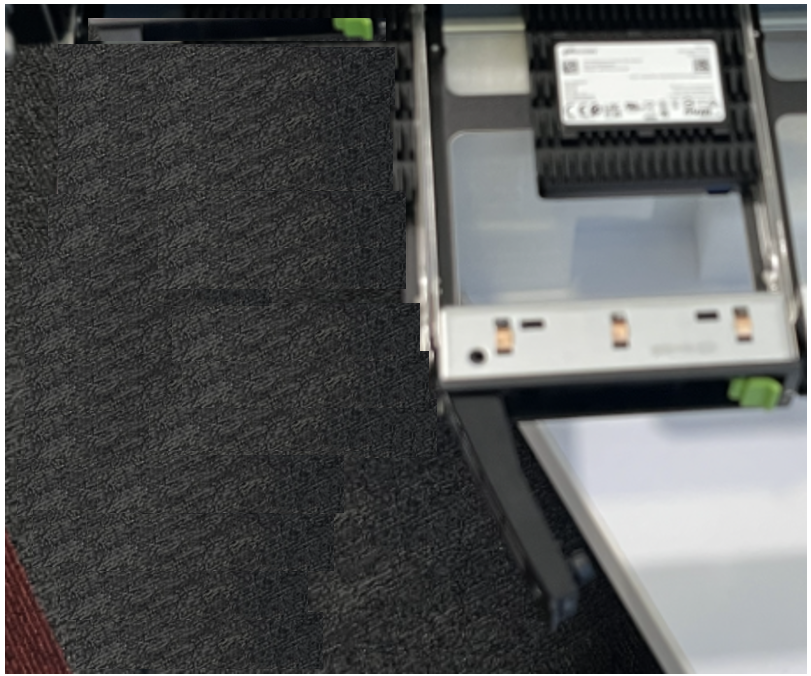
10.Pull the hard drive out using the lever provided. This will disengage the HDD connector from the HDD controller backplane.
11.Replace the faulty disk1 with a new unit. To do this, push the new hard drive into the HDD bay and snap the lever shut.
12.In the RAID management menu, select 3. Add Disk1.
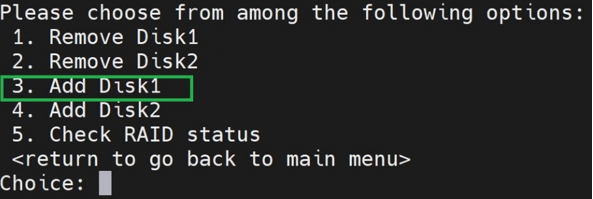
13.Log in to the ICS Gateway Admin UI and select the Maintenance tab. The message “RAID Recovery in progress” will be displayed.
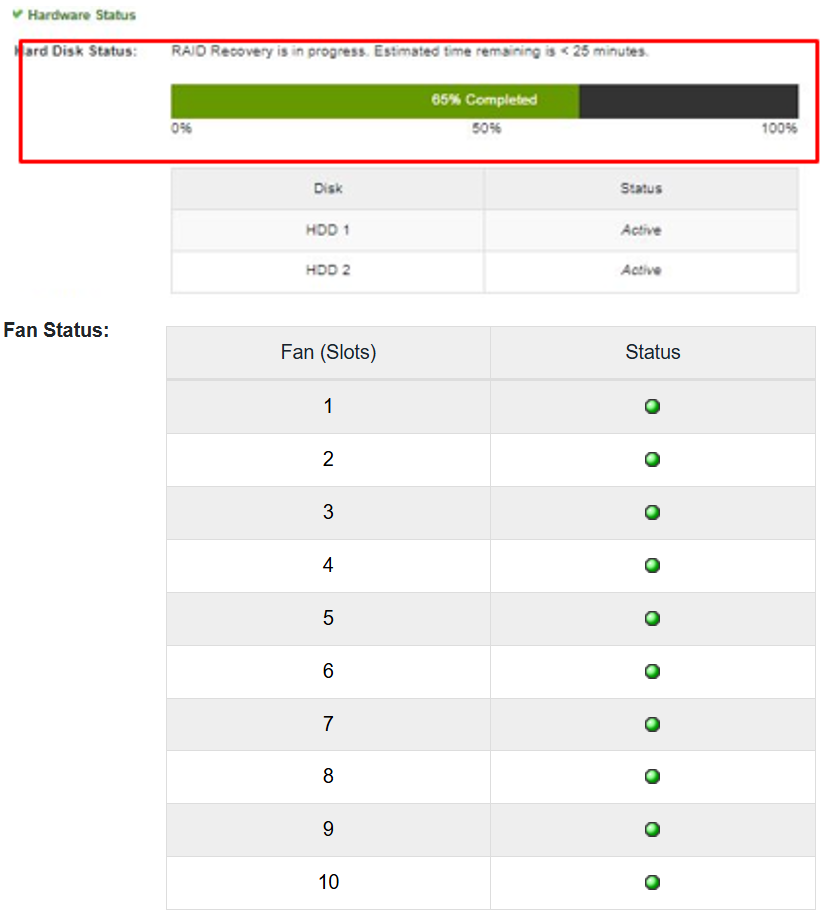
14.The process will take 75-90 mins.
15.Once the process is completed, HDD and RAID display the status “HDD Active” and “Hard Disk Raid is Operational”.
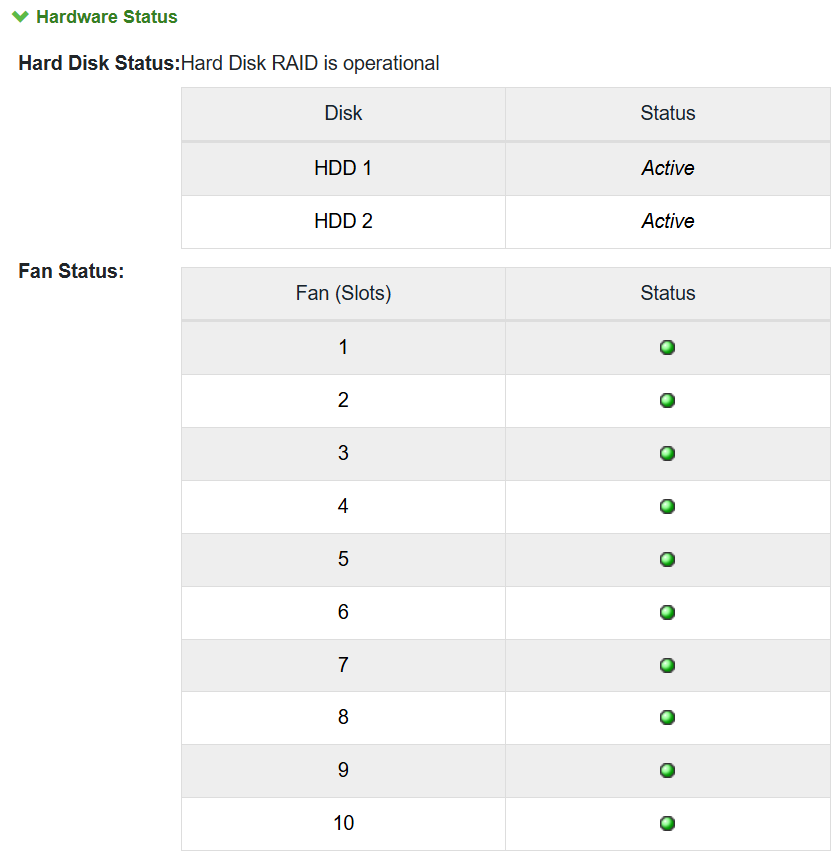
Warning: Once RAID is in the Active state, only one HDD replacement is allowed.
Network Cables
The ISA8500F model offers SFP+ interfaces supporting 10G fiber networks. Intel® Ethernet SFP+ Optics short range can extend the reach up to 300 meters. These optical modules support both short range and long range distances with 10 Gigabit Intel® Ethernet Network Adapters.
ISA8500F
This appliance offers dual and redundant 10G network interface ports (4 ports total) in the SFP+ form factor. Ivanti has qualified Intel SFP+ optics with ISA8500F hardware. Optics must be purchased separately at time of ordering the ISA8500F. Check the Price book for the SKUs.
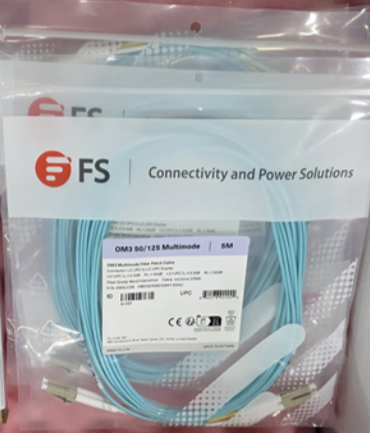
Customers can either purchase this option from Ivanti or procure it from their vendor of choice. Contact your Solutions Engineer or Technical Support for additional information and Technical Specifications.
ISA8500C
This appliance offers dual and redundant 10G network interface ports (4 ports total) in the RJ45 form factor compatible with category 6 or 6A network cables.
The hardware supports auto-negotiation between 1G and 10G networks over an RJ45 connection. Ivanti does not offer any RJ45 cables/accessories as an optional SKU.