Creating a user on Microsoft Azure
To create a user:
-
In the Azure Portal, Users > All Users> click Create new user.
Enter details.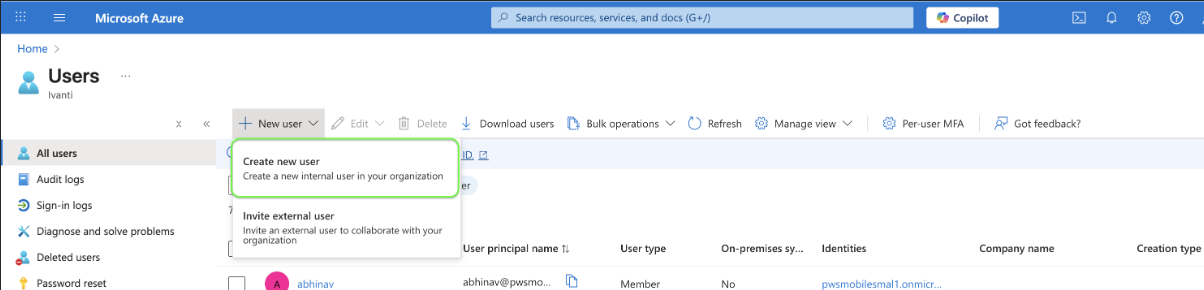
-
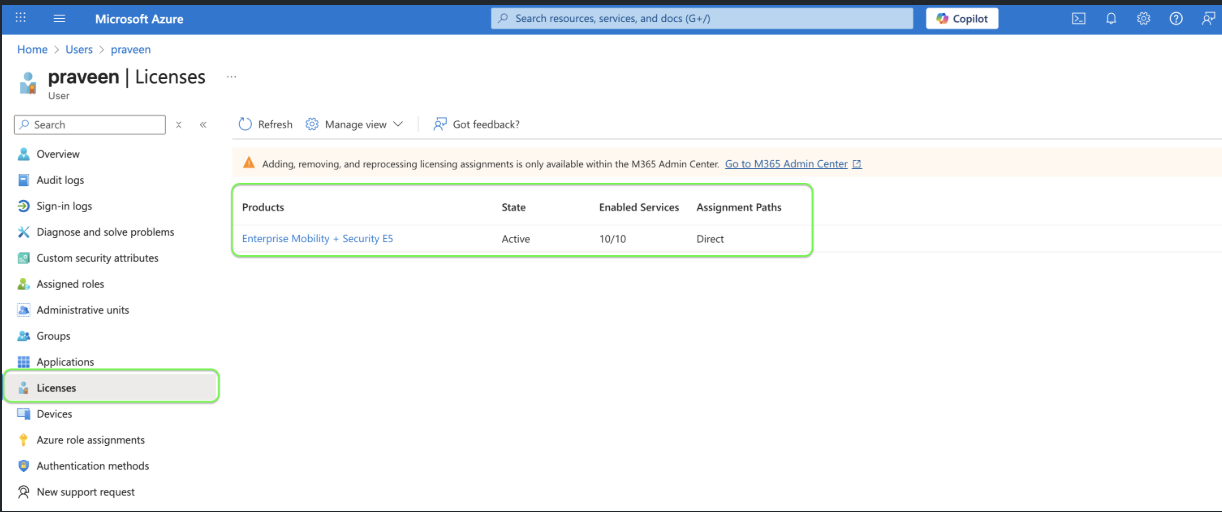
Add Licenses and assign role as Global Administrator.
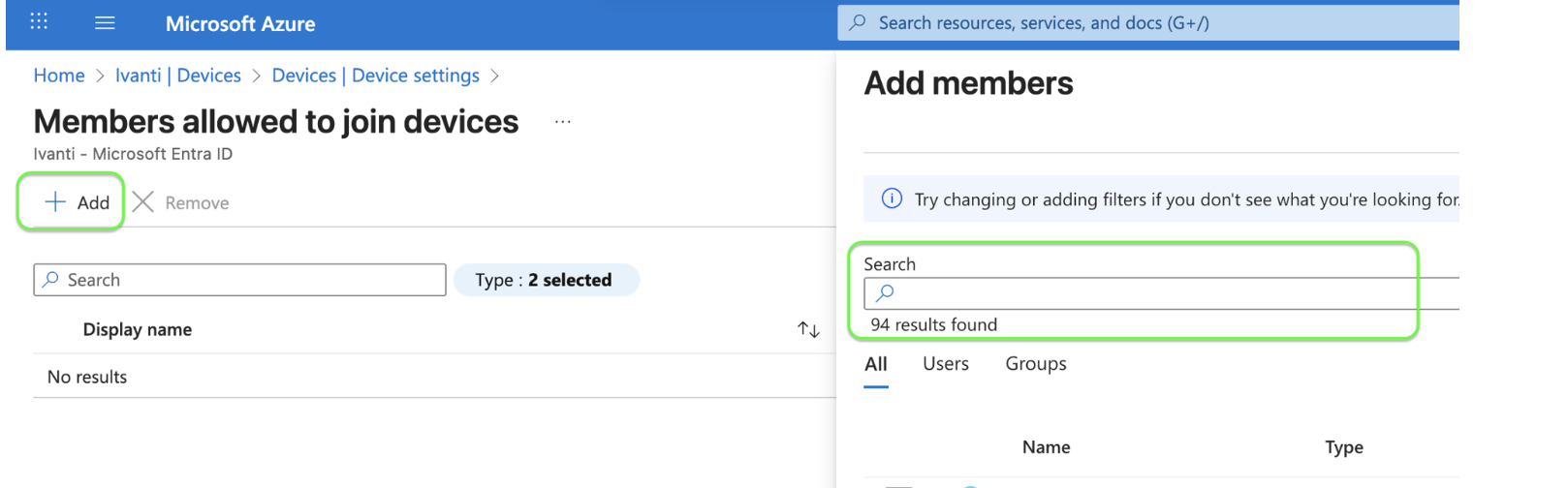
To confirm that device registration is enabled, navigate to Azure Active Directory >
Microsoft Entra ID > Manage > Devices > Manage >Device settings.
In the Microsft Entra join and registration setting, click No member selected> click Add > select the user > click Ok.
Configuring ICS server on Microsoft Azure
To configure the ICS server, perform the following:
-
SAML authentication on Azure IDP server
-
Configuring Single Sign-on Settings
-
Assigning User to Application
For more information, see Microsoft Azure Active Directory Configuration.
Configuring SAML authentication on ICS server
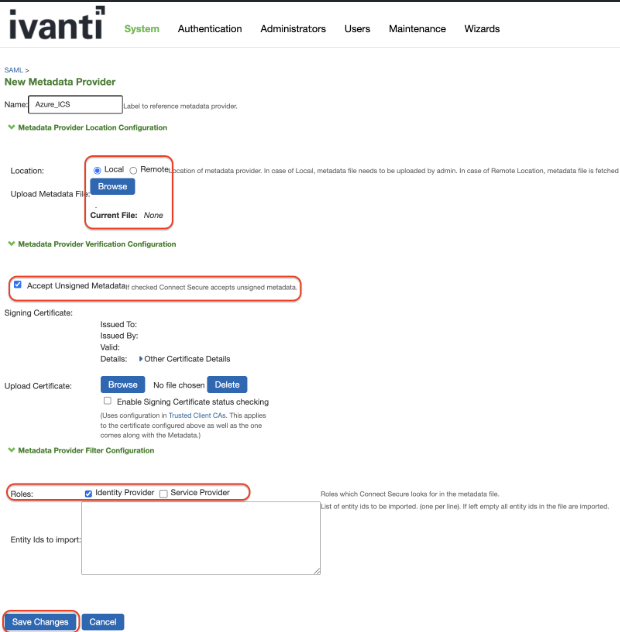
1. Uploading Metadata
- Navigate to System > Configuration > SAML to upload Metadata.
- Select New Metadata Provider.
Enter a name. - Set Location as Local.
- Browse to Upload SAML Metadata XML.
- Check the Accept Unsigned Metadata option.
- In the Roles field, check the Identity Provider option.
- Save Changes.
2. Creating a New Auth Server
-
Navigate to Authentication >Auth. Servers > SAML Server > New Server.
Enter a name.
-
In the Configuration Mode, check the Metadata option.
-
In the Service Provider Metatdata Settings, set the Metadata Validity to 365.
-
Select Save Changes.

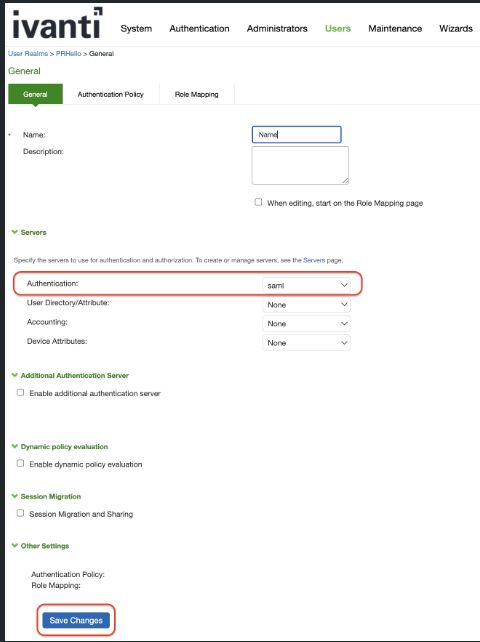
3. Create User Realm
-
Navigate to Users > User Realms >New Realm.
Enter a Name.
-
In the Server section, navigate to Authentication and select SAML as the auth server.
-
Select Save Changes.
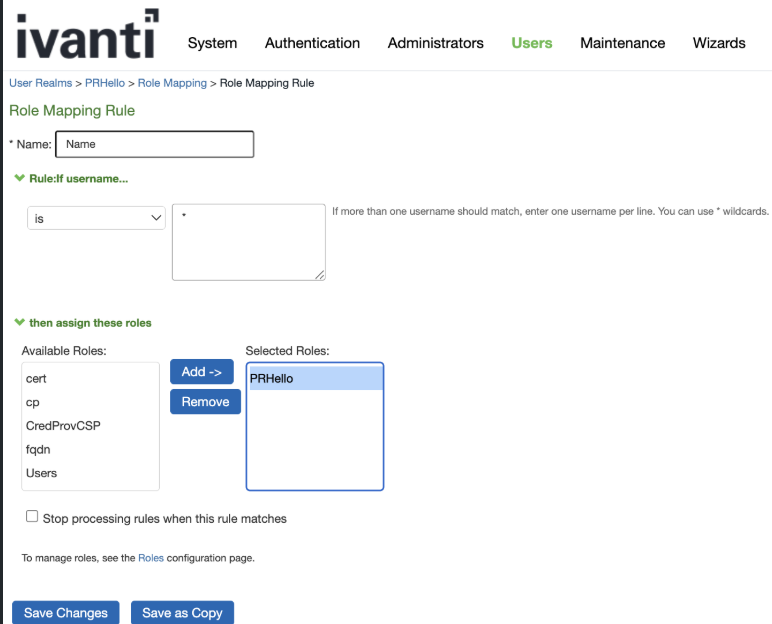
4. Map new realm with a role
-
Navigate to Users > Role Mapping >New Rule.
Enter a Name.
-
Select an Available Role.
-
Select Save Changes.
5. Create new Sign-In-Policies
-
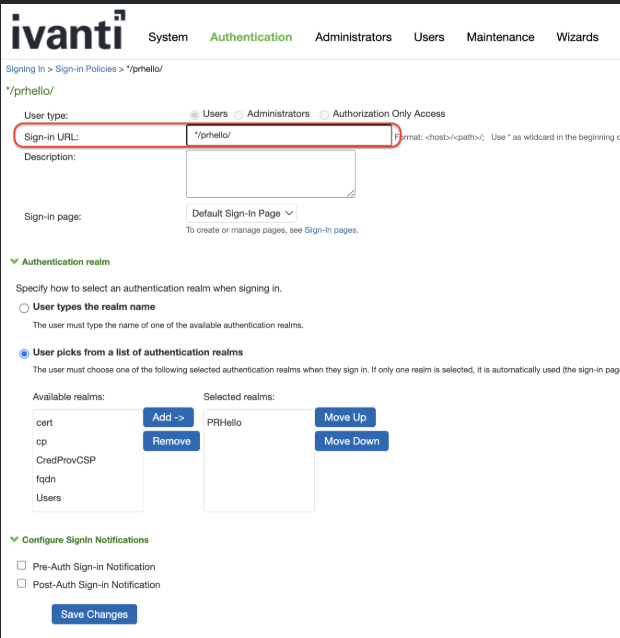
Navigate to Authentication > Sign-In-Policies >New URL.
-
Provide a Sign-In URL.
-
Select Available Realm.
-
Select Save Changes.