Samsung Knox MDM Integration With ICS
This integration enables enhanced endpoint posture checks for Android mobile devices using Samsung Knox MDM. Once integrated, ICS can ensure only compliant Samsung Knox-managed devices gain VPN access.
Step-by-Step Integration Process
Prerequisites
-
Admin access to Samsung Knox Manage and ICS.
-
Android mobile devices are enrolled in Knox Manage
Procedure:
Perform the following tasks:
Deploying Applications Using KNOX
To deploy Ivanti managed applications:
-
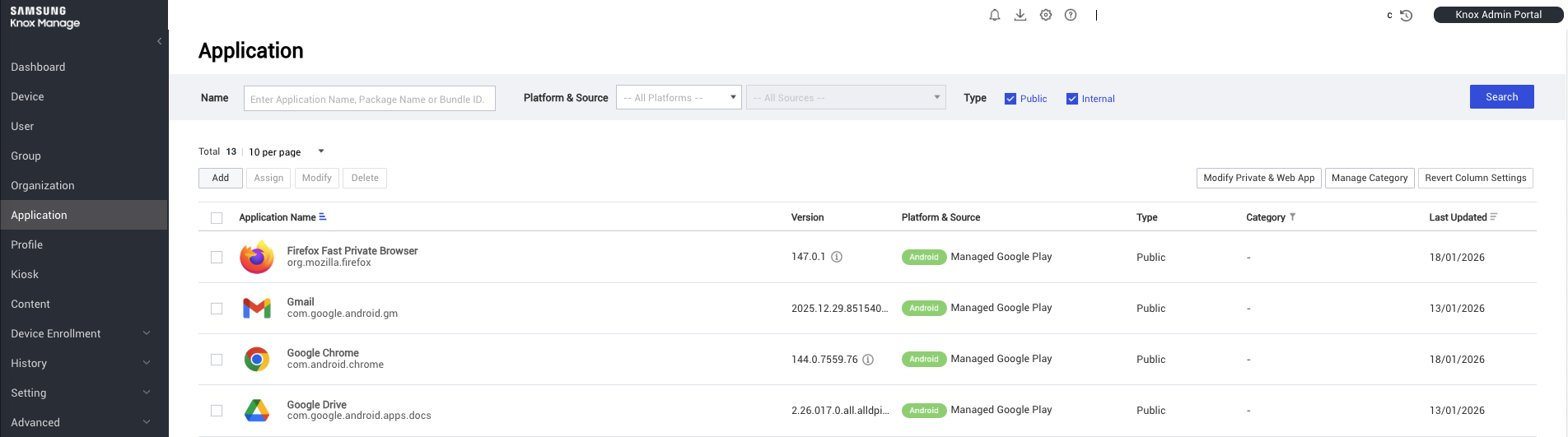
In Samsung KNOX Manage, select Application> Add.
-
In the Select Application Type, select Platform as Android and in Type & Source select Public - Managed GooglePlay .
-
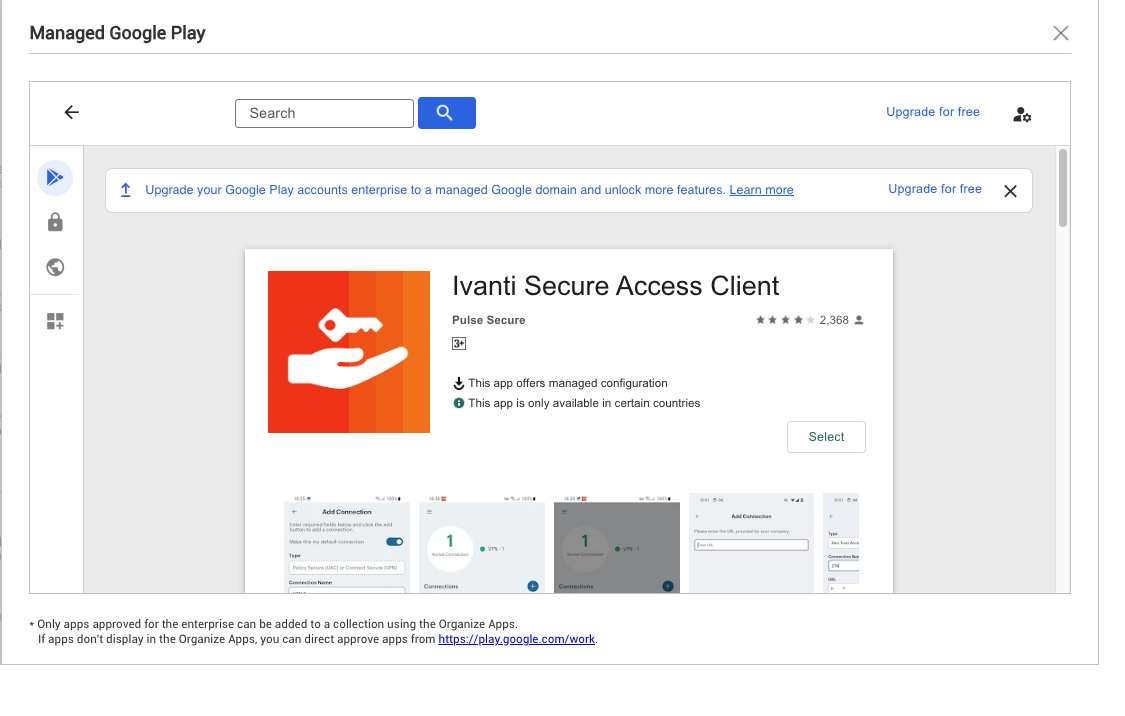
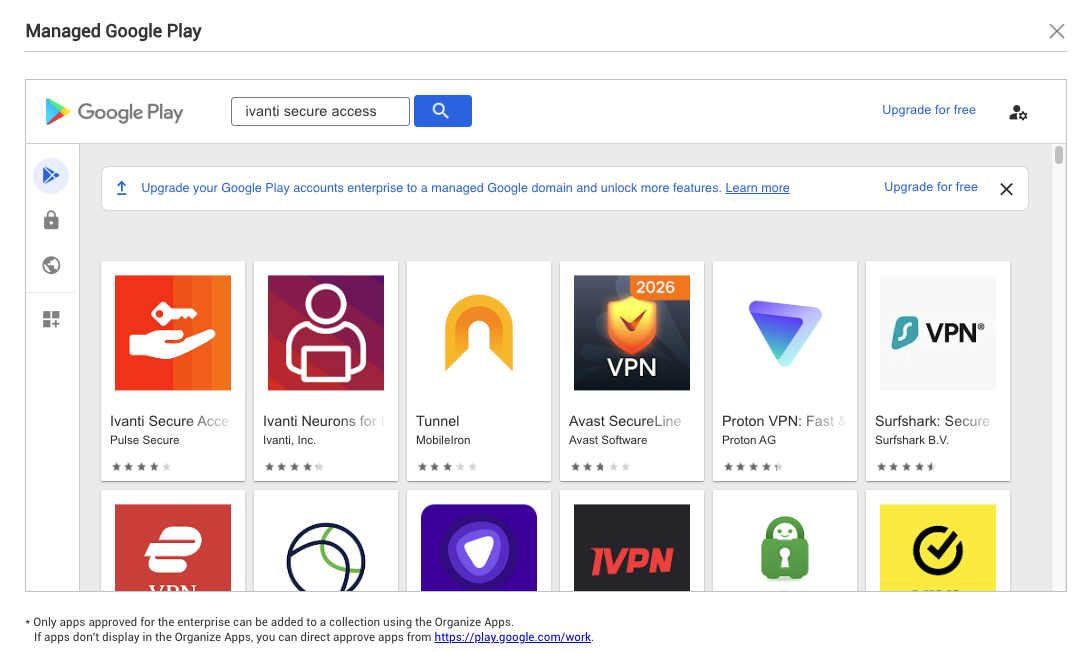
Search for Ivanti Secure Access Client.
-
-
Select the application and click Select.
-
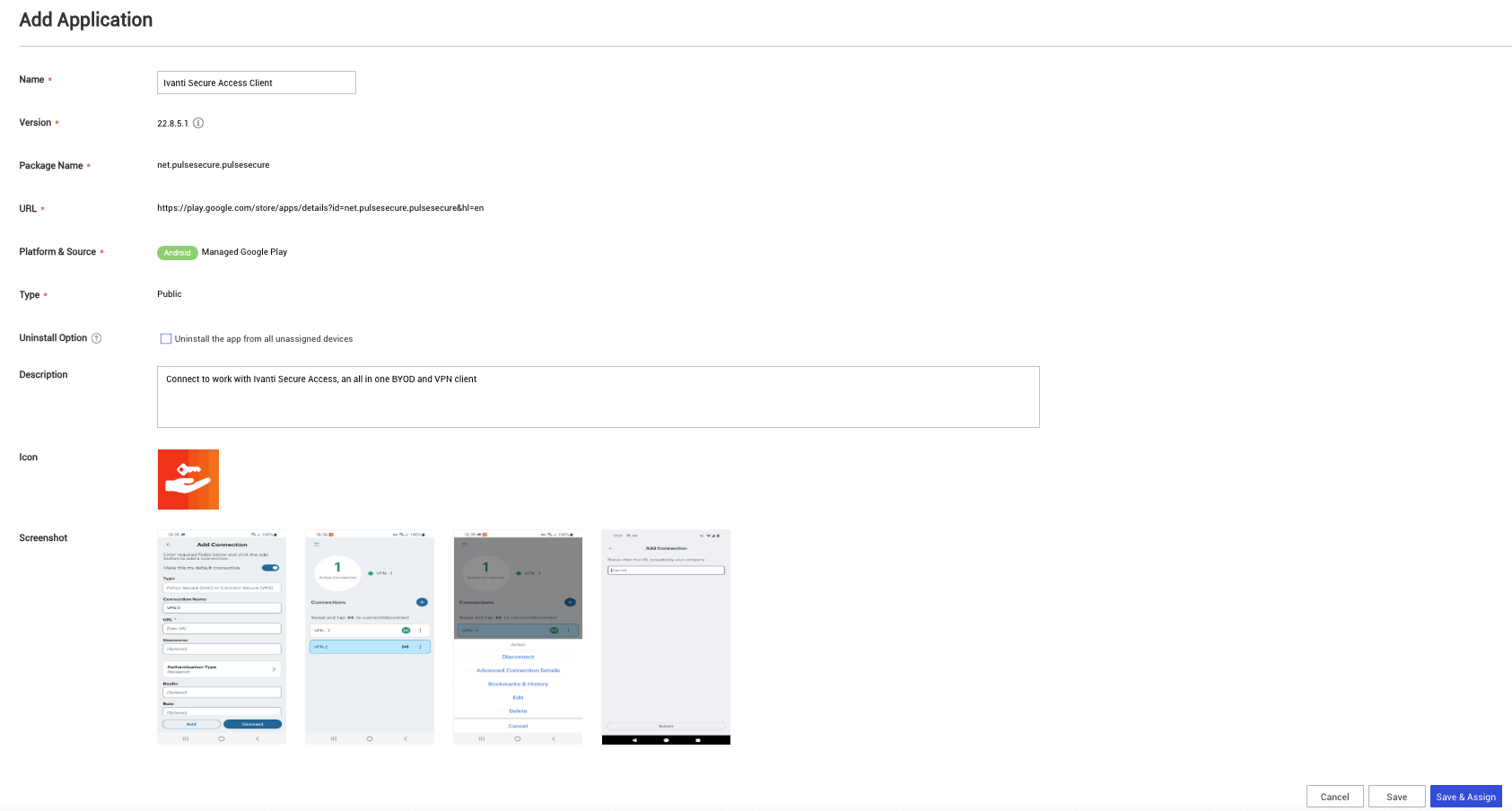
Click Save and Assign.
-
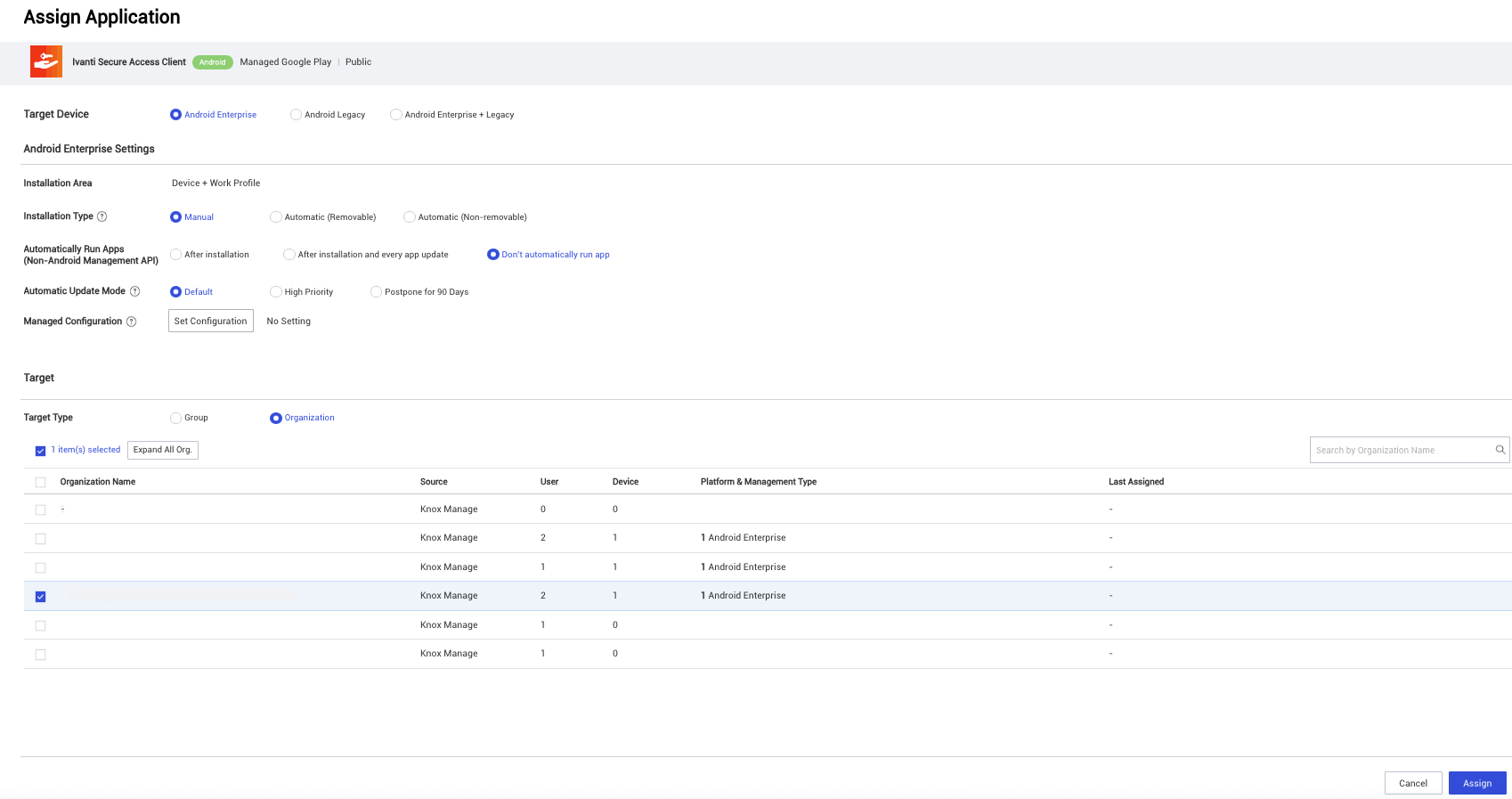
Select one or more Assignment Groups or Organizations that will have access to the app.
-
Click Set Configuration to configure VPN related settings. Fore more information, see Configure Per-App VPN, Always On VPN / On Demand VPN for Android Endpoints..
-
Once configured, click on Assign.
Configure Per-App VPN, Always On VPN / On Demand VPN for Android Endpoints
To configure application:
-
From the Samsung Knox Manage console, select Organization> Application. The page shows a list of managed apps.
-
Edit the application that you want to configure .
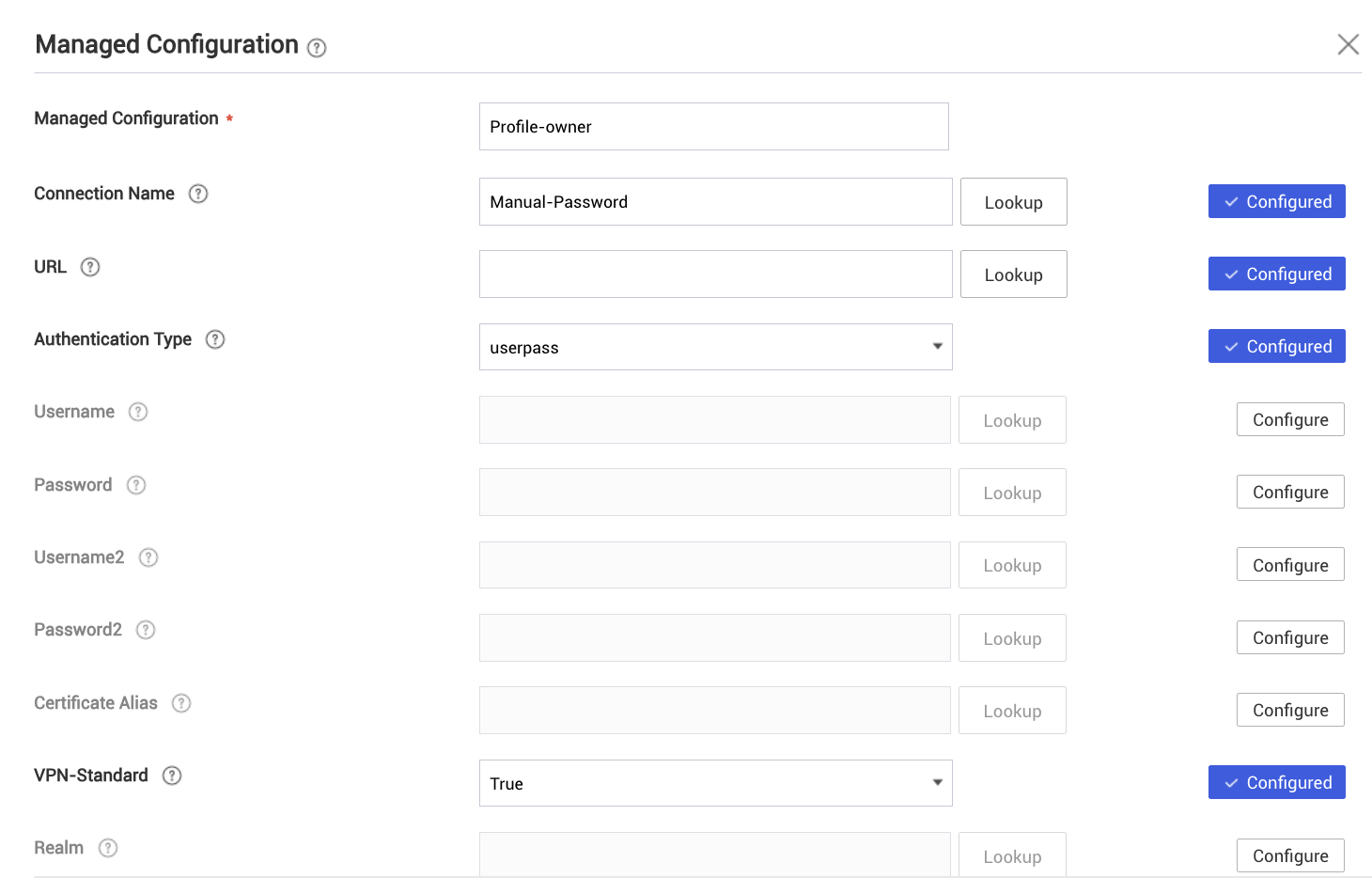
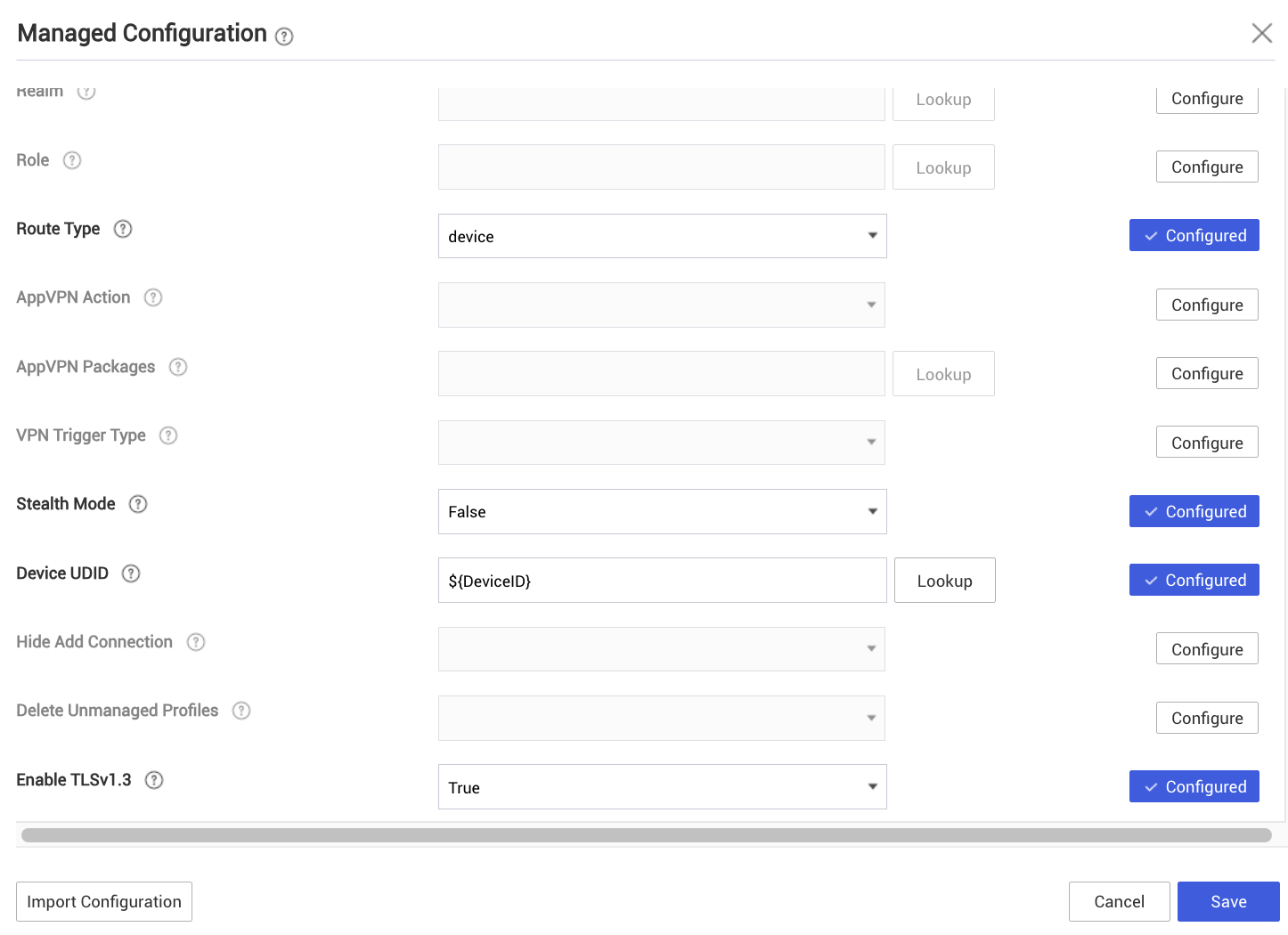
-
Click Save.
| Configuration Keys | Value Type | Configuration Values | Description |
| Stealth Mode | String | Stealth mode authentication | |
| VPN Trigger Type | Choice | 0 or 1 or 2 | VPN trigger type: Manual=0, On Demand=1, Always On VPN=2 |
| App VPN Packages | String | com.android.chrome, com.microsoft.skydrive | Application VPN packages (value should be comma separated) |
| AppVPN Action | Choice | 0 or 1 | Application VPN action: allow = 0, deny = 1 |
| Route Type | String | Route Type: device VPN = 0 or Per -App VPN = 1 | |
| Role | String | VPN Role | |
| Realm | String | VPN Realm | |
|
VPN-Standard |
bool |
|
Set this profile as default. Existing default profile will be override |
|
Certificate Alias |
String |
|
Certificate alias in the Android KeyStore |
|
Password2 |
String |
|
VPN Password 2 |
|
Username2 |
String |
|
VPN Username 2 |
|
Password |
String |
|
VPN Password |
|
Username |
String |
|
VPN Username |
|
Authentication Type |
Choice |
Certalias or userpass or dualauth |
VPN Authentication Type: certalias: Certificate Authentication userpass: Username/Password based Authentication, dualauth: combination of userpass/certauth |
|
URL |
String |
|
VPN Connection URL |
|
Connection Name |
String |
|
VPN Connection name |
|
Device UDID |
String |
${DeviceID} |
Device UDID to be allowed access and validate pre-auth |
|
Hide Add Connection |
bool |
True or False |
Admin can use this option to hide the add connection button |
|
Delete Unmanaged Profiles |
bool |
True or False |
Admin can use this option to delete manually added VPN connection profiles |
|
Enable TLS v1.3 |
bool |
True or False |
Admin can use this option to use TLS 1.3 for VPN connection |
Configure Knox Manage API Access
Perform the following:
-
Log in to Samsung Knox Manage portal.
-
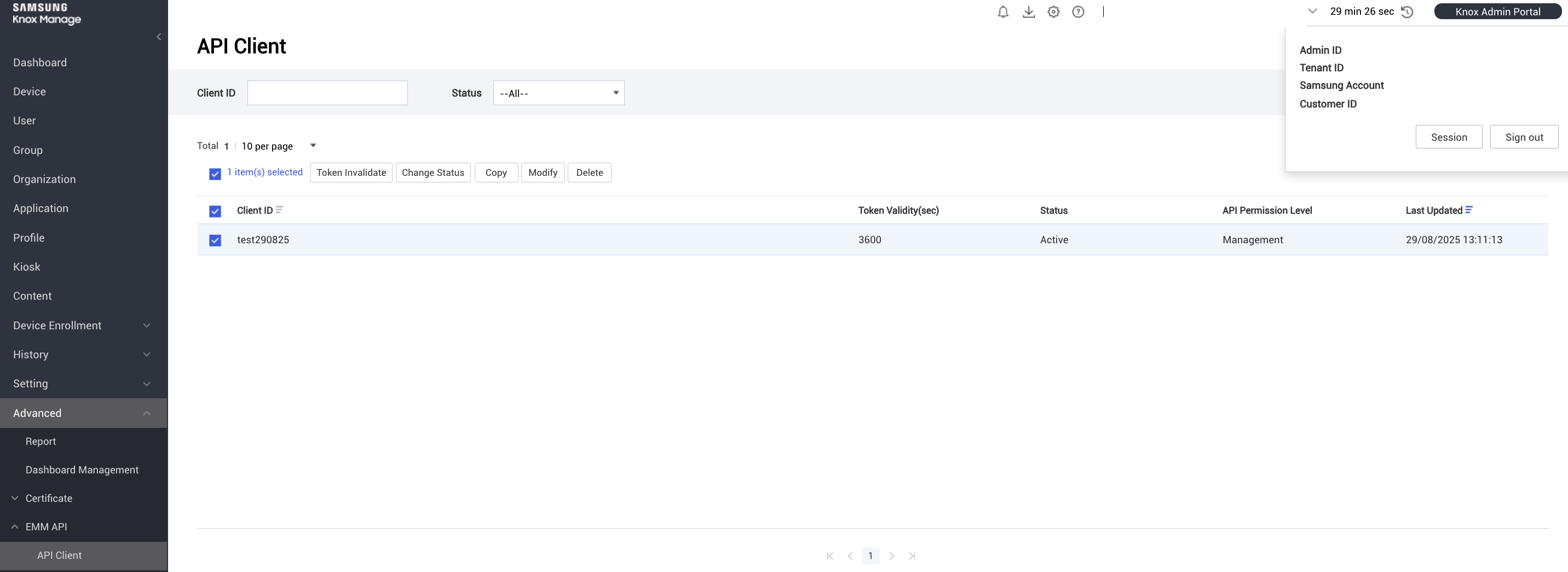
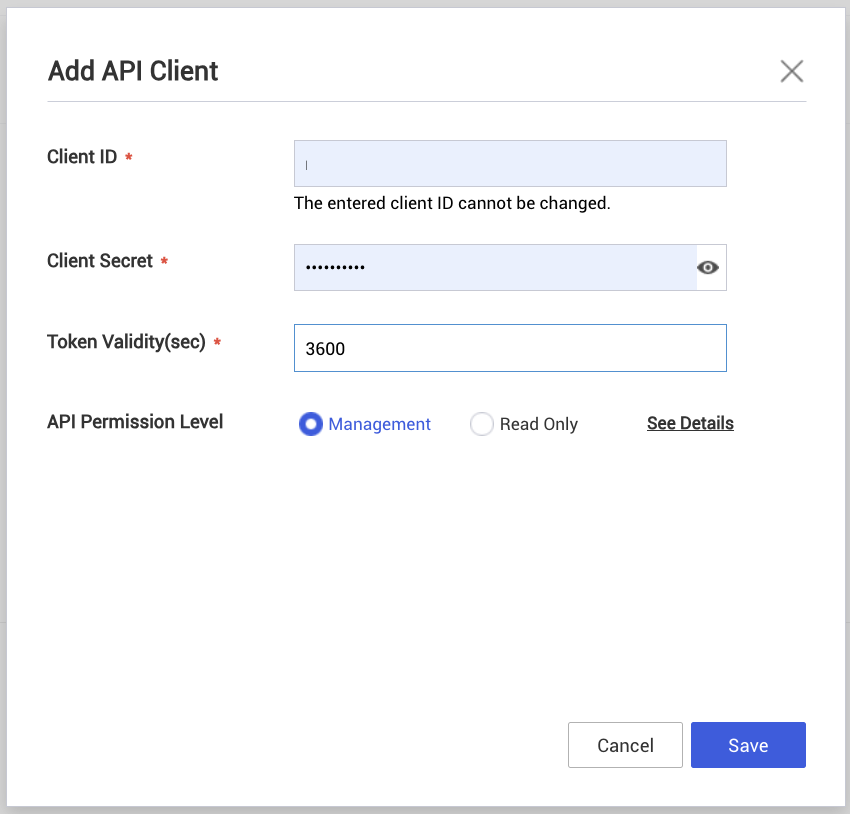
Go to Advanced> API Client.
-
Generate or locate the API Client ID and Client Secret
These credentials are used by ICS to connect and synchronize device statuses.
Configure Knox MDM Authentication server
-
From the ICS Admin Console, select Authentication > Auth Servers.
-
Select Server Type as MDM Server.
-
Click New Server.
-
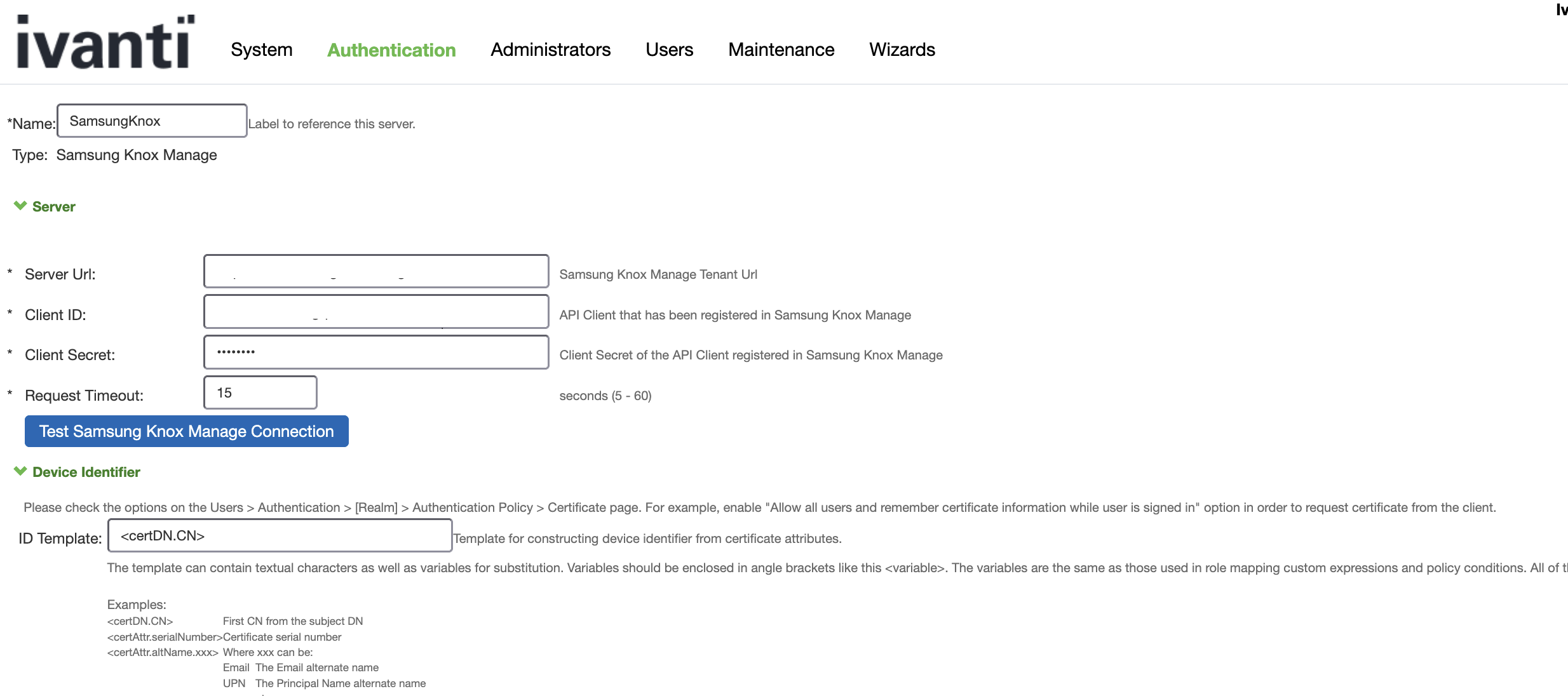
Enter Server name.
-
Choose Samsung Knox Manage from the provider list.
-
Enter the Samsung Knox Tenant URL, Client ID, and Client Secret.
-
Save changes.
Configure Realm
-
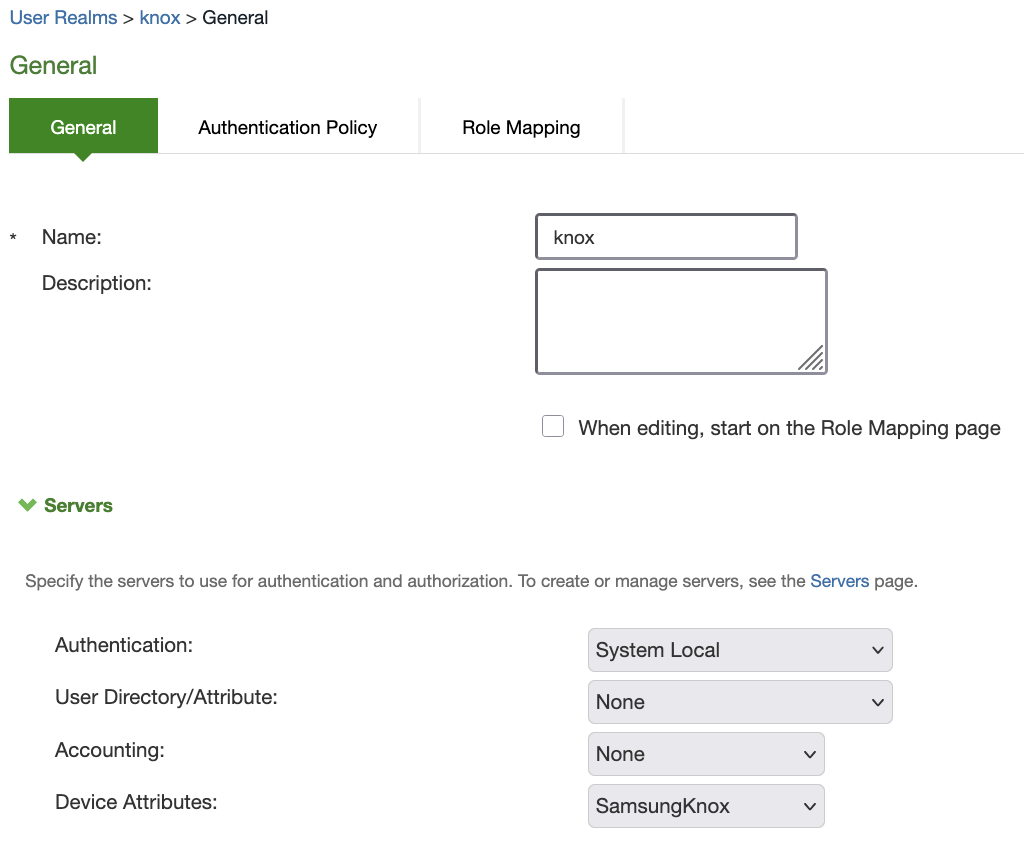
Select any realm and navigate to general tab. For example User Realms > Users > General .
-
Under Servers > Device Attributes, select Samsung Knox MDM authentication server configured.
-
The admin can choose to create role mapping based on device attributes:
-
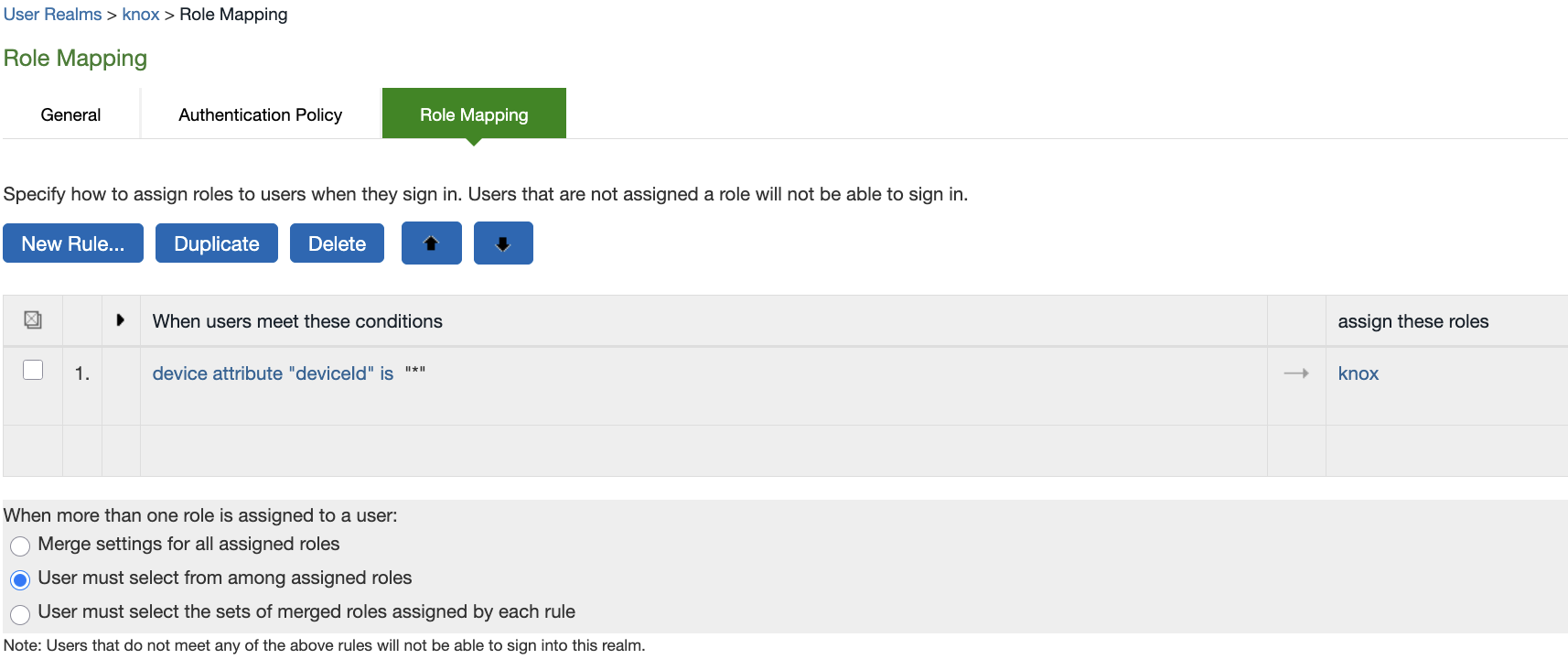
In Role Mapping, select the Device Attributes in Rule Based on.
-
Click update to get a list of supported device attributes.
-
Select an attribute and set value. The list of attributes and values are available in the table below.
-
| Attribute | Vaues |
| deviceId | Unique key of the device |
| deviceStatus |
I : Deactivated P : Provisioned |
| inCompliant | 0 or 1 / True or False |
| isRooting | Y or N |
|
model |
Device model |
|
osVersion |
OS version |
|
platform |
A : Android |
|
userEmail |
Email ID |
4. Assign the roles and save changes.
Dashboard and Reporting
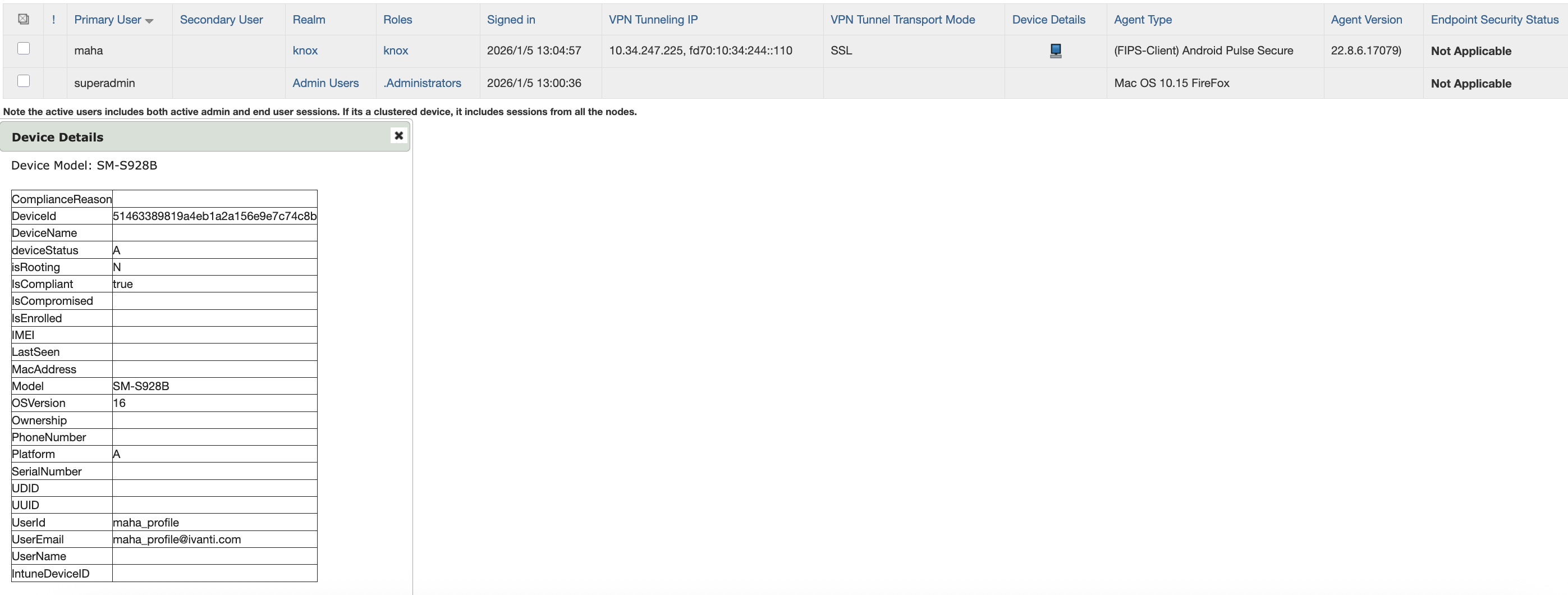
Administrators can view device details within ICS.
Support & Resources
• Ivanti Connect Secure Help
Documentation
Ivanti documentation is available at https://www.ivanti.com/support/product-documentation.