Configuring Microsoft Entra Conditional Access (CA) Qualification for ISAC Windows & macOS
This document outlines Microsoft Entra Conditional Access (CA) policy integration with the ISAC via SAML authentication. This ensures secure access and compliance policy verification (such as device health and Intune management).
User and Licensing
Prerequisites:
-
Create a user in Azure AD or create an Entra ID.
-
Assign Entra ID Premium P2 and EMS E5 licenses.
Global Administrator role performs tasks like creating policies, assigning policies, or manage settings.
ICS SAML Application
-
Register ICS as an Enterprise Application in Entra/Azure AD
-
Assign the user (or group) created to the application.
Intune MDM Setup
1. Navigate Azure AD > Mobility (MDM and MAM) > and select Microsoft Intune.
2. Set MDM user scope to All
Intune Compliance Policy Setup
1. In Intune Admin Center (endpoint.microsoft.com), create a Device Compliance Policy.
2. For windows 10/11 - choose Windows and for macOS - choose macos device.
Ensure the antivirus is (enabled by default on Windows via Defender).
3. Assign the policy to the test user or group
Conditional Access Policy Setup
1. Navigate to Microsoft Entra ID > Protection/Security > Conditional Access.
2. Create a New Policy:
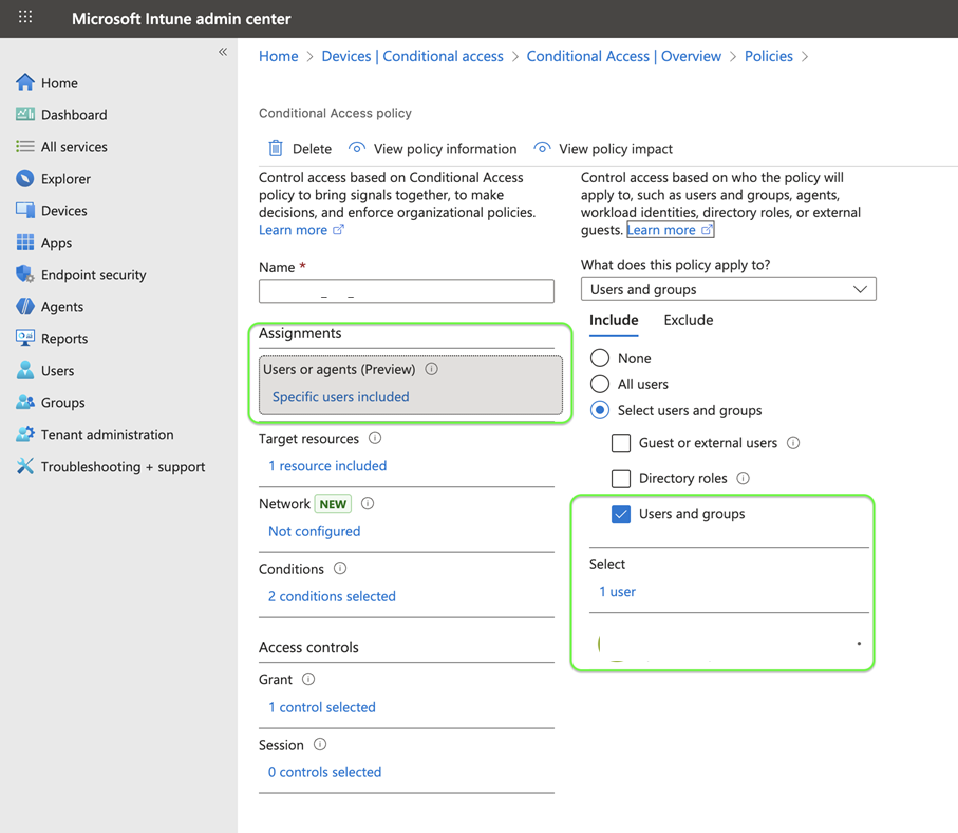
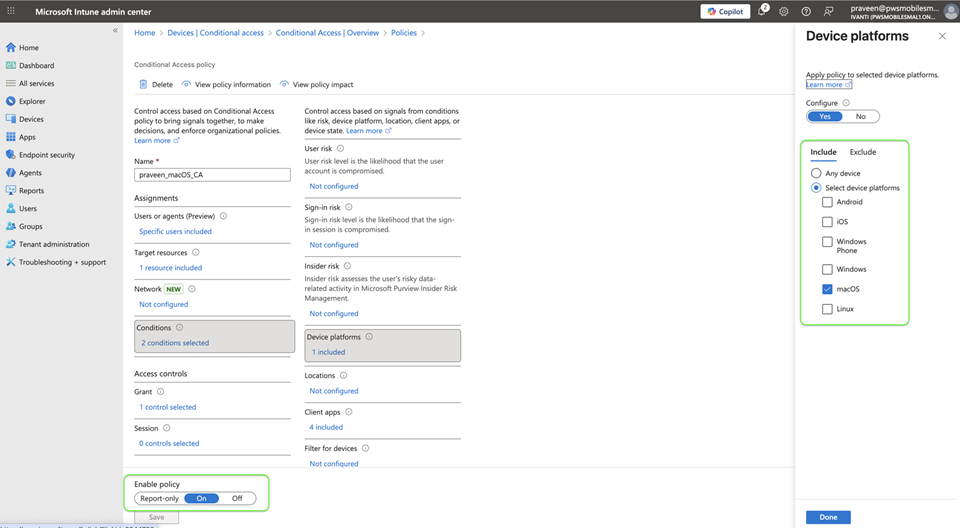
3. Set the following:
-
Scope: Target test user/group.
-
Target resources: Select the ICS SAML enterprise application.
-
Conditions: Device platform for windows must be windows device and macOS for macOS devices.
-
Client apps should be Browser or Desktop for login.
-
Access Controls: Select “the required device to be marked as compliant”.
Admin can block or grant access to the resources based on conditions and the device compliance state.
4. Enable the policy.
For Windows:
For mac:
Azure AD Join and Device Registration Settings
1. In Azure AD > Devices > Device settings, ensure Users May join devices to Azure AD is set to All.