Backing up and Restoring Appliance Configurations
Pulse One supports the backup and restore of the configuration of any managed appliance of v9.0R2 or later.
Each appliance can have a single configuration backup only.
When a new backup for an appliance is started, the previous backup (if present) is deleted.
Backing up the Configuration of an Appliance
1.Log into Pulse One as an administrator.
2.Click the Appliances menu and then the Appliances tab.
The Appliances tab displays all current appliances.
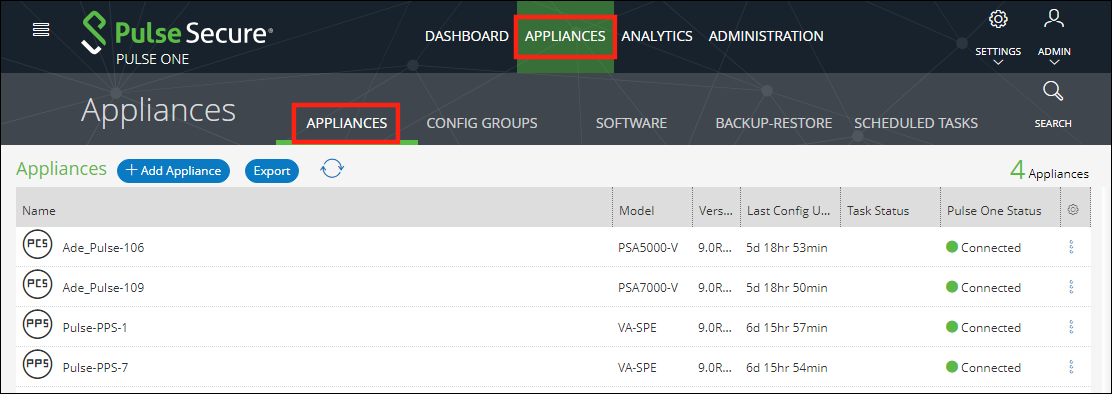
3.Locate the appliance that you want to backup and click its Actions icon.

In this example, the pcs-174 appliance is at version 9.0R2. As a result, its menu includes the Backup Configuration option.
4.Click Backup Configuration.
The Backup Appliance dialog appears.
5.Specify a Description for the configuration backup and click Save.
The configuration backup is initially marked as Backup Pending in the Task Status column.
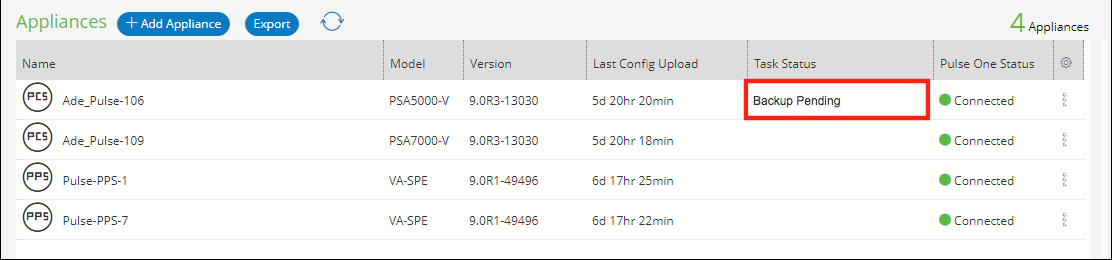
The Task Status changes to Backup in Progress Cancellable after the configuration backup starts.
After the configuration backup completes, the Task Status entry for the appliance is cleared.
6.(Optional) If required, you can cancel the configuration backup while it is in progress.
To do this, click the Actions icon for the appliance, and then click Cancel Backup.
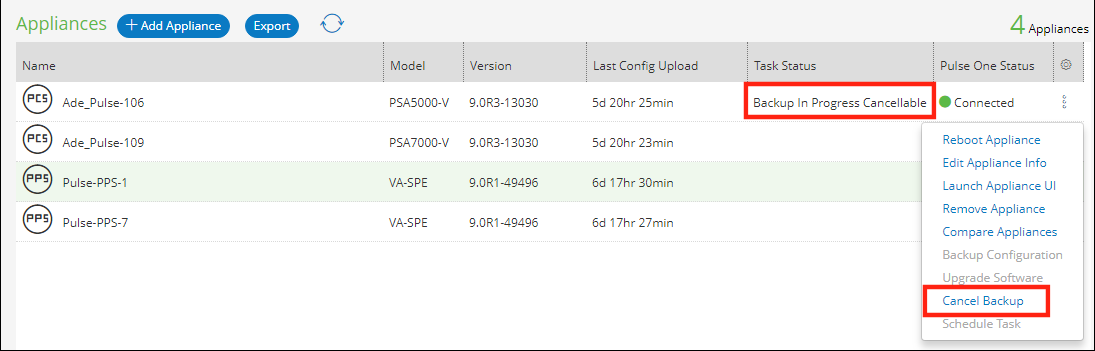
The cancellation is then confirmed.
7.After the configuration backup completes, click the Backup-Restore tab.
The Backup-Restore tab lists all configuration backups taken, plus a total size of all backups. For example:
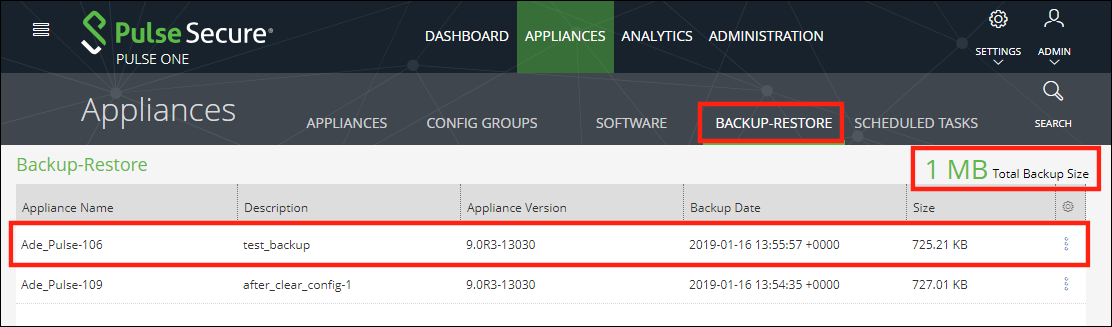
In this example:
•The configuration backup for Ade_Pulse-106 is at the top of the list.
•The total size of all backups is 1 MB.
Deleting the Configuration Backup for an Appliance
1.Log into Pulse One as an administrator.
2.Click the Appliances menu and then the Backup-Restore tab.
The Backup-Restore tab lists all configuration backups taken. For example:
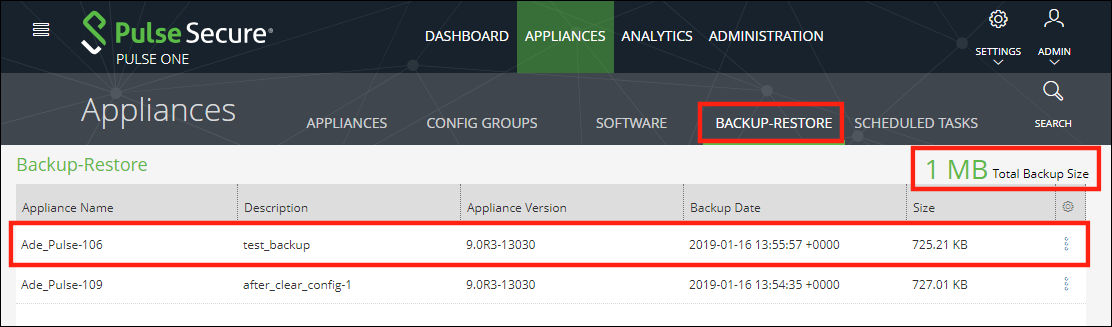
In this example, the configuration backup for Ade_Pulse-106 is at the top of the list.
3.Locate the configuration backup that you want to delete.
4.Click the Actions icon for the appliance, and then click Delete Configuration.
A confirmation dialog appears.
5.Confirm the deletion.
The configuration backup is deleted and removed from the list of configuration backups.
Restoring the Configuration of an Appliance
1.Log into Pulse One as an administrator.
2.Click the Appliances menu and then the Backup-Restore tab.
The Backup-Restore tab lists all configuration backups taken. For example:
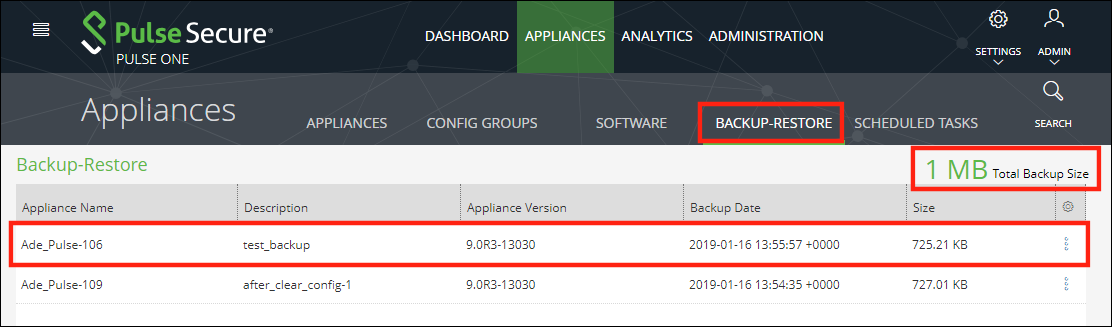
In this example, the configuration backup for pcs-174 is at the top of the list.
3.Locate the configuration backup that you want to restore.
4.Click the Actions icon for the appliance, and then click Restore Configuration.
The Select Appliance to Restore dialog appears. This dialog lists all appliances for which there is a configuration backup file, and which are also in a connected state. For example:
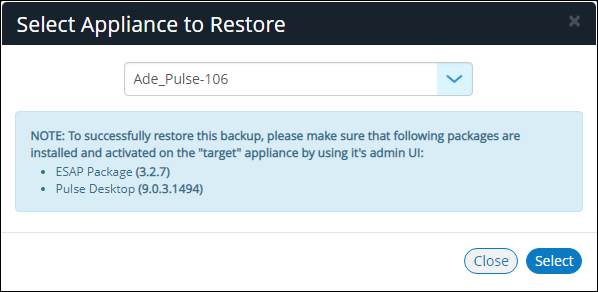
This dialog also lists the ESAP Package version and the Pulse Desktop version that must be installed on the appliance manually before initiating the restore.
5.Select the required appliance and click Select.
The configuration restore for the selected appliance is scheduled.
6.Click the Appliances tab.
The Task Status for the selected appliance is shown as Restore Pending. For example:
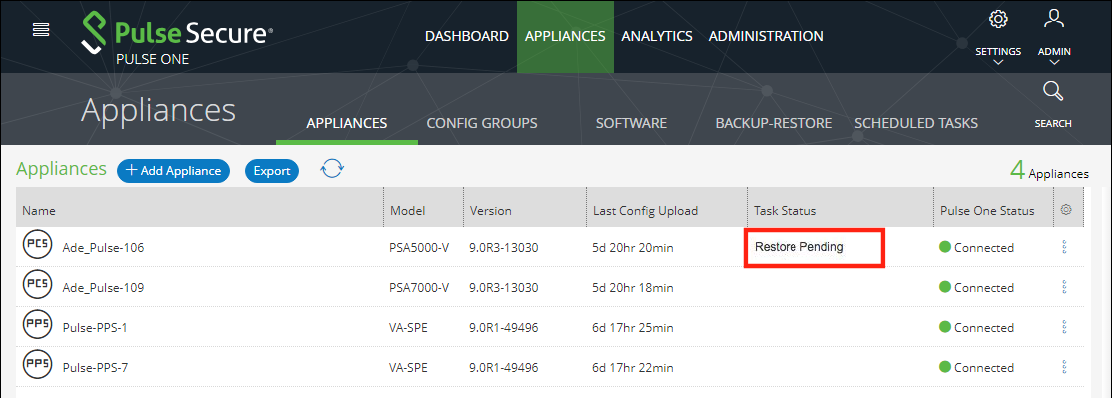
The Task Status changes to Restore in Progress Not Cancellable after the configuration restore starts.
After the configuration restore completes, the Task Status for the appliance is cleared.
During a configuration restore of an appliance, you cannot schedule a backup. This restriction clears after the restore completes.
7.(Optional) While the Task Status for a selected appliance is Restore Pending, you can cancel the restore process. To do this, click the Actions icon for the appliance, and then click Cancel Restore.
8.(Optional) View the activities for an appliance to see the results of backup and restore operations, see Viewing the Activities Log for an Appliance.