Expanding the Log File Partition
To increase the disk space for your virtual appliance log files, expand the virtual disk and then resize the file system from the virtual appliance’s console interface.
Before you start, make sure you have completed the following steps:
1.Performed a backup of your Traffic Manager configuration and log files.
2.Stopped the virtual appliance using XenCenter.
To resize the virtual disk
1.In XenCenter, select the required Traffic Manager from the list of virtual appliances and click the Storage tab. A standard Traffic Manager virtual appliance installation contains one virtual disk, displayed in this tab.
2.Select the Traffic Manager virtual disk and click Properties.
3.In the virtual disk properties window, click Size and Location.
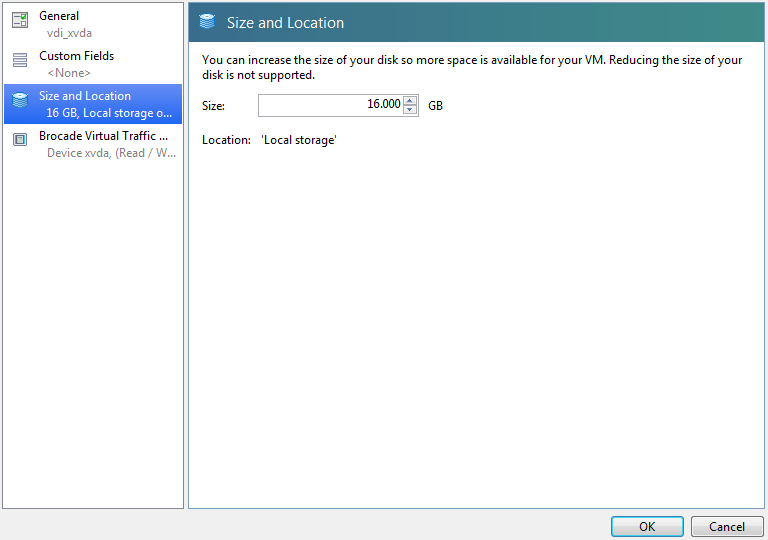
4.Expand the disk to the required size (the default is 16 GB). Click OK to make the change.
5.Start the Traffic Manager virtual appliance.
6.After it has finished booting, log in to the console using SSH or the Console tab in XenCenter.
7.To resize the "/logs" partition, type the following command into the console:
z-expand-logs-partition
Be aware that SSH Intrusion Prevention is disabled temporarily during the resize process.