This is not the latest version of Ivanti Workspace Control documentation.View available documentation.
Install Ivanti Cloud Relay
The following section covers the prerequisites and the steps required to set up the Ivanti Cloud Relay in your Workspace Control environment.
Prerequisites
The following are required in your Workspace Control environment before setting up the Ivanti Cloud Relay:
-
Purchased the Ivanti Cloud Relay SKU, or acquired a trial license.
-
A working Workspace Control environment.
-
Ivanti Workspace Control 2021.2 version 10.7.0.0 or higher.
-
One or more Relay Servers installed on-premises. The Relay Server infrastructure must connect to the Datastore.
For more details about installing Relay Servers, see Installation.Ivanti Cloud Relay requires at least one Relay Server to function. Relay Servers are available in any of the following Workspace Control modules:
-
Composition
-
Governance
-
Security
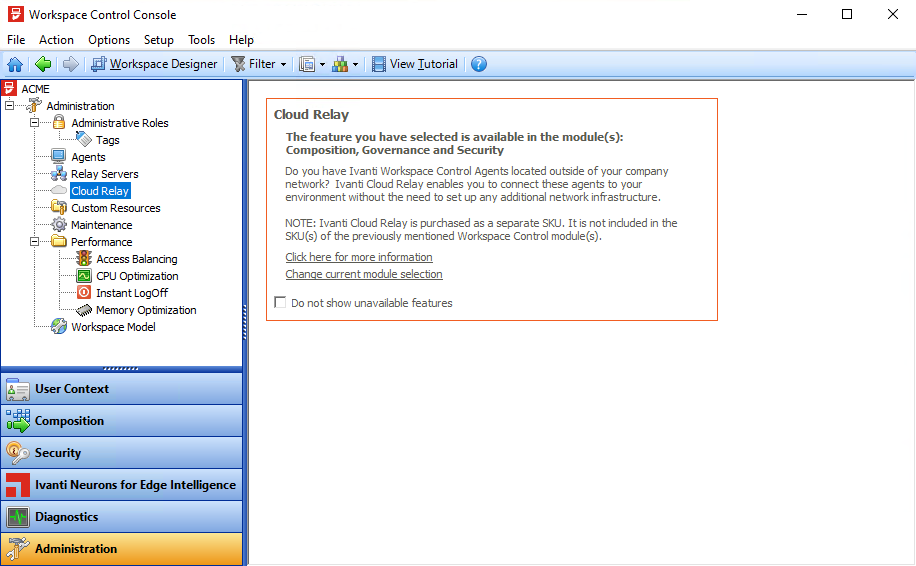
If you are running Workspace Control Core, the following message is displayed in the Workspace Control Console, under Administration > Cloud Relay:
-
-
One or more Workspace Control Agents.
For more details about installing Workspace Control Agents, see Installation. -
An activated Workspace Control license.
-
Internet access for both the Workspace Control Console and the Workspace Control Agents connected to the Cloud Relay.
Enable Ivanti Cloud Relay
To enable Ivanti Cloud Relay, follow these steps:
-
Upgrade the Workspace Control Console to the minimum required version on all machines where the Workspace Control Console is installed.
-
Upgrade existing Workspace Control Agents to the minimum required version on all end-user machines that need to connect to the Cloud Relay environment.
New Workspace Control Agents can be used as well, if their version meets the minimum required version.
-
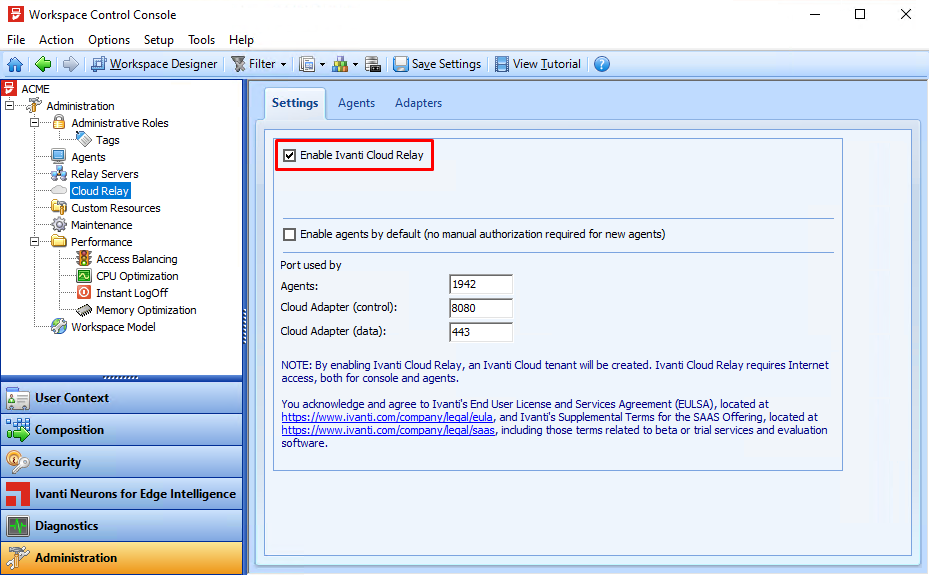
By default, the Ivanti Cloud Relay is disabled. To enable it, open the Workspace Control Console, navigate to Administration > Cloud Relay, and then, in the right-side pane, under the Settings tab, select the Enable Ivanti Cloud Relay option.
-
Select Save Settings from the main menu bar.
Once the new configuration is saved, the Workspace Control Console communicates with the Ivanti Cloud Relay and it requests the creation of an Ivanti Cloud tenant. This requires the validation of the Workspace Control Site ID and takes several minutes to process. Check the status of the Site ID validation under the Settings tab.
When Ivanti Cloud Relay is enabled, the Console will generate a web request to [ct-api.ivanticloud.com]. Make sure the web request can be resolved and that the HTTPS traffic over port 443 is not blocked by a firewall or proxy.