This is not the latest version of Ivanti Workspace Control documentation.View available documentation.
Configure Workspace Control Agents for Cloud Relay
This section covers the methods that can be used to configure Workspace Control Agents to connect to the Cloud Relay environment.
In the Workspace Control Console, under Administration > Agents, in right-side pane, the connection status of Workspace Control Agents can be viewed under the Agents tab, by checking the following columns:
-
Connects to
This displays the name of the Relay Server to which the Agent is connected.
-
Cloud Relay Server
This displays Yes when the Agent is connected to the Cloud Relay environment.

 Configure connection settings for Workspace Containers
Workspace Control Agents that are included in Workspace Containers use the connection settings specified for their Container. If an Agent is member of multiple Workspace Containers, the connection settings from each Container are processed in order of priority, starting from the leftmost Container.
If an Agent has connection settings configured on the Agent level, these settings supersede the configuration of Workspace Containers.
To create a new Workspace Container and configure its connection settings, follow these steps:
-
Open the Workspace Control Console and navigate to Administration Guide > Agents.
-
In the right-side pane, select the
 button next to the Settings tab.
 -
Select Add from the Select Workspace Container window.
-
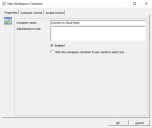
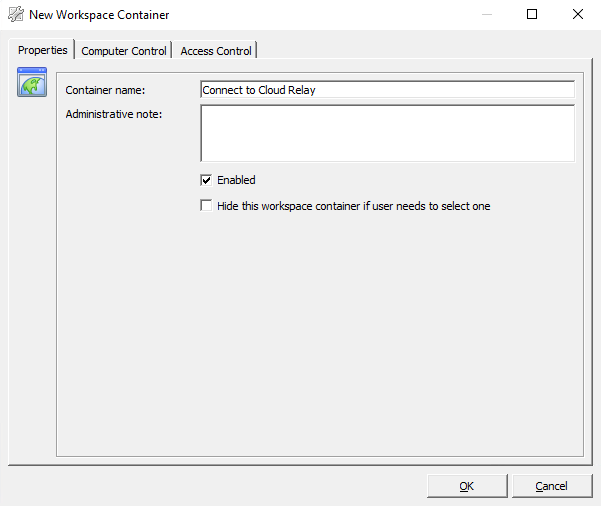
In the New Workspace Container window, configure the following settings:
-
Under the Properties tab, in the Container name field, enter an appropriate name.
-
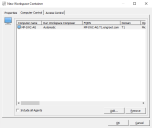
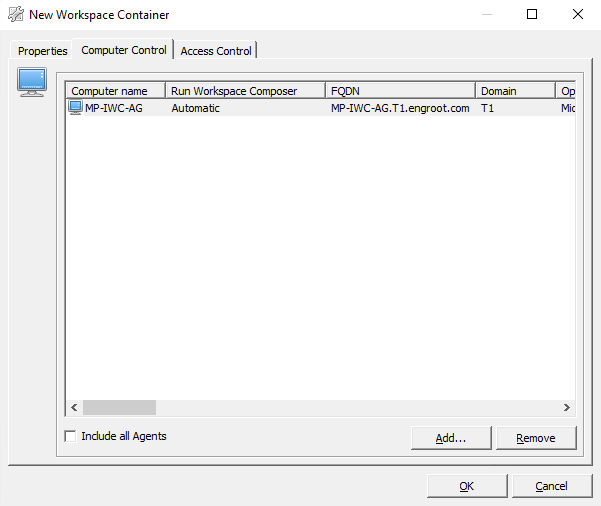
Under the Computer Control tab, select Add and populate the list with the desired Workspace Control Agents.
Select OK.
-
-
In the Select Workspace Container window, select the new Container and then select OK.
-
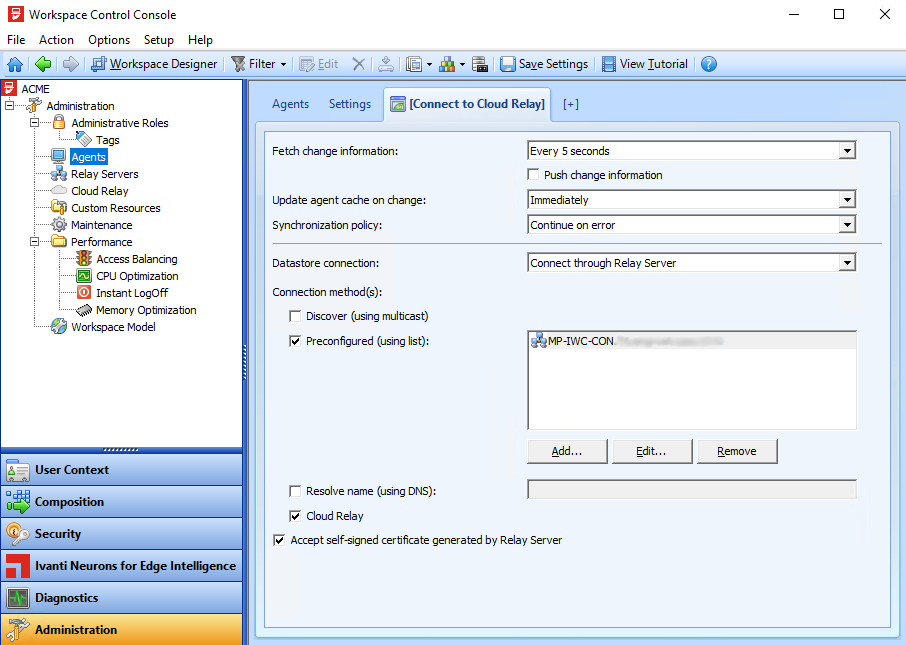
Select the new Workspace Container tab and configure the following settings:
-
Datastore connection: Connect through Relay Server.
-
Select Cloud Relay.
-
(Optional) Select Accept self-signed certificate generated by Relay Server, if the Relay Server is configured to use self-signed certificates.
-
-
(Optional) Select Preconfigured (using list) to configure a list of Relay Servers. Select Add to populate the list with already set up Relay Servers.
Workspace Control Agents try to connect to the Relay Servers from the list in descending order. This enables Agents to connect to a Relay Server when the Agents are part of the on-premise network. When the Agents are off-premises (for example, in work from home scenarios), they cannot connect to the on-premises Relay Server and instead connect to the Cloud Relay environment.
Configure connection settings on Agent level
Individual Workspace Control Agents can be configured to connect to the Cloud Relay environment from the Workspace Control Console. To achieve this, follow these steps:
-
Open the Workspace Control Console and navigate to Administration Guide > Agents.
-
In the right-side pane, under the Agents tab, double-click on the desired Agent from the list.
The Edit Workspace Control Agent window appears. -
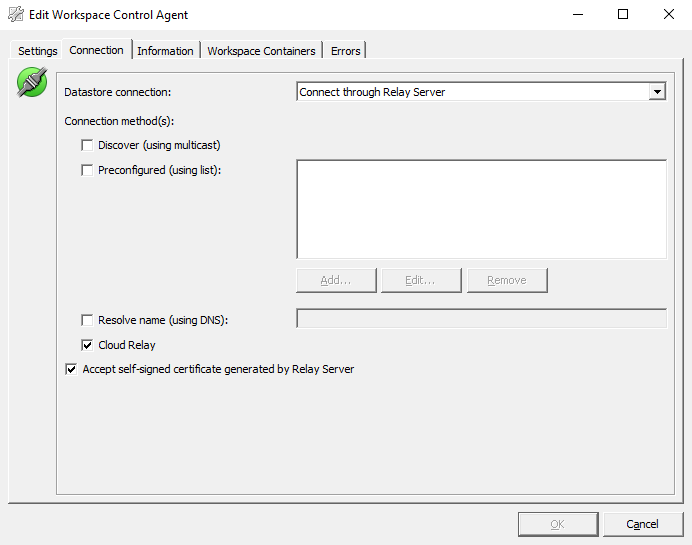
Go to the Connection tab and configure the following settings:
-
Datastore connection: Connect through Relay Server.
-
Select Cloud Relay.
-
(Optional) Select Accept self-signed certificate generated by Relay Server, if the Relay Server is configured to use self-signed certificates.
-
-
(Optional) Select Preconfigured (using list) to configure a list of Relay Servers. Select Add to populate the list with already set up Relay Servers.
Workspace Control Agents try to connect to the Relay Servers from the list in descending order. This enables Agents to connect to a Relay Server when the Agents are part of the on-premise network. When the Agents are off-premises (for example, in work from home scenarios), they cannot connect to the on-premises Relay Server and instead connect to the Cloud Relay environment.
-
Select OK.
We advise against changing settings on Agentlevel as it difficult to see which Agent has already been changed or not. Instead, we recommend you make the configuration at the Workspace Control Container level, as Workspace Control Containers exceptions are easy to identify.
Configure connection settings on global level
Workspace Control Agent connection settings can be configured on a global level. Agents that do not have connection settings configured on an Agent level or are not part of Workspace Containers, use the global connection settings.
To configure global connection settings, follow these steps:
-
Open the Workspace Control Console and navigate to Administration Guide > Agents.
-
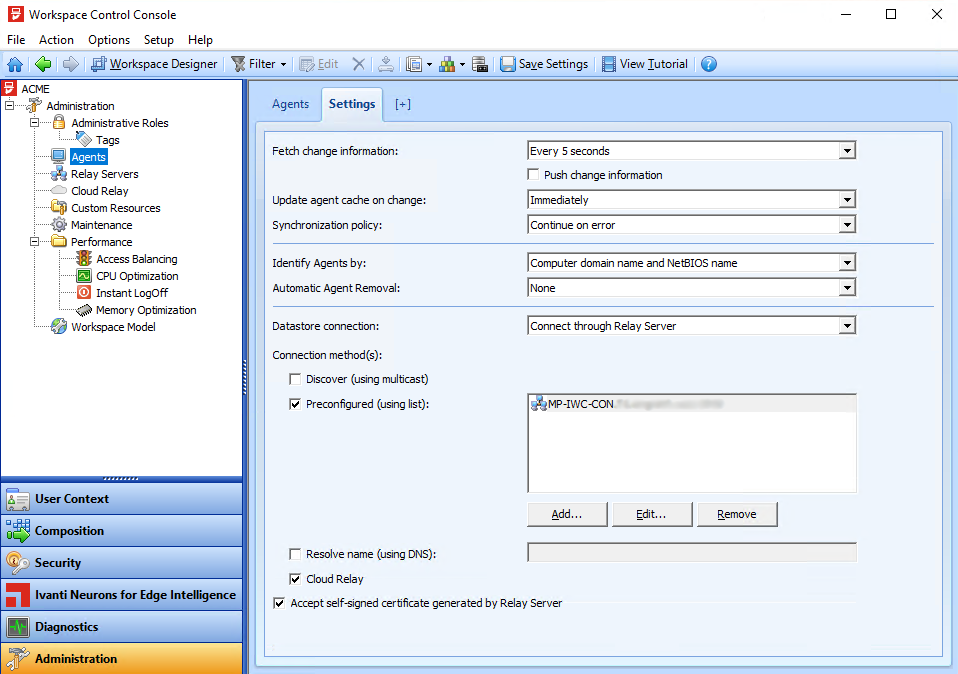
Select the Settings tab and configure the following settings:
-
Datastore connection: Connect through Relay Server.
-
Select Cloud Relay.
-
(Optional) Select Accept self-signed certificate generated by Relay Server, if the Relay Server is configured to use self-signed certificates.
-
-
(Optional) Select Preconfigured (using list) to configure a list of Relay Servers. Select Add to populate the list with already set up Relay Servers.
Workspace Control Agents try to connect to the Relay Servers from the list in descending order. This enables Agents to connect to a Relay Server when the Agents are part of the on-premise network. When the Agents are off-premises (for example, in work from home scenarios), they cannot connect to the on-premises Relay Server and instead connect to the Cloud Relay environment.
Ivanti recommends you make the configuration at the Workspace Control Container level, as Workspace Control Containers exceptions are easy to identify.
Manually configure Workspace Control Agents
Workspace Control Agents can be configured to connect to the Cloud Relay environment from the machine where the Agent runs.
Before starting to manually configure the connection settings of Workspace Control Agents, Cloud Relay connection information is needed from the Workspace Control Console. Navigate to Administration > Cloud Relay, under the Settings tab, select the  button. This copies the Cloud Relay connection information to the clipboard. Paste the information into TXT file.
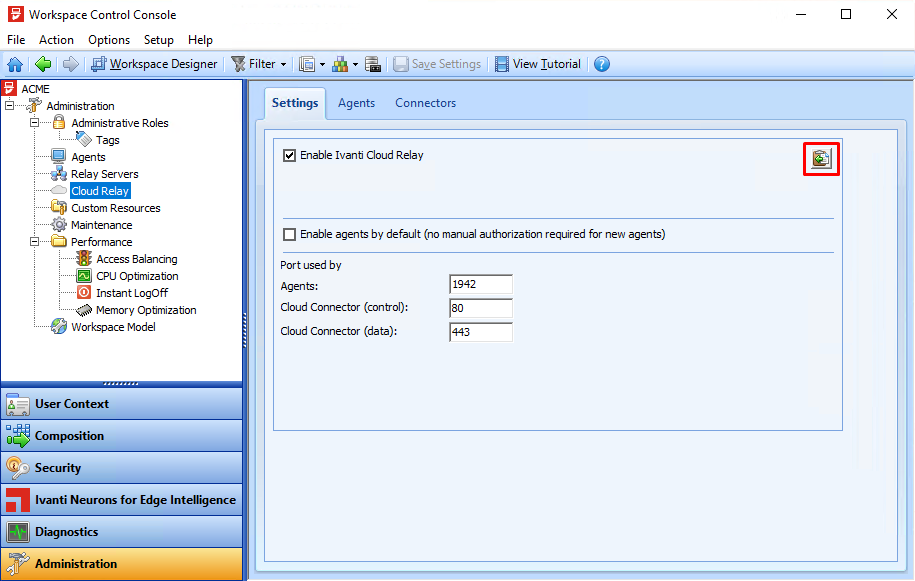
The copied data is structured as follows:
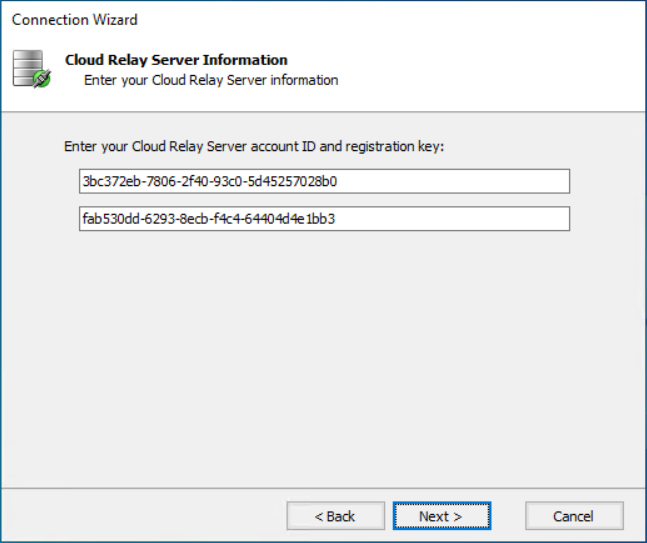
AccountId=3bc372eb-7806-2f40-93c0-5d45257028b0
This information is referred to as <account ID>.
AgentRegistrationKey=fab530dd-6293-8ecb-f4c4-64404d4e1bb3
This information is referred to as <agent registration key>.
AdapterRegistrationKey=19ddae36-195d-854f-52a9-f0953adac575
This information is referred to as <adapter registration key>.
The values above are provided as example. Use the appropriate values for your environment when configuring the connection settings.
There are two scenarios when manually configuring Workspace Control Agents:
Configuring existing Workspace Control Agents
To manually configure the connection settings of Workspace Control Agents, follow these steps:
-
Log onto the Workspace Control Agent machine.
-
Upgrade to Agent by running the Ivanti Workspace Control Auto Upgrade Pack installer.
-
Activate the Cloud Relay feature as instructed by Ivanti Support.
-
Open the Run command window (
 + R) and execute the following command:
C:\Program Files (x86)\Ivanti\Workspace Control\svc\res.exe /config
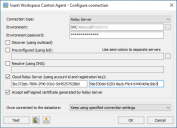
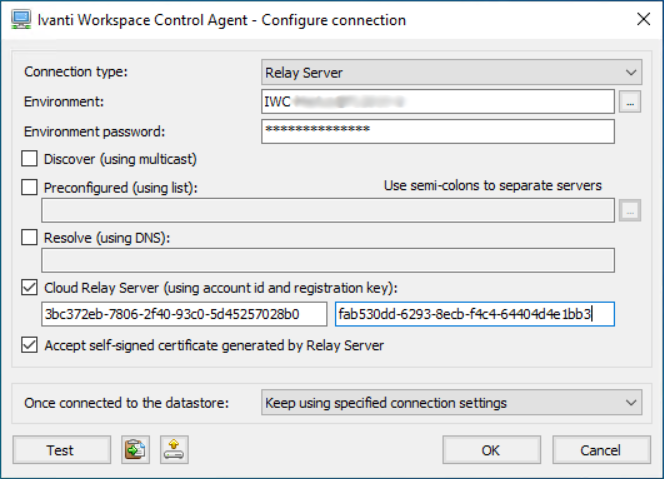
The Ivanti Workspace Control Agent - Configure connection window appears.
-
Configure the following settings:
-
Connection type: Relay Server.
-
Environment: select the Cloud Relay environment.
-
Environment password: enter the password used to connect to the Cloud Relay environment.
-
Select the Cloud Relay Server option.
-
Enter the <account ID> copied earlier in the left-side field under the Cloud Relay Server option.
-
Enter the <agent registration key> copied earlier in the right-side field under the Cloud Relay Server option.
-
-
Select the Test option to validate the supplied connection settings.
-
Select OK to save the connection settings.
 Configuring new Workspace Control Agents
-
Log onto the Workspace Control Agent machine.
-
Activate the Cloud Relay feature as instructed by Ivanti Support.
-
Install a new Workspace Control Agent by running the Ivanti Workspace Control Agent MSI fie.
-
Follow the instructions of the Ivanti Workspace Control Agent Setup wizard.
When the Connection Wizard appears, follow the instructions and configure the following settings:-
When prompted to specify how the Agent connects to the Workspace Control environment, select Connect this Agent to Relay Servers.
-
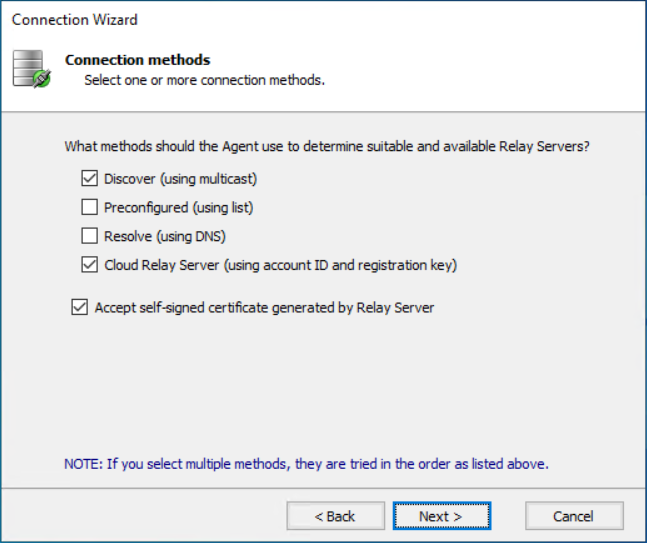
When prompted to specify the connection methods, select the Cloud Relay Server option.
(Optional) Select Accept self-signed certificate generated by Relay Server, if the Relay Server is configured to use self-signed certificates.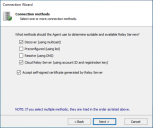
-
When prompted to specify the Cloud Relay Server connection information, enter the <account ID> and <agent registration key> copied earlier.
-
When prompted to specify the environment information, enter the environment name and environment password.
-
-
Complete the rest of the install wizard.
Ivanti recommends using self-signed certificates only for testing purposes, not in a production environment.