Using conditions
By default all elements on a form are visible (except for Hidden elements, of course). Conditions are a way to hide elements until specific criteria are met and then show them.
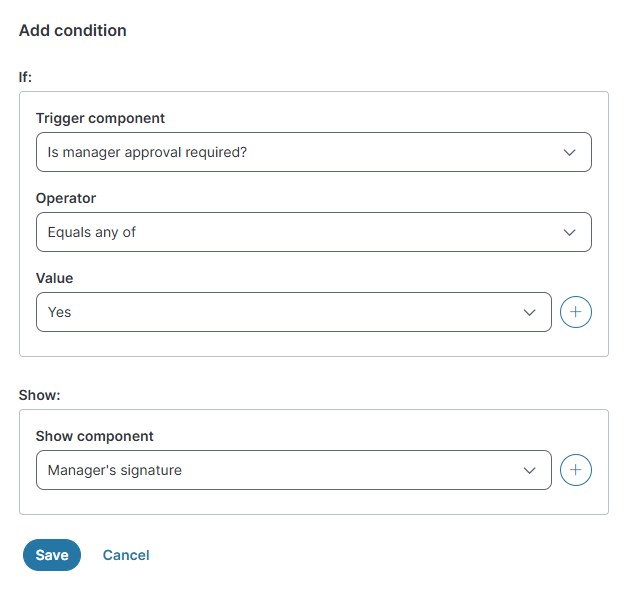
For example, if a form asks "Is manager approval required?" and a person filling out the form selects "Yes," then the form displays a signature field.
Each condition for a form has an If statement and a Show statement.
•The If statement defines what condition must be met. The If statement contains the Trigger component, an Operator, and a Value.
•The Trigger component is the element you want to base the condition on. In the example above, the question "Is manager approval required?" is the trigger component.
•The Operator defines how the value is matched. The available operators vary depending on the type of the trigger element.
•The Value is what must be matched in order to meet the condition. When multiple values are defined, the operator determines whether the statement is evaluated as an AND or OR statement.
•The Show statement defines what is shown when the condition is met. Multiple elements can be shown for a single condition.
If an element is included in the Show statement for multiple conditions, it is shown as soon as one of the conditions is met. If multiple conditions are met, it still only shows once. If an element is required but is hidden by a condition, the user can submit the form without responding to the hidden element.
Use the Preview button to test how conditions work in a form. An element may be used in both a Show statement and an If statement, but it may require extra testing to make sure the form behaves the way you want it to.
You should add all of the elements and possible options to a form before you begin creating the conditions for it. When you have added conditions, the form preview shows the form with the conditions applied and allows you to test the conditional logic.
Conditions are evaluated when a change is made in the form or when the cursor moves.
To add a condition to an existing form
1.Navigate to the form that you want to edit and click Edit form.
2.On the Form Builder page, click the Conditional elements tab.
3.Click Add condition.
4.Define the If and Show statements for the condition. To define multiple values or shown components, click the Add button to the right of the field.
5.Click Save.
To test the conditions, click the Preview button in the top left.