AI Rule Creation (Tech Preview)
App Control now lets you create AI-assisted rule creation to help you build file-based rules faster. Use simple prompts to describe files or apps you want to control in natural language to generate AI suggested rule for configuration. The AI suggests rule configurations based on your prompt for your review and refinement before creating a rule. Enables you to use multiple keywords and get broader, combined suggestions. Administrators can now control access to this feature based on the user or a role.
This feature is in Tech Preview.
This topic cover the AI Assisted rule creation process only, refer to Configuration Rules for detailed procedure.
To use AI-assisted rule creation feature, ensure to:
 Enable AI Assistant
The AI assistance for creating rules is not available by default.
To enable this:
- Navigate to Admin > Settings.
- In the AI Settings section, enable the Enable App Control AI Assistant option.
Enable Permissions
Ensure that the permissions are enabled for users or roles to access this feature. The Administrator role has this feature enabled by default. For other user roles, an administrator grants permission based on requirements.
To enable permissions:
- Navigate to Admin > Access Control > Roles.
- Select a role and go to the Permissions tab > App Control.
- Then, enable the Use APP Control AI Assistant option.
For more information about permission and user roles, refer to Access Control.
Support Matrix
AI rule creation currently supports the rules listed in the table below.
|
Rule |
Files |
Apps |
|---|---|---|
| Allow |
Yes |
Yes |
| Deny |
Yes |
Yes |
| Manage User Privileges |
- |
Yes |
Create AI-assisted rule
You can create rules using the AI assistant that suggests files or apps based on you prompts in natural language. For detailed information about creating rules, refer to Configuration Rules.
To create rules using the AI assistant, follow these steps:
- Navigate to App Control > Configurations.
- On the Configurations page, select a configuration and click Edit Draft. Then, click Add new rule.
Alternatively, click Create configuration to add a new configuration. Then, click Add new rule. - On the Rule page, select an allow/deny/manage privileges rule. Then, click Next.
- On the What Type page, select File/Application option. Then, click Next.
- On the What page, click AI assistant option.
The AI Assistant pane appears and displays relevant information about the feature. - Enter a prompt in the Select an example or describe files you want to add field and press Enter.
The results are displayed based on your prompt.You can use prompts to specify applications, files, or version numbers. The AI will retrieve all the information and display it. The AI Assistant pane lists tips and a few examples on using the AI assistance. Alternatively, click on an example to see results based on the resources in your organization.
Refer to the following use-case-based AI-assisted rule creation, which gives you better understand.
Ensure you verify the files or applications suggested by the AI assistant for accuracy before creating a rule. The AI suggestions can vary based on the prompts. The search box supports up to 250 prompt characters.
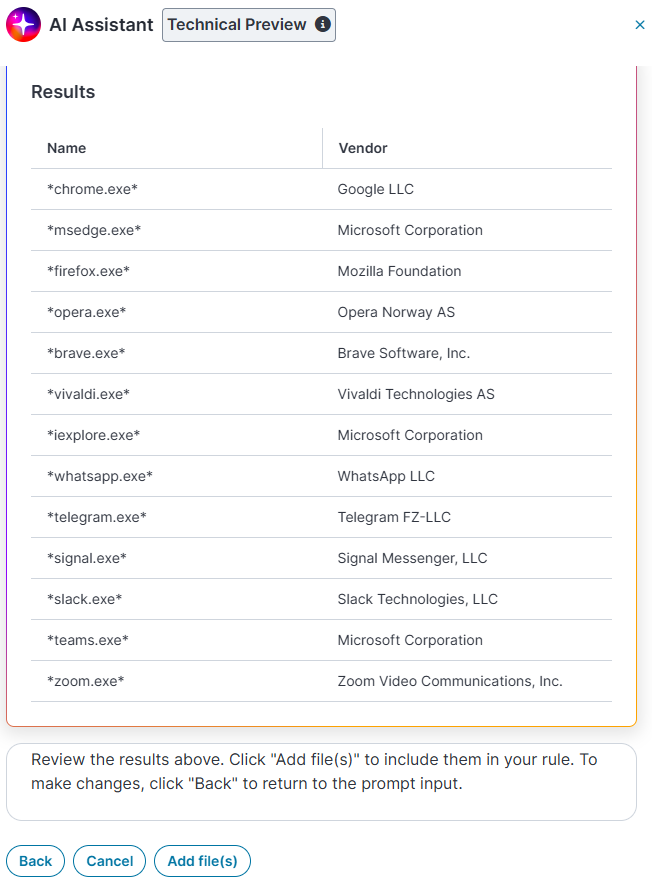
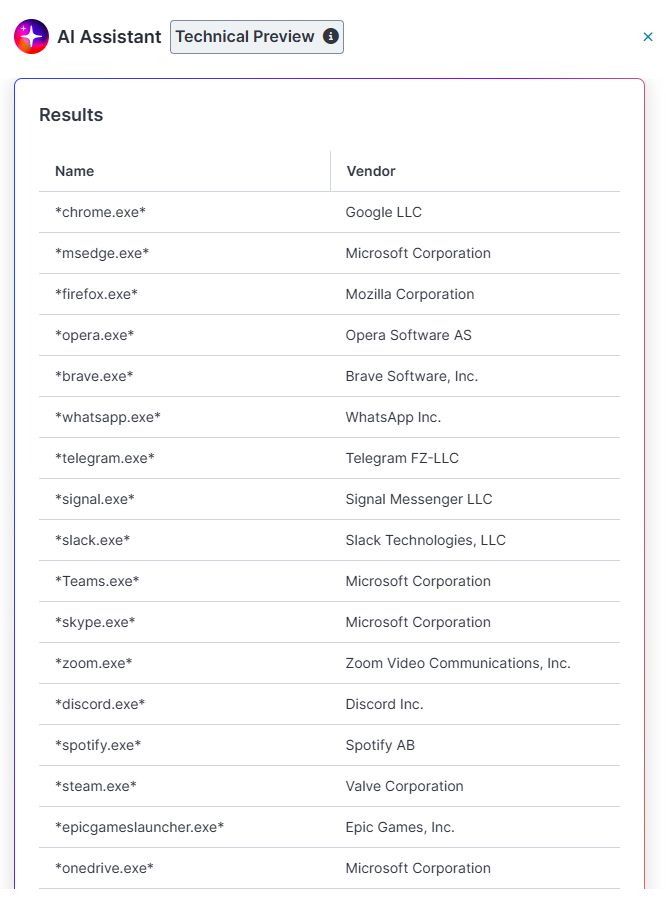
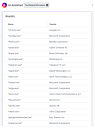
Find the most used web browsers and apps in the last 30 daysThis prompt suggests the most-used apps and web browsers in the last 30 days. The following screenshot displays the results.
 Find me the 50 most used Apps
The above prompt suggests the top 50 most-used apps. This enables you to gain more insights into app usage and files when creating rules.
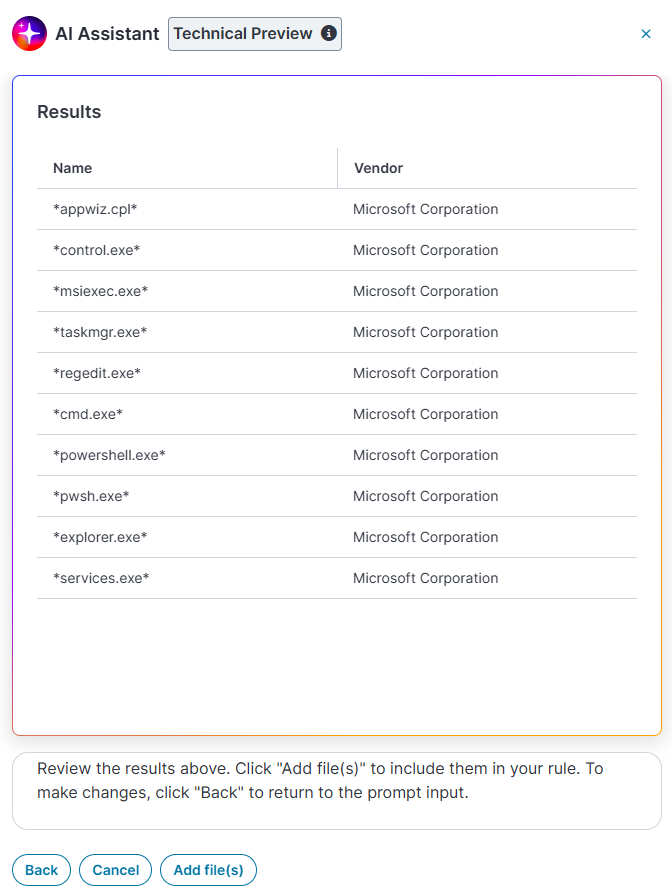
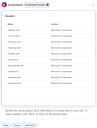
 Get me the blocked applications
The AI-assisted system suggests the list of blocked apps in your organization. See the screenshot below.
- Click Add file(s) to create a list of files or apps under the Selected Items section.
Then, you can manage the items to suit the business needs. For more information about editing an item, refer to Rule Item Settings. -
Click Next.
The When page appears. -
Choose an option from the Select a source drop-down list and select the required items. Then, click Next.
For detailed rule configuration steps, refer to Configuration Rules. -
On the Summary page, enter the rule details and click Save to complete the process.