Work Area
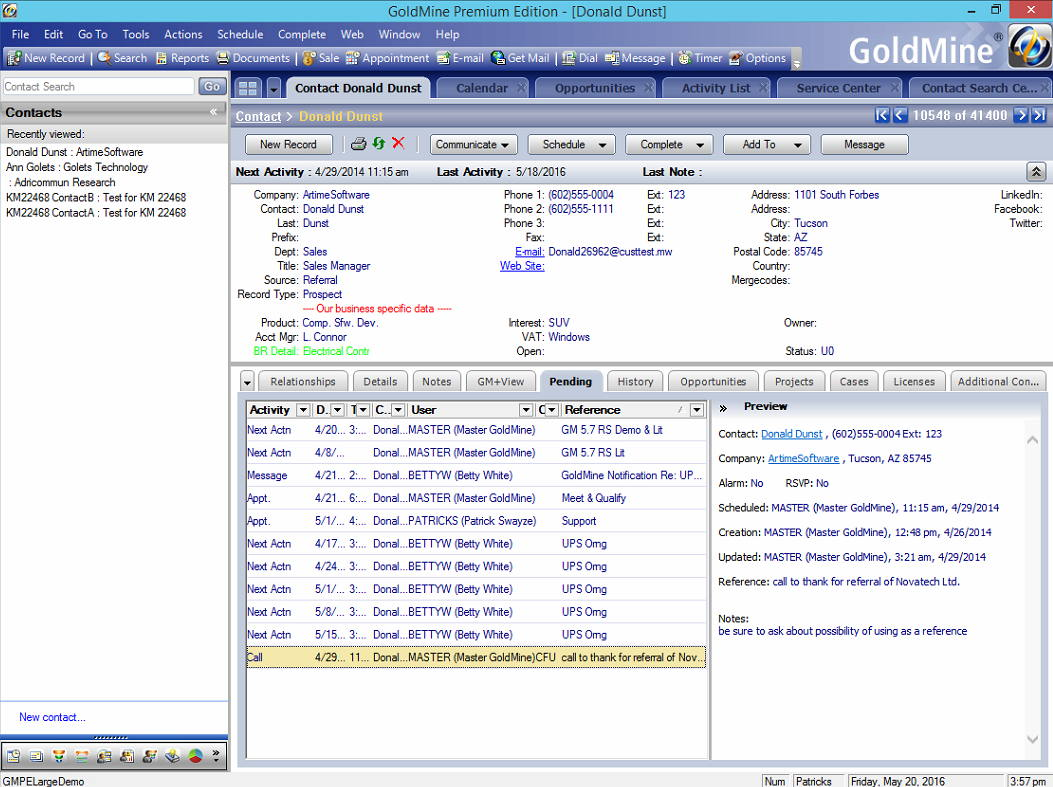
The screen's center is the work area. The GoldMine work area displays active windows, including any open contact records, the Calendar, the Activity List A list of task or event information displayed in a set of tabs., the E-mail Center, Opportunities, Projects, Campaigns, the Service Center, Leads, the Knowledge Base, and the Contact Search Center. The work area also displays dialog boxes, tools, and wizards.
The following graphic shows a work area window.
Activity Window
The Activity List Main Window contains three panes:
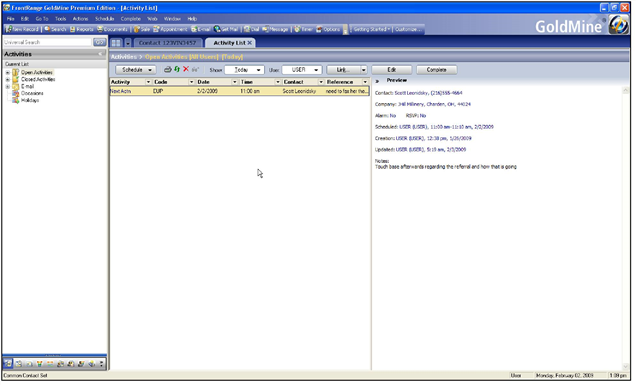
■ The first panel is the Folder panel and it lists the current activities folders. This list includes Open ActivitiesA time-specific or event-based action linked to Contacts; for example: calls, appointments, letters, To Do tasks, or events that are assigned to users., Closed Activities and E-mail activity. Open each folder by clicking on the plus sign (+). The selection you choose appears in the Activity list panel.
■ The second panel is the Activities list panel and it displays the activities, which can be sorted and filtered by any of its columns. Click on an activity and the summary information displays in the Preview panel.
NOTE: Grid filters are applied based on the records that are currently in the grid, which might be a subset of the records in the database.
■ The third panel is the Preview panel and it displays the summary information for a selected activity.
For more information and procedures on using the Activity window, see Activities.
Calendar
The tabs at the bottom of the window are the types of available calendars types appear at the bottom of the Calendar screen: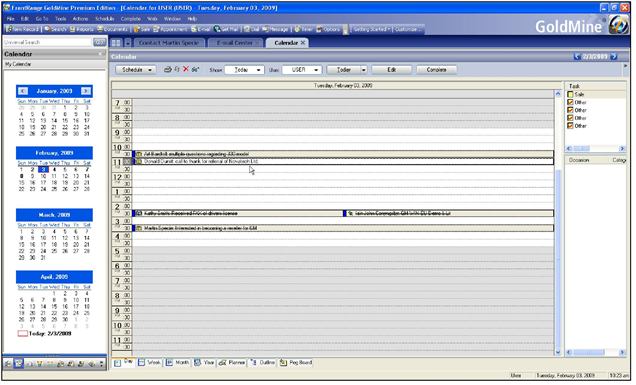
The first panel is My Calendar and it shows four graphical months of your calendar at a time. Click on a date and the page appears in the Calendar panel.
The second panel is the Calendar panel and it displays the activities for the specified date and time. Choose how the calendar displays by selecting one of the button at the bottom of the Calendar panel page:
■ Day. A daily calendar page.
■ Week. A weekly calendar page.
■ Month. A monthly calendar page.
■ Year. A page that shows the entire year.
■ Outline. Displays your scheduled activities in a hierarchical tree structure.
■ Planner. When you are scheduling activities for others, use the Planner to view their schedules.
■ Peg Board. Shows Login status and activity of individual users and system availability.
The third panel is the Task panel and it lists upcoming tasks and/or occasions. Click the task or occasion to see a summary.
For more information and procedures to use the Calendar, see Using the Calendar.
This work window is a fully navigable browser for the E-mail Center.
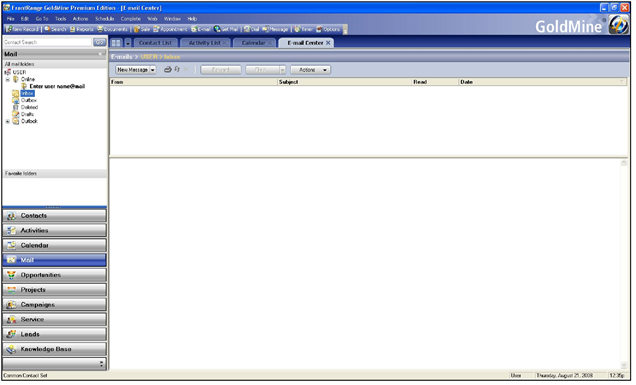
The first panel is the Mail Folders panel and it lists all mail folders of the user. Click on the folder and it will appear in the Mail panel.
The second panel is the Mail panel and it displays the selections from the Mail Folder panel. Note that the click path appears at the top of the panel. For more information on the Mail Center, see Using the E-mail Center.
Opportunities
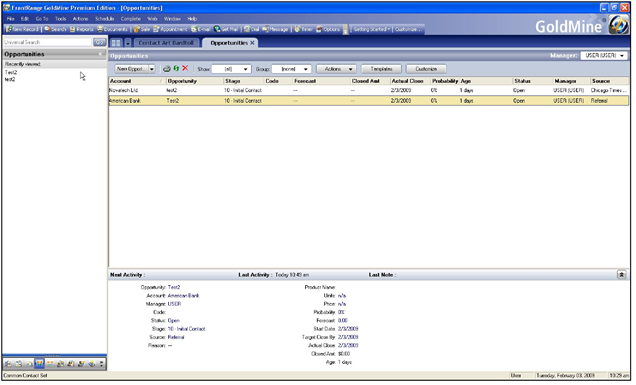
This window provides a history of recently viewed Opportunities and allows you to create, edit and maintain your Opportunities. For more information on Opportunities, see Opportunity and Project Management.
Projects
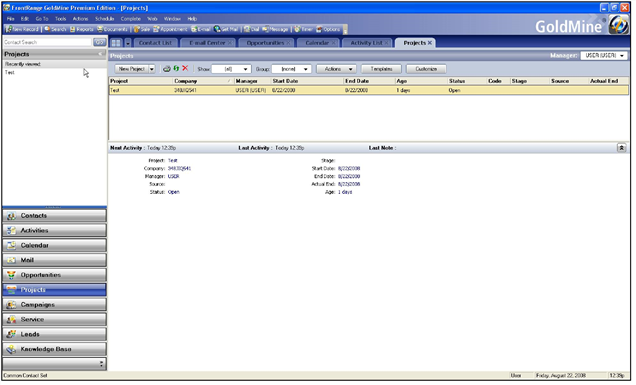
This window displays long-term projects to which a Contact record is linked. You can create or edit projects on this window. For more information and procedures to use Projects, see Opportunity and Project Management.
Campaigns
This window allows you to view customer interactions, from initial contact to closing the first sale to future purchases.
When you click on Campaigns, the first window that opens is a Welcome to the Campaign Management Center.
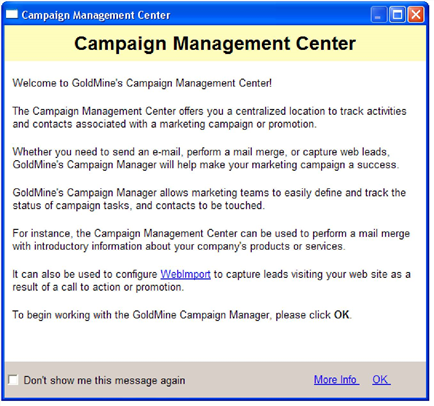
Click OK and the Campaign Management Center opens.
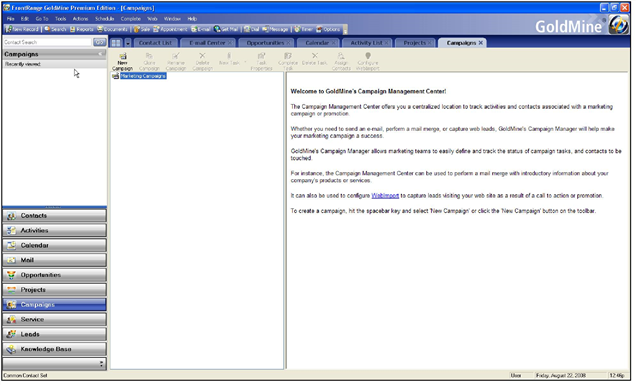
For more information and procedures for using Campaigns, see Marketing Tools.
Service Center
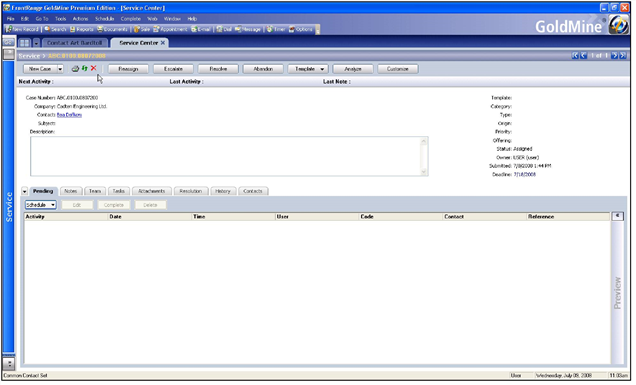
This window allows your service professionals to assign, escalate and resolve customer service requests. For more information on the Service Center, see Using the Service Center.
Leads
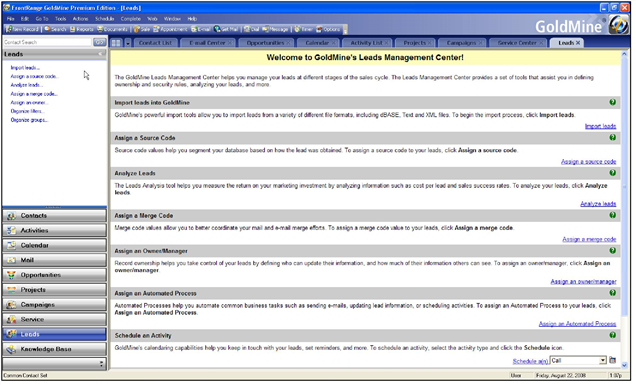
This window provides a sequence of activities to help manage marketing activities related to the base of contacts and potential leads. It provides a set of tools that assist you in defining leads. For more information on the Leads, see Marketing Tools.
Knowledge Base
This window provides a resource for maintaining any type of information useful to an organization or an individual. When you click on Knowledge Base, the first window that opens is a Welcome to the Knowledge Base Center.
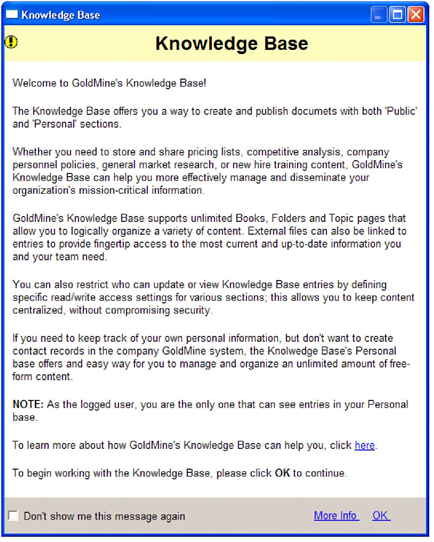
Click OK and the Knowledge Center opens.
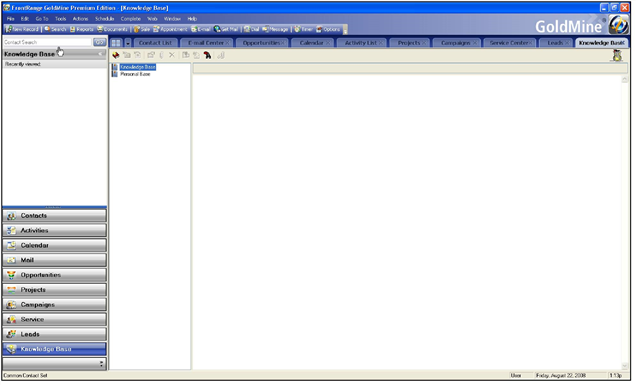
For more information and procedures for using the Knowledge Base Center, see Knowledge Base.
