Synchronize Calendar Item in ITSM with Office 365 using Exchange Calendar
Role: Administrators
The Exchange Calendar feature enables seamless synchronization of calendar items in Neurons for ITSM with your Office 365 calendar using either Exchange Web Services (EWS) or Microsoft Graph API. Once configured, it helps you receive notifications in your Office 365 account when a calendar item is created, deleted, or updated in Neurons for ITSM.
The feature offers the following integration options:
•Exchange Web Services (EWS): A legacy protocol used for connecting to Exchange servers, offering robust calendar sync capabilities. EWS supports two authentication types: AuthLogin authentication and Plain authentication.
To learn more about these authentication types, see About Authentication Types.
•Microsoft Graph API: A modern, secure, and scalable API that connects to Microsoft 365 services, including calendars, with enhanced performance and flexibility.
For more information about configuring the Exchange Calendar feature, see Exchange Calendar Configuration.
Sync a calendar item
To sync a calendar item in Neurons for ITSM with Office 365, do the following:
Create/Delete/Update a Calendar Item:
1.Log in to Neurons for ITSM as an Administrator.
2.From the workspace menu, select More > Calendar Item.
3.From the list of records, double-click the calendar item to open it.
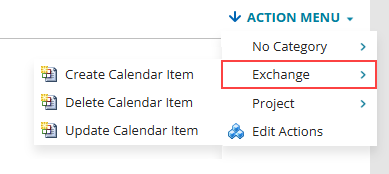
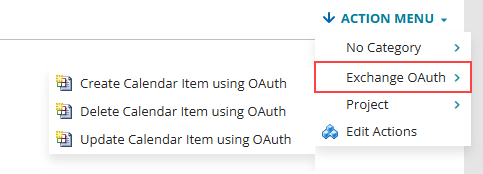
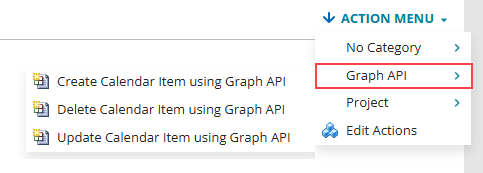
4.Go to Action Menu and you can see one of the following option based on your Exchange Calendar configuration:
•Exchange: Shows if Exchange Calendar is configured using EWS with Plain authentication.
•Exchange OAuth: Shows if Exchange Calendar is configured using EWS with AuthLogin authentication.
•Graph API: Shows if Exchange Calendar is configured using Microsoft Graph API.
5.Select the following action buttons based on your requirements:
•Create Calendar Item/Create Calendar Item using OAuth/Create Calendar Item using Graph API - To create a calendar item.
•Delete Calendar Item/Delete Calendar Item using OAuth/Delete Calendar Item using Graph API - To delete a calendar item.
•Update Calendar Item/Update Calendar Item using OAuth/Update Calendar Item using Graph API - To update a calendar item.
Verify the Calendar Item in Office 365:
You can now verify whether the Calendar Item is Created, Deleted, or Updated in Office 365 according to the selection you made in Action Menu.
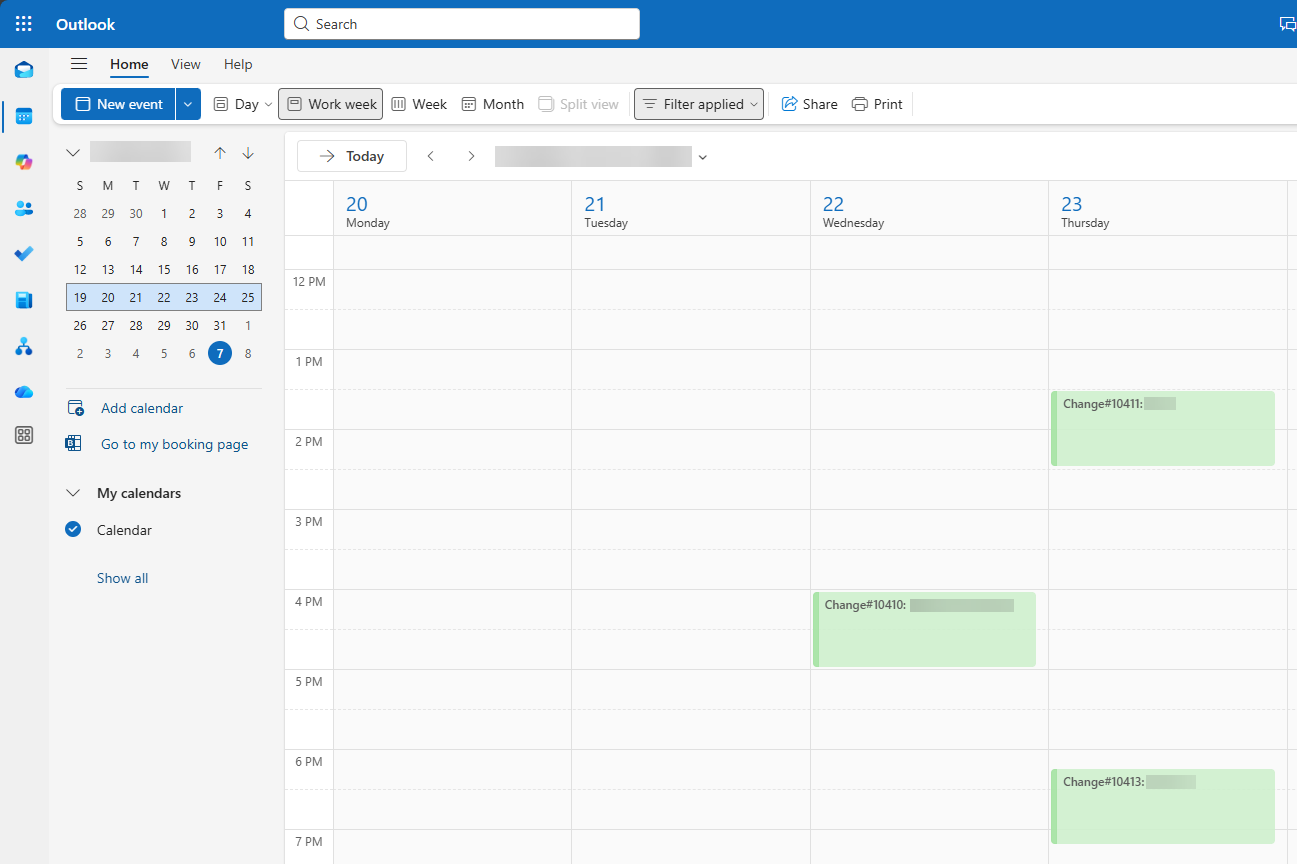
6.Log in to Office 365 Outlook using the same username that was used to configure the Exchange Calendar. Refer Configuring the Exchange Calendar.
7.Go to Outlook Calendar.
The calendar item in ITSM has been successfully synchronized with Office 365 Outlook.