Add Controls to a Report
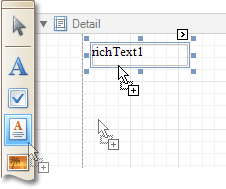
To create a control, drag it from the Control Toolbox panel onto the report area.
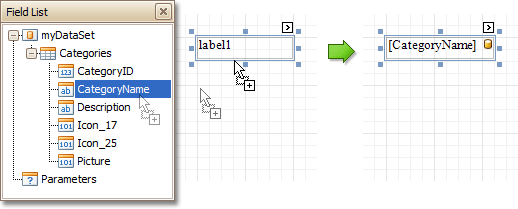
To automatically create a control bound to data, drag a field from the Field List panel, and drop it onto a report's surface. When dropping a field onto an existing control, this control will be bound to the data field.
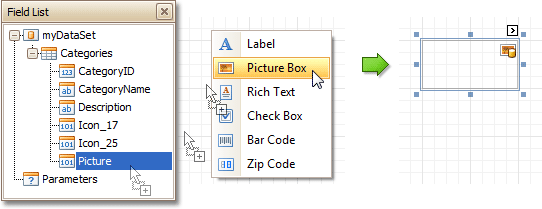
If you drag the field with the right mouse button, when the button is released the context menu is invoked. Use this menu to specify which control should be created.
To learn more on data binding for report controls, refer to Display Values from a Database (Bind Report Elements to Data).
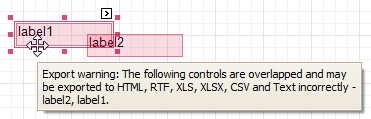
When controls overlap, the report may be shown incorrectly when exported to some formats. Red markers and a report tooltip will warn of this situation. You may switch off the red warning marks via the report’s Show Export Warnings property.
To learn how report controls can be relocated and resized, refer to Change Element Layout in Your Report and Controls Positioning.