Add or Modify Static Information in Your Report
In a report, static and dynamic information is displayed using appropriate Report Controls.
Dynamic information changes through a report, such as values from a database (which comprise the main report data) or service information (such as user name or page numbers). Approaches to embed dynamic information to your report are detailed in the following document: Display Values from a Database (Bind Report Elements to Data)
Static information is text or images that aren't obtained from a data source, and therefore don't change through the report, and don't depend on the current computer. Static information can be printed only once (e.g. in a Report Header), can repeat on each page (e.g. in a Page Header) or can repeat with every entry in your report's data source (a data-bound label, which is placed onto the Detail Band).
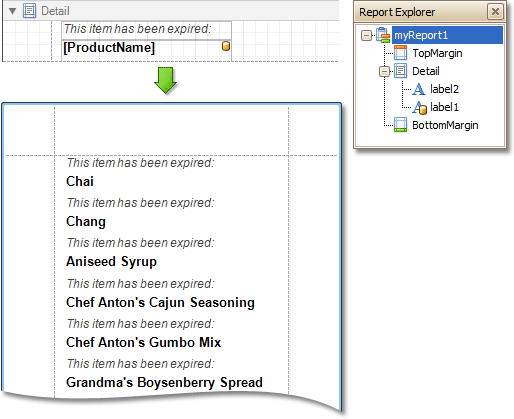
Static information can be either edited in place or loaded from an external file.
Change Static Information
Text elements (e.g. Labels and Rich Text Boxes) allow in-place editing of their content. Simply double-click an element and activate the editor.
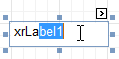
For in-place editing, you also can utilize the Formatting Toolbar.
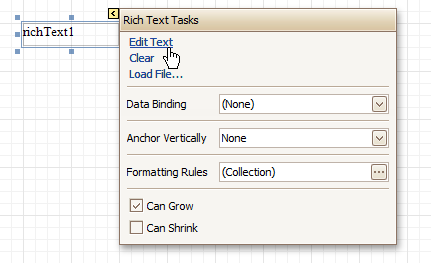
Another way to change a control's static information is by clicking its Smart Tag. Then, the invoked actions list will contain a link (or, a button) allowing you to edit this control's content.
Load Static Information to Your Report
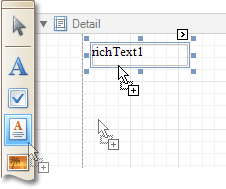
To load static information to your report from an external file, drop an appropriate control from the Control Toolbox(e.g. Label, Rich Text or Picture Box). After it is properly positioned, edit its content using the Smart Tag.
For instance, the following instructions describe how to display a rich text (a formatted text with embedded images) into your report.
-
Drop the Rich Text control from the Control Toolbox onto the Detail band.
-
To load content from an external RTF or TXT file, select the created control and click its Smart Tag. In the invoked actions list, click the Load File... link.
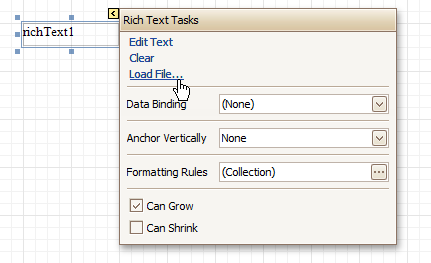
- Then, in the invoked dialog, locate the required file, and click Open.
See Also
Change Fonts and Colors of Report Elements
Display Values from a Database (Bind Report Elements to Data)