Enabling the Reporting Database
To configure the MobileIron Reporting Database:
|
1.
|
Log into the MobileIron Reporting Database System Manager at: |
https://<RDB SERVER>:8443/mics/mics.html
|
2.
|
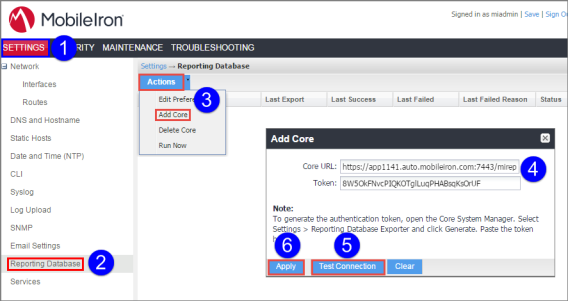
Go to Settings > Reporting Database > Actions > Add Core. |
|
3.
|
In the Core URL field, enter https://<Core host name>:7443/mireport. |
|
5.
|
Click Test Connection to confirm that the Core instance is reachable. |
|
7.
|
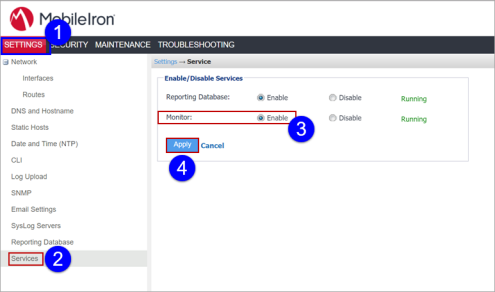
Go to Settings > Services > Reporting Database. |
|
8.
|
Select Enable for Reporting Database, and then click Apply. If you plan to run MobileIron Monitor, then also select Enable for Monitor. |
|
NOTE:
|
If you choose to run MobileIron Monitor, check the hardware, software, and server requirements in the Monitor Configuration Guide. |
|
9.
|
Go to Maintenance > Reboot. |