Automatically Creating Pulse One Users for SAML SSO Logins
This section is optional for all PCS appliance versions.
After you have a linked a SAML idP (PCS) server to Pulse One, users can log into Pulse One using their Enterprise SSO. However, by default there is no Pulse One user created for these Enterprise SSO users. A Pulse One user is required for features such as appliance configuration management, and the addition of workspaces and devices.
You can configure roles on PCS and Pulse One so that a Pulse One user will be created automatically whenever an Enterprise SSO user logs into Pulse One for the first time.
1.Log into the PCS appliance.
2.Access user roles.
3.Create a user role with a name that starts with “Pulse One: “, followed by a defined Pulse One admin-defined role. For example:
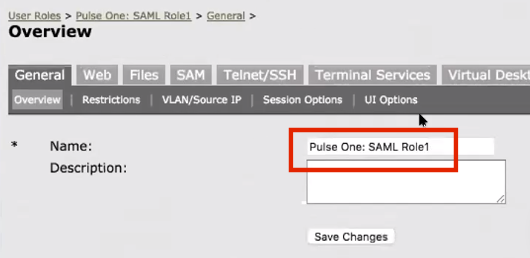
In this example, there must be a role called SAML Role1 on Pulse One.
4.Access the SAML idP configuration, see Configuring SAML idP in Pulse Connect Secure Server
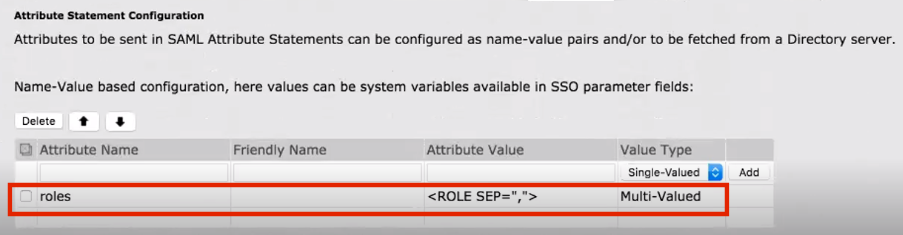
5.In the Services-Provider-related idP Configuration section, ensure that there is an Attribute Statement Configuration entry that matches the following entry:
6.Log into Pulse One.
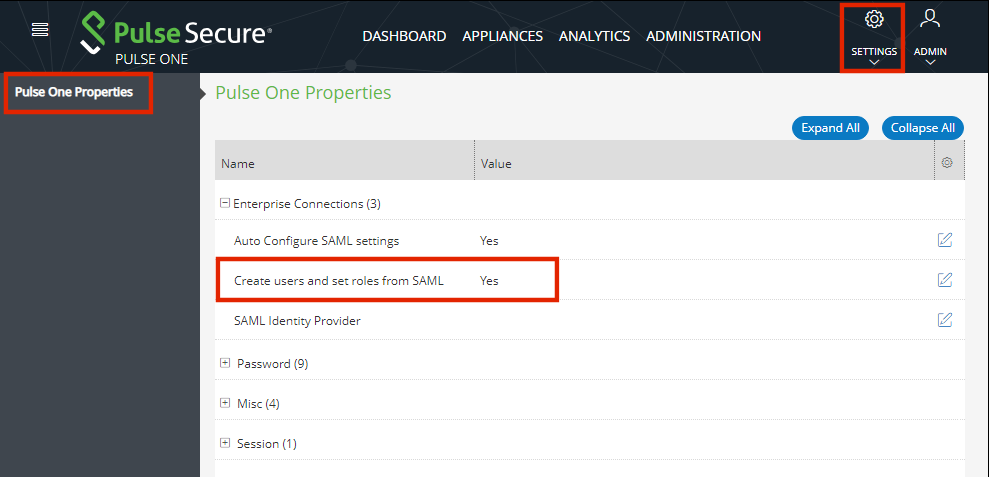
7.Click the Settings icon on top-right-corner of the page.
8.Select Pulse One Properties.
9.Under Enterprise Connections, ensure that the Create users and roles from SAML property is set to Yes.
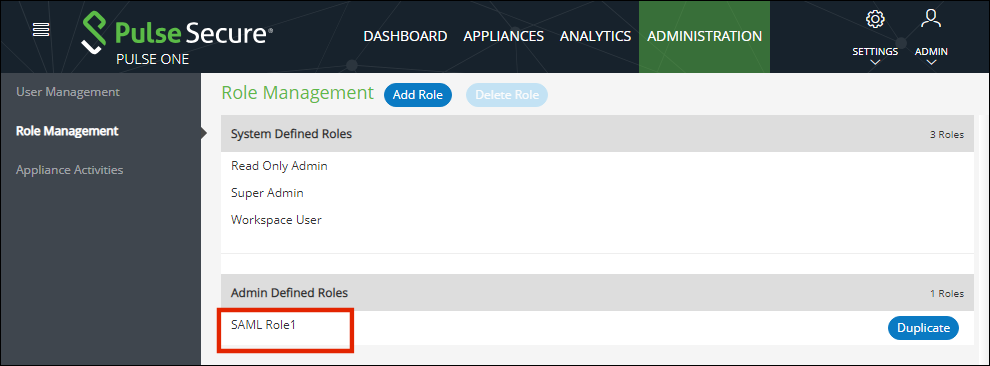
10.Select the Administration menu, and then click Role Management.
11.Ensure that there is an admin-defined role whose name was referenced in step 3. For example:
The configuration is now complete.
Whenever a SAML user logs into Pulse One using their Enterprise SSO, an equivalent Pulse One user is created for them automatically.
The user will continue to log in with their Enterprise SSO. However, their Pulse One user will enable them to use features such as appliance configuration management, and the addition of workspaces and devices.