Using Ivanti Secure Access Client with nZTA
•On-Demand Connection Handling
•Using SAML Single Logout to Force User Authentication
•Disabling the nZTA Connection
•Dynamic Policy Update and CARTA
Introduction
Ivanti provides a nZTA-ready version of the Ivanti Secure Access Client software required for end-user devices to be able to connect to your secure applications and resources.
Ivanti Secure Access Client connects to nZTA services, by default, through an on-demand connection basis and can handle nZTA and non-nZTA connections. To learn more, see On-Demand Connection Handling.
Ivanti Secure Access Client maintains communication with the Controller to continuously-enable synchronization of policy and configuration updates. Through this mechanism, user requests to access resources and applications are subject to continuous assessment for risk and authorization. For more details, see Dynamic Policy Update and CARTA.
To learn more about enrolling user devices for use with nZTA, see Enrolling a User Device.
On-Demand Connection Handling
While active, Ivanti Secure Access Client maintains two connection channels for nZTA services, a control channel to the Controller, and a data channel to your nZTA Gateways. For more details on networking considerations when deploying nZTA Gateways, see Working with Gateways.
The control channel connection to the Controller is activated when Ivanti Secure Access Client is started up and remains in an always-on state, silently in the background. If Ivanti Secure Access Client is able to locate a valid session cookie from an earlier session, the connection is re-established automatically. If no valid cookie is present, Ivanti Secure Access Client requests re-authentication from the user. The control channel is terminated when Ivanti Secure Access Client is shut down.
Ivanti Secure Access Client user sessions with a nZTA Gateway are subject to the following default timeout values:
-
5 minutes idle timeout: If Ivanti Secure Access Client does not receive any traffic within this time period, the data channel to the connected Gateway is terminated, but the user session information is retained. If the user attempts the access the same resource(s) after this time (but before the maximum session timeout), the Gateway restores the data channel using the session information it currently holds.
-
60 minutes idle timeout: If a nZTA Gateway receives no traffic from a connected client within this time period, the Gateway deletes the user session and instructs the Controller to do the same. If the user attempts to access the same resource(s) after this time, Ivanti Secure Access Client resumes the session with the Gateway automatically using cached credentials. However, if a Single Logout URL is specified in the SAML authentication methods covering user enrollment and sign-in, the user must re-authenticate manually for the connection to resume (see Using SAML Single Logout to Force User Authentication).
User sessions for client connections with other Gateways are unaffected.
-
720 minutes session timeout: If the user session reaches this maximum length, the session is terminated and re-authentication is requested from the client.
These values are the default settings. To configure custom idle timeout and max session length values for your user sessions, see Configuring Session Timeouts.
Ivanti Secure Access Client creates data channel connections to nZTA Gateways as an on-demand service. That is, connections to resources and applications controlled by nZTA Gateways become active only when required, and the connection is suspended after a period of inactivity. The user remains unaware of the connection state, unless re-authentication becomes necessary. As a user makes a request for a resource, Ivanti Secure Access Client transitions automatically from disconnected to connected. The connection remains in this state for the duration of the session, or until one of the following events occurs:
- An idle time-out occurs (after 5 minutes)
- The connection is actively placed in a disconnected state
- Ivanti Secure Access Client is shut down
To avoid the data channel being reconnected unnecessarily, non-nZTA DNS traffic is redirected to the device's physical network adapter.
Using SAML Single Logout to Force User Authentication
By default, Ivanti Secure Access Client attempts to re-authenticate a connection to a nZTA-controlled resource using cached credentials for the session. In other words, during a single valid session, a user is not required to re-enter their credentials each time the on-demand connection is reactivated following an idle timeout or manual disconnection.
To learn more about on-demand client connections, see On-Demand Connection Handling.
An organization might want to establish a policy of increased security for connecting devices, such that prior to reconnecting the user is required to re-authenticate manually with the SAML IdP. To support this, nZTA includes the ability to specify a single logout/sign-out URL in the SAML authentication method you use for user enrollment or login.
By specifying a Single Logout URL in your SAML user authentication methods, your users must re-enter their credentials each time the nZTA connection is re-established.
To add a Single Logout URL to an existing user authentication method:
-
Log into the Controller as a Tenant Admin, see Logging in as a Tenant Administrator.
-
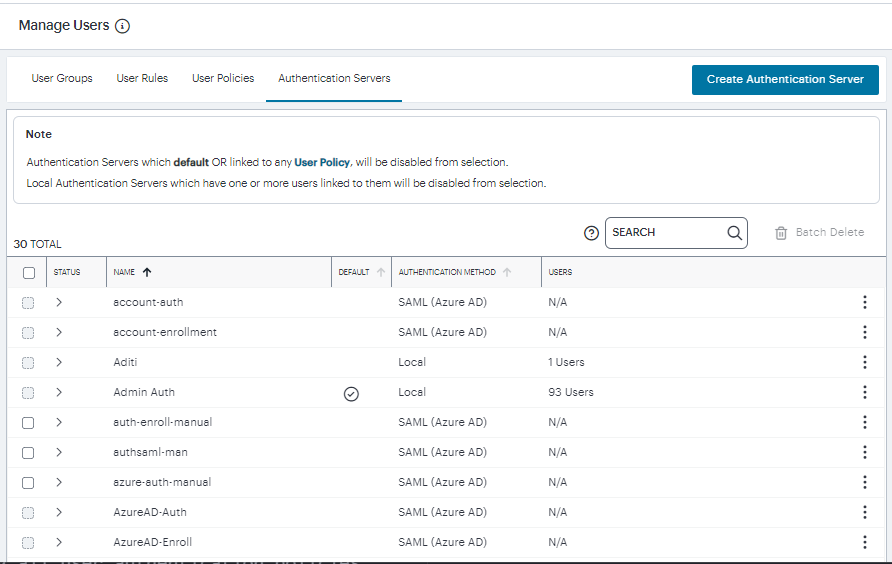
From the nZTA menu, click the Secure Access icon, then select Manage Users > Authentication Servers.
The Authentication Servers page appears. This page lists all existing user authentication methods. For example:
-
Click the three dots adjacent to the user authentication method you want to modify, and click Edit.
The Edit Authentication Method dialog appears.
-
Specify your Single Logout URL in the text box provided:
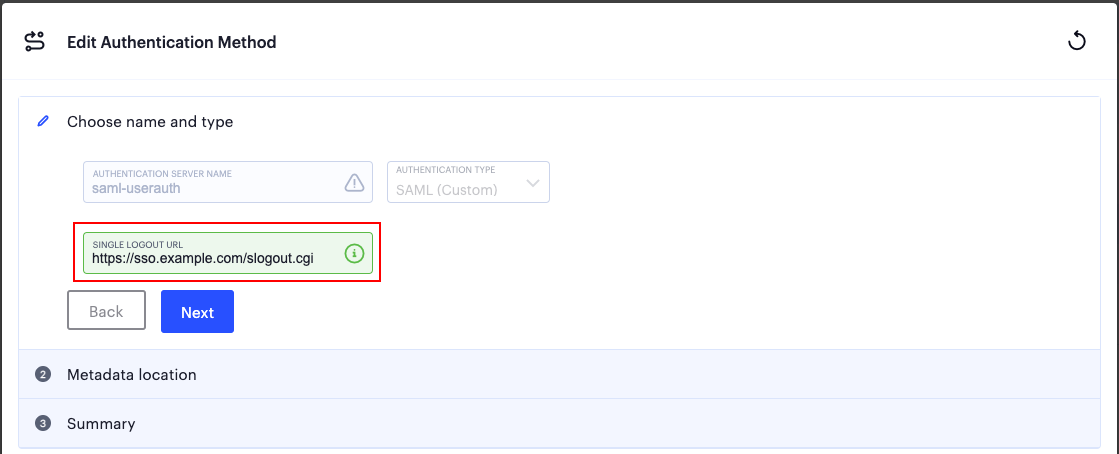
Adding a Single Logout URL to a SAML authentication method
1.To save your changes, click Save Changes.
2.Click Next, then Next again to view the Summary step.
Conversely, to re-establish the default service behavior of not requiring manual authentication upon re-connection, repeat these steps and remove the Single Logout URL from your existing authentication method.
To learn more about configuring an authentication method, see Working with User Authentication.
Disabling the nZTA Connection
Ivanti Secure Access Client additionally provides the ability to actively disable the on-demand connection feature. Use of this facility disables the nZTA connection, avoiding the scenario where Ivanti Secure Access Client attempts to repeatedly request authentication even after the user might be unable to authenticate due to too many failed attempts, or where the user just does not require access to any nZTA-controlled resources during that session.
If a user attempts to request a nZTA-controlled resource during the period a nZTA connection is disabled, the request fails. Other Ivanti Secure Access Client connections are unaffected.
To disable a nZTA connection, use one of the following mechanisms:
-
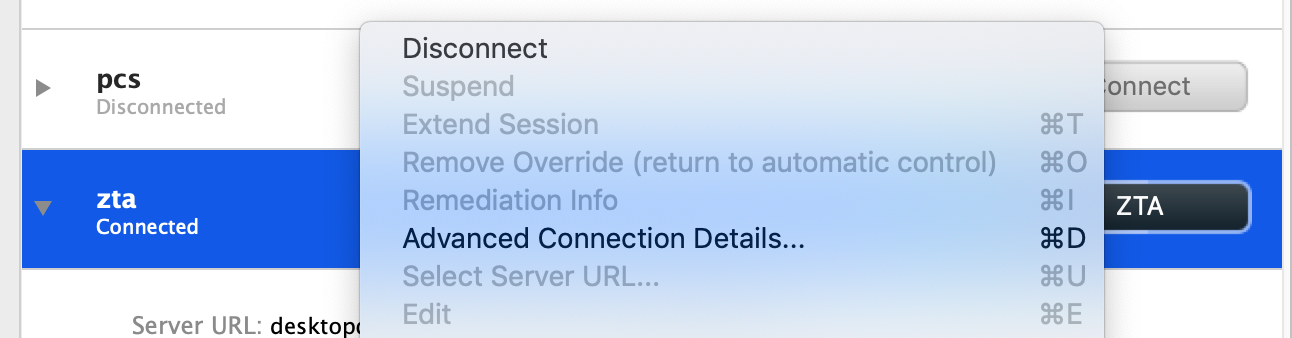
For Ivanti Secure Access Client on macOS and Windows, click Disconnect in the Ivanti Secure Access Client connection list context menu. Right-click a nZTA connection profile to see the available options.
-
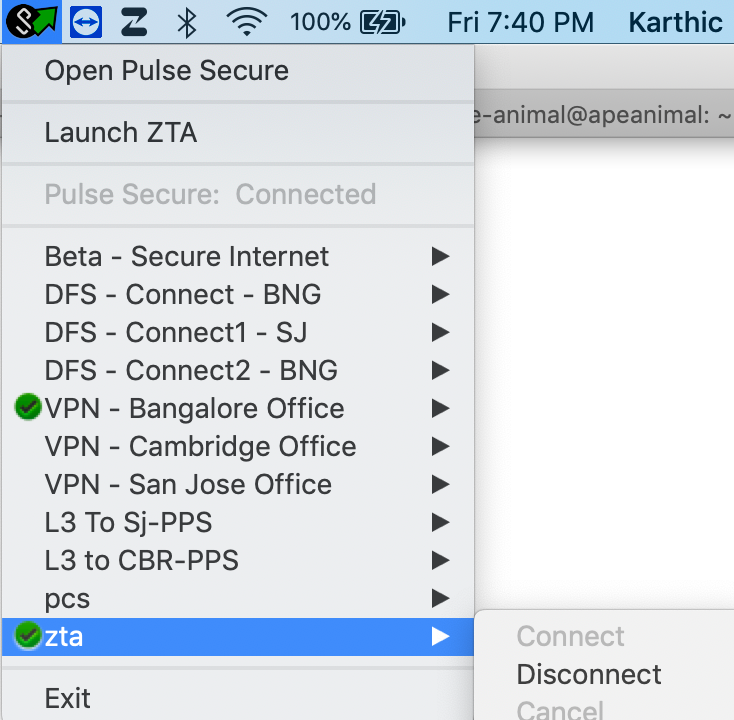
For Ivanti Secure Access Client on macOS and Windows, click Disconnect from the System Tray client icon. View the sub-menu for the nZTA connection you want to disconnect.
-
For Ivanti Secure Access Client on macOS and Windows, click Disconnect through the Ivanti Secure Access Client application menu. Open Ivanti Secure Access Client and select the nZTA connection profile. Then click File > Connections > Disconnect.
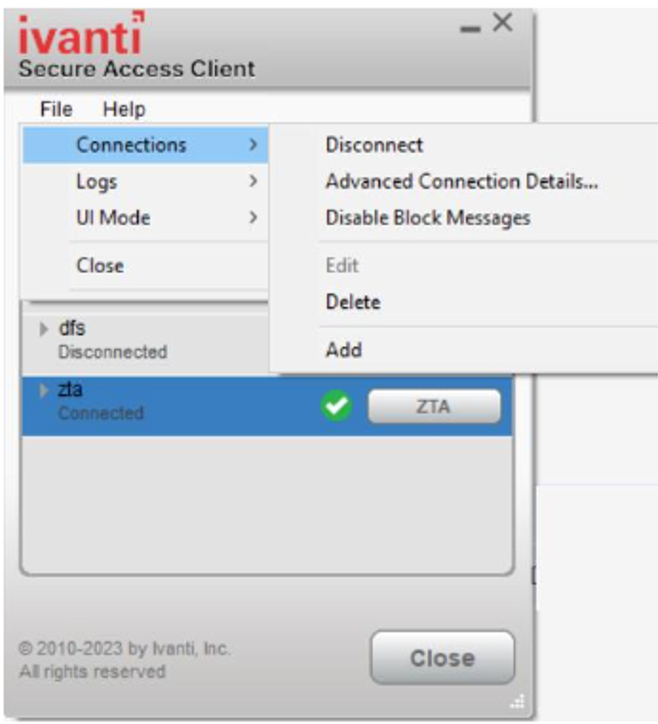
-
For Ivanti Secure Access Client on Android and iOS devices, use the Disconnect option in the Ivanti Secure Access Client application. Open Ivanti Secure Access Client, locate the nZTA connection profile, and tap the Disconnect button.
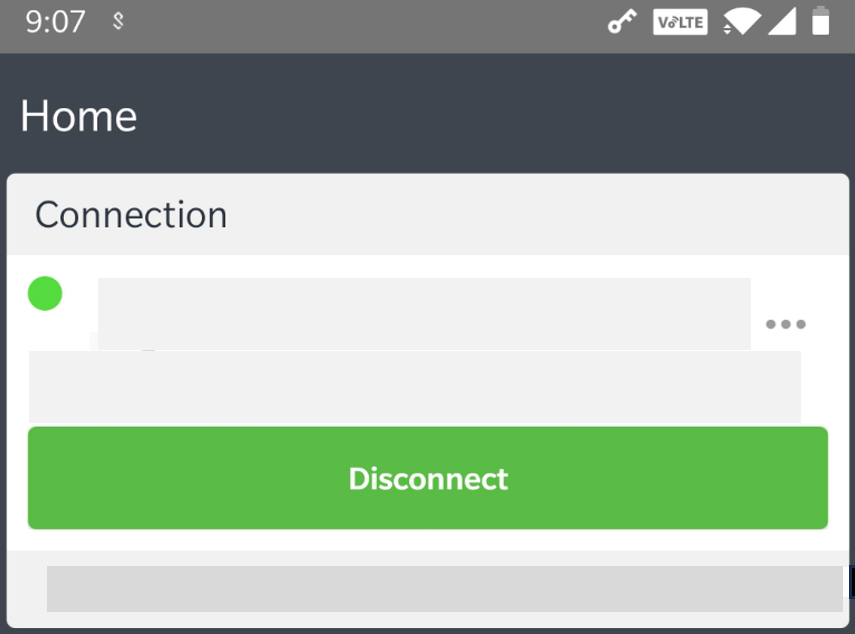
By setting the nZTA connection to be disconnected, Ivanti Secure Access Client suspends both the control channel and the data channel (where either are active). If the control channel was previously logged-in to the Controller, this remains the case to facilitate session resumption through a subsequent reconnect.
The disconnect feature is not activated by clicking or tapping Cancel in the nZTA authentication dialog. Canceling an authentication request triggers a timeout interval, after which Ivanti Secure Access Client re-displays the authentication dialog. The disconnect feature instead disables the authentication request process until the user manually reinstates it.
To reinstate the nZTA connection on macOS and Windows devices, use the Launch ZTA option in the Ivanti Secure Access Client system tray menu:
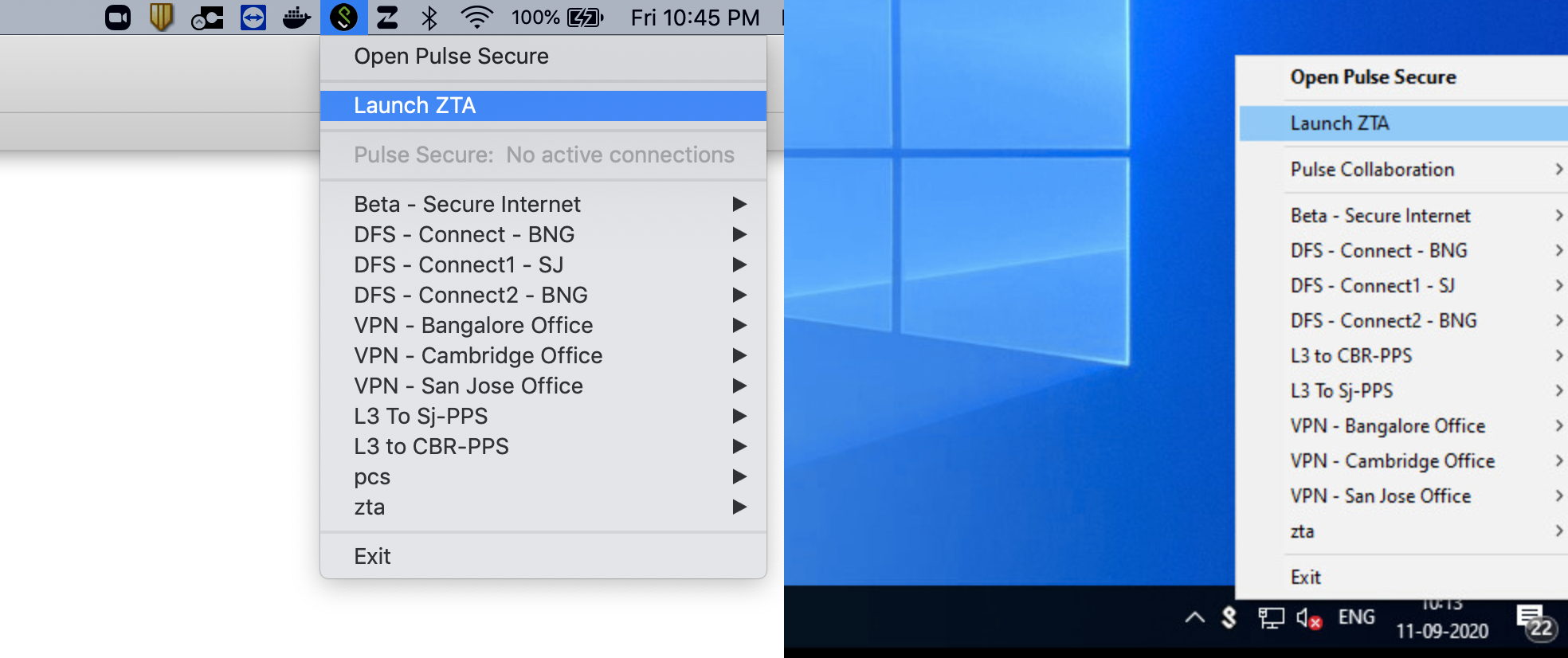
Restarting a nZTA connection through the Ivanti Secure Access Client System Tray menu (macOS and Windows variants)
To reinstate the nZTA connection on Android and iOS devices, tap the ZTA button in the nZTA connection profile in the Ivanti Secure Access Client application:
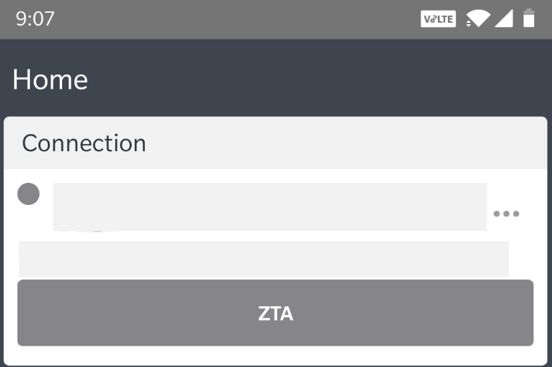
Restarting a nZTA connection through the Ivanti Secure Access Client application (Android device example)
This method also works for macOS and Windows devices.
If the existing session cookie is still valid, the control channel is re-established. If the session is now invalid, Ivanti Secure Access Client prompts the user for their nZTA credentials as normal. On successful re-establishment of the nZTA session, the user is presented with the nZTA End User Portal in the default browser.
When restarting Ivanti Secure Access Client, nZTA connections default to being on-demand services. That is, a previously disabled nZTA connection is re-enabled when Ivanti Secure Access Client starts.
Dynamic Policy Update and CARTA
To complement the zero-trust approach, nZTA supports dynamic policy updates and CARTA (Continuous Adaptive Risk and Trust Assessment) for your end user devices. This framework establishes an approach of continuous assessment and updating of secure access policies on the client, without the requirement to disconnect and reconnect to establish an updated authorization posture.
As your policies, applications, and authentication configuration are updated by the administrator on the Controller, changes are synchronized out to client devices dynamically and take effect immediately. Ivanti Secure Access Client ensures that any application updates are applied and any new authentication requirements are met before continuing the session, providing the end user with a seamlessly-updated experience. This method ensures that Ivanti Secure Access Client is always updated at the point of change, and not just when establishing a connection to a nZTA Gateway to access an affected resource.
The CARTA implementation in Ivanti Secure Access Client means that the security posture of the end user is continuously assessed in conjunction with policies configured in the Controller, with allow or deny decisions enforced through dynamic assessment and updating of the current policy set. Where application access is denied or restricted, Ivanti Secure Access Client informs the user of any access restrictions or policy contravention at the point of use. For example, the nZTA Applications Home page updates to provide visual cues with applicable error messages whenever a specific application becomes unavailable:
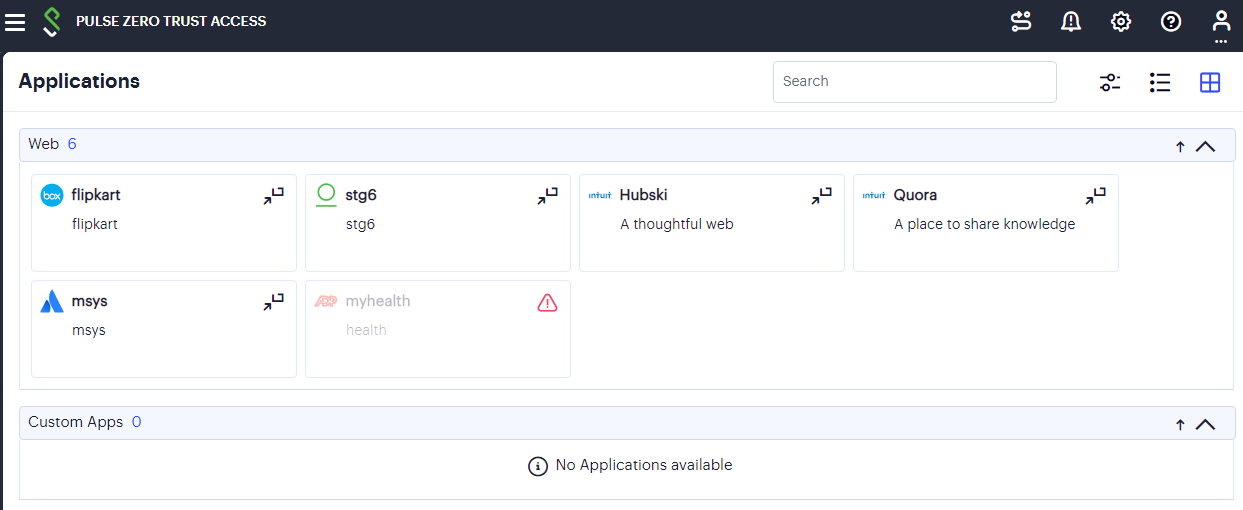
Access restricted to the "myhealth" application
By hovering your pointer over the warning symbol in the inactive application, nZTA provides an explanatory message.
Furthermore, user attempts to access a restricted web resource in a browser trigger a CARTA response with Ivanti Secure Access Client presenting a pop-up resource blocked message:
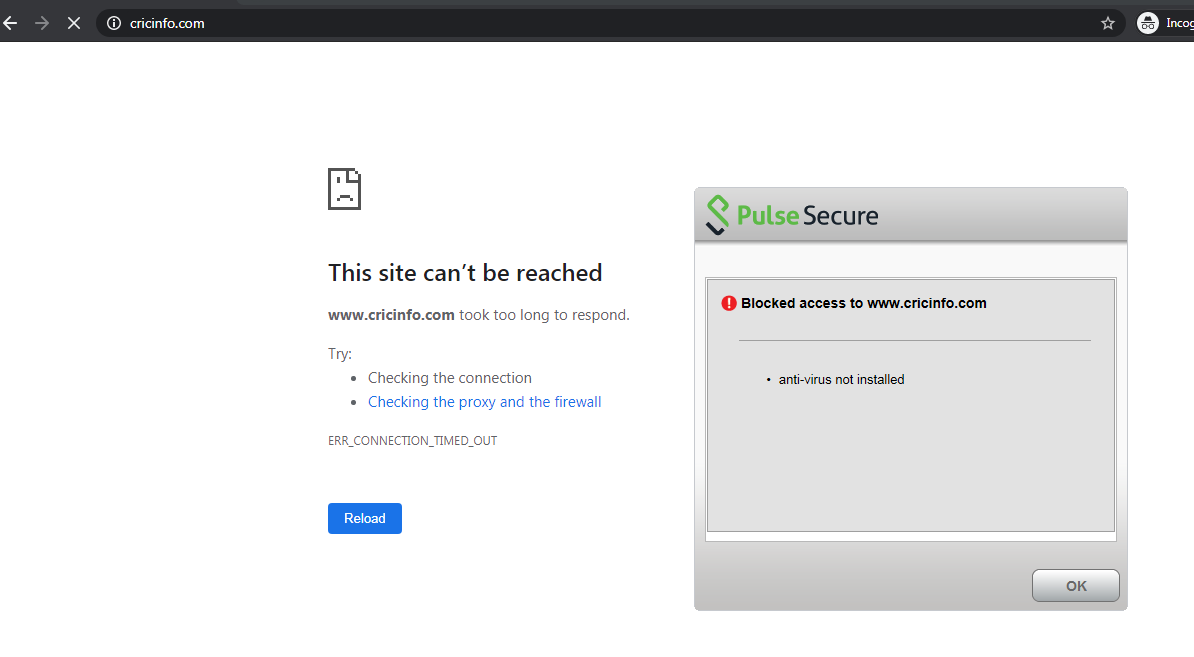
Ivanti Secure Access Client prevents browser access to a particular web resource where a device policy has been breached.
Pop-up resource blocked messages are not currently supported on Linux clients.
Ivanti Secure Access Client implements a no-repeat interval for resource blocked messages of 2 minutes, to avoid a user repeatedly seeing the same pop-up message for every browser request for the same restricted resource. While the resource remains blocked to further access attempts, no further messages are displayed by Ivanti Secure Access Client until after 2 minutes has elapsed. You can force Ivanti Secure Access Client to continue hiding blocked resource messages indefinitely by right-clicking the connection in the Ivanti Secure Access Client dialog and selecting Disable Block Messages. To re-enable showing blocked resource messages, select Enable Block Messages.
Using Application Discovery with Ivanti Secure Access Client
nZTA directs requests for a specific application towards the nZTA Gateway that is defined in the secure access policy for the application. All other applications use any available communications channels on the device, which may not be secure.
nZTA includes a built-in application discovery secure access policy on the Controller. This feature enables requests from any application that is not covered by a defined secure access policy to be handled by a default nZTA Gateway. This also enables packet analysis to be conducted from the nZTA Gateway to assess the validity of the requests.
To learn more about configuring default nZTA Gateways and application discovery, see Configuring a Default Gateway for Application Discovery.
Client version 21.1 is required to work with application discovery and a default Gateway.
Currently, a default Gateway can only be utilized by requests from applications on macOS and Windows desktop devices.
To use application discovery on an enrolled macOS/Windows desktop device:
-
Start the Ivanti Secure Access Client app on the device.
-
Confirm the update of policy definitions if required.
-
Ensure that there are no other VPN connections running on the client.
-
Start the nZTA connection and log in with your credentials.
If another VPN connection is already in operation when the user connects to nZTA from the client, the default gateway configuration is ignored, and application discovery is not supported on the device. The existing VPN will handle all unassigned application requests from the client device. When a second VPN handling unassigned requests is subsequently closed on a desktop client device, use of the default gateway is enabled automatically to support application discovery on the client device. The default gateway will then handle all unassigned requests from the client device.
The nZTA connection starts, and available applications appear. Each listed application will use the gateway assigned by a secure access policy pushed from the Controller.
The default Gateway then handles all requests from applications on the macOS/Windows desktop device that are not referenced by any other secure access policy.