Reassigning a Case
You can reassign a case to another user.
Use the following procedure to reassign a case.
| 1. | At the Service Center window, at the toolbar, click Reassign. |
The Reassign Case dialog box opens and displays the selected case's unique number.
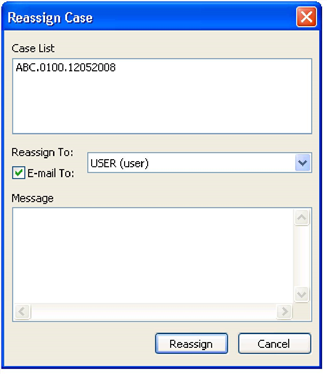
| 2. | Click the Use the Reassign To drop-down menu to select a user to whom you will reassign the case. |
To notify the selected user of the reassignment via e-mail, make sure the E-mail Notification checkbox is checked, and type your message into the Message box provided.
| 3. | Click Reassign to reassign the case or Cancel to exit the dialog without reassigning the case. |
NOTE: A History entry will be created for the Reassignment action.
