Create a New Report
This topic explains how to create a new blank report in the Report Designer. Before you start, make sure to Back Up the Current Layout before Modifying It.
To create a new report, do one of the following.
Create a New Blank Report
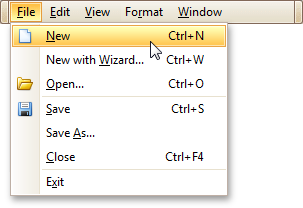
In the Main Menu, click File and then New (or press CTRL+N).
The Main Toolbar contains a button ( ) with the same function.
If there is another report already loaded in the designer, you may be prompted whether it should be saved before it is replaced with a newly created report.
By default, the created report contains three bands -Page Header and Footer, and the Detail Band.
See Also
Change Measurement Units for a Report