Agentic AI
Role: Administrator (For Configuration), Self Service users (To chat with Agentic AI bot).
Platform: SaaS only.
Minimum Version: Ivanti Neurons for ITSM 2026.1.
Feature Eligibility: Neurons for ITSM customers must purchase Agentic AI add-on license to use this capability. Once you purchase the license, reach out to your Ivanti Account Manager to enable the Enable_AI_Feature feature flag for you.
Prerequisites: Enable the global constants – ChatEnabled and IntelligentBotIntegrationEnabled. For more information, refer to List of Global Constants.
Agentic AI is a multi-agent system designed to enhance Ivanti Neurons for ITSM and related workflows to achieve goals with minimal human oversight. You can use textual prompts and natural language prompts to interact with them. For Self Service users, Agentic AI actively plans, reasons, and executes complex, multi-step tasks. The feature offers deeper integration with ITSM, including direct chat-based actions and context awareness. This AI solution transforms ITSM by automating complex workflows, providing intelligent assistance, and integrating deeply with Ivanti’s platform, maintaining strict security and compliance standards.
The key capabilities of the feature are:
•Knowledge Search and Incident Deflection: Agentic AI can search across vast, configurable knowledge bases and return well-formatted, contextually relevant answers using Retrieval-Augmented Generation (RAG). This helps to reduce ticket volume.
•Incident Agent: Enables fully automated incident creation using natural language.
•Service Request Agent: Dynamically selects the appropriate request template based on the user’s prompt and submits the request automatically.
•Q&A Service: Allows users to ask queries such as checking active incidents, incidents created last week, their status, the status of a specific incident ID, and more.
•Live Agent Handoff: Configurable options to transfer conversations to human agents when necessary.
•AI-Powered Summaries: Quickly access clear and concise summaries of essential details across any business object, powered by advanced AI.
Installation
To learn how to install Agentic AI bot interface in Microsoft Teams, refer to the Uploading the App in Microsoft Teams for your Organization section in Integrating Microsoft Teams with Ivanti Neurons for ITSM.
Configuration
To configure Agentic AI agents, follow these steps:
1.Log in to Neurons for ITSM as an Administrator.
2.Open the Configuration console and select AI Configuration Hub > Agentic AI.
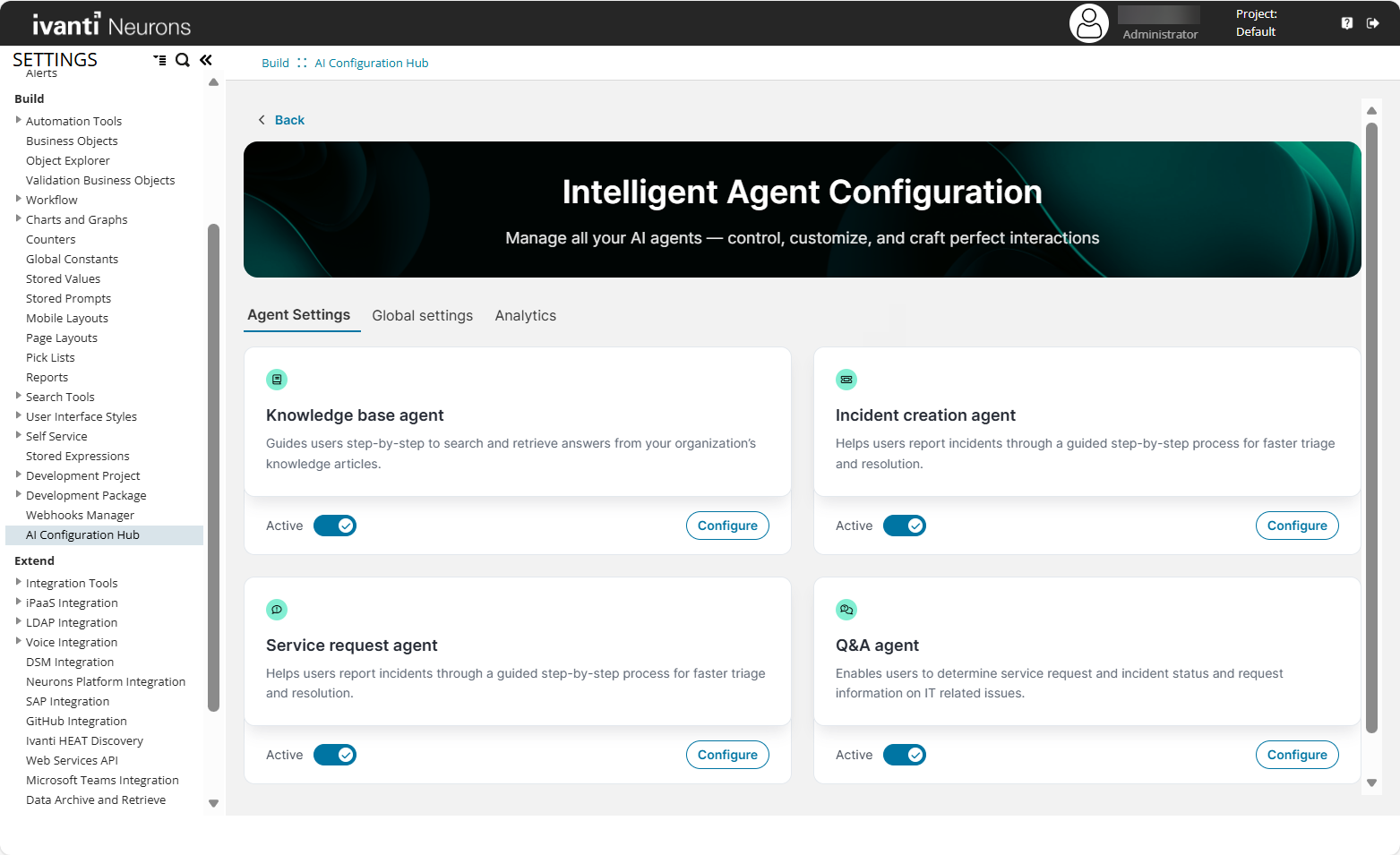
3.Under Agent Settings, click the radio button to enable and configure the agent of your choice.
The following image shows the Agent Settings page for enabling Agentic AI agents.
4.Under Global settings, configure the following general settings:
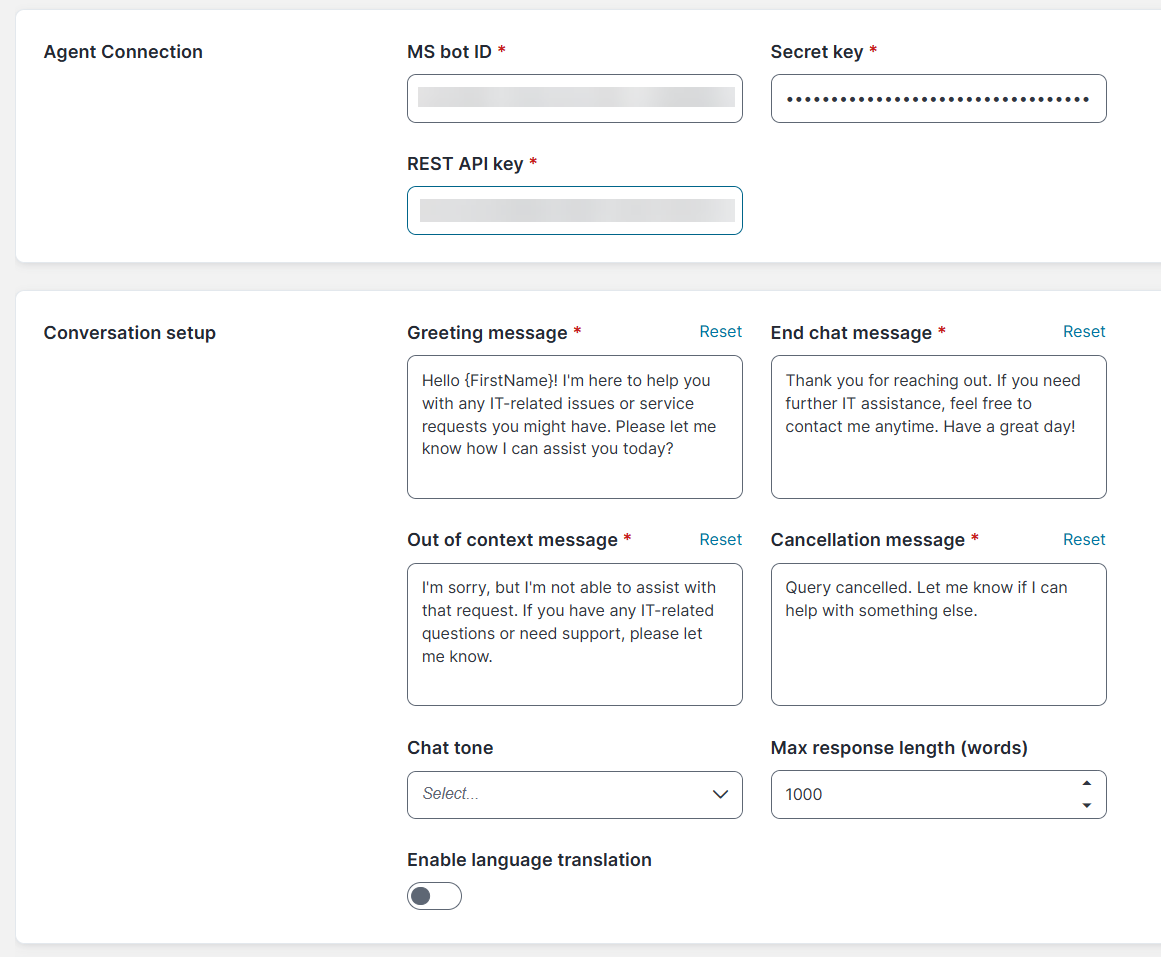
| a. | Agent Connection: |
•MS bot ID: Enter the MS bot ID.
•Secret key: Enter the Secret key.
To know how to set up MS bot ID and Secret key, refer to Integrating Microsoft Teams with Ivanti Neurons for ITSM.
•REST API key: Enter the REST API key. This key will be used only for metadata access. Ensure that the appropriate permissions are available for this. For more information on REST API key, refer to Using the REST API Key.
| b. | Conversation setup: |
•Greeting message: Enter the welcome message to begin the chat.
•End chat message: Enter the thank you message to conclude the chat.
•Out of context message: Enter the error message to display when users ask an out-of-context question.
•Cancellation message: Enter the message to display when a query is cancelled.
•Chat tone: Choose the chat tone — Professional, Empathetic, Casual, or Neutral.
•Max response length: Set the maximum length for chat responses that users can enter.
| c. | Escalation Handling: |
•User Interaction Timeout (seconds): Enter the idle time (in seconds) after which the session will expire. The default value is 300 seconds. The maximum allowed value is 600 seconds.
•Allow transfer to live agent: Enable the toggle button to transfer the interaction to the Ivanti Support Team in cases where the agent bot cannot support the user with a specific query.
This is the master button for all live agent transfer capability. If this toggle is disabled, neither agents nor agent bots can perform live agent transfers — regardless of individual settings or user requests made through a chat prompt. If you enable this toggle, ensure that the Live Agent button is also enabled for each individual agent; only then will live agent transfer be active for that agent.
| d. | Agentic Processing: |
•Display Agent Thinking Steps: Enable the toggle button if you want to see the agent’s thought process. If disabled, only a progress bar is shown.
| e. | Generate template embeddings: |
Click the Generate for all templates button to re-generate the template vector embeddings for the Incident templates, Service Request templates, and Knowledge Business Objects. This step is required if the users add new Incident or Service Request templates that they want to be searchable by the Incident or Service Request agent.
| f. | Advanced settings: |
In the Default intent description box, enter a description to define the scope of the agents.
The provided description educates Agentic AI and determines the scope of what the AI can and cannot handle. Let's consider the case of Service Request as an example. If you define the types of service requests the user can interact with, such as Installation, Hardware, and Software, then if a user tries to create a Service Request for Provisioning, the agent considers it as an out-of-context question and shows the message you defined in the Out of context message field.
Modifying the intent description may result in unpredictable agent behavior. We recommend that only users with experience in LLM prompt engineering make these changes.
The following image shows the Global settings page.
Fields marked with an asterisk (*) are mandatory.
After completing the configuration, you are ready to use the Agentic AI bot. To learn how to use the AI bot, refer to the Sample use case.